Account Set Up, Logging In
Last updated: April 30, 2026
Initial sign in flow (post PAXAFE invite)
Depending on how your account is configured, you will utilize one of 3 options for signing in to the PAXAFE platform.
Utilize your Google or Microsoft social account to log in automatically.
Manually create your User Account and Password
Leverage your organizations SSO process (customer inegrations)
SSO social sign-in flow
Navigate to app.paxafe.com
Select your email account type (Google or Microsoft)
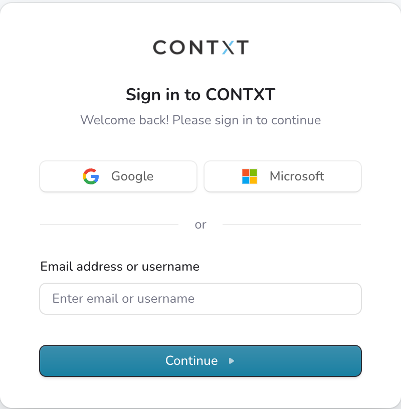
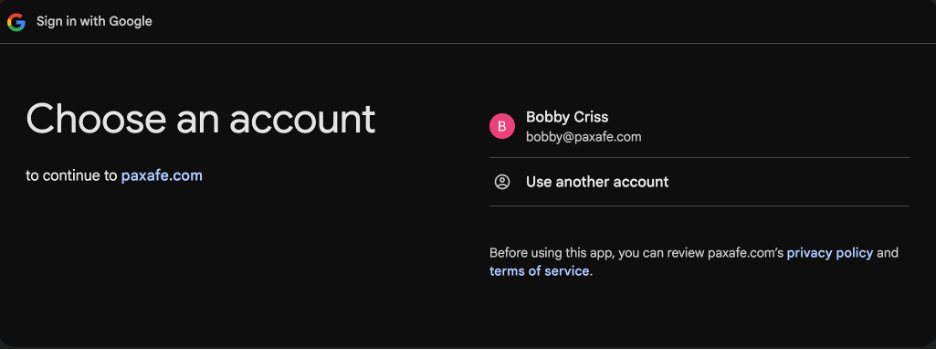
Google Single Sign-On
Select your account to gain access.
Microsoft Single Sign-On
1. Select your account to gain access.
Manual Account Creation
(Pending)
Custom SSO
Follow your organizational policies and procedures. This normally entails entering your workplace email and password when prompted.
Reset password
Resetting a password only applies to accounts that are not configure with Single Sign on.
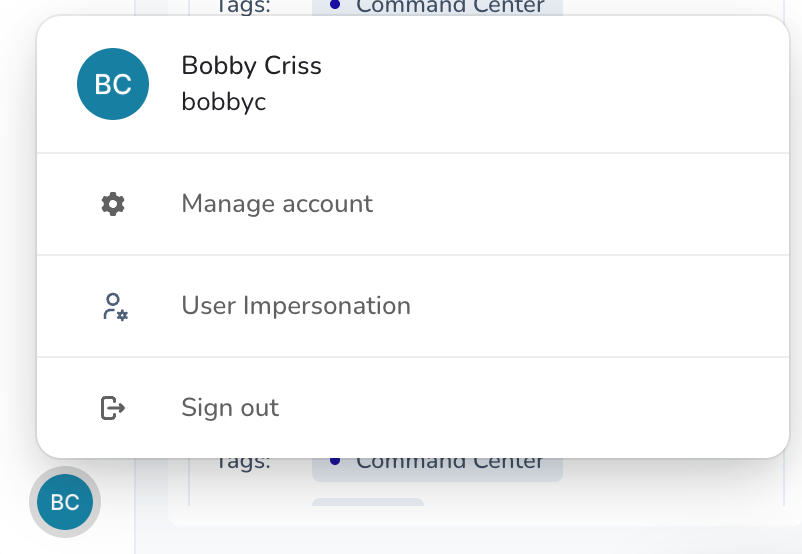
Click on the icon with your initial’s on the bottom left of the screen to access.
Select Manage account from the menu of options.
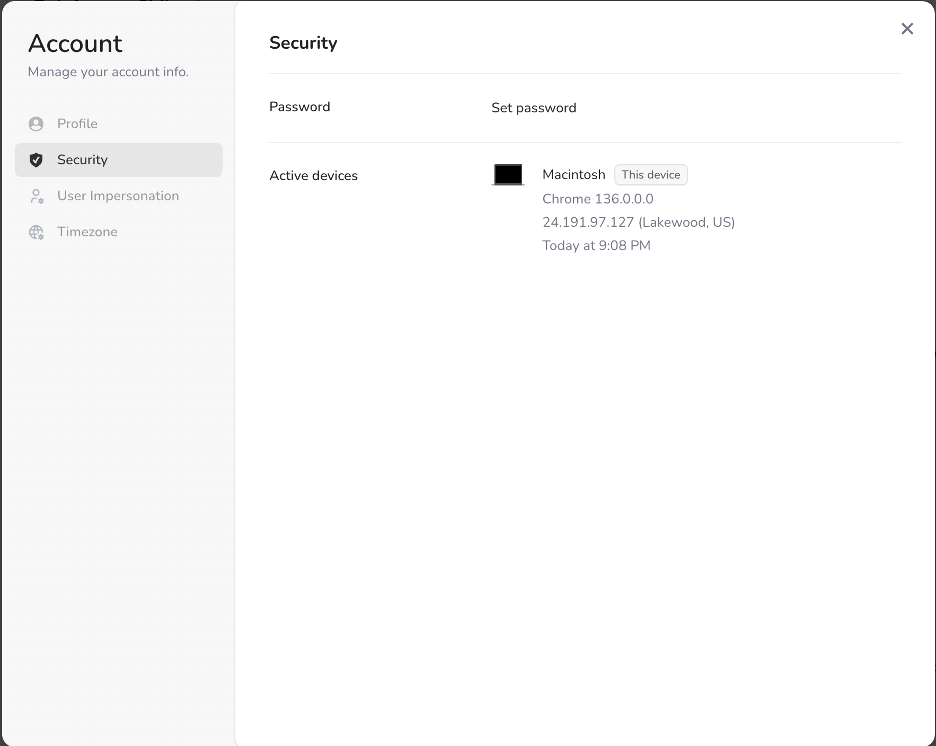
Select Security in the menu on the left of the screen, and you will be presented with an option to reset your password.
Invite new user
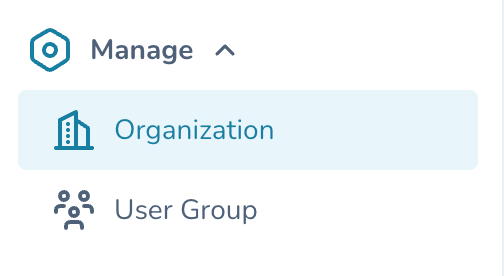
In the Main Menu, navigate to Manage, and select Organization
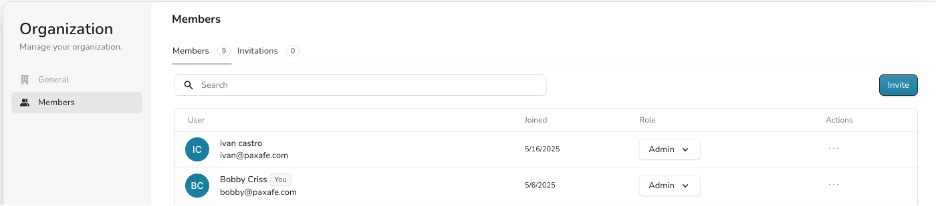
In the menu on the left of the Organization screen, select Members. Then click on the Invite button on the top right of the screen.
Enter the email address of the user you want to add.
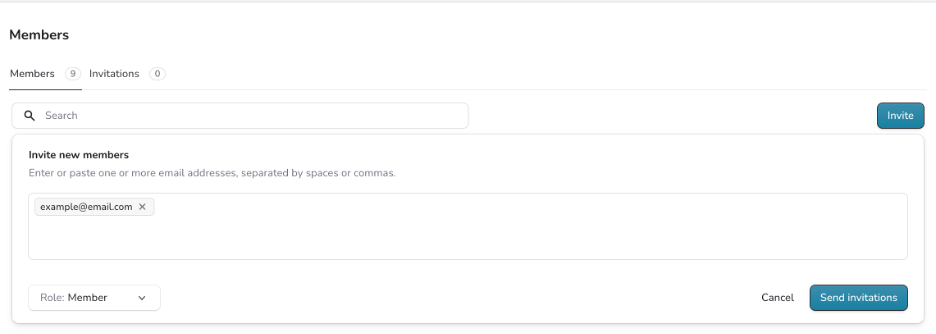
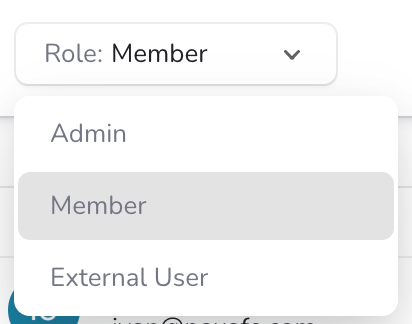
Click on the Role drop down menu and select the correct role.
Roles Descriptions
Admin – Full access
Member - Controlled General Access
External User - Limited Access
Document Version: 1.1
Last Updated: 11/20/2025
Updated By: Jacqueline Diaz