The shipment list
Last updated: September 19, 2026
The List view is where you scan many shipments at once. In CONTXT v3.0 it gets two new columns, hover cards that answer the common questions without opening a shipment, keyboard shortcuts for folding groups, and a Display panel to shape the table the way your team works. The aim is the same as everywhere in v3.0: fewer clicks, and only the information you need to decide which shipment to open.
Where to find it: Command Center › List (top right, next to Map)
New columns
Switch to List in the top right. Shipments are grouped by their state (In Transit, At Destination, At Origin, Created, Delivered), and each group has a bar with its own counts.
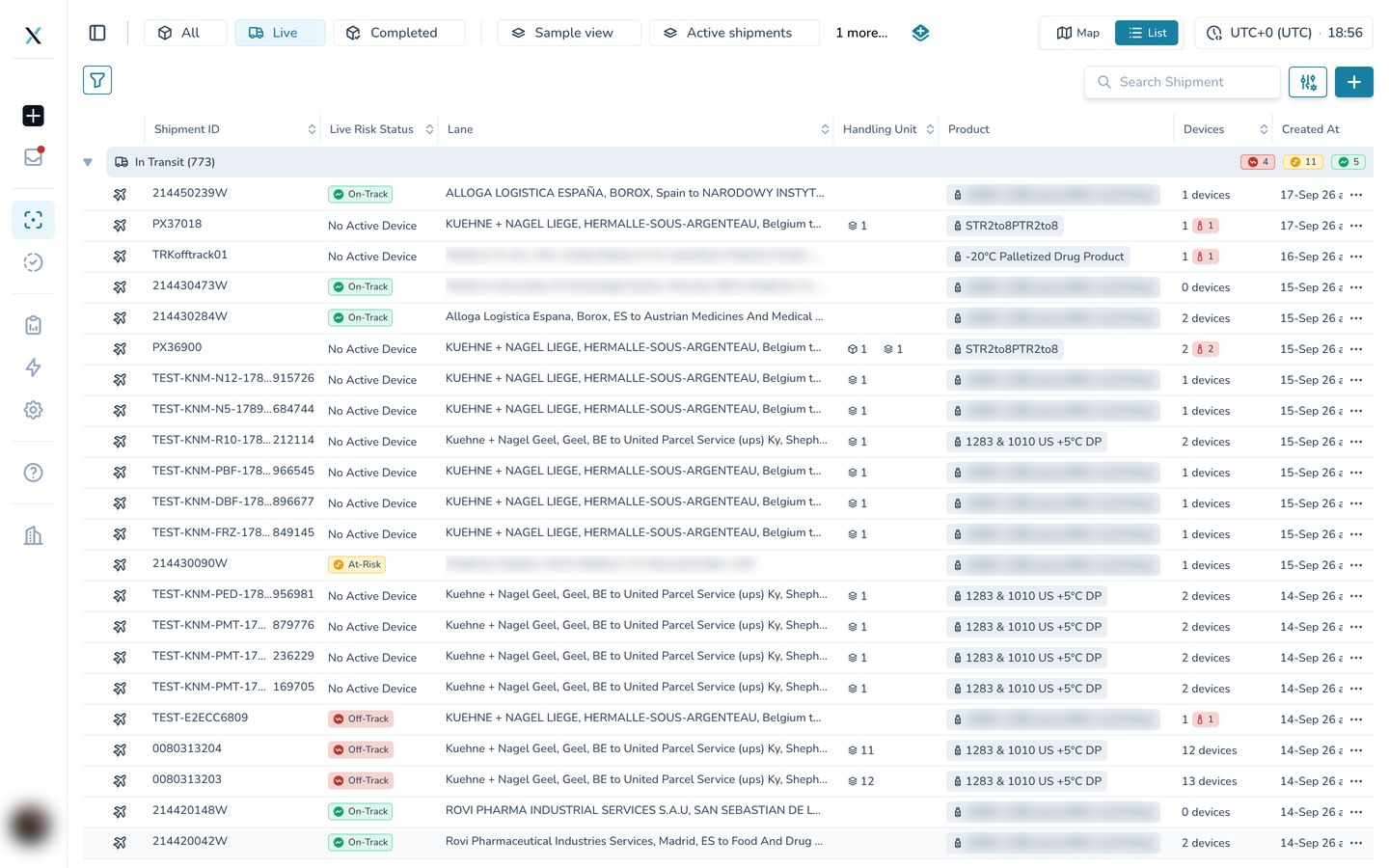
Mode of Transportation, pinned first
The first column is new: an icon for how the shipment is moving (air, road, sea). It is pinned, so it stays in view when you scroll sideways, and the Shipment ID is pinned right after it. Together they make every row recognisable before you read anything else.
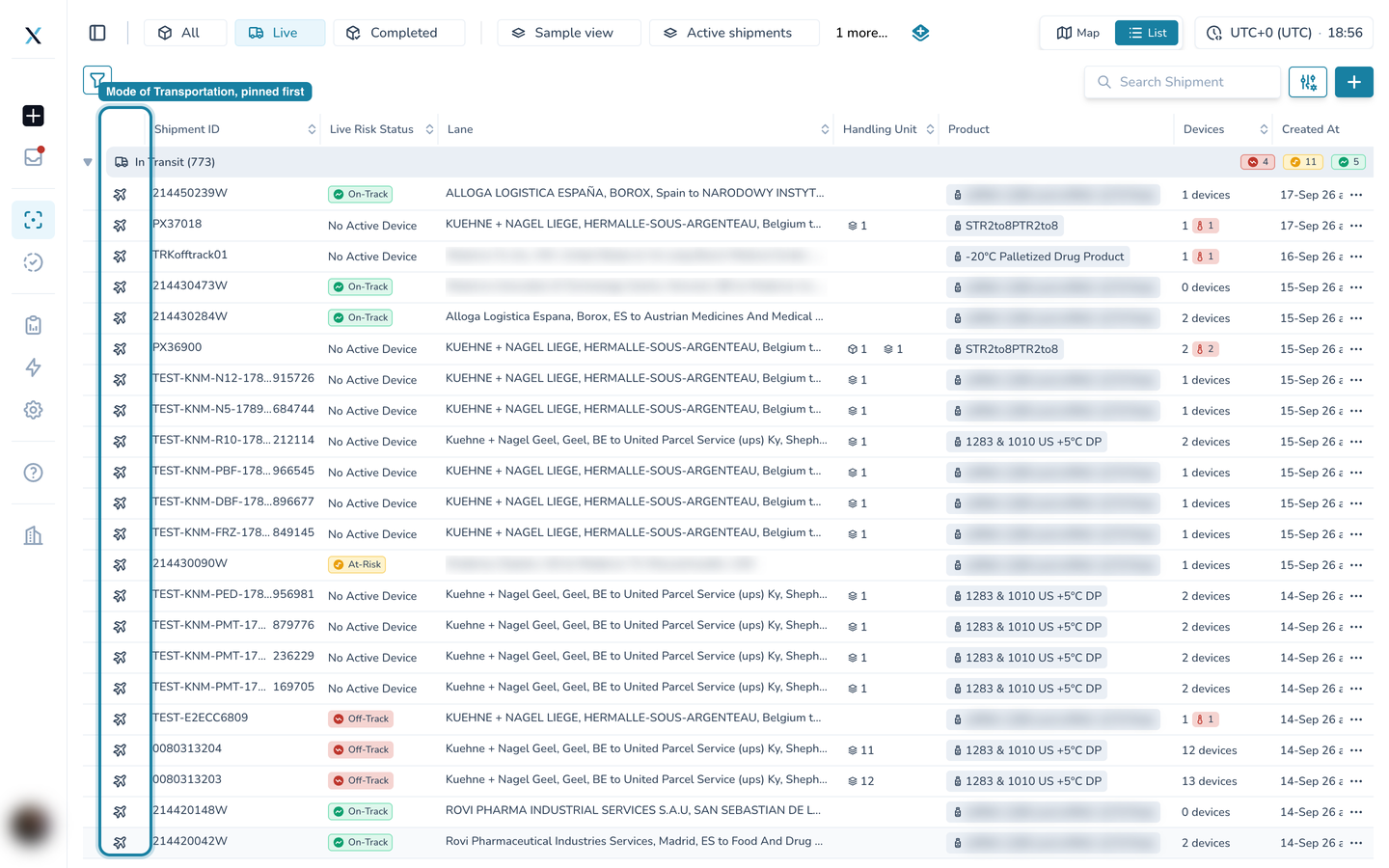
The group bar
Every group bar shows the group's state and shipment count on the left, and three chips on the right: how many shipments in the group are Off-Track (red), At-Risk (amber) and On-Track (green). You can see where the problems are before you expand anything. The triangle on the far left folds the group.
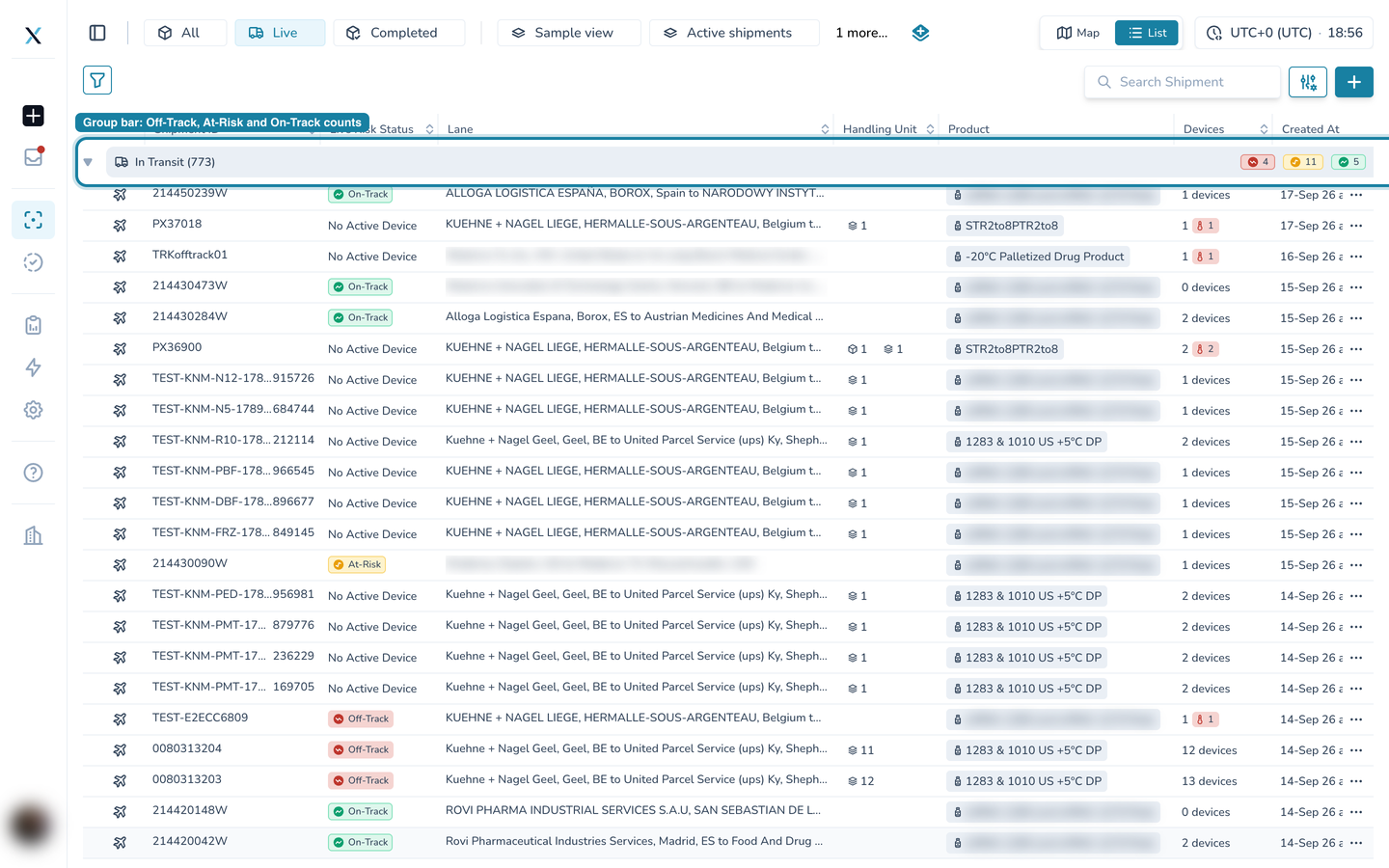
Live Risk Status
This column carries the Live Risk Agent's verdict for each shipment as a colored pill.
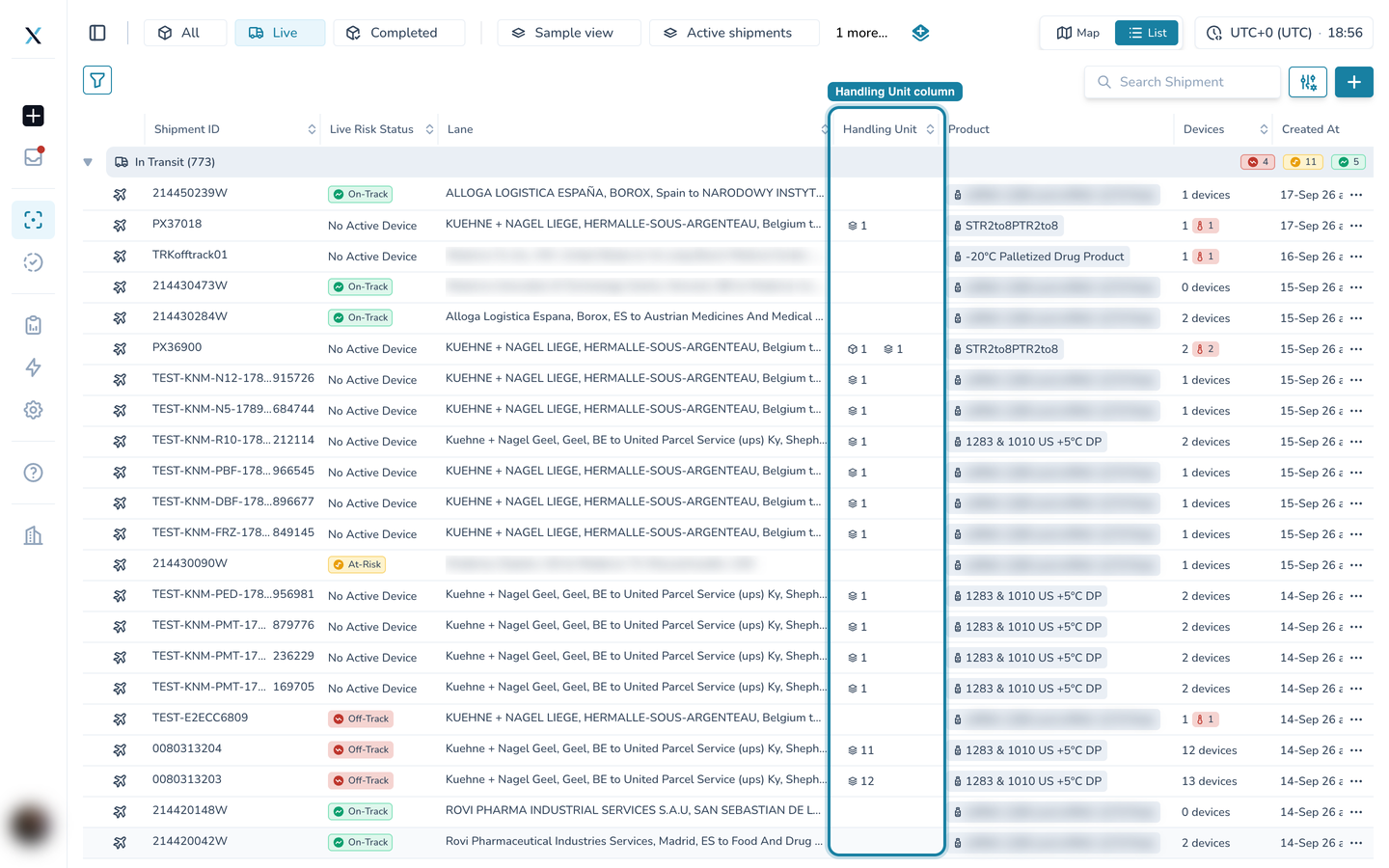
Handling Unit
The other new column. It shows how many handling units (pallets, boxes or containers) the shipment carries. When a handling unit has a registered packaging model, a second icon shows the model count.
Hover for the detail
Three columns open a card when you hover them, so you can answer a question without leaving the list.
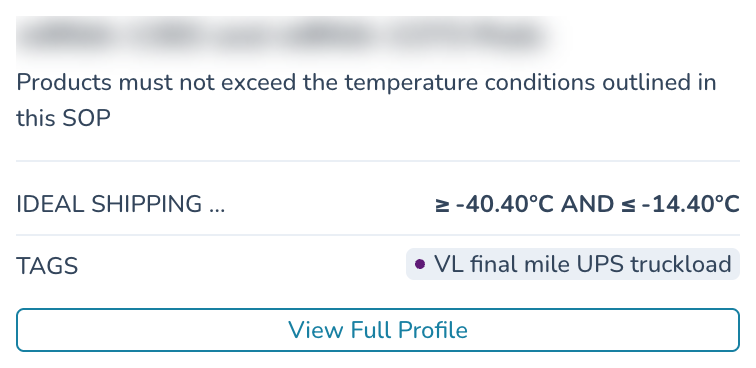
Product. Hover a product pill for the product profile: the name, the SOP note, the IDEAL SHIPPING temperature range and the profile's tags, with a View Full Profile link.
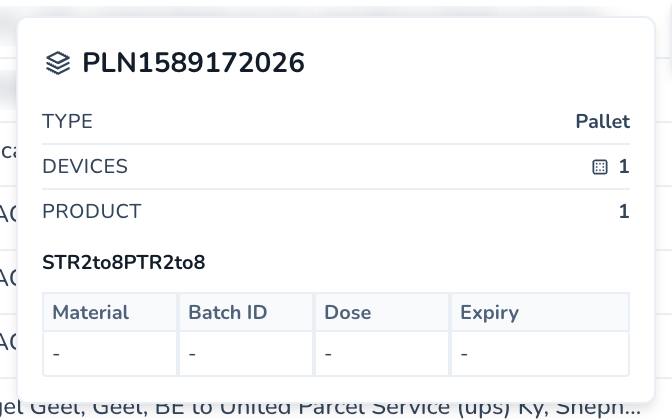
Handling Unit. Hover the count to see the list of handling units on the shipment, then move onto one to open its card: TYPE, DEVICES, PRODUCT, the product name and the Material, Batch ID, Dose and Expiry table.
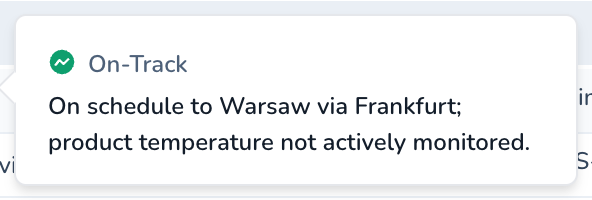
Live Risk Status. Hover a verdict pill for the agent's one-line reason, the same sentence you see at the top of the shipment page.
Collapse/Expand groups with the keyboard shortcuts
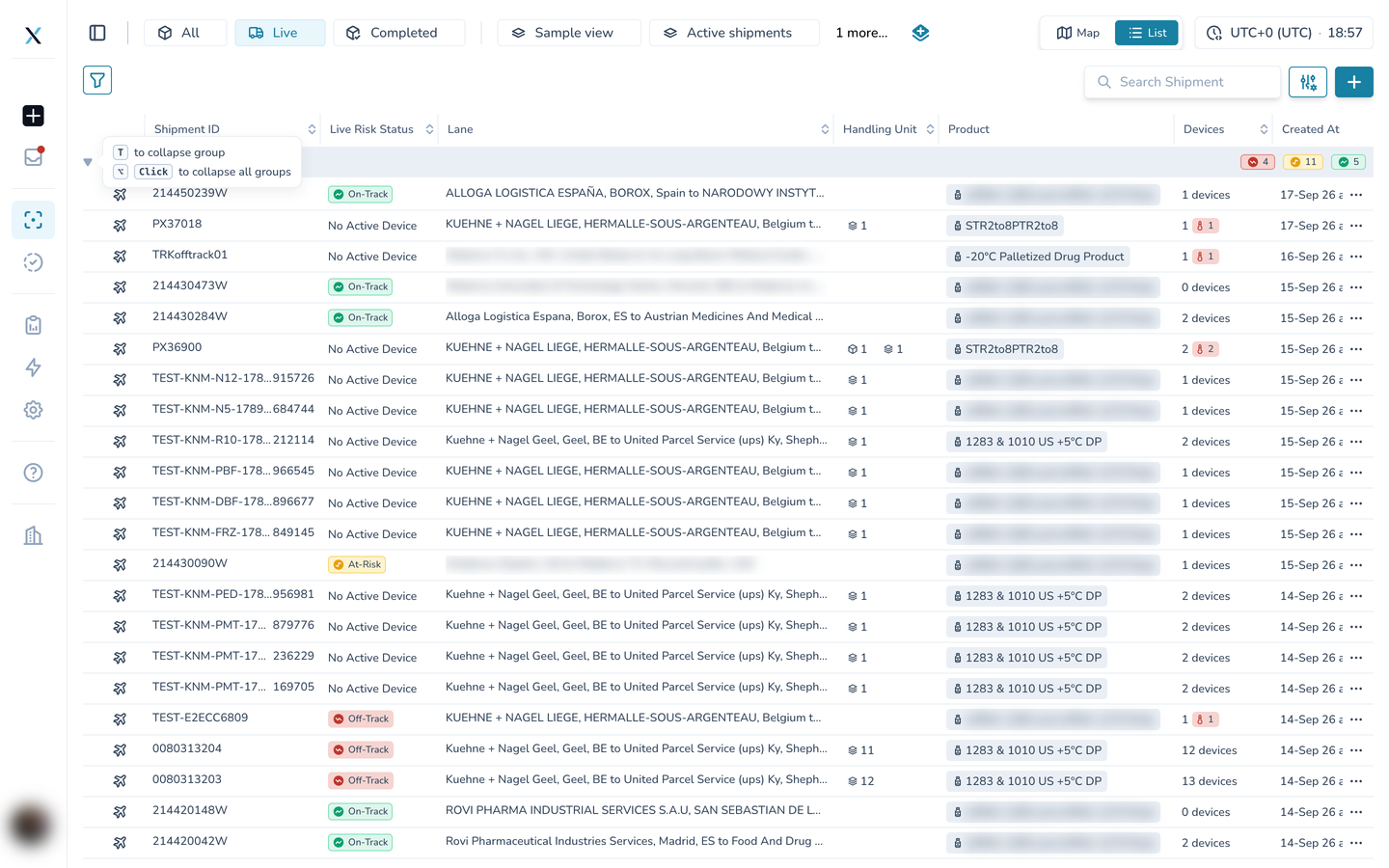
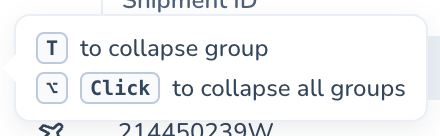
Hover the chevron at the left of any group bar and a hint appears with the two shortcuts. The hint changes with the group's state, so it always tells you what will happen.
The shortcut hint shown on a group's triangle
Press T while your mouse is over a group to collapse it, or to expand it again.
Hold Alt (Option on a Mac) and click a triangle to collapse every group at once, or to expand them all.
Collapsing everything turns the list into a summary: five bars, each with its verdict counts. Expand only the group you want to work in.
Step 4. Shape the table in the Display panel
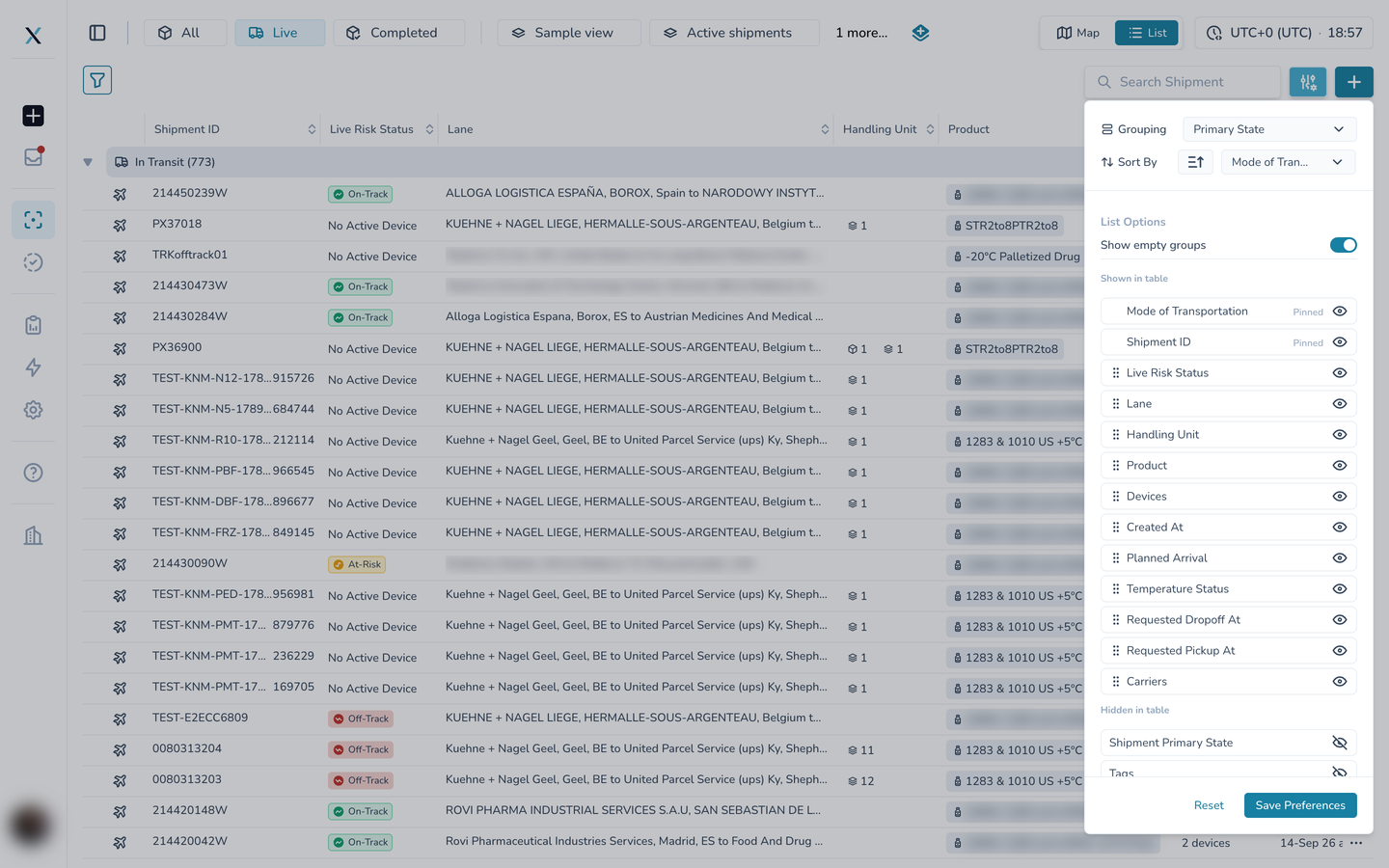
The Display button (the sliders icon next to Search) opens the panel that controls the table:
Grouping picks what the groups are, for example Primary State.
Sort By picks the column and direction.
Show empty groups keeps groups with no shipments visible.
Shown in table lists the visible columns in order. Drag the handle to reorder, or click the eye to hide a column. Mode of Transportation and Shipment ID are marked Pinned and always stay first.
Hidden in table lists the columns you can bring back.
Select Save Preferences to keep your layout, or Reset to return to the defaults.
Good to know
The verdict in the Live Risk Status column is the same one shown on the map marker, the quick details card and the shipment page.
Long values are cut with an ellipsis and shown in full on hover, so rows stay one line high.
Your column layout is saved per user. Reset returns the table to your organization's defaults.
Part of the CONTXT v3.0 release