Filters and Saved Views
Last updated: April 24, 2026
Introduction
Filters and Saved Views allow you to customize how you view and track shipments, creating personalized dashboard views that focus on the information most relevant to your needs.
The Filters and Saved Views feature helps you manage large volumes of shipment data efficiently by letting you focus on specific subsets of shipments based on your monitoring priorities. Whether you're tracking high-risk shipments, managing deliveries to a specific location, or monitoring temperature-sensitive products, this feature gives you the flexibility to create tailored views of your supply chain operations.
What are Filters and Saved Views?
Filters let you narrow down the shipments displayed based on specific criteria such as status, location, timing, and more. By combining multiple filters, you can create highly targeted views of your shipment data.
Saved Views allow you to save your filter configurations for future use, making it easy to switch between different perspectives of your shipment data. Views can be shared across your organization, enabling consistent monitoring of specific shipment categories.
Default System Views
The Command Center includes several pre-configured views:
Active: Shows all currently active shipments
Completed: Shows all completed shipments
Creating a New View
Check out this video to learn how to create and use a custom view.
In case you don't like videos, here's a step by step guide on how to create a customized view of your shipments:
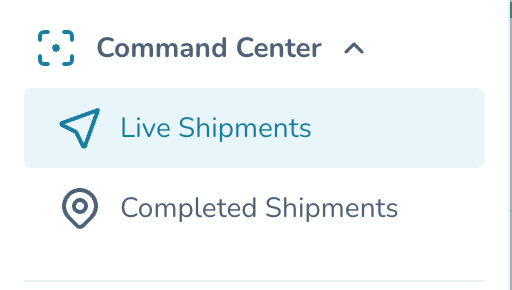
Navigate to Live Shipments
Click the "New View" button in the tab bar

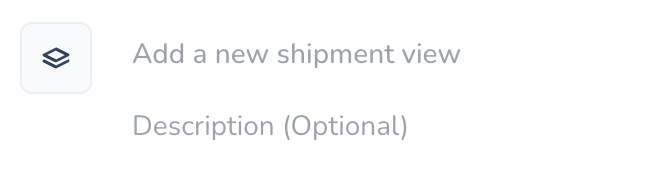
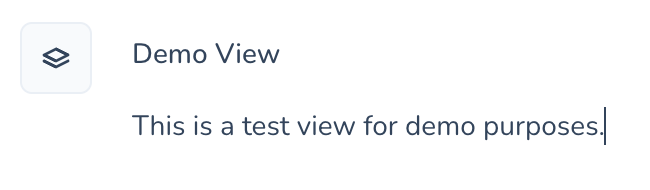
Enter a name for your view (optional: add a description)
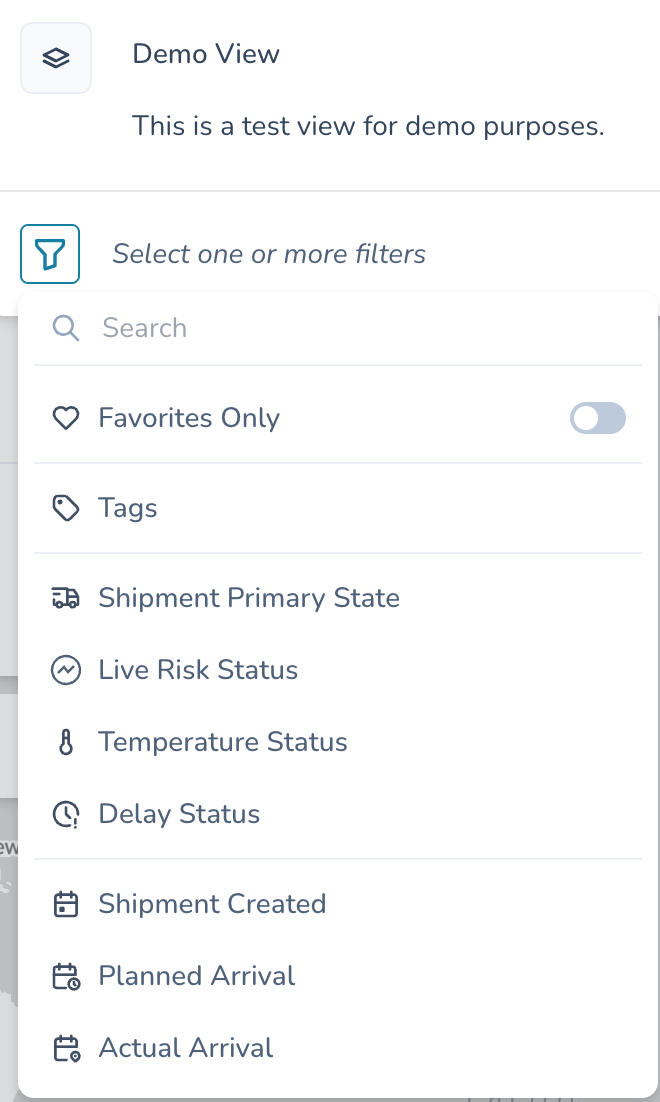
Select the filters you want to apply:
Click the filter icon to open the filter selection menu
Choose a filter category (e.g., Tags, Primary State, etc.)
Select the filter condition (is, is not, before, after, etc.)
Choose or enter the filter value
Repeat to add multiple filters
Click "Save" to create your view
Managing Saved Views
Once you've created views, you can:
Access: Click on any view name in the tabs at the top of the screen
Edit: Click the pencil icon on an existing view to modify its filters
Duplicate: Use the "Duplicate" option to create a copy of an existing view
Delete: Remove views you no longer need
Mark as Default: Set a view to display automatically when you open Live Shipments
Filter Options
The Command Center offers a wide range of filters to help you precisely target the shipments you need to see:
Status and Risk Filters
Filter Description | |
Primary State | Filter by shipment stage (created, at-origin, in-transit, at-destination, delivered, completed, cancelled) |
Live Risk Status | Focus on shipments by risk level (off-track, at-risk, on-track) |
Temperature Status | View shipments with temperature issues (excursion, deviation) |
Impact Factors | Filter by specific risk types (delivery, temperature, external events, device, packaging) |
Impact Factor Risk Level | Secondary filter for Impact factor to focus by risk levels (off-track, at-risk, on-track) |
Delay Status | Focus on timing issues (on-time, delayed, predicted delay) |
Date and Timeline Filters
Filter Description | |
Shipment Created | Filter by creation date |
Shipment Completed | Filter by completion date |
Planned Arrival | Filter by planned arrival date |
Predicted Arrival | Filter by system-predicted arrival |
Actual Arrival | Filter by actual arrival date |
Shipment Details and Logistics
Filter Description | |
Lane Profile | Filter by specific route profiles |
Origin | Filter by starting location |
Destination | Filter by delivery location |
Carrier | Filter by logistics provider |
Transport Mode (MoT) | Filter by transportation type (air, sea, road) |
Product | Filter by product type or name |
Batch ID | Filter by specific batch identifiers |
Device and Monitoring
Filter Description | |
Device Provider | Filter by tracking device vendor |
Tags
Filter Description | |
Tags | Filter by custom tags applied to shipments |
Filter Logic Options
Each filter can be applied using various logic operators:
is/is not: Match or exclude exact values
is any of / is none of: Match or exclude from a set of values
contains/does not contain: Search within text fields
before/after/on: For date-based filters
include/exclude/include all of / include any of: For tag-based filtering
Working with Multiple Filters
Combining Filters
Filters work together using AND logic - all conditions must be met for a shipment to appear in your view.
Example Filter Combinations:
High-Risk Shipments in Transit
Primary State is "in-transit"
LiveRisk Status is "off-track" or "at-risk"
Temperature-Sensitive Deliveries to a Specific Location
The destination is [specific location]
Product is any of [temperature-sensitive products]
Impact Factors is "temperature"
Today's Expected Arrivals
Planned Arrival is "on" [today's date]
Primary State is "in-transit"
Saved Shipments
The platform also provides a "Saved Shipments" section where you can:
Bookmark specific shipments for quick access
Track up to 10 priority shipments
Access regardless of what filters are applied
Tips and Best Practices
Effective Filter Use
Start with broad filters and progressively narrow down
Name your views descriptively for easy identification
Create separate views for different aspects of your workflow
View Organization
Keep the number of views manageable (delete unused views)
Use consistent naming conventions for related views
Set your most commonly used view as the default
Performance Consideration
Very complex filters with multiple conditions may take longer to process
For faster loading, focus filters on the most essential criteria
Real-world views and filter examples
Need Help?
If you encounter any issues with Filters and Saved Views, please contact your platform administrator or our support team at support@paxafe.com.