The shipment detail page: less noise, fewer clicks
Last updated: September 19, 2026
The shipment detail page has been redesigned for one job: helping you decide what to do about a shipment, fast. It shows only the information you need to act, in the order you need it, and it leaves the rest one click away. Live Risk does the reading for you and states its verdict in a sentence. Every action on the shipment now lives in the top right corner, so you are never hunting through panels for a button.
What has changed in practice:
One place for actions. Copy, Share, Download, Files, Comments and Activity History sit together in the top right of the page. Edit, Complete and Cancel sit under the three dots on the header card.
Only the essentials on screen. The header, the journey, the last known location and the Live Risk verdict. Reference details such as order numbers, carrier references and tags moved into a hover panel instead of a long accordion.
Fewer clicks to the answer. The Live Risk band tells you the verdict and the reason without opening anything. The timeline and the devices open beside the map, and files, comments and history open in drawers, so you never lose your place.
Built for the agent. The Live Risk Agent now assesses every shipment and writes its conclusion into the band. The page is laid out around that verdict, with the evidence underneath it.
This guide walks through the page from top to bottom, then through the actions and tabs.
Where to find it: Command Center › any shipment (click View Shipment Details on the quick details card, or a row in the list)
Read the page top to bottom
Everything you need to act is in the top half of the page. The map underneath gives the route and the position context.
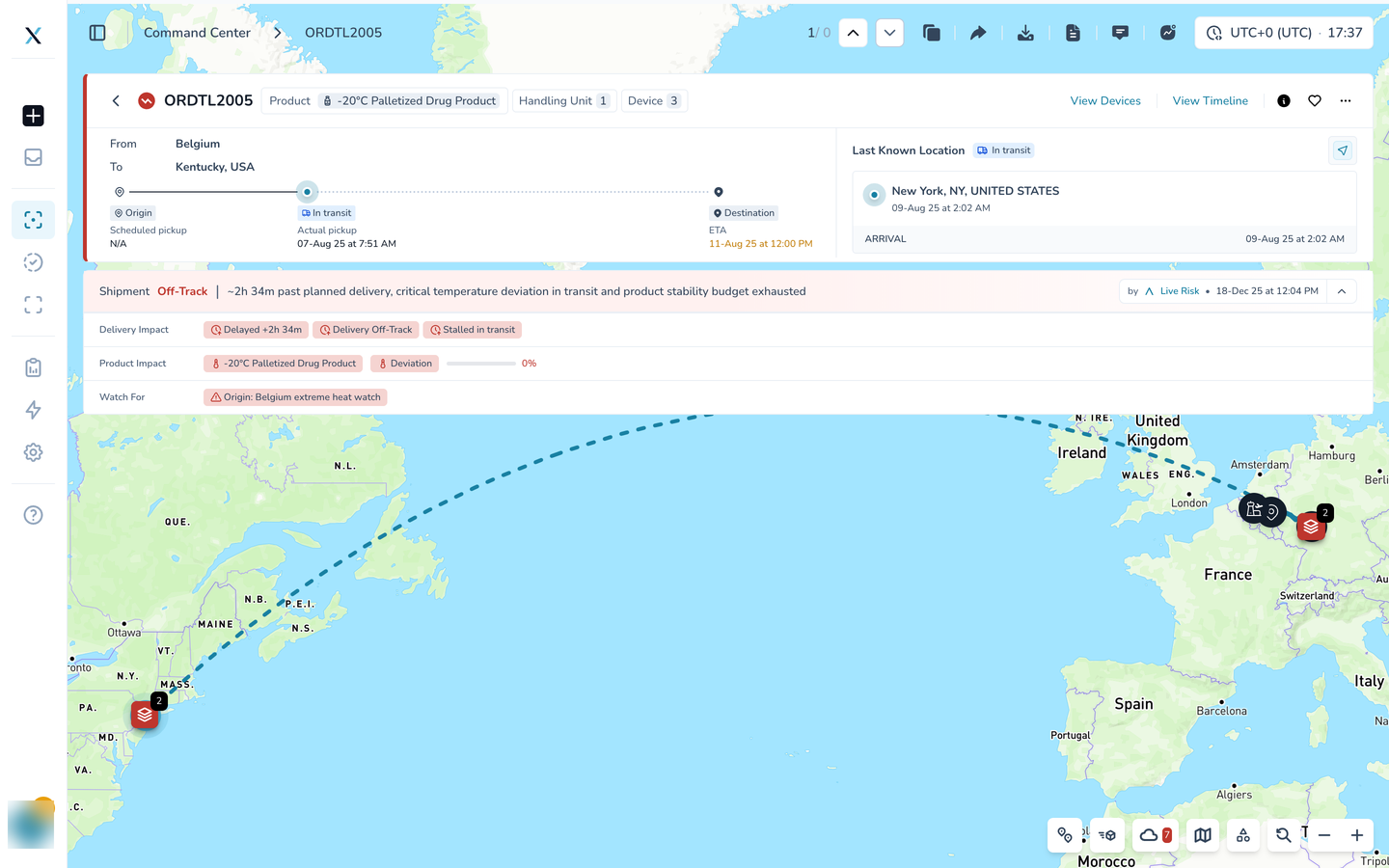
The header card
The header card is always visible. From left to right:
Back arrow returns you to the Command Center.
Live Risk icon and shipment ID. The icon colour is the verdict: red Off-Track, amber At-Risk, green On-Track.
Product, Handling Unit and Device chips show what is on board and how many devices are monitoring it.
View Devices and View Timeline open the two main tabs (Steps 5 and 6).
Info icon opens the additional details on hover (Step 3).
Heart marks the shipment as a favourite so it appears in your Favorite Shipments panel on the map.
Three dots open more actions (Step 4).
The shipment header card
The right end of the header card holds the two tab buttons and the three icons. From left to right: View Devices, View Timeline, the info icon (details on hover), the heart (favourite) and the three dots (actions).
Close-up of View Devices, View Timeline, the info icon, the heart and the three dots
The journey
Below the header, From and To show the origin and destination. The line under them is the journey so far: the origin, the current position (here In transit) and the destination, with the scheduled and actual pickup times on the left and the ETA on the right. The ETA is shown in amber when it is a predicted time rather than a confirmed one.
From, To and the journey line with pickup times and ETA
Last Known Location
On the right, Last Known Location shows the most recent position and the time it was recorded, plus the latest milestone under it (here ARRIVAL). The position comes from the device when there is one, or from the carrier when there is not, so every shipment gets a last known location. The small control on the right shows which source you are looking at. When a shipment also has live flight, vessel or container tracking, extra tabs appear here so you can switch between the device position and the carrier's tracking card. The Live tracking guide covers those cards.
The Last Known Location card
The Live Risk band
The band under the cards is the heart of the page: the Live Risk Agent's verdict for the whole shipment, written as a sentence that says what the verdict is and why. Under it, three rows break the verdict down:
Delivery Impact: is it going to arrive on time? Chips show the delay and the reason, for example Delayed +2h 34m and Stalled in transit.
Product Impact: is the product still good? The product name, its temperature status (for example Deviation) and the remaining stability budget as a bar and percentage.
Watch For: anything else worth attention, such as weather at the origin.
The date on the right is when Live Risk last assessed the shipment. The arrow collapses the band to its first line. The Live Risk Agent guide explains this band in depth.
The Live Risk band with Delivery Impact, Product Impact and Watch For
Everything you can do with a shipment, in one corner
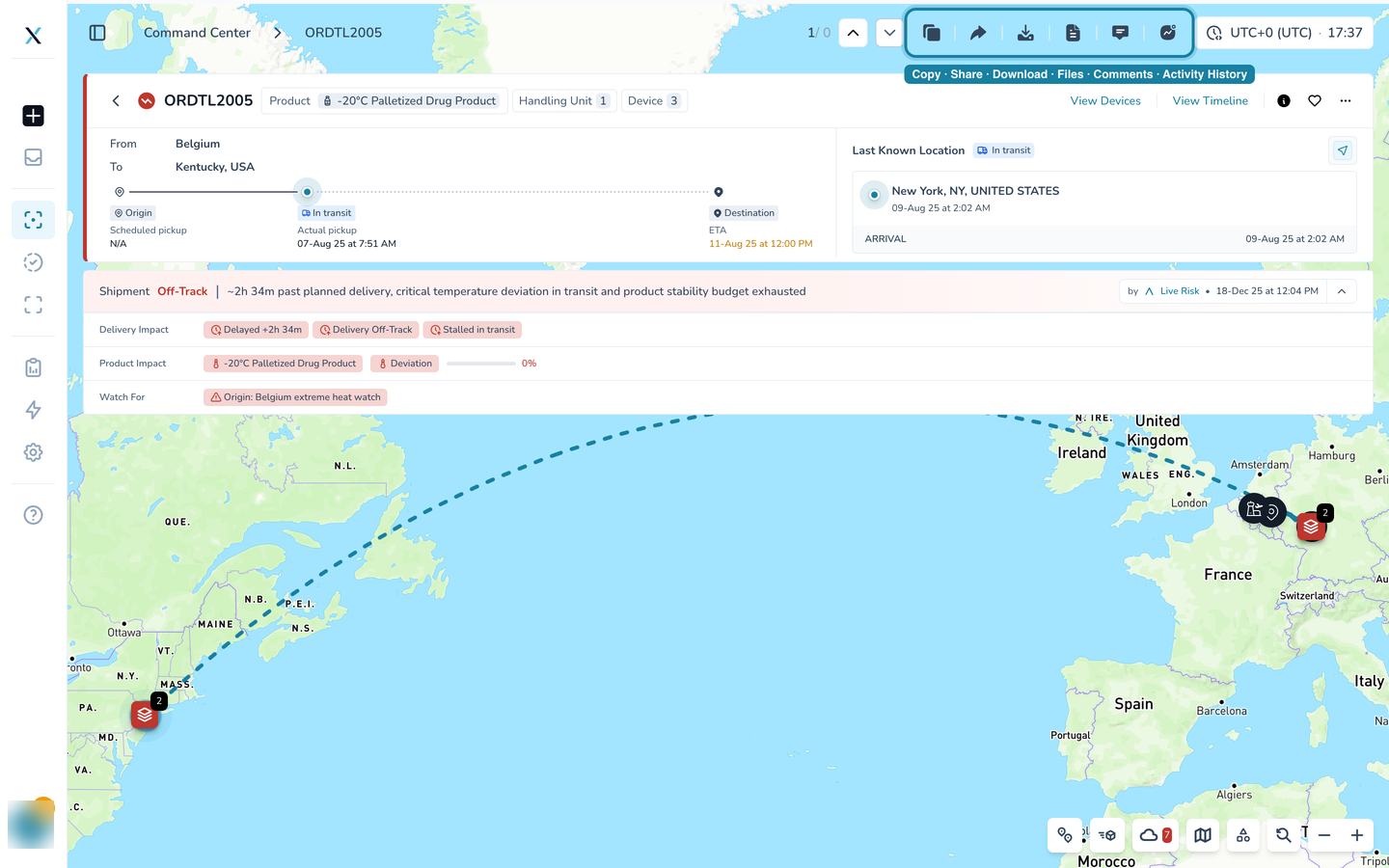
Six shortcuts sit together in the top right, next to the shipment counter and the previous and next arrows. They are the same on every shipment, so once you know the corner you know every page.
The six shortcuts in the top bar highlighted
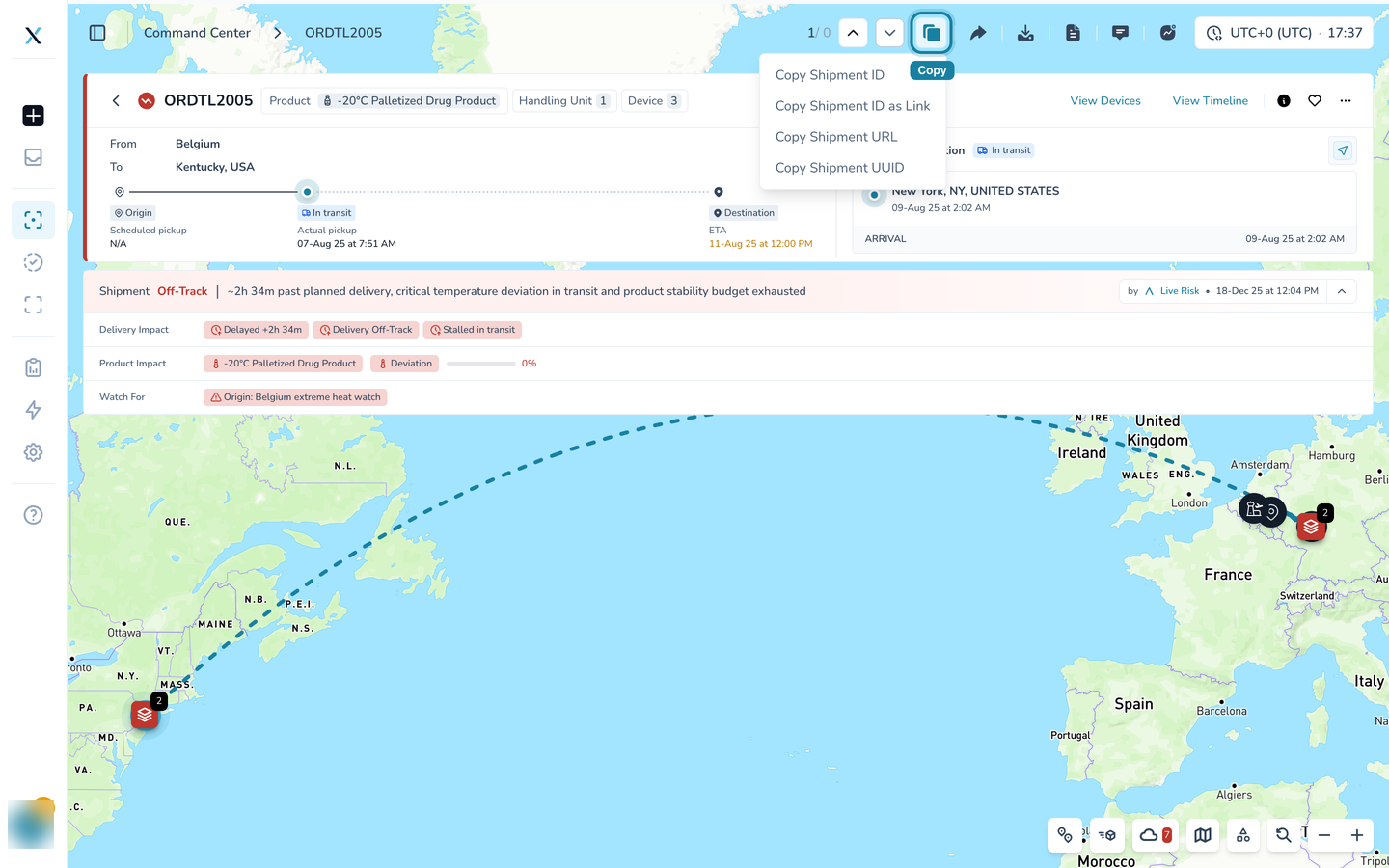
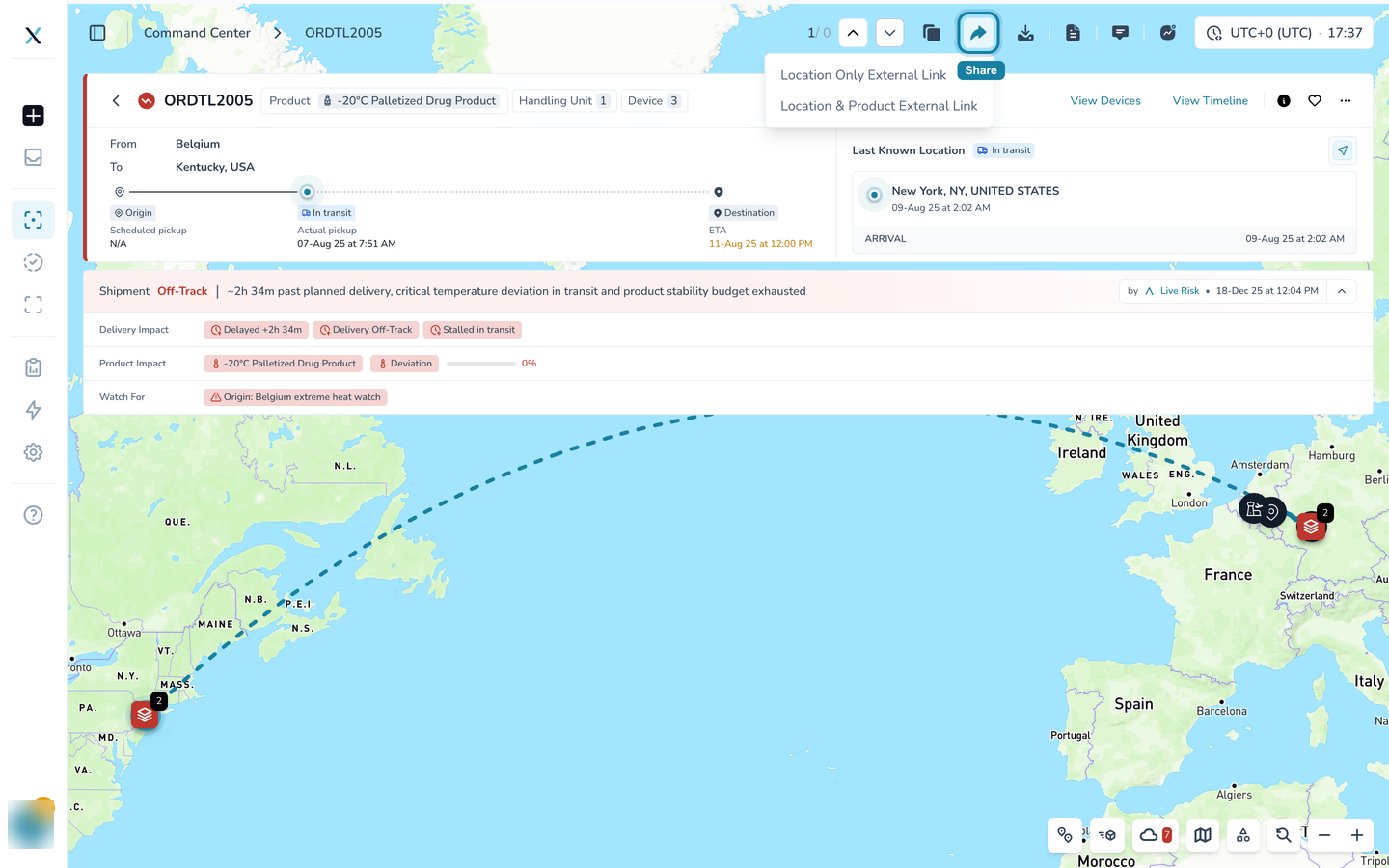
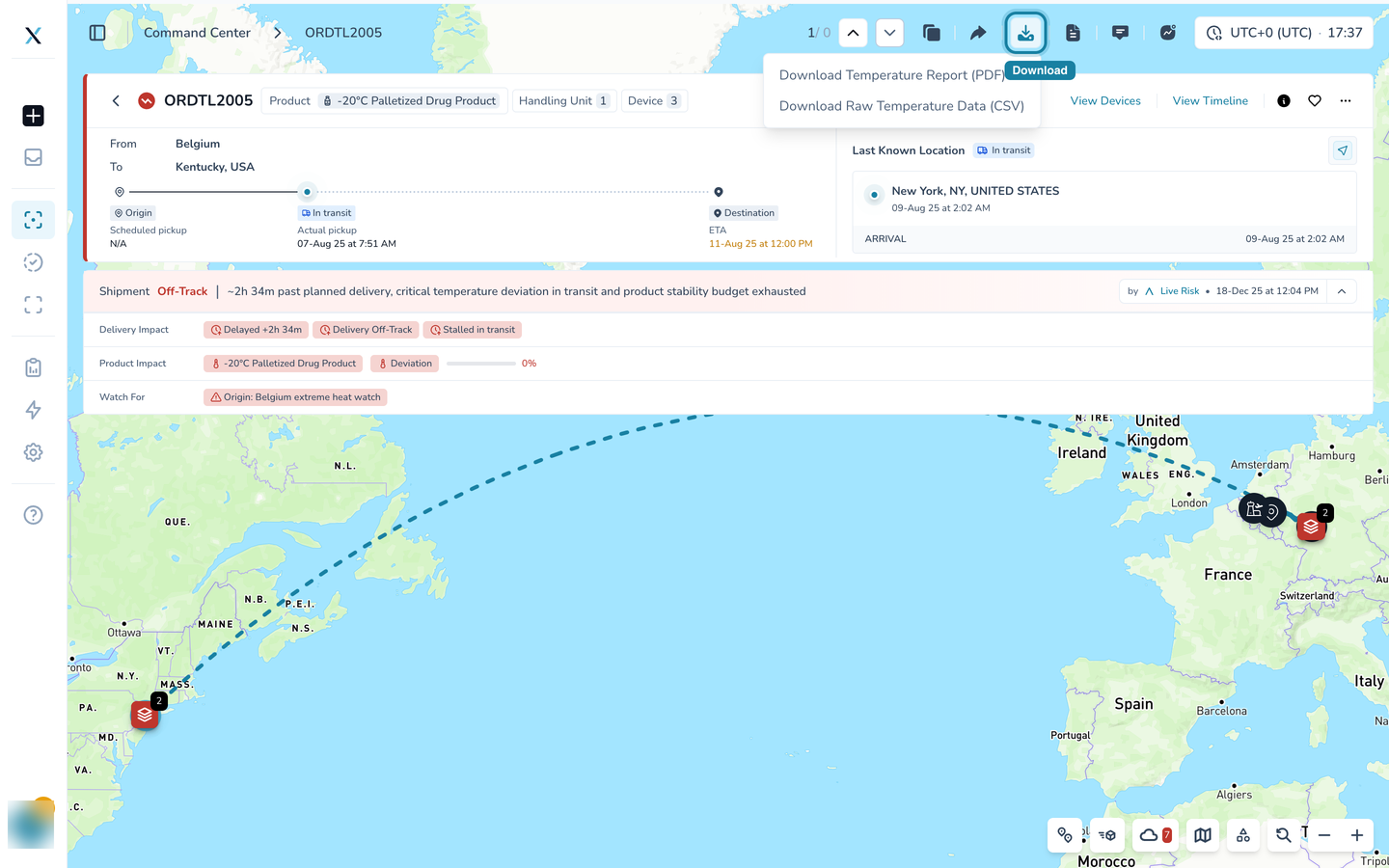
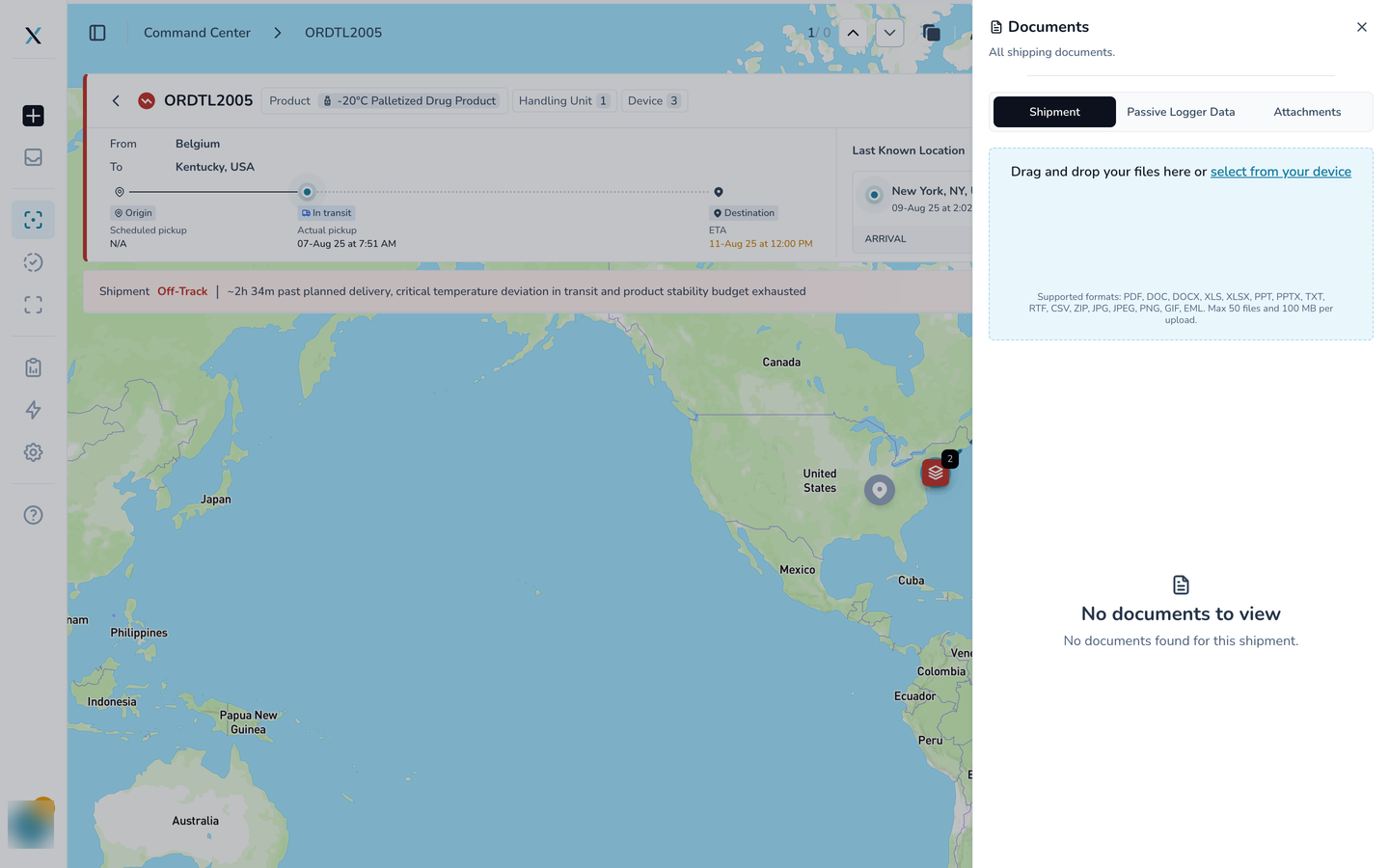
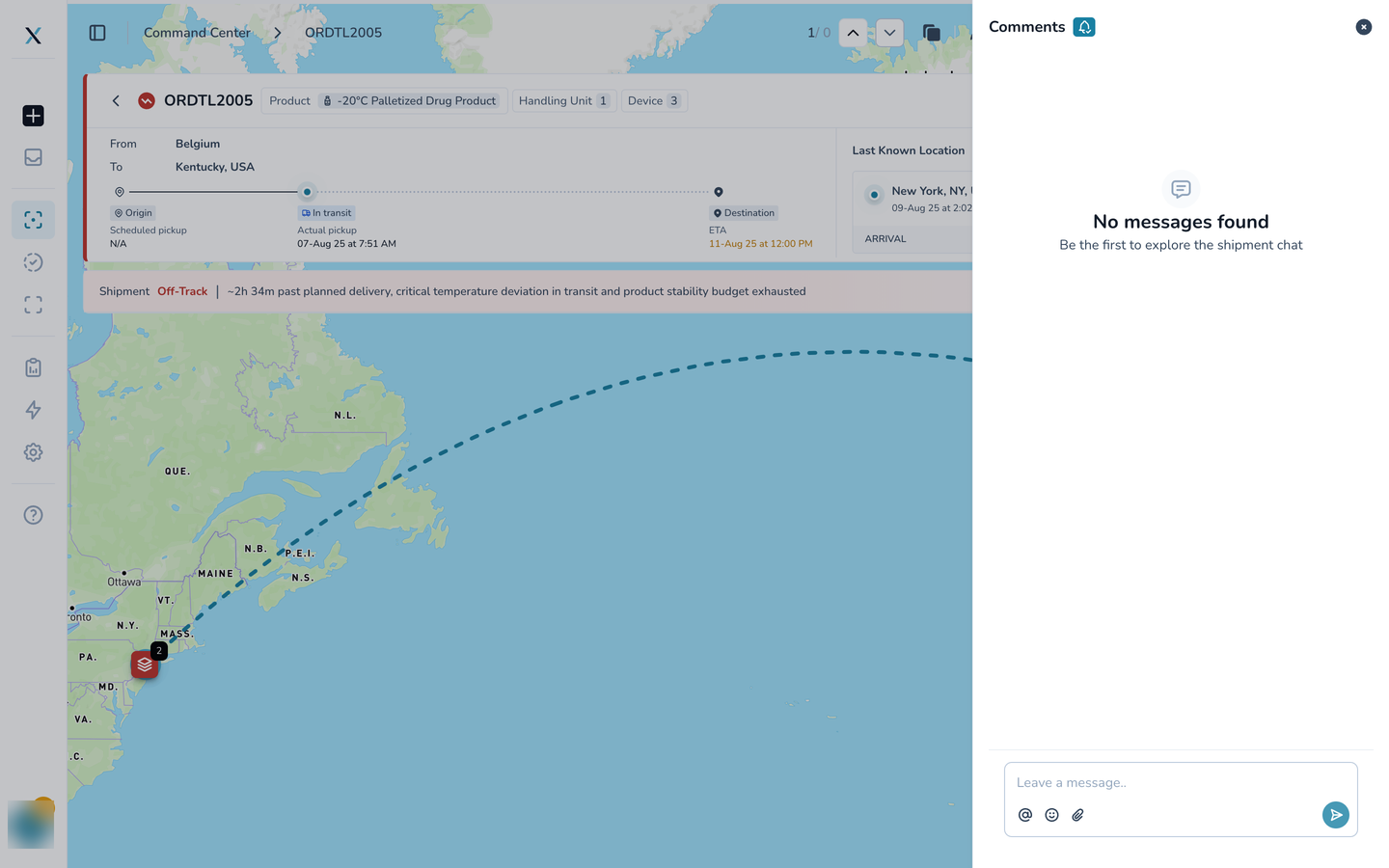
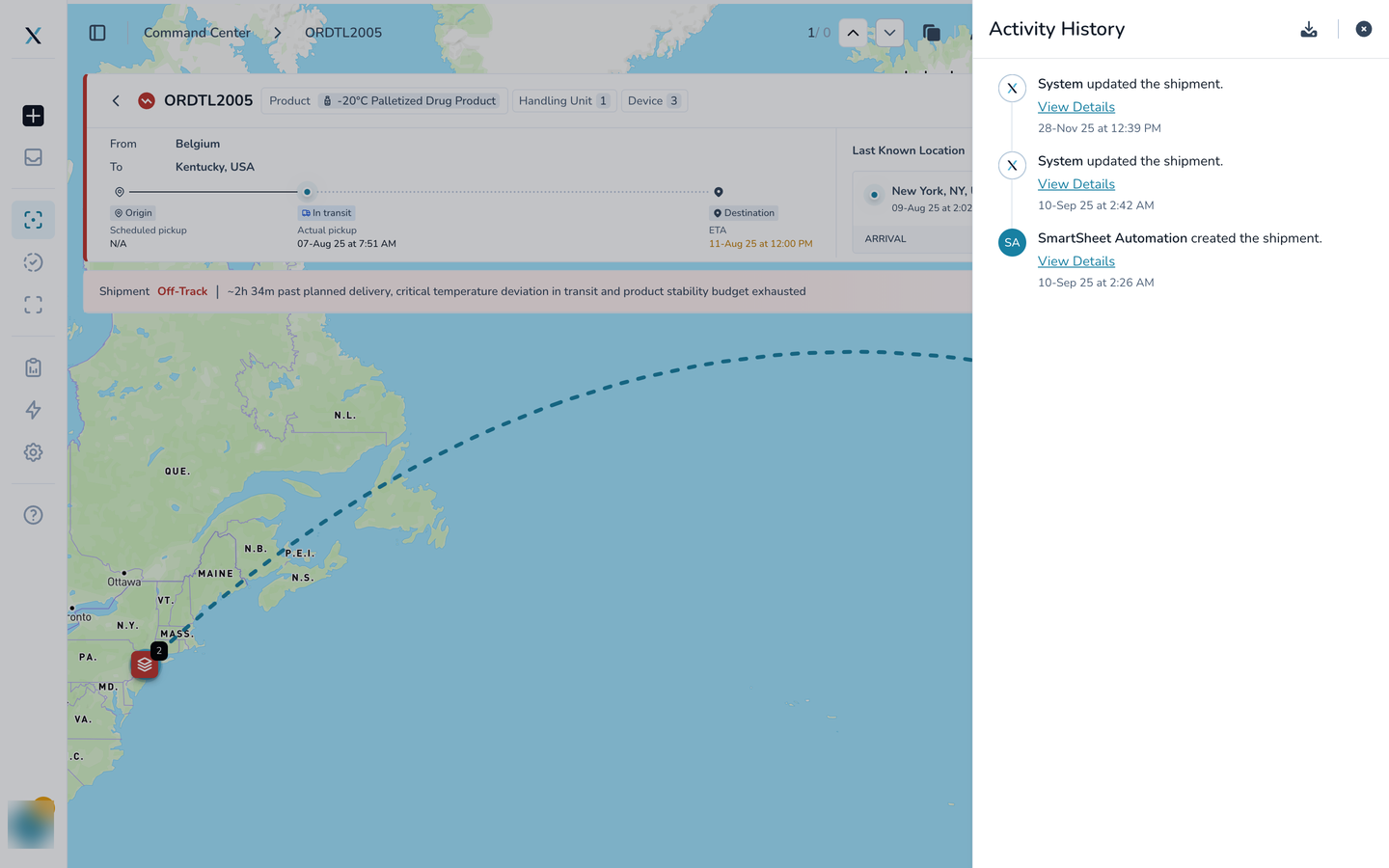
Reference details on hover, not on the page
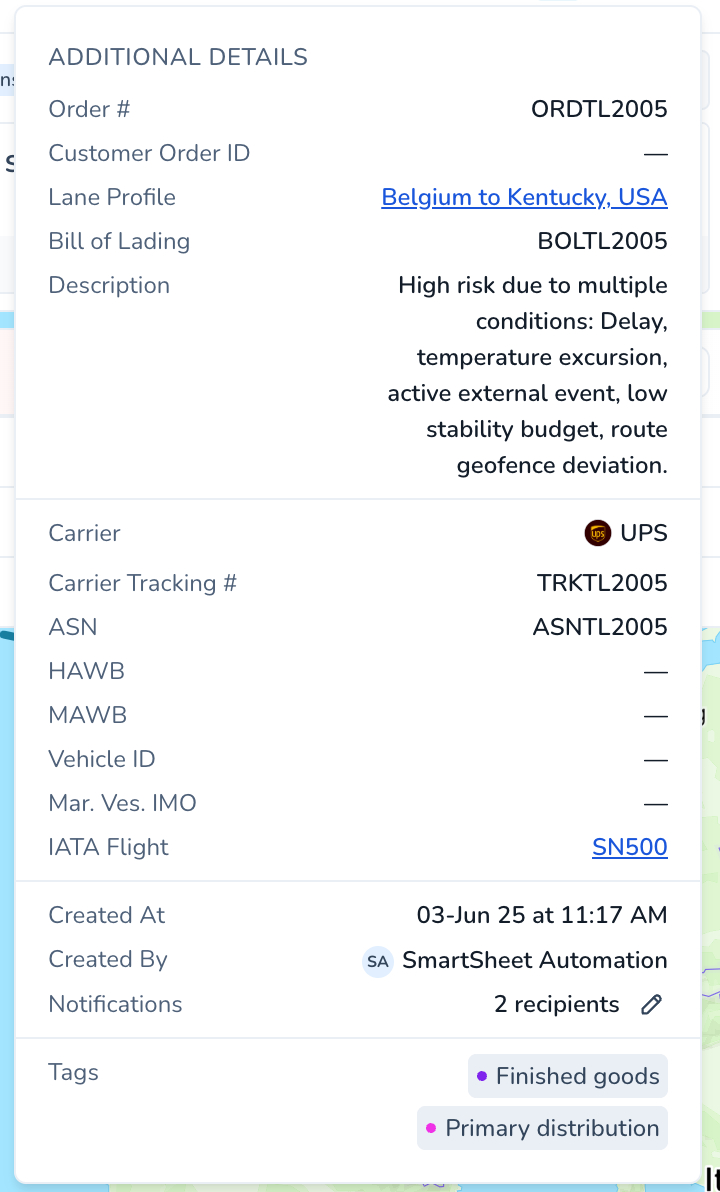
Order numbers, carrier references and tags are useful when you need them and noise when you do not. They now open on hover. Move your mouse over the info icon in the header card and a panel appears with everything that used to sit in the old details accordion: order number, Customer Order ID, lane profile, bill of lading, description, carrier and tracking number, air waybill and vessel references, IATA flight, who created the shipment and when, the notification recipients (with a pencil to edit them) and the tags.
Actions that change the shipment
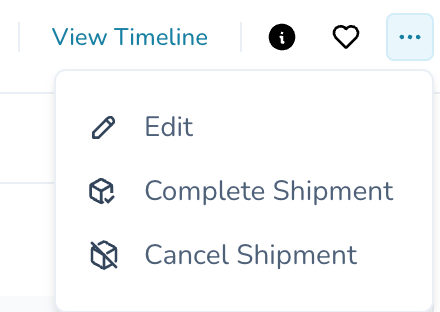
The three dots at the right of the header card hold the actions that change the shipment: Edit, Complete Shipment and Cancel Shipment. These are greyed out unless your access group is allowed to manage shipments.
View Timeline
Select View Timeline in the header card. The Timeline panel opens on the left, and the Live Risk band shrinks to its first line so the verdict stays in view while you look at the evidence.

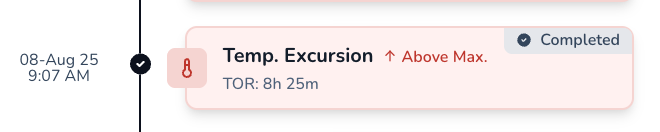
The timeline lists every stop in order, with its arrival, departure and dwell time. Turn on Expand Live Risk Events to see temperature deviations, excursions and stability warnings in the same list, each marked Active or Completed. The two buttons at the top switch between milestone events and device events, and the selected dropdown lets you pick which devices to show.
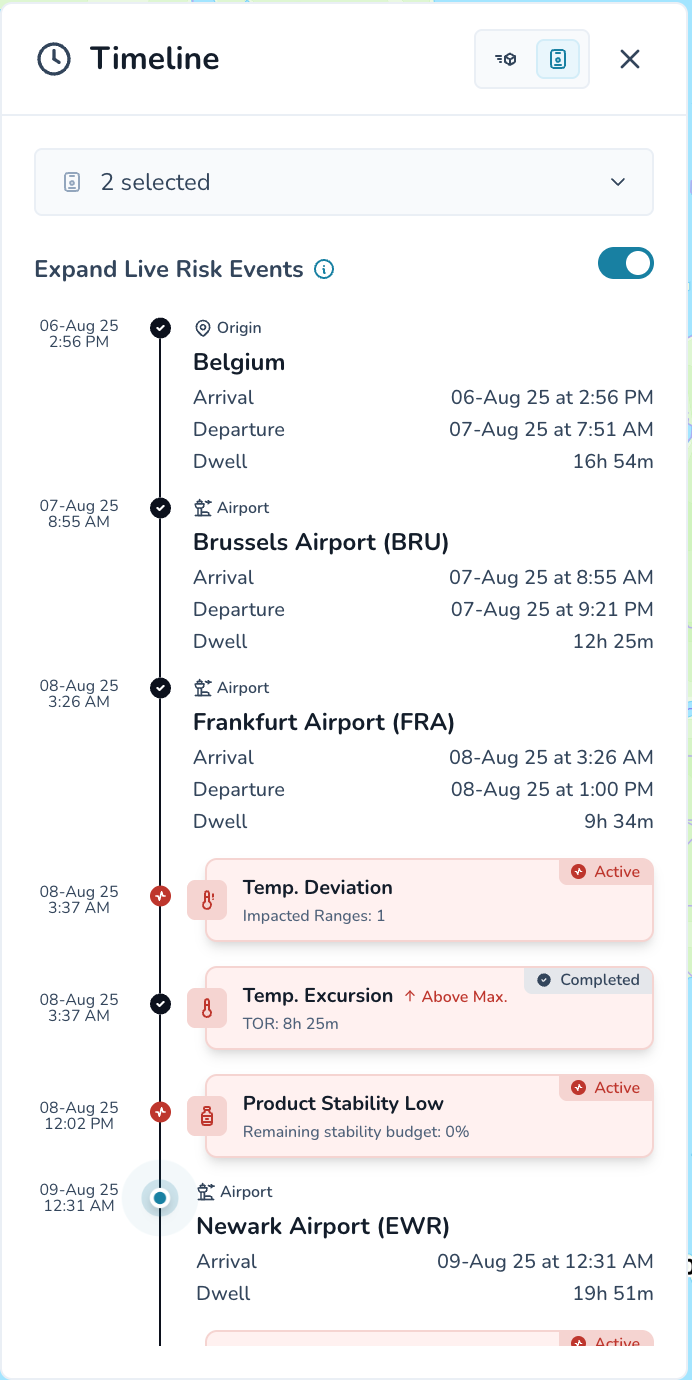
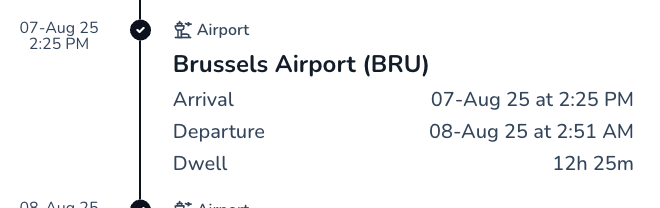
Each stop shows its type (origin, airport, destination), its name, and three times: Arrival, Departure and Dwell, the time the shipment spent there. A long dwell at an airport is often the first sign of a delay.
Live Risk events sit in the same list at the moment they happened. Each card names the event, gives the key number (here a temperature excursion with the time out of range) and carries a badge: Active if it is still going on, Completed if it has ended.
View Devices
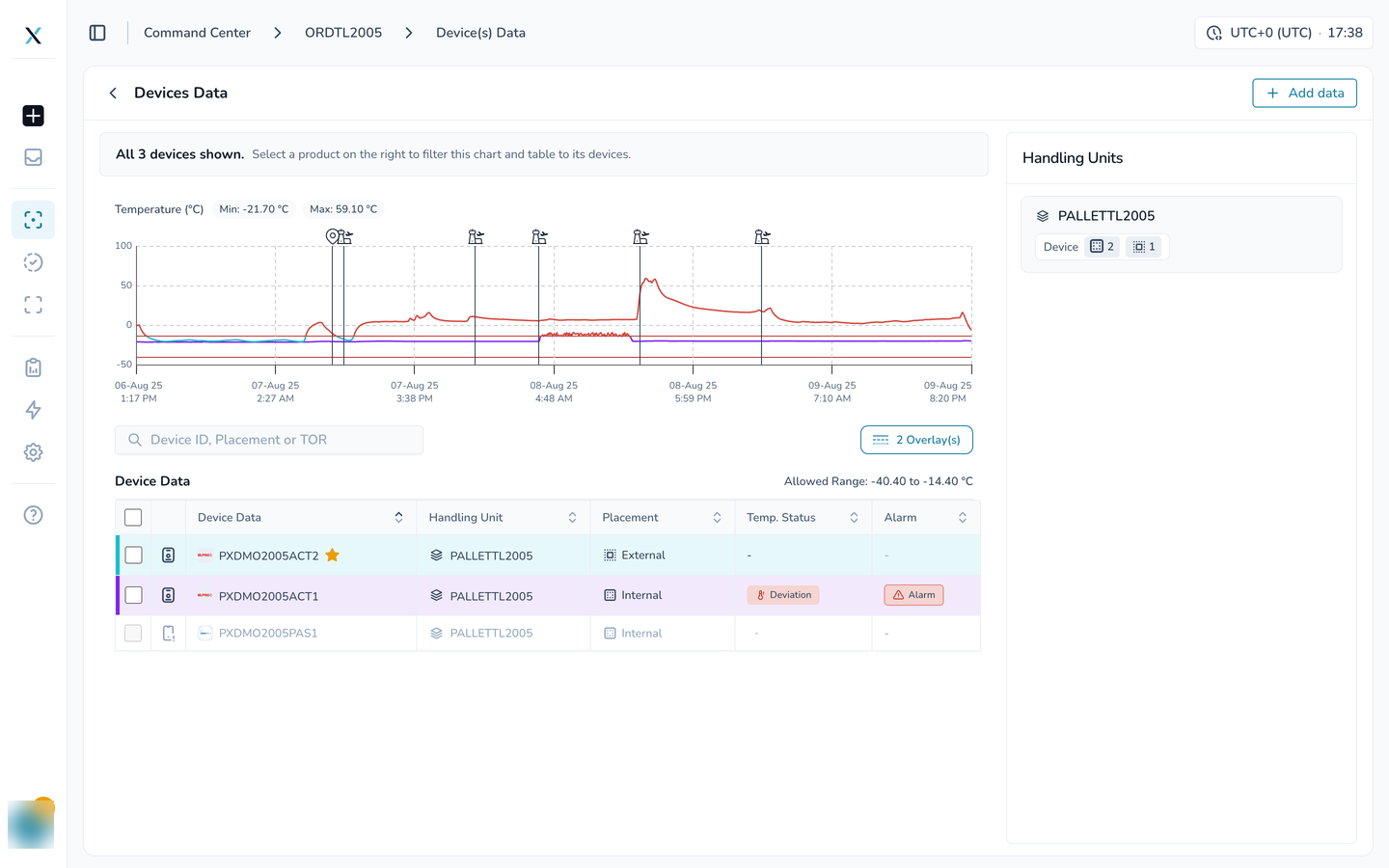
Select View Devices to open the device data page. It shows the temperature chart for all devices, the device table underneath with handling unit, placement, temperature status and alarm columns, and a Handling Units panel on the right. Select a handling unit or a product to filter the chart and table to its devices. The Devices and handling units guide covers this page in full.
Good to know
The page shows the same verdict as the quick details card on the map and the Live Risk Status column in the list, so you can act from whichever view you are in.
Use the up and down arrows in the top bar to step through the shipments in your current list without going back to the map.
The timezone at the top right applies to every time on the page.
Closing a tab with its X brings the Live Risk band back to full size.
Part of the CONTXT v3.0 release.