Devices, tied to what they protect
Last updated: September 19, 2026
A temperature device on its own tells you a number. What you need to know is which pallet it was in, which product and batch that pallet carried, and how much of that product's stability budget the readings have used. In CONTXT v3.0 the Devices page is organized around that chain.
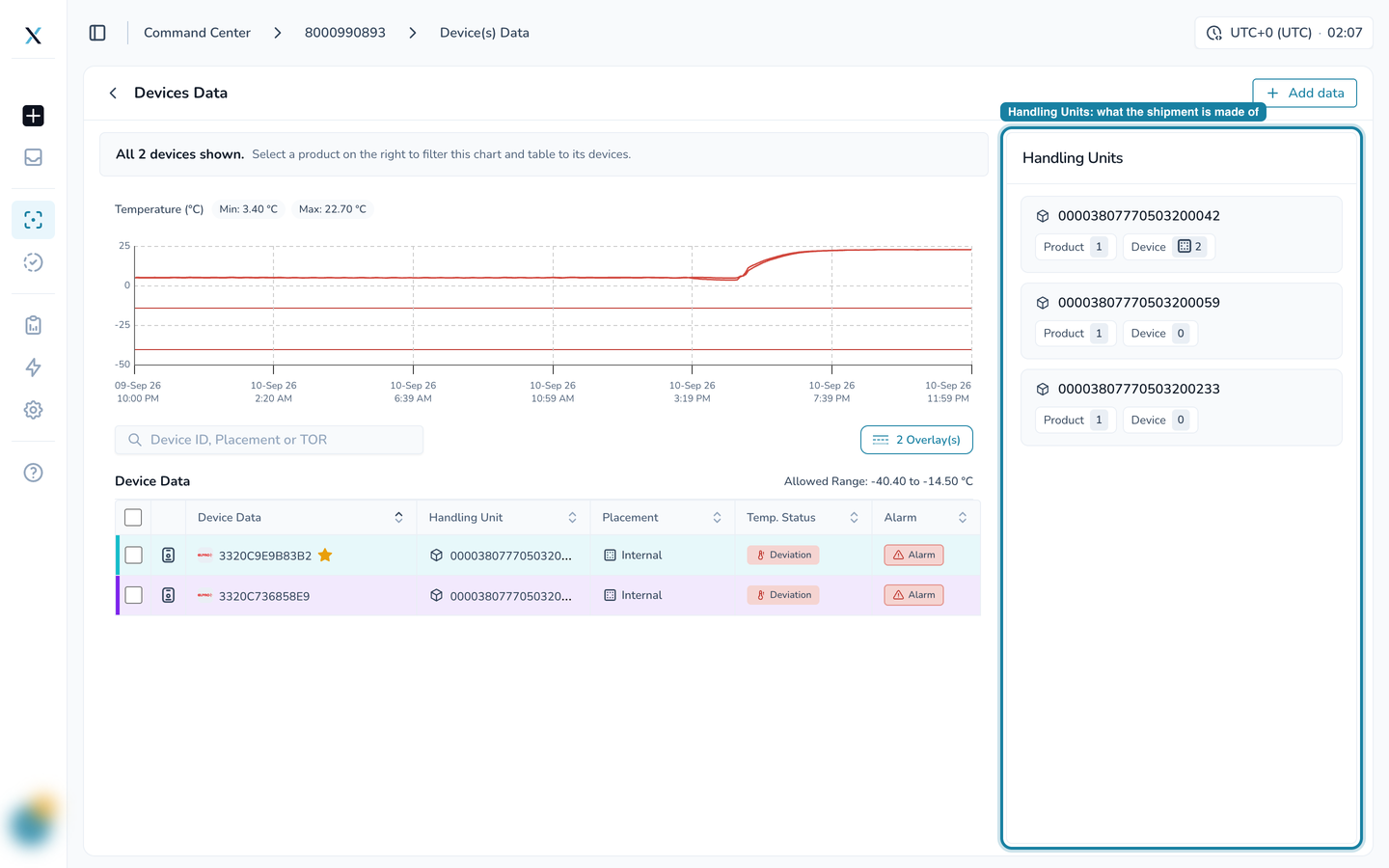
Handling units, the pallets, boxes and containers a shipment is made of, sit in a panel on the right. Select one and you see its products; open a product and you see its temperature budget, measured on the device that travelled with it.
Where to find it: any shipment page › View Devices
The Devices Data page
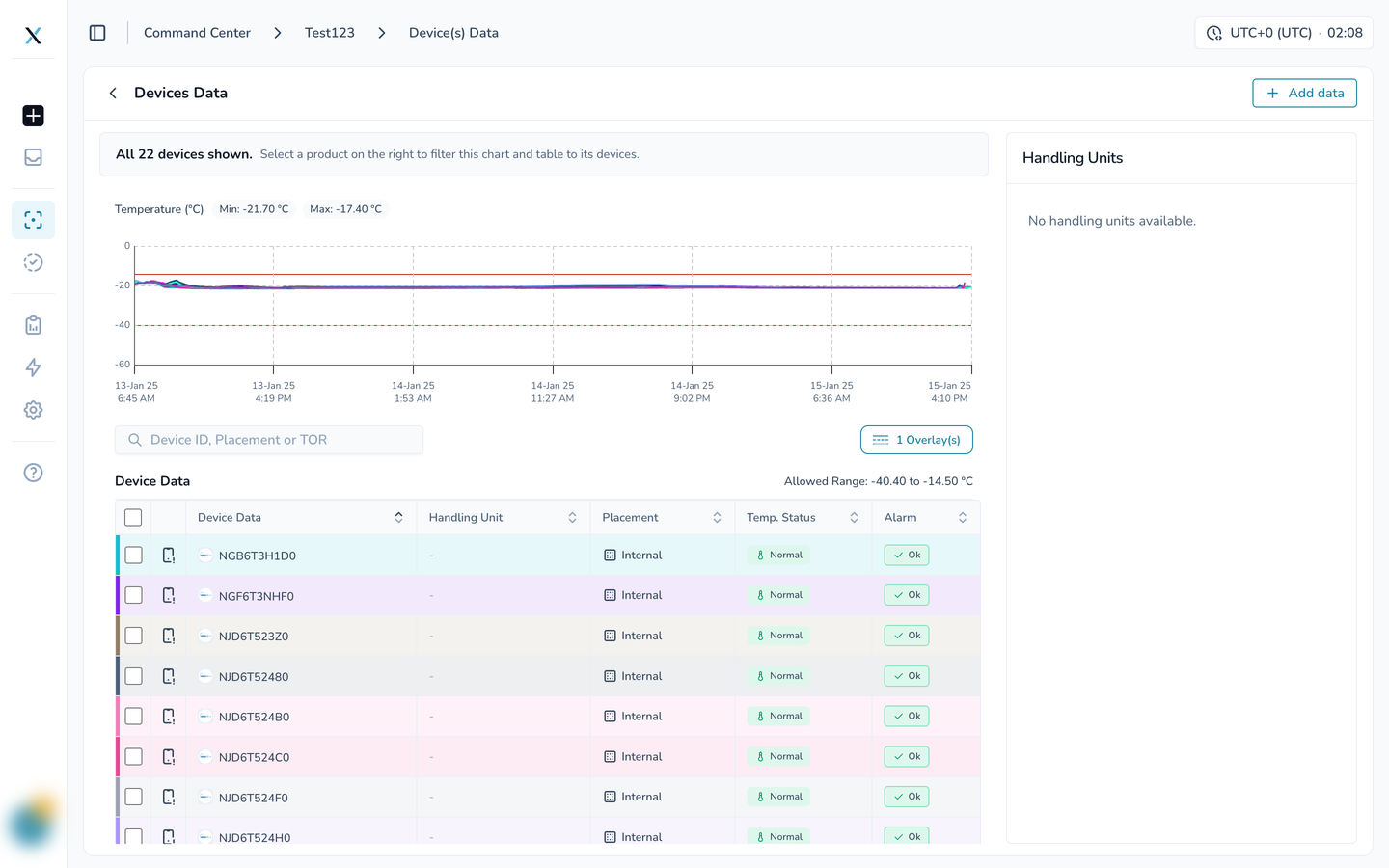
The page has three parts. The temperature chart at the top plots every device, with the ideal range drawn as horizontal lines. The Device Data table lists the devices with their handling unit, placement, temperature status and alarm state. The Handling Units panel on the right lists the shipment's handling units with their product and device counts.
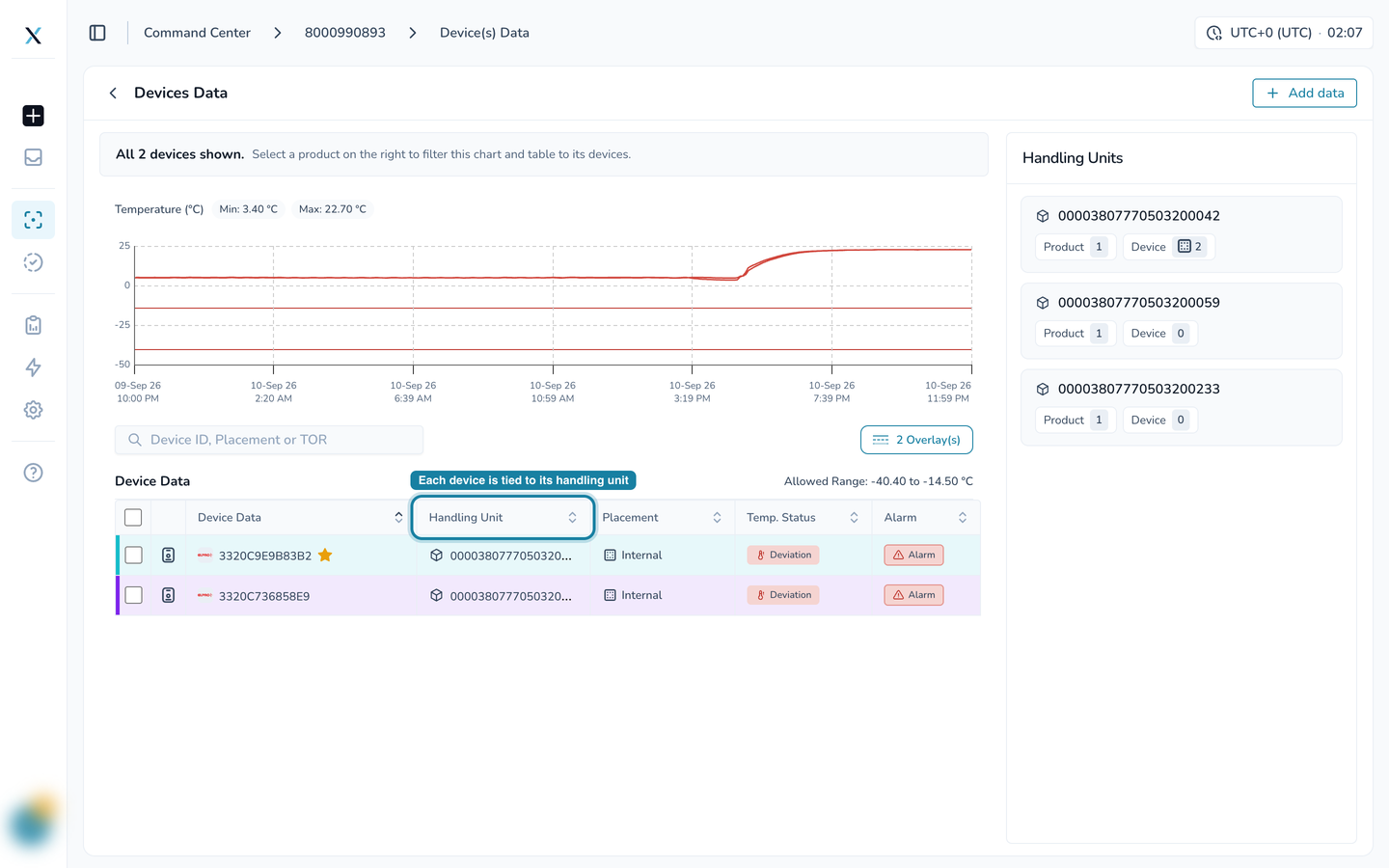
The Handling Unit column in the table is new. Each device shows the handling unit it is assigned to, so you can tell at a glance which pallet a reading came from.
Select a handling unit
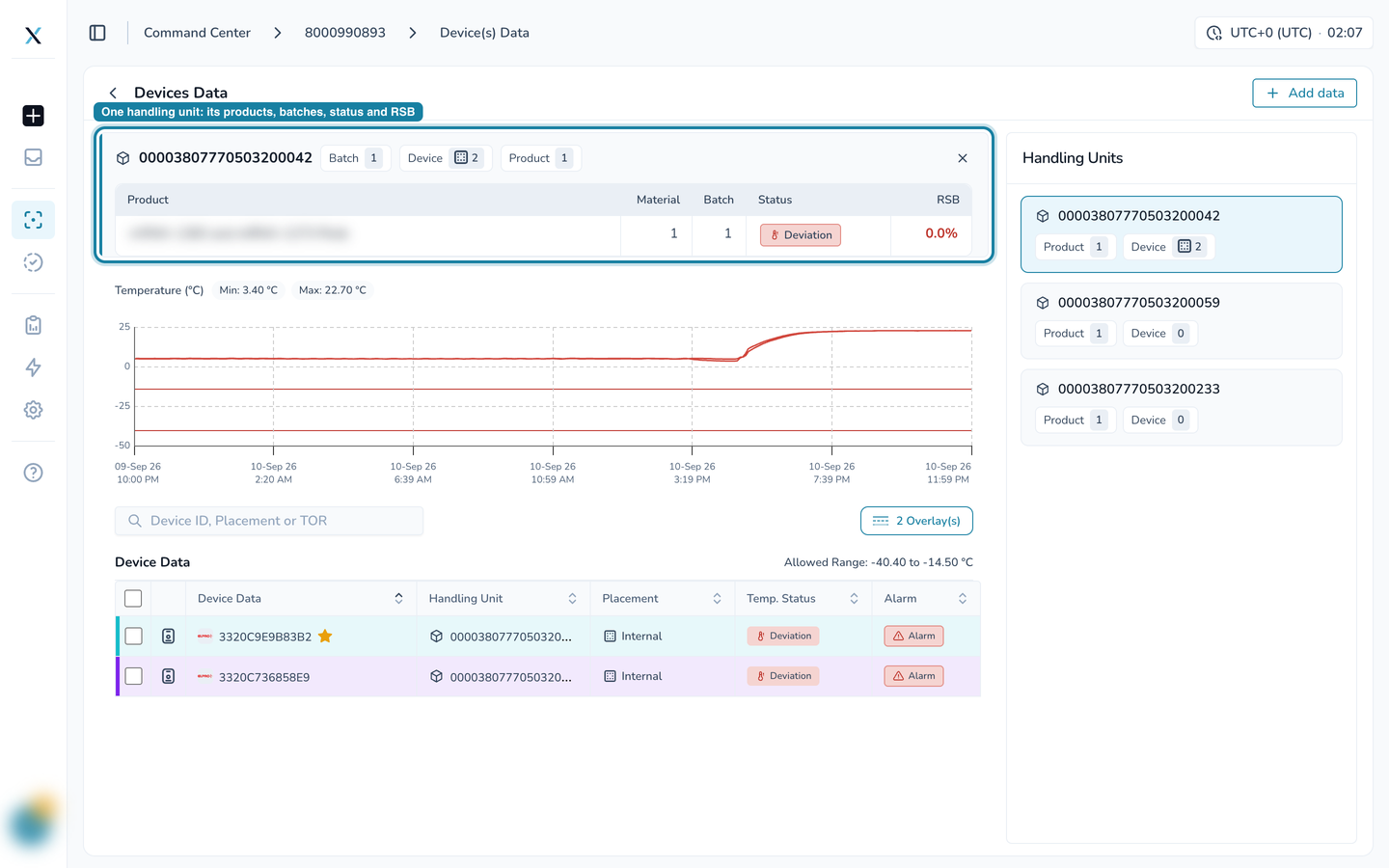
Click a handling unit in the panel. A card opens above the chart with its counts (batches, devices, products) and a table of its products: each product's material and batch counts, its temperature Status, and its remaining stability budget (RSB). The chart and the device table filter to that handling unit's devices.
Open the product
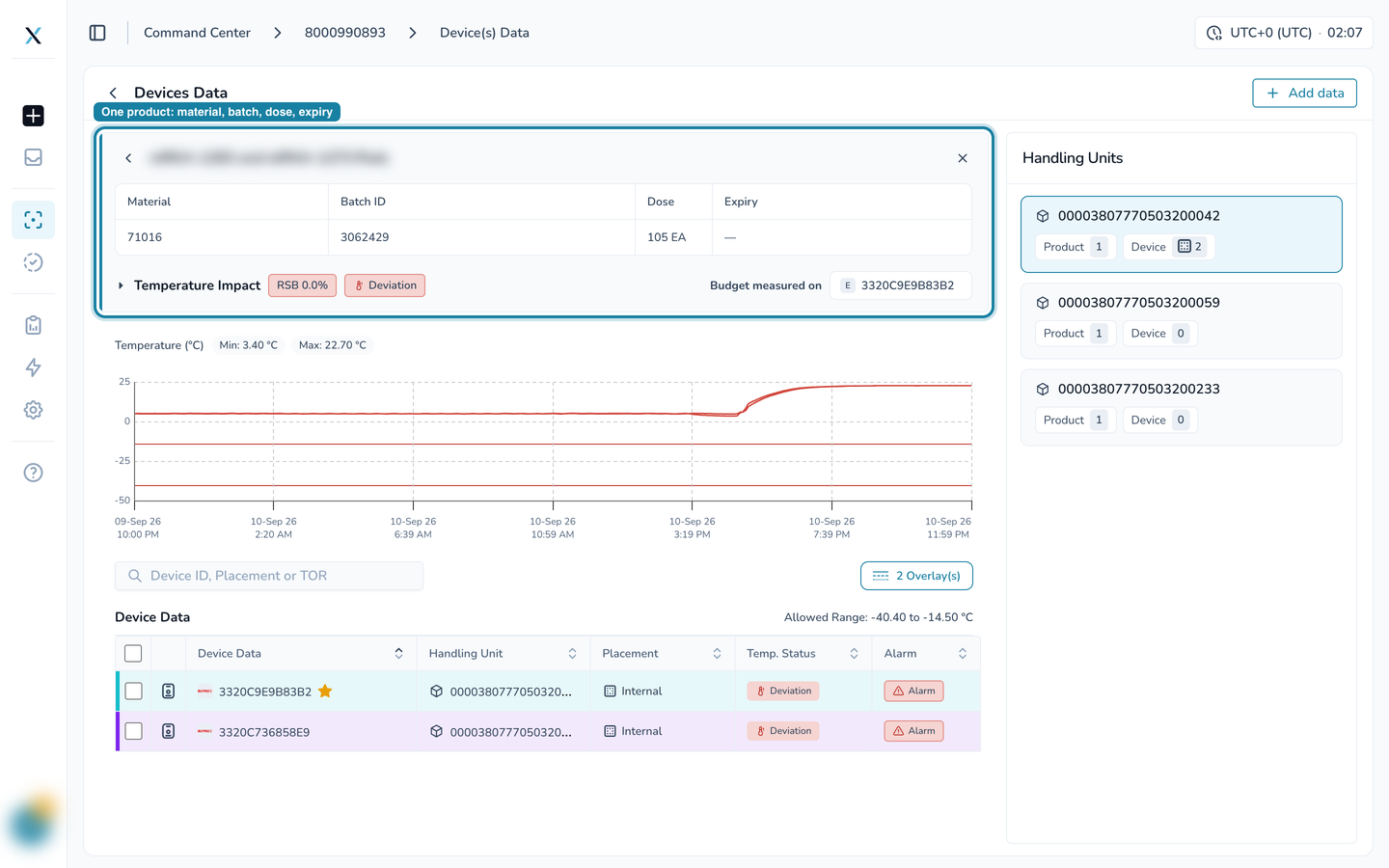
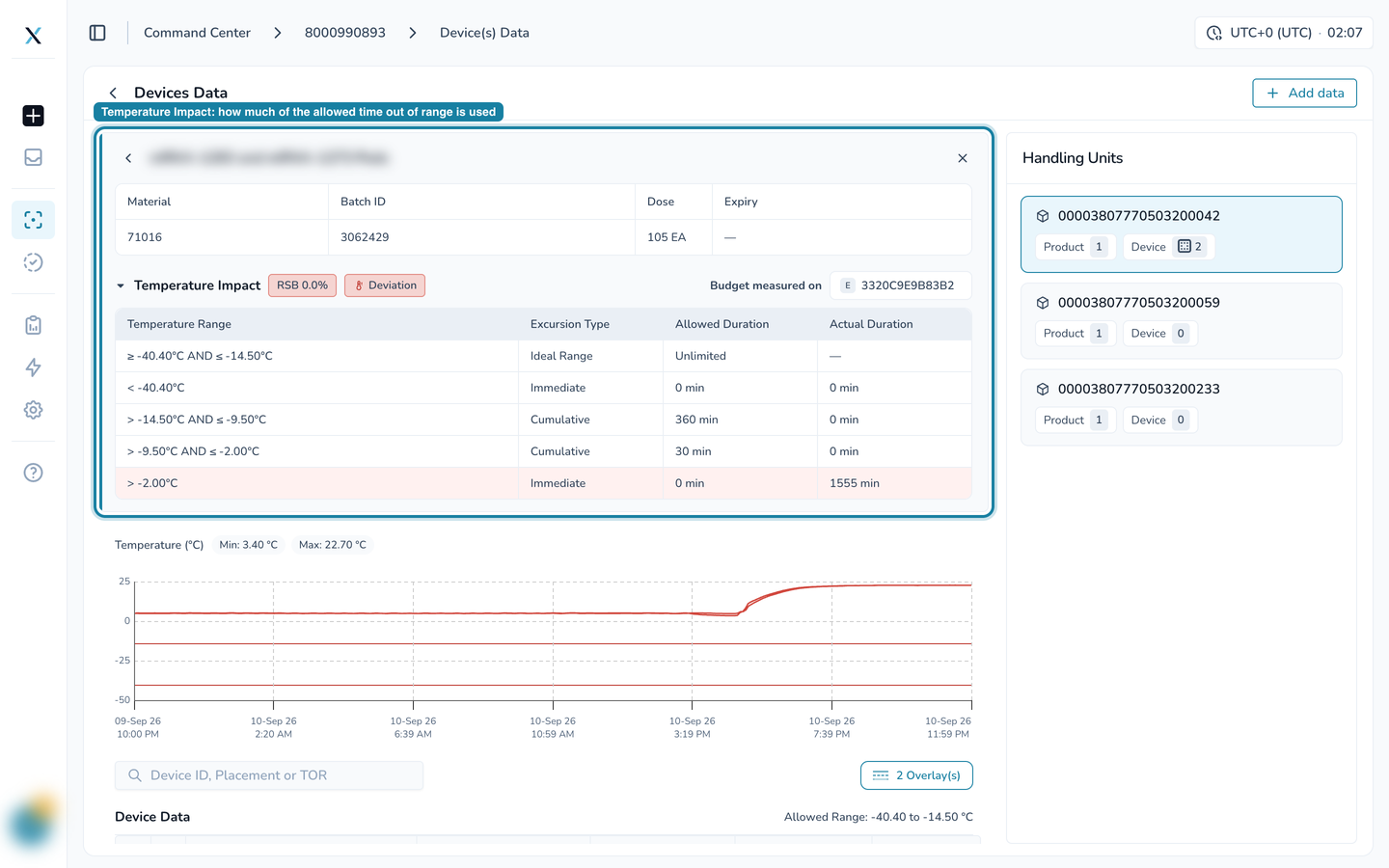
Click a product row (or the arrow on it) to drill into that product. The card now shows the product's Material, Batch ID, Dose and Expiry, with a Temperature Impact section underneath.
Expand Temperature Impact to see the product's temperature ranges and how each one has been used:
Temperature Range and Excursion Type: the ideal range, plus the cumulative and immediate excursion bands defined for the product.
Allowed Duration: how long the product may spend in that band before the excursion counts.
Actual Duration: how long it has spent there so far. A band that has run over its allowance is shaded red.
The chips at the top summarize the result: the remaining stability budget as a percentage, and the current status (Normal, Excursion or Deviation).
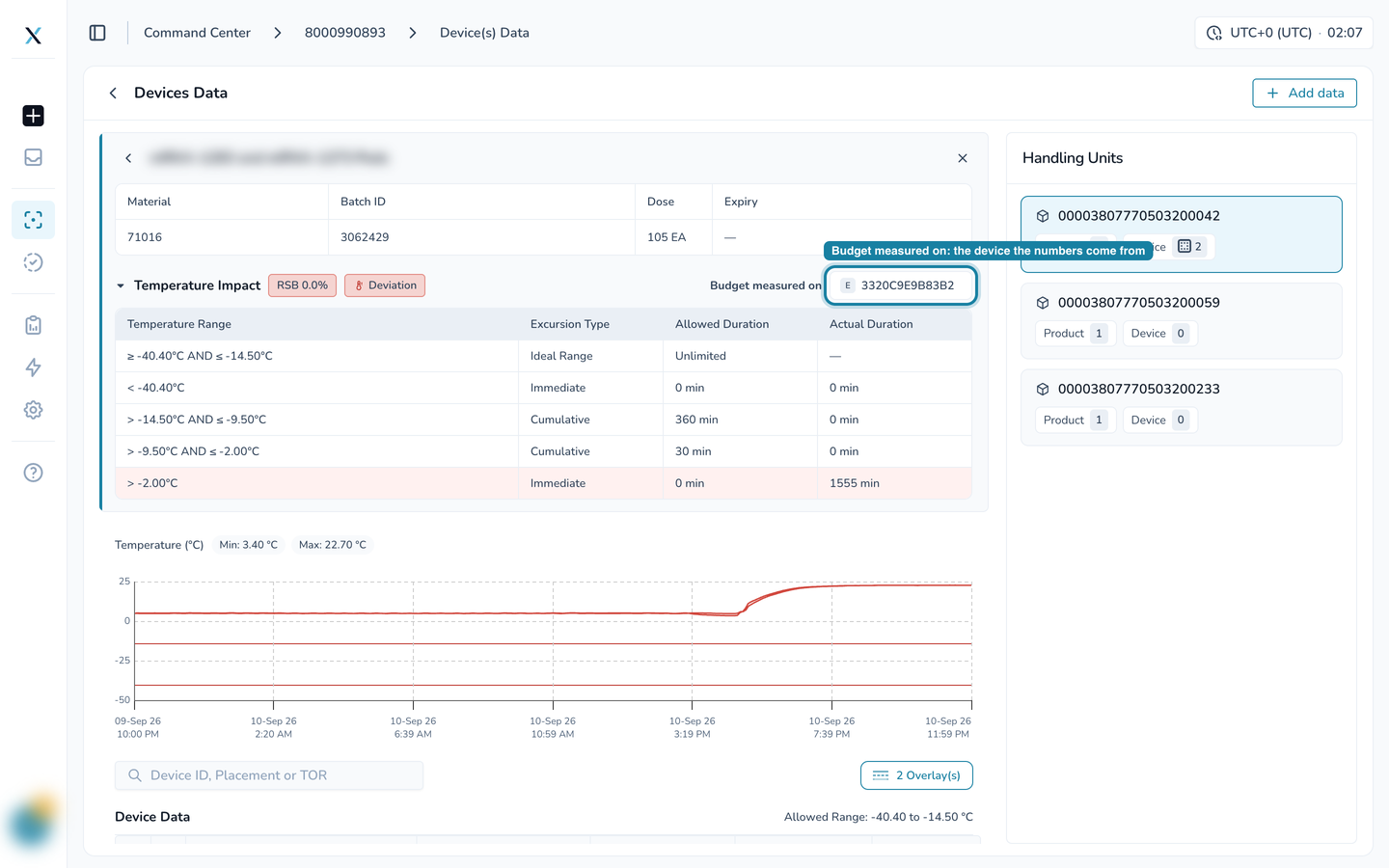
Budget measured on names the device whose readings the budget is calculated from. When a handling unit carries more than one device, this tells you which one is speaking for the product.
Open a device record
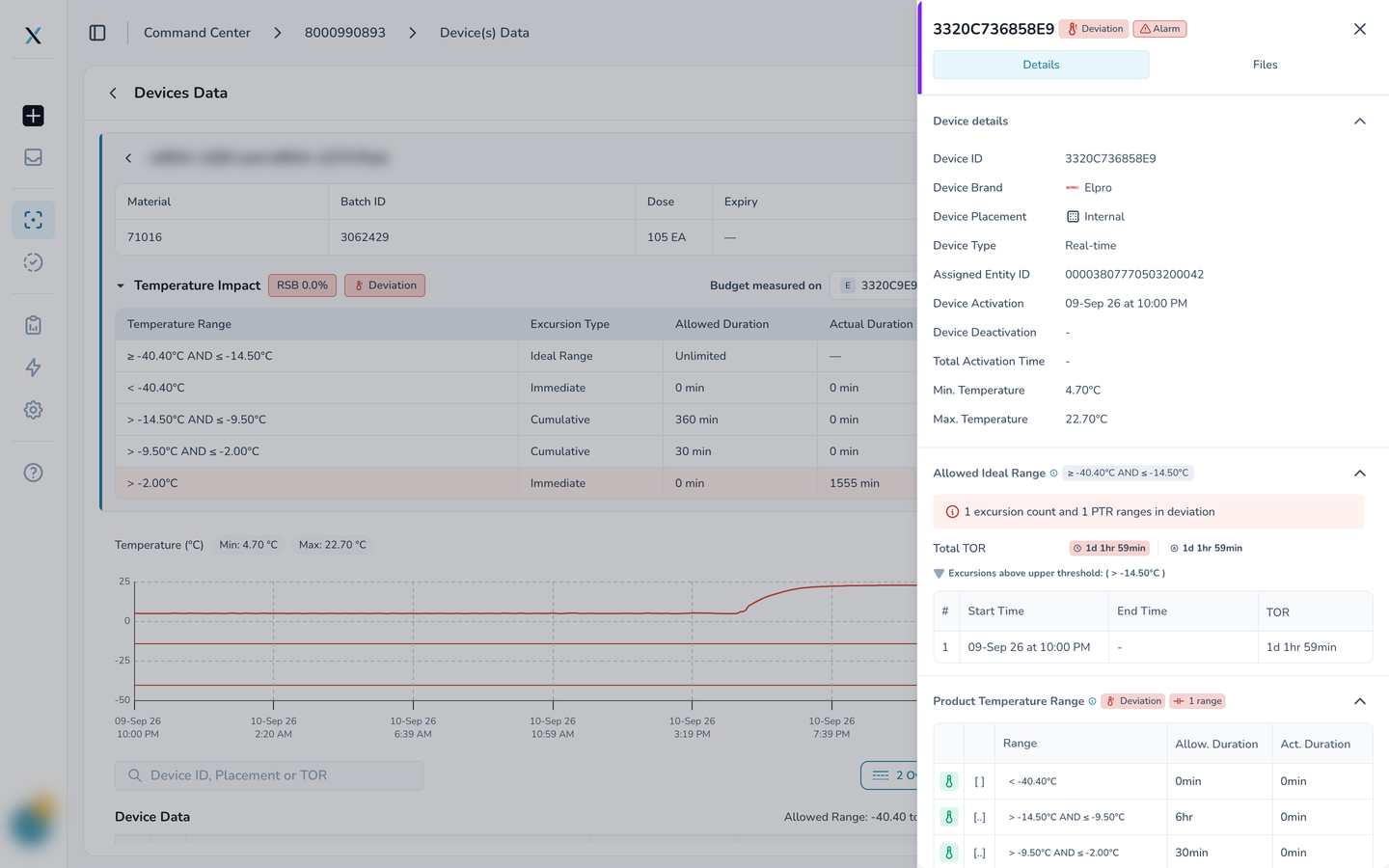
Click a device ID in the table. A drawer opens on the right with the full record for that device: brand, placement, type, the handling unit it is assigned to, activation time, minimum and maximum temperature, then the Allowed Ideal Range with every excursion listed (start, end and time out of range). The Files tab holds any documents attached to the device.
Choose what the chart shows
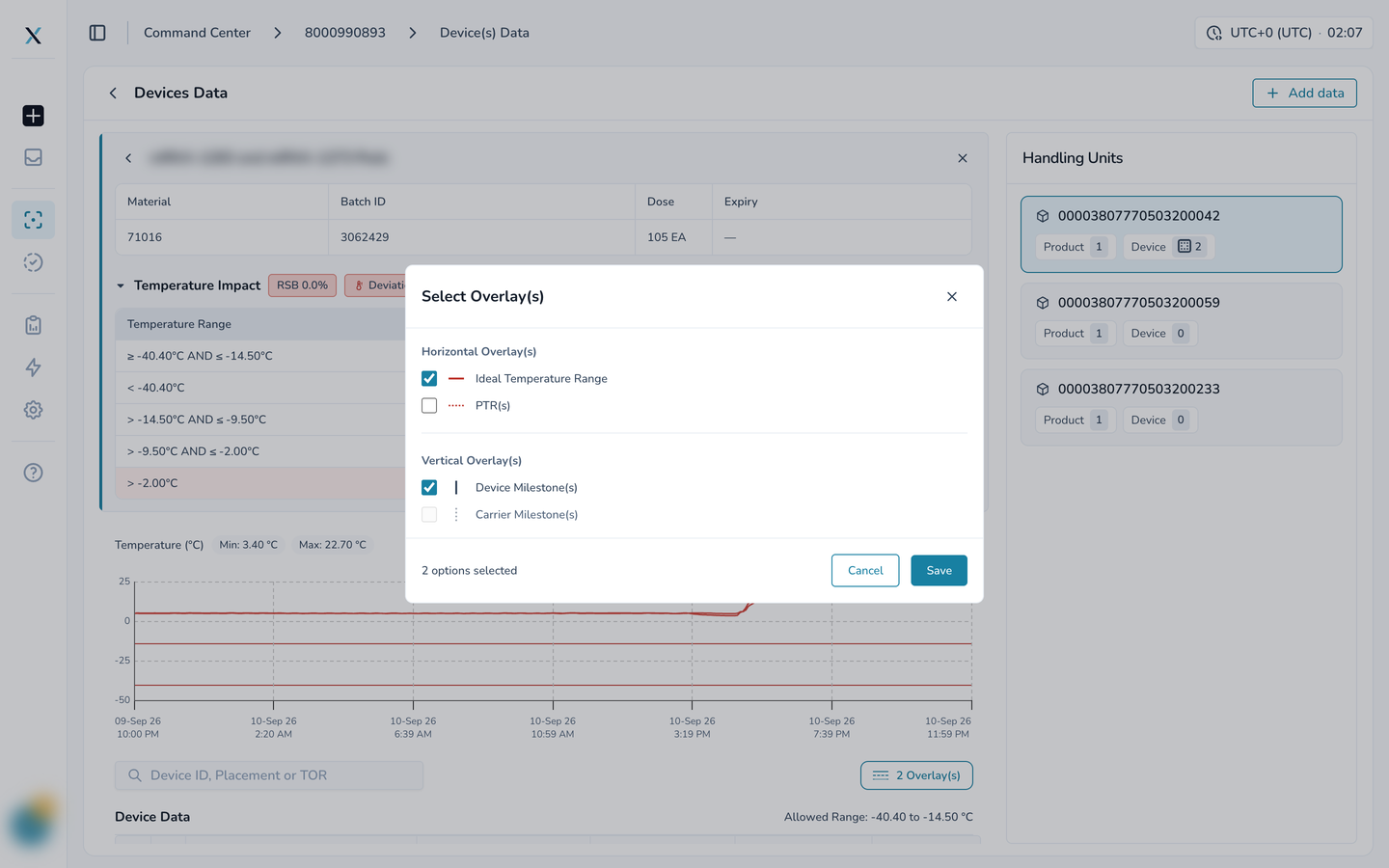
Overlays (the button above the table) lets you draw the Ideal Temperature Range and the PTR bands as horizontal lines, and Device or Carrier Milestones as vertical lines, so a spike on the chart can be read against a milestone.
When a shipment has no handling units
Older shipments and shipments created without handling units still open the same page. The panel reads No handling units available, the Handling Unit column shows a dash, and the chart and table work as before.
Good to know
The Status and RSB shown on a handling unit are the worst status and the lowest budget across its products, so a pallet with one product in Deviation shows Deviation.
Selecting a handling unit or a product only filters the page. Close the card with the X to see all devices again.
The same handling unit hover card appears on the map's quick details card and in the shipment list, so the product and batch details are one hover away anywhere.
Part of the CONTXT v3.0 release