Automated Product Release Reviewers
Last updated: October 15, 2026
Adding a Reviewer
Option 1: Add a Reviewer from the Temperature Release Dashboard
Go to Automated Product Release
From the left-hand menu, open the Auto Product Release module.
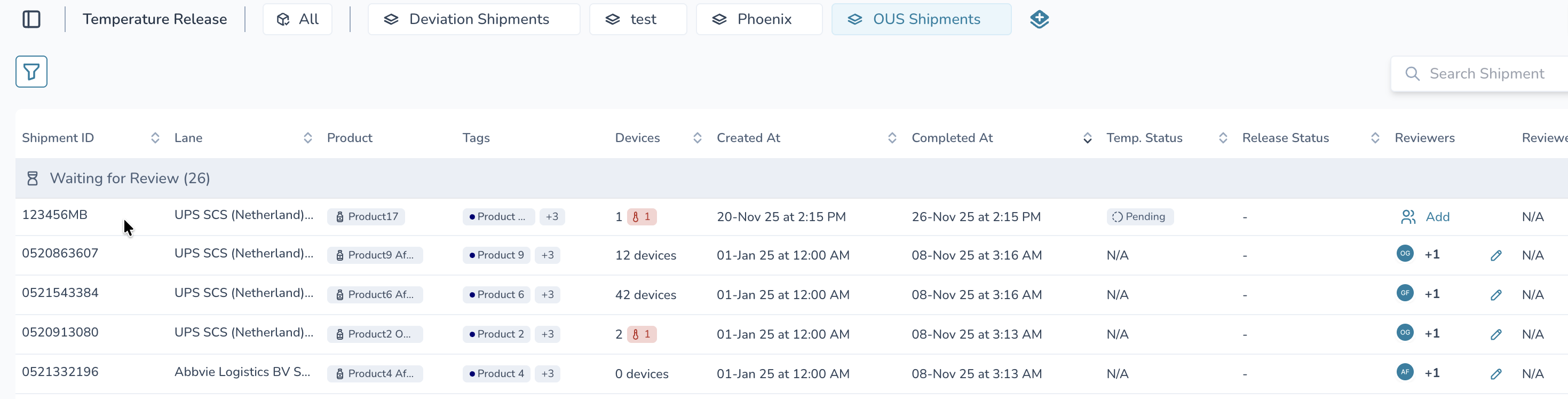
Locate the Reviewer Column
On the main Temperature Release dashboard, find the Reviewer column for the shipment you want to update.
Click the Pencil Icon
In the Reviewer column for that shipment, click the pencil icon to edit reviewers.
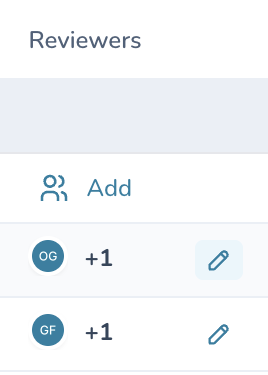
Add a New Reviewer
In the popup:
Click the “+ Add” button (plus sign).
Use the search bar to look up the person you want to add as a reviewer.
Select the correct individual from the list.
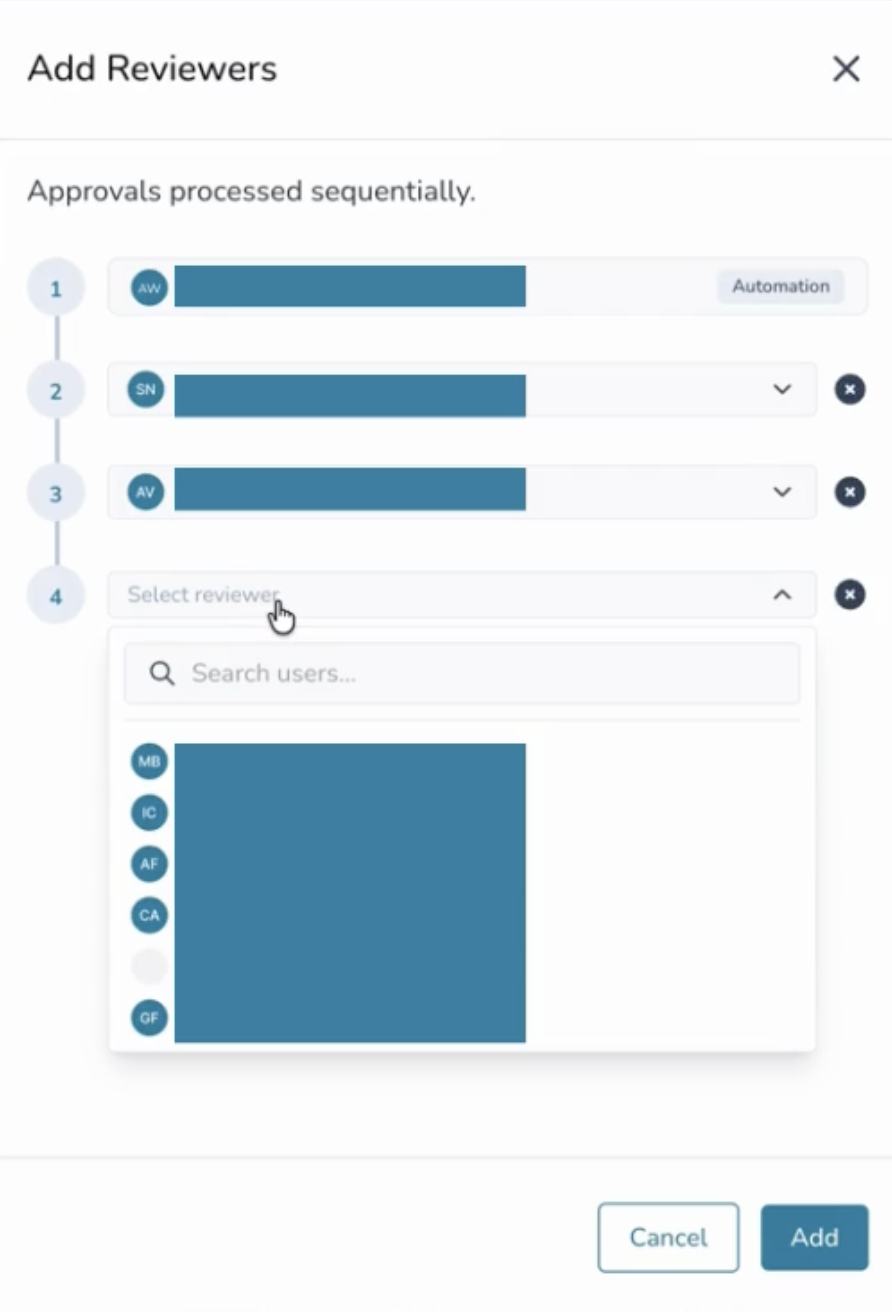
Save the Reviewer
Click the blue “Add” button to confirm and assign them as a reviewer.
Option 2: Add a Reviewer from the Shipment Details Panel
Open the Shipment
In Auto Product Release, click on the shipment row you want to update.
Find the Reviewer Section
On the right-hand side of the screen, locate the Reviewer section.
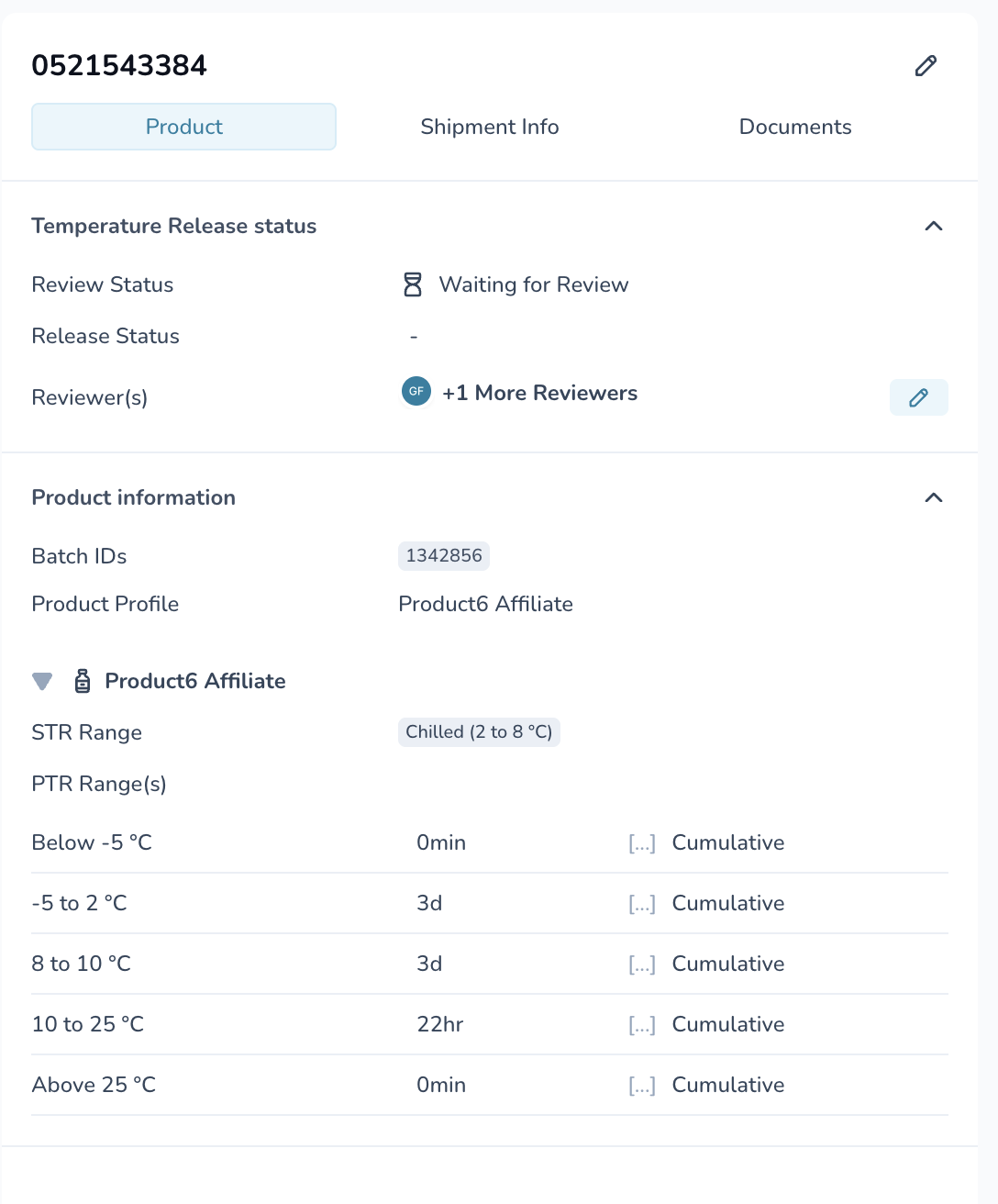
Click Add or Edit Reviewer
If there is no reviewer yet: click “Add Reviewer” (with the people icon).
If there is already a reviewer: click the pencil icon to edit reviewers.
Select the Reviewer
Click the “+ Add” button.
Search for the individual you want to add.
Select them from the search results.
Confirm the Reviewer
Click the blue “Add” button to save your changes.
What Happens Next?
The person you added as a reviewer will receive a notification letting them know they have a shipment to review (this may appear as an in-app notification and/or email, depending on their notification settings).
Understanding the Temp Release Main Dashboard
The Temp Release dashboard is organized into three horizontal, collapsible sections that show the status of all shipments requiring review.
1. Needs Review
This is the top section of the dashboard.
It lists all shipments that have temperature deviations and do not yet have a reviewer assigned.
These shipments are waiting for someone to begin the review process.
Click the row to expand or collapse the list of shipments inside.
2. In Review
This is the middle section.
It contains shipments that have a reviewer assigned but are still actively being reviewed.
The assignment signals that the review process has started, but is not yet complete.
This section is also collapsible, allowing you to open and close the list of shipments as needed.
3. Reviewed
This is the bottom section of the dashboard.
It includes shipments that have already been fully reviewed by the assigned reviewer(s).
These shipments require no further action.
Like the other sections, this panel can be expanded or collapsed.
Each section automatically updates as shipments move through the review workflow—from Needs Review → In Review → Reviewed—giving users a quick visual snapshot of the overall status of all temperature-related exceptions.