Downloading a Temperature Report
Last updated: August 26, 2026
Downloading Temp Report
1. Open the Shipment in Product Release
From the shipment list, find the shipment you want to review.
Click on the Shipment ID to open the Shipment Summary.
2. Navigate to the Device / Temperature View
At the bottom of the shipment view, click on the Devices icon
You’ll see a list or set of cards for all devices associated with this shipment (e.g., internal device, external device).
3. Select the Device(s)
Identify the device you want to download a report for (e.g., internal logger).
Use the selection control (checkbox or device selector) to choose:
One device – if you only need a report for a single logger
Multiple devices – if you want reports for more than one logger at once
4. Choose the Download Type
With the device(s) selected, you’ll see download options such as:
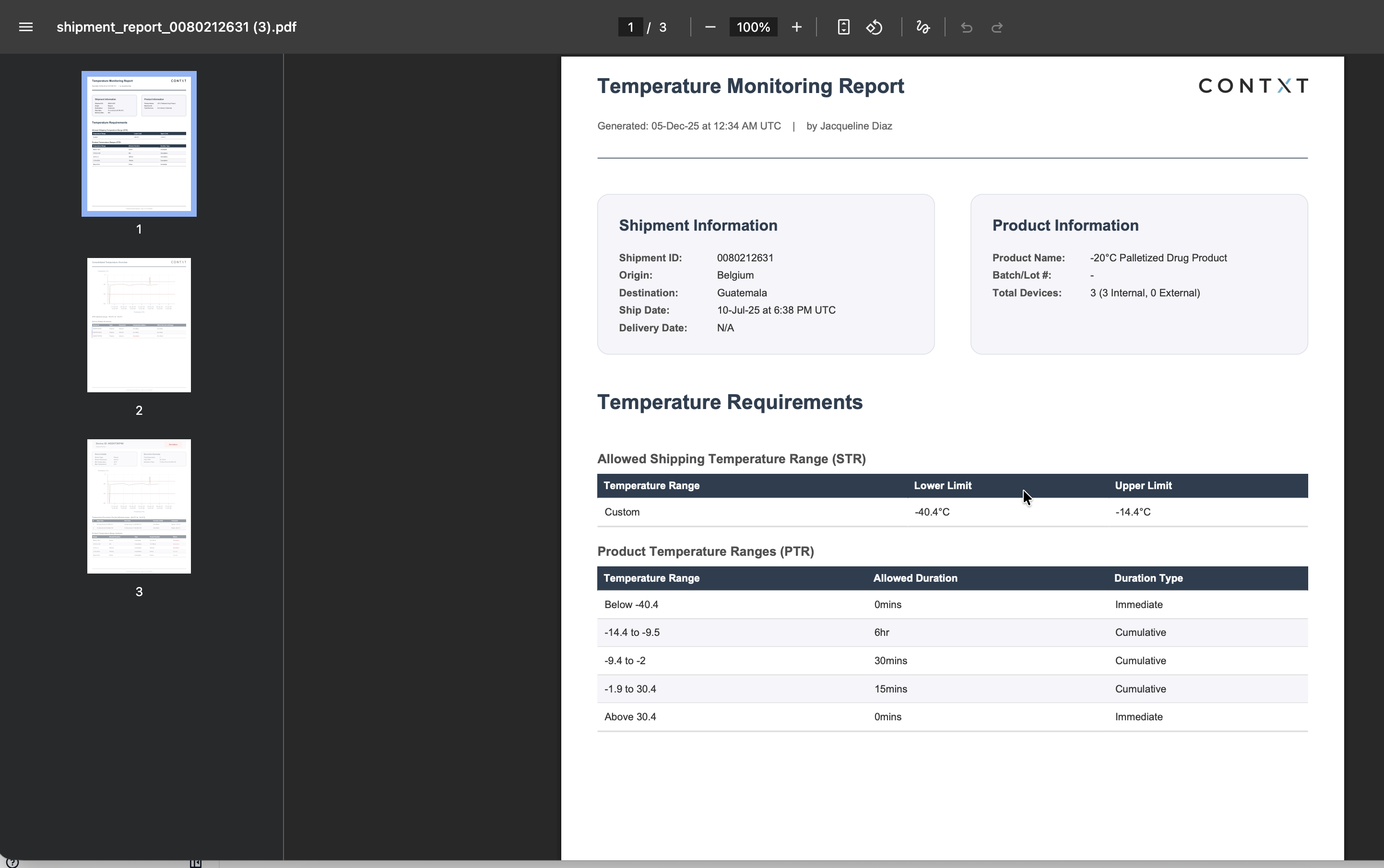
Download Temperature Report / PDF
Click this to generate the official temperature report in PDF format.
If one device is selected, CONTXT generates a single PDF.
If multiple devices are selected, CONTXT generates a ZIP file containing one report per device.
5. Open the Temperature Report
Once the file is downloaded, open the PDF (or unzip the ZIP file and open the reports inside).
Review:
Temperature requirements
Temperature readings over time
Excursion events and duration out of range
Time-in-range summaries
Details needed for temperature release or quality review