Shipment quick details on the map
Last updated: September 19, 2026
Until now, clicking a shipment on the Command Center map took you straight to its full page. With CONTXT v3.0, a click opens a quick details card next to the map instead. The card gives you the shipment's Live Risk verdict, its status, where it was last seen, and what it is carrying, all without leaving the map.
Use it when you are scanning the map and want to answer "is this shipment okay, and what is on it?" in a few seconds. Open the full shipment page only when you need the timeline, the temperature data or the documents.
Where to find it: Command Center › Map › click any shipment marker
Step 1. Pick a view
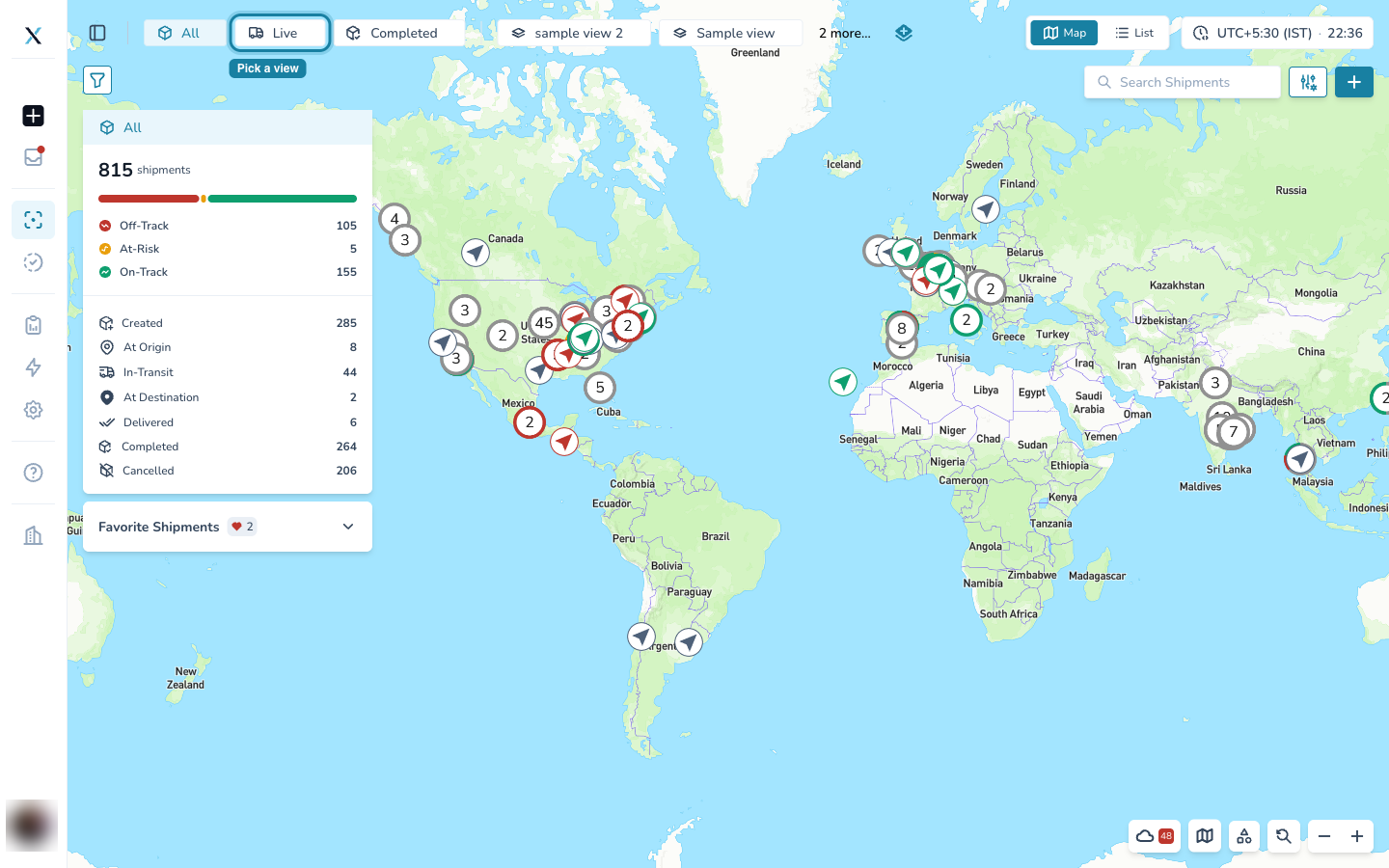
At the top of the Command Center, choose which shipments you want on the map:
All shows every shipment in your organization.
Live shows shipments that are still on their way.
Completed shows shipments that have already arrived.
The map and the summary panel on the left update to match. The summary panel also tells you how many shipments are Off-Track, At-Risk and On-Track in that view.
The Command Center header with the All, Live and Completed views, and Live highlighted
Step 2. Zoom in and hover a marker
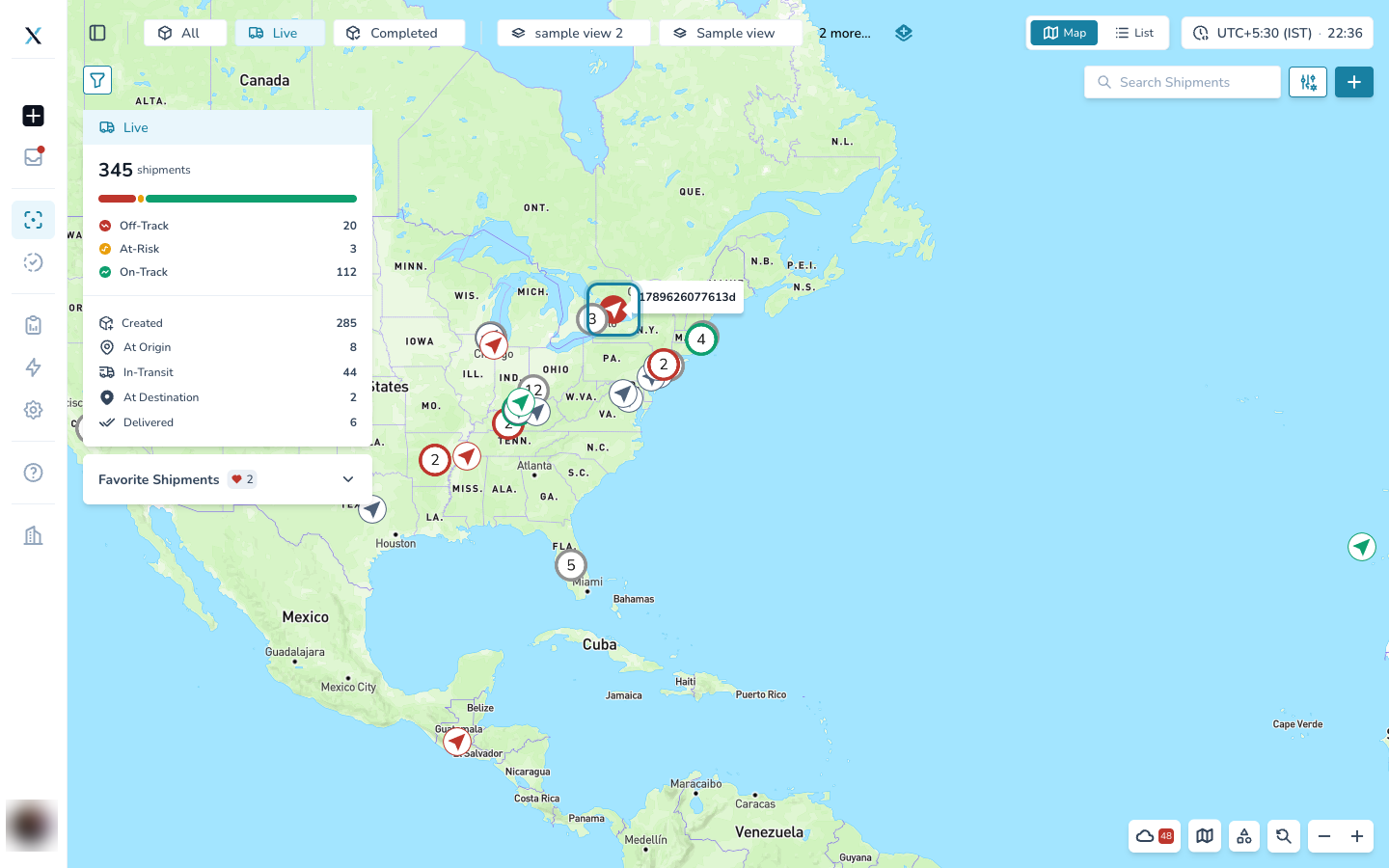
Scroll on the map, or use the plus and minus controls at the bottom right, to zoom into the region you care about.
When several shipments sit close together, the map groups them into a grey circle with a number. Zoom in a little more and the group splits into individual markers. A marker's colour follows its Live Risk verdict: red for Off-Track, amber for At-Risk and green for On-Track. Grey means Live Risk has no verdict for that shipment yet, for example because it has no active device.
Hover over a marker and a small label shows its shipment ID, so you can check you have the right one before you click.
The map zoomed into a region, with one marker highlighted and its shipment ID label showing
Step 3. Click the marker to open the card
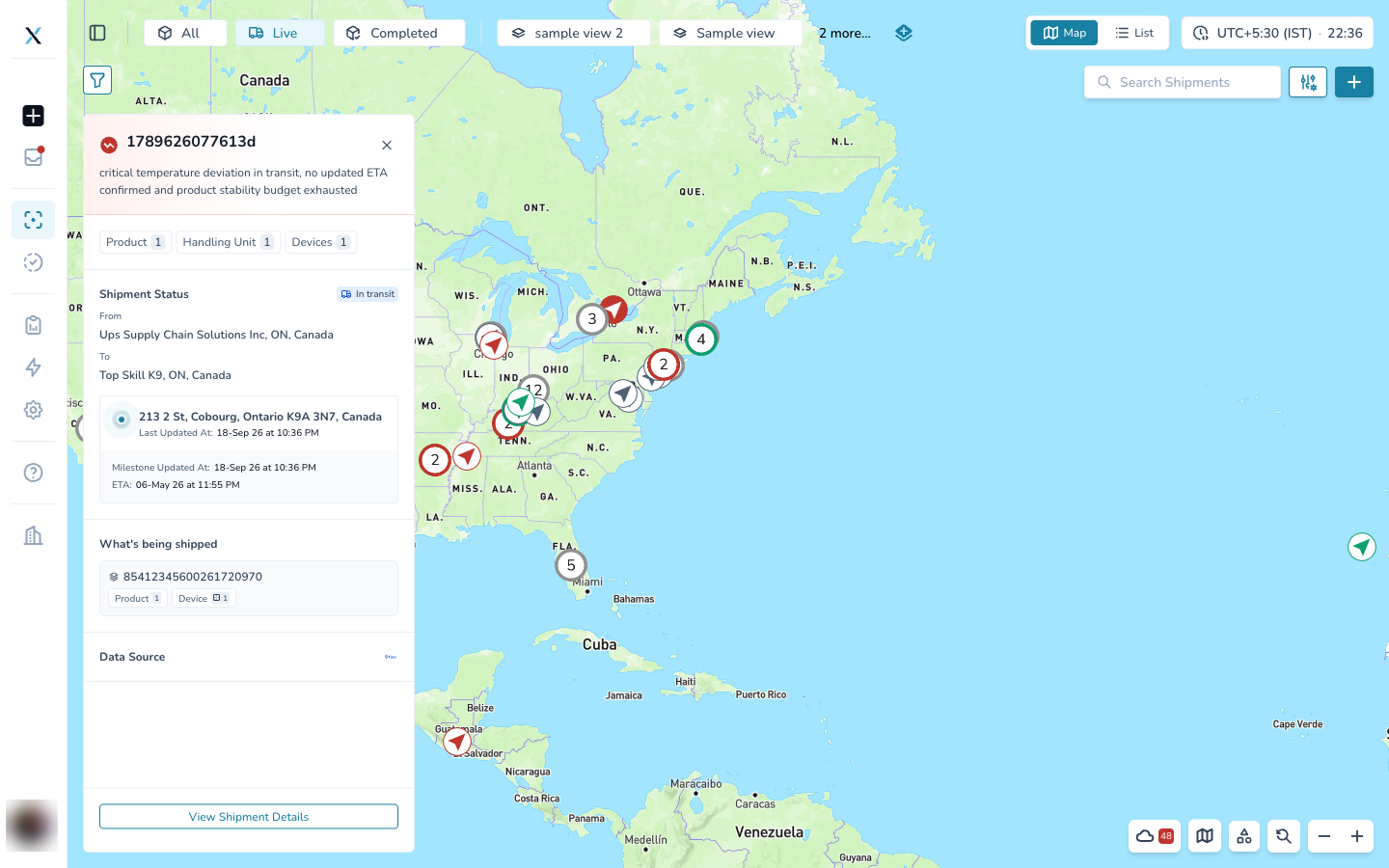
Click the marker. The quick details card opens on the left of the map. Here is the full card, followed by what each part means.
The quick details card open next to the map
The verdict, and the reason behind it
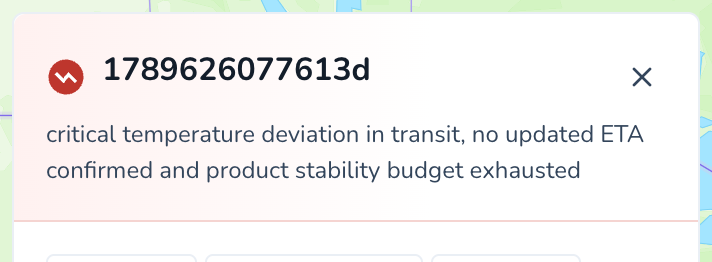
The top of the card shows the shipment ID with its Live Risk icon. Under it is one sentence from Live Risk explaining the verdict in plain words. In this example the shipment is Off-Track because of a critical temperature deviation, a missing updated ETA and an exhausted product stability budget. This is the same verdict and reasoning you see on the full shipment page, so the two never disagree.
Use the X at the top right to close the card.
The top of the card showing the shipment ID, the Off-Track icon and the one-sentence explanation
What is on board, in numbers

Three counters show how much the shipment is carrying: the number of Products, the number of Handling Units (the pallets, boxes or containers the products travel in), and the number of Devices monitoring them.
Counters for Product, Handling Unit and Devices
Status, origin and destination
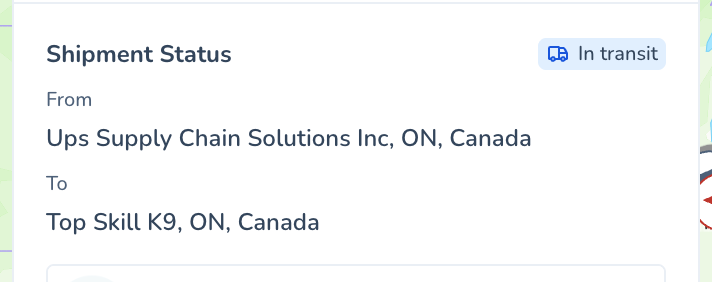
Shipment Status shows where the shipment is in its journey, for example In transit or Completed. Below it, From and To give the origin and destination as they were entered when the shipment was created.
Shipment Status with an In transit badge, and the From and To locations
Last known location and timing
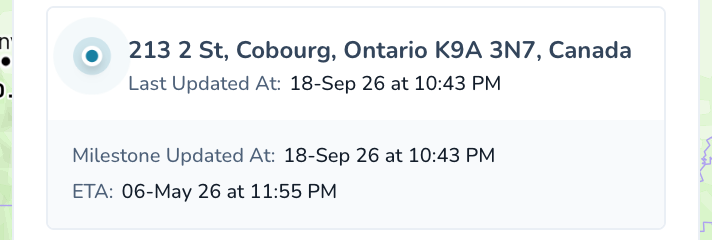
The grey box shows the shipment's most recent position and when that reading arrived (Last Updated At). Below it are two more dates:
Milestone Updated At is the last time a carrier milestone was received.
ETA is the planned or estimated arrival time.
Comparing these dates is a quick way to spot a shipment that has gone quiet or is running late.
The last known location box with Last Updated At, Milestone Updated At and ETA
What's being shipped
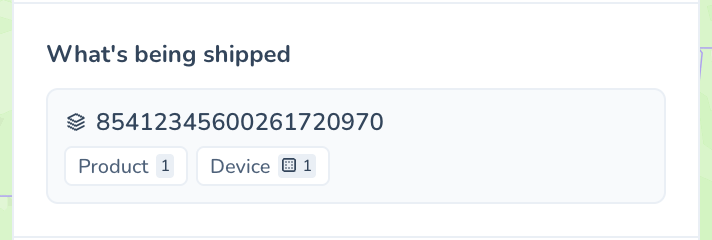
This list has one row per handling unit. Each row shows the handling unit ID and how many products and devices belong to it. Hover a row to see more (see Step 4).
The What's being shipped list with one handling unit row and its Product and Device counts
Data source and the way to the full page
Data Source shows the logo of the provider supplying the tracking data for this shipment. The View Shipment Details button at the bottom opens the full shipment page.
The Data Source row and the View Shipment Details button
Step 4. Hover a handling unit to see what is inside
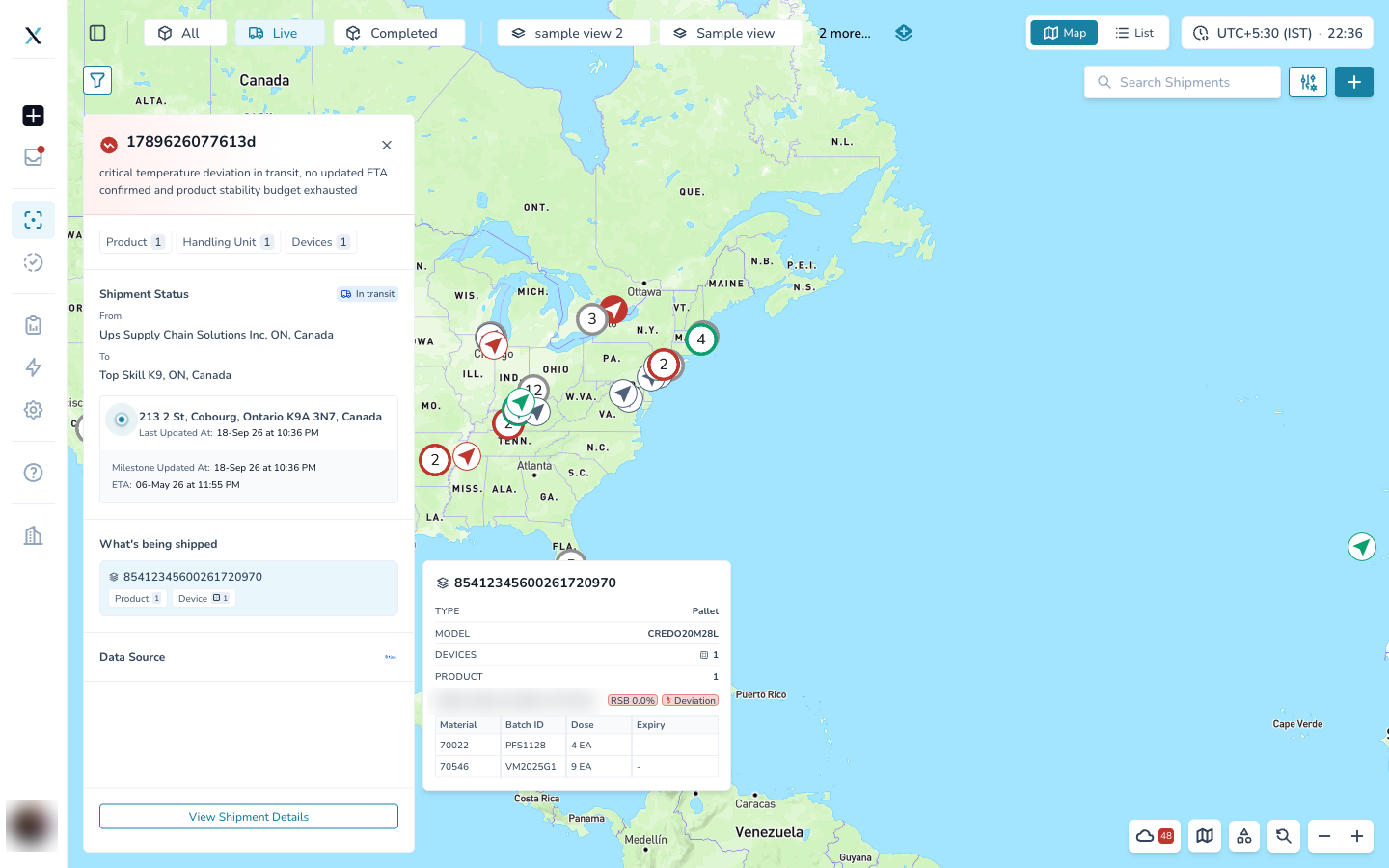
Move your mouse over a row in What's being shipped. A second card opens beside it with the details of that handling unit:
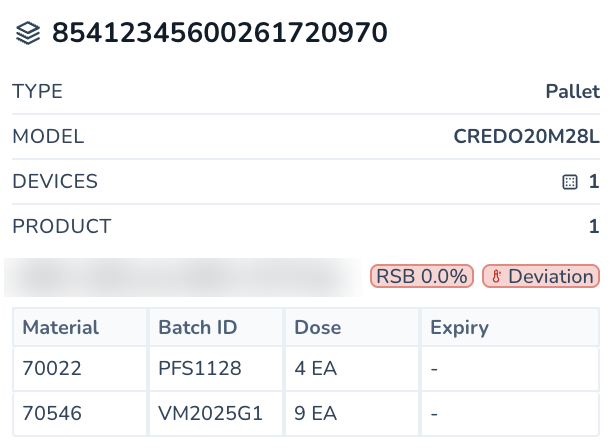
TYPE and MODEL, for example a Pallet and its packaging model.
DEVICES and PRODUCT counts for this handling unit only.
The product name, with two chips next to it: the remaining stability budget (RSB) as a percentage, and the current temperature status, for example Deviation.
A table listing each Material with its Batch ID, Dose and Expiry.
Move the mouse away and the hover card closes.
The handling unit hover card next to the quick details cardClose-up of the handling unit hover card showing type, model, counts, RSB, temperature status and the material table
Step 5. Open the full shipment page when you need more
If the card has told you enough, close it and move on to the next marker. If you need the timeline, the temperature chart, the devices or the documents, select View Shipment Details at the bottom of the card.
The View Shipment Details button highlighted at the bottom of the card
Good to know
The card reads the same Live Risk verdict as the shipment page, so what you see on the map is what you will see on the page.
Click another marker to switch to that shipment, or select the X to close the card.
The dates on the card follow the timezone shown at the top right of the Command Center.
Part of the CONTXT v3.0 release.