Navigating to Shipments in the Command Center
Last updated: August 26, 2026
Check out this video to learn more about navigating to shipments in the Command Center.
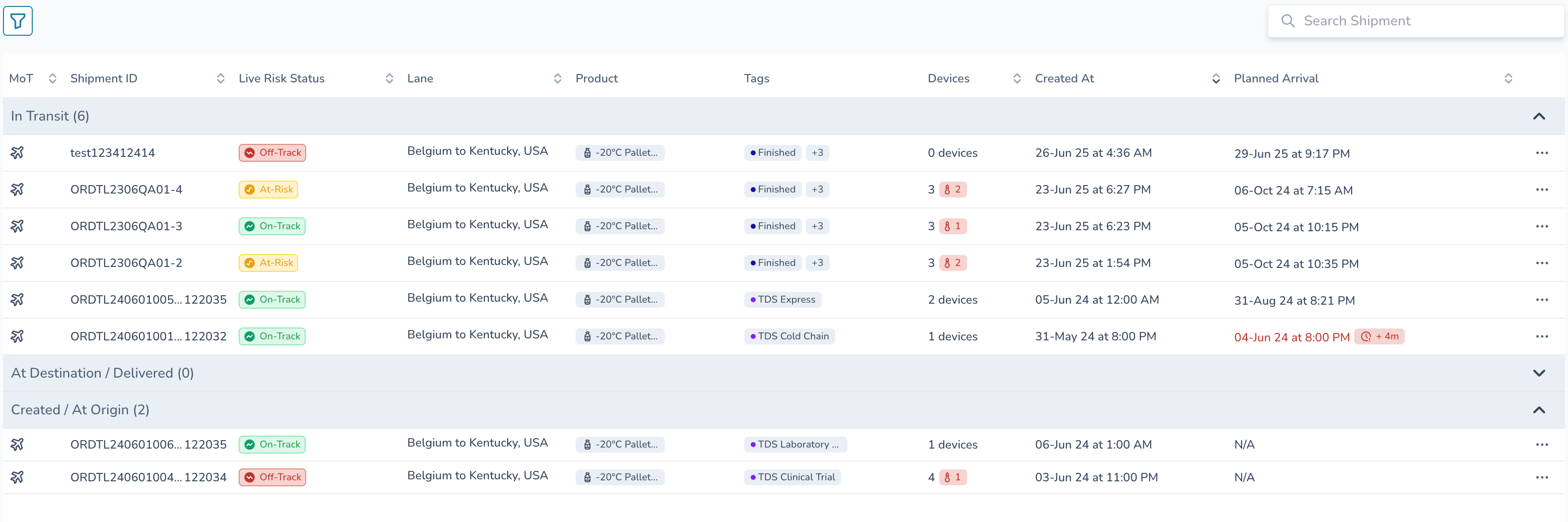
In this video, I walk you through the basic functionalities of the Command Center, including how to filter and search for shipments based on various criteria such as status, carrier, and product tags. I demonstrate how to switch between map and list views, and how to create custom views tailored to your needs. Additionally, I highlight the importance of tracking your shipments' statuses, including those that are off track, at risk, or on track. I encourage you to explore these features and create your own custom views to enhance your shipment management experience. Please take a moment to familiarize yourself with these tools and consider setting a default view that works best for you.
Here is a step by step guide that will help you locate shipments.
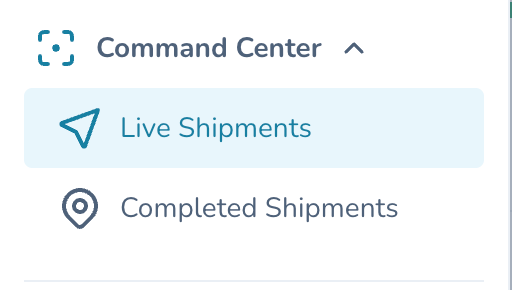
1. In the main menu. Navigate to Command Center ---> Live Shipments
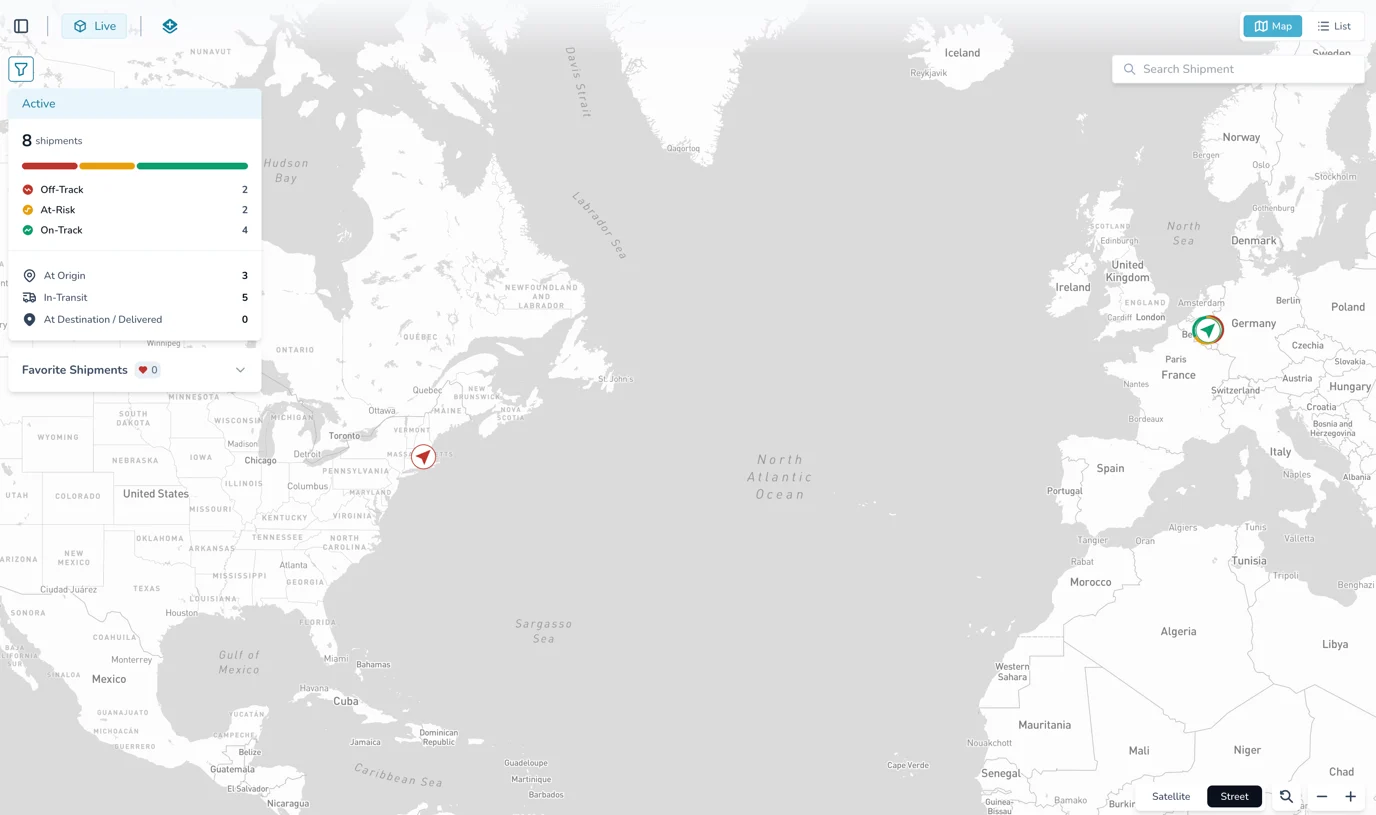
2. This will open a map view of all active shipments.
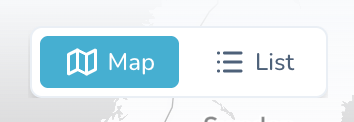
3. In the top right corner of the screen, chose either Map or List view.
4. Select the icon in the top left of the screen to filter your shipments, or to search for a shipment.
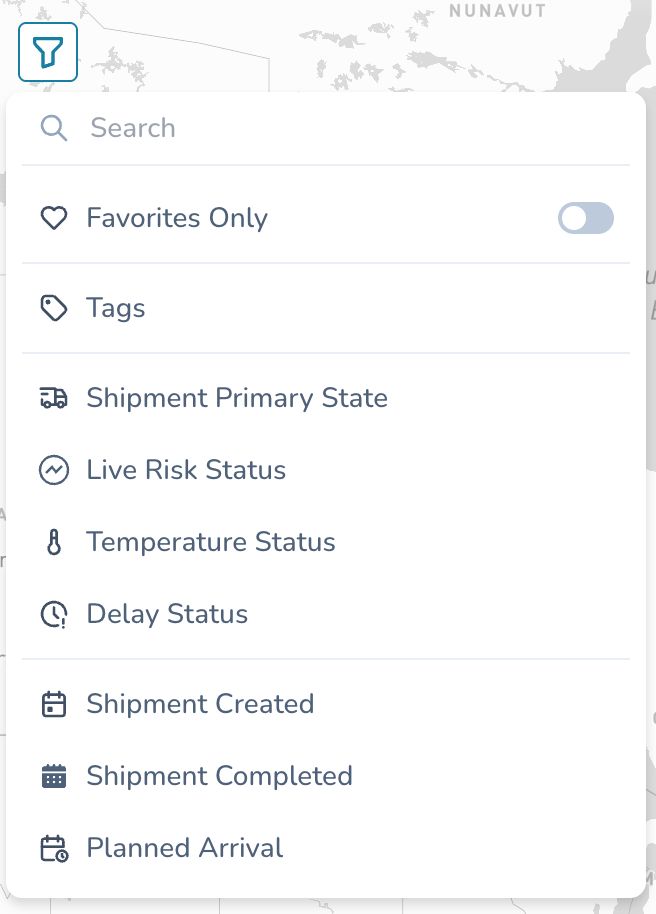
You can also search for a Shipment using the search box in the top right of the screen.

Map View
1. Understanding Risk Status.
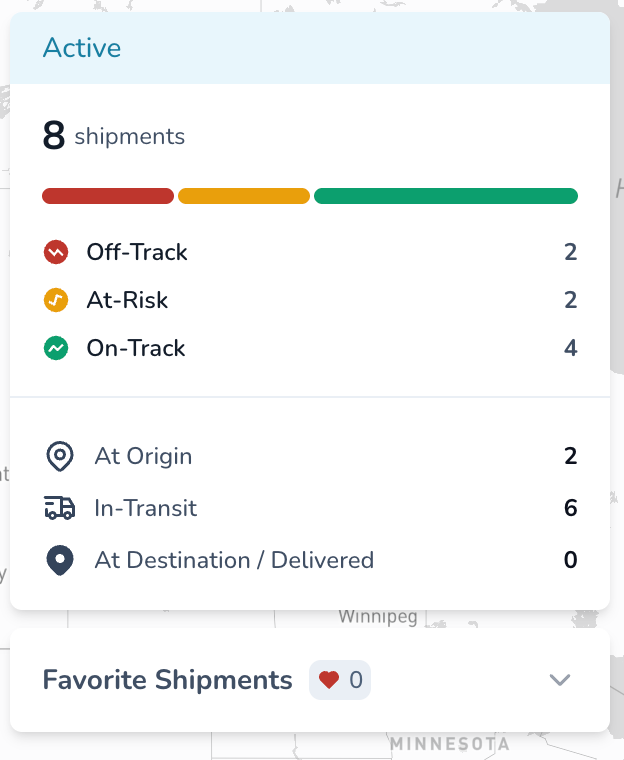
Off Track - Needs Immediate attention. The shipment is either in an active state of temperature deviation or it is late to the destination.
At Risk - The shipment is likely to go into a state of deviation or become late in the new few hours.
On-Track - The shipment has minimal risk of temperature deviation or late delivery.
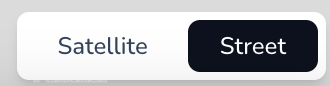
2. Select Satellite or Street view as an option (Street view is default).
3. To zoom in and out on the map, use your mousepad or the + and - icons in the bottom right corner.
4. To revert back to the previous zoomed position, click this icon on the bottom right corner next to the zoom icons.

5. To open a shipment on the Map View, hover over the shipment on the map. A box will pop up. Click on that box to open the shipment record.
List View
Select a shipment from the list to open it in List View. Shipments will be grouped in lists according to their location (At Origin, In-Transit, at Destination). Filter (top left) and Search (top right) can be used to filter and search for your shipment.