Flight, vessel and container tracking, inside CONTXT
Last updated: September 19, 2026
Most shipments spend part of their journey on a flight, a vessel or in a container, and until now checking on that leg meant opening the airline or the carrier's website in another tab. In CONTXT v3.0 the carrier's own tracking appears on the shipment page, in the same card that shows the device position. One click switches between the two, and a hover shows the full picture of the leg.
The cards work the same way for all three modes, and they update on their own as the carrier publishes new positions and times.
Where to find it: any shipment details page › Last Known Location card (top right) › the flight, vessel or container tab
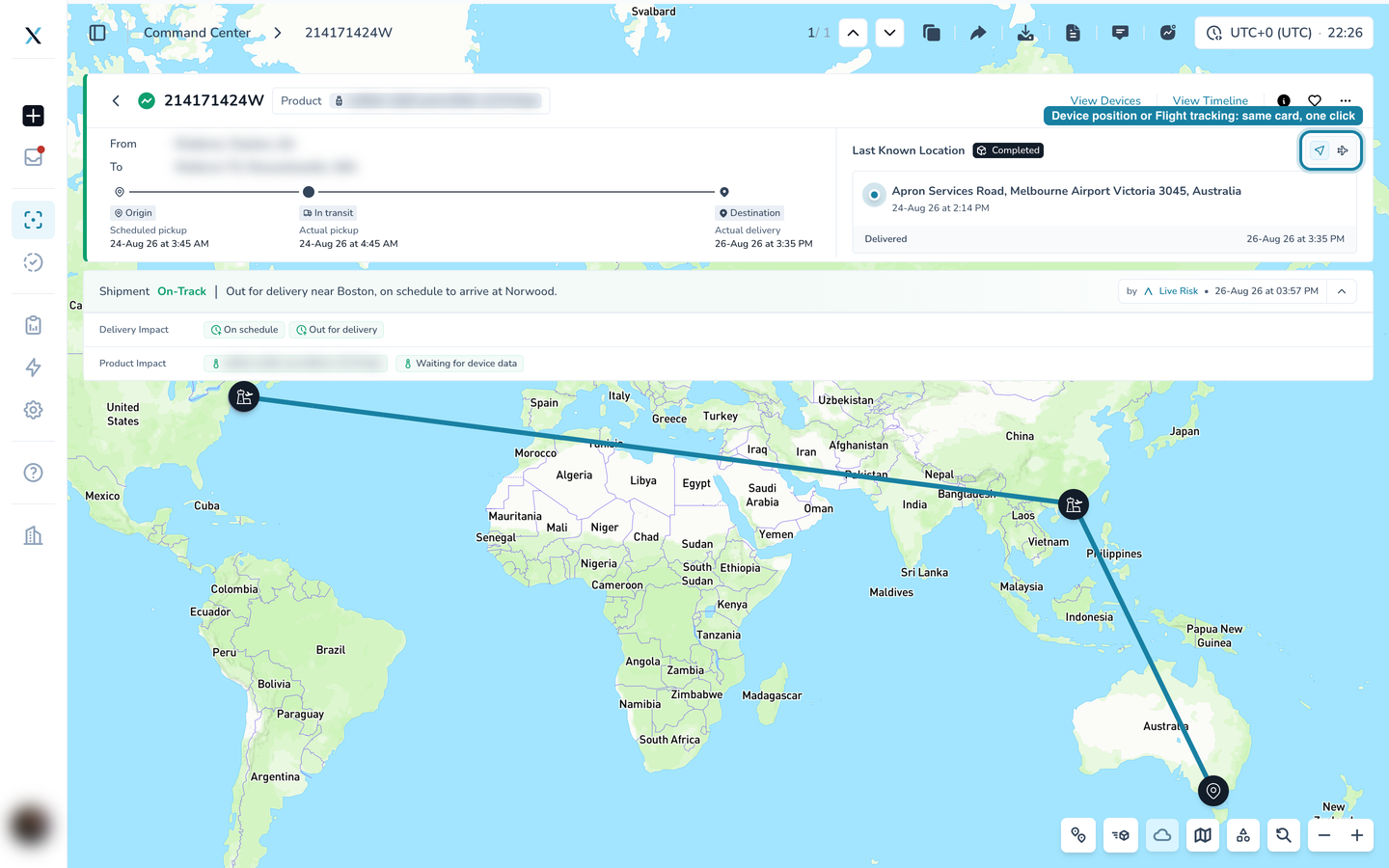
Switch from the device to the Flight/ Vessel tracking
The Last Known Location card has a small switch in its top right corner. The first button is the device position. When the shipment is booked on a flight, a vessel or a container, a second button appears for it, and the card's title changes to Flight Tracking, Vessel Tracking or Container Tracking.
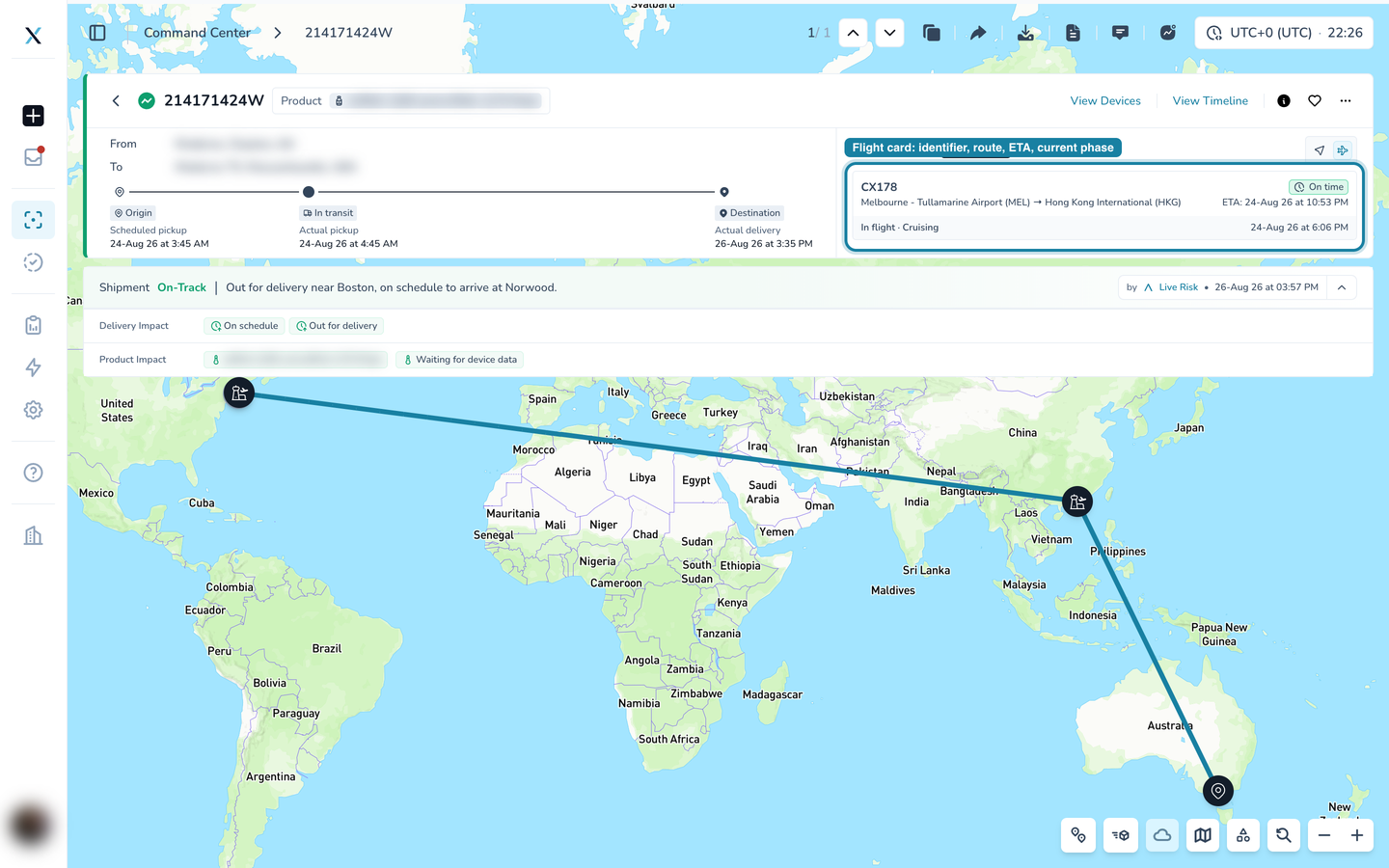
Flight tracking
The flight card shows the flight number, the route as airport codes and names, the ETA, and the current phase (for example In flight · Cruising) with the time of the last update. The chip on the right is the schedule status: On time, or Pred. Delay with the number of minutes when the airline expects to be late.
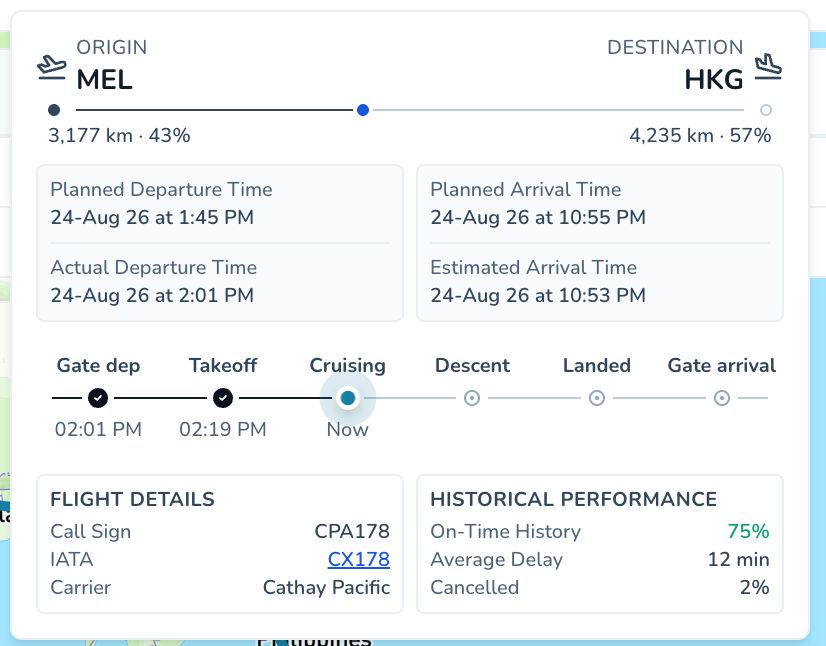
Hover the card for the detail:
Origin and destination with the distance flown and remaining, as kilometres and as a percentage.
Planned and actual departure, planned and estimated arrival.
The flight phases as a stepper: gate departure, takeoff, cruising, descent, landed, gate arrival, with the times reached so far and Now on the current phase.
Flight details: call sign, IATA number and carrier.
Historical performance for this flight number: on-time history, average delay and cancellation rate, so you know how much to trust the ETA.
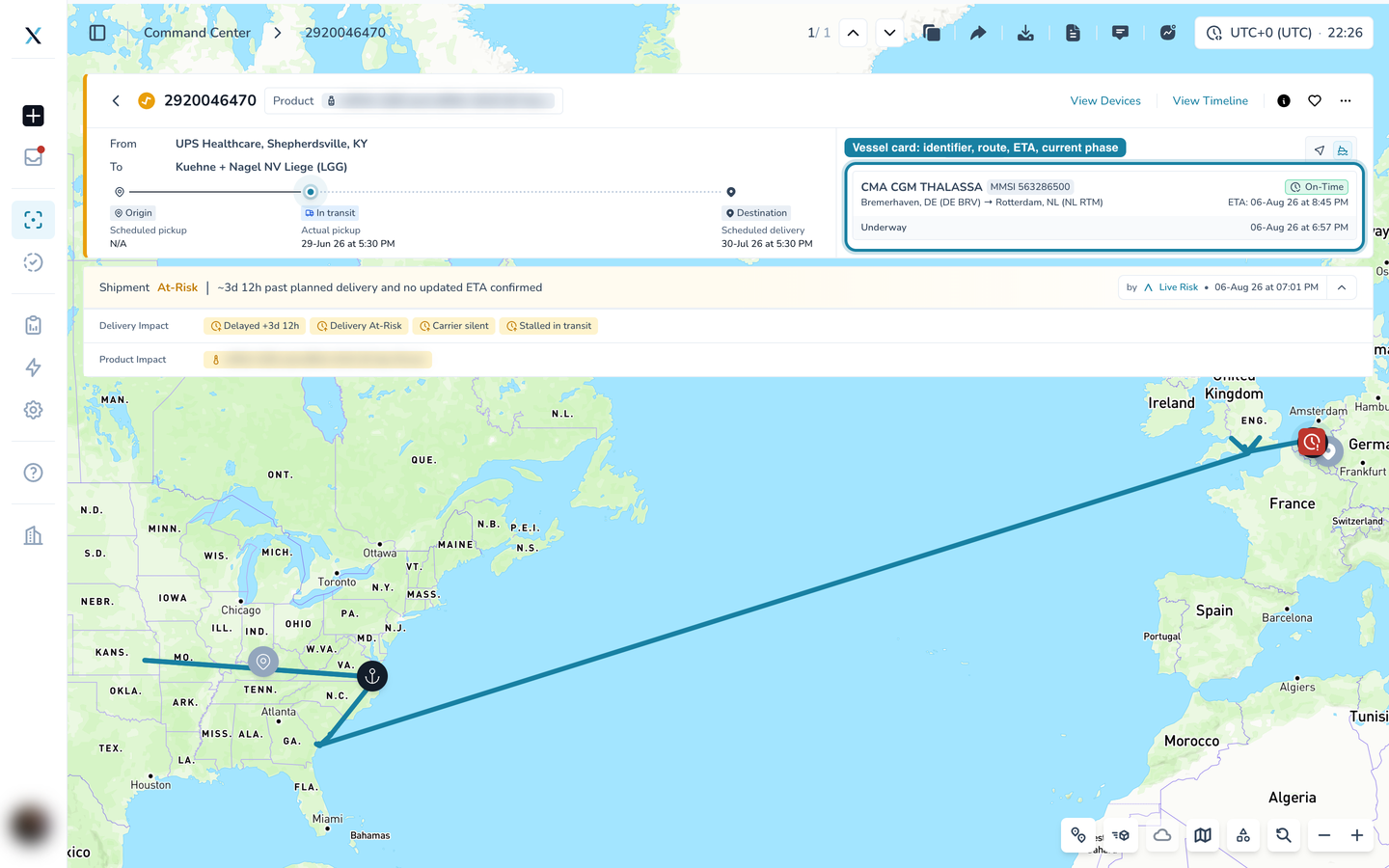
Vessel Tracking
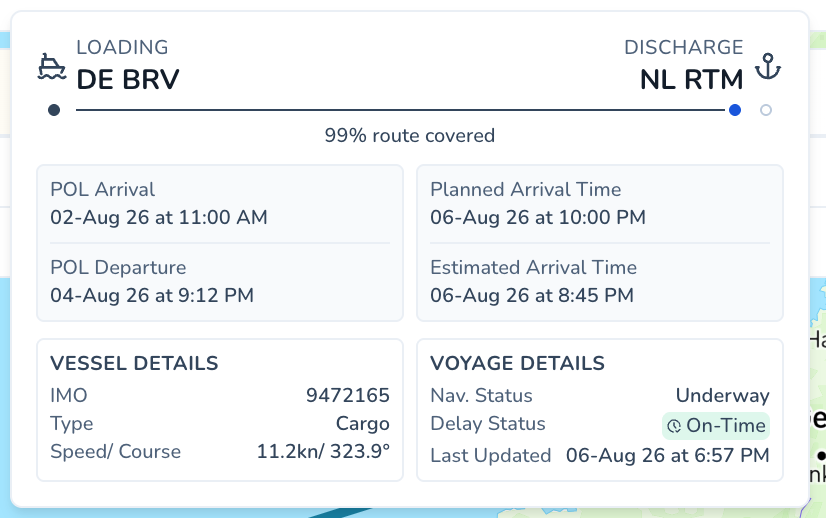
The vessel card shows the vessel name and MMSI, the loading and discharge ports, the ETA, and the navigation status (for example Underway) with the time of the last position. The chip shows On-Time or Delayed against the planned arrival.
Hover for:
Loading and discharge ports with the share of the route covered.
POL arrival and departure, planned and estimated arrival.
Vessel details: IMO number, type, speed and course.
Voyage details: navigation status, delay status and when the position was last updated.
Step 4. Container
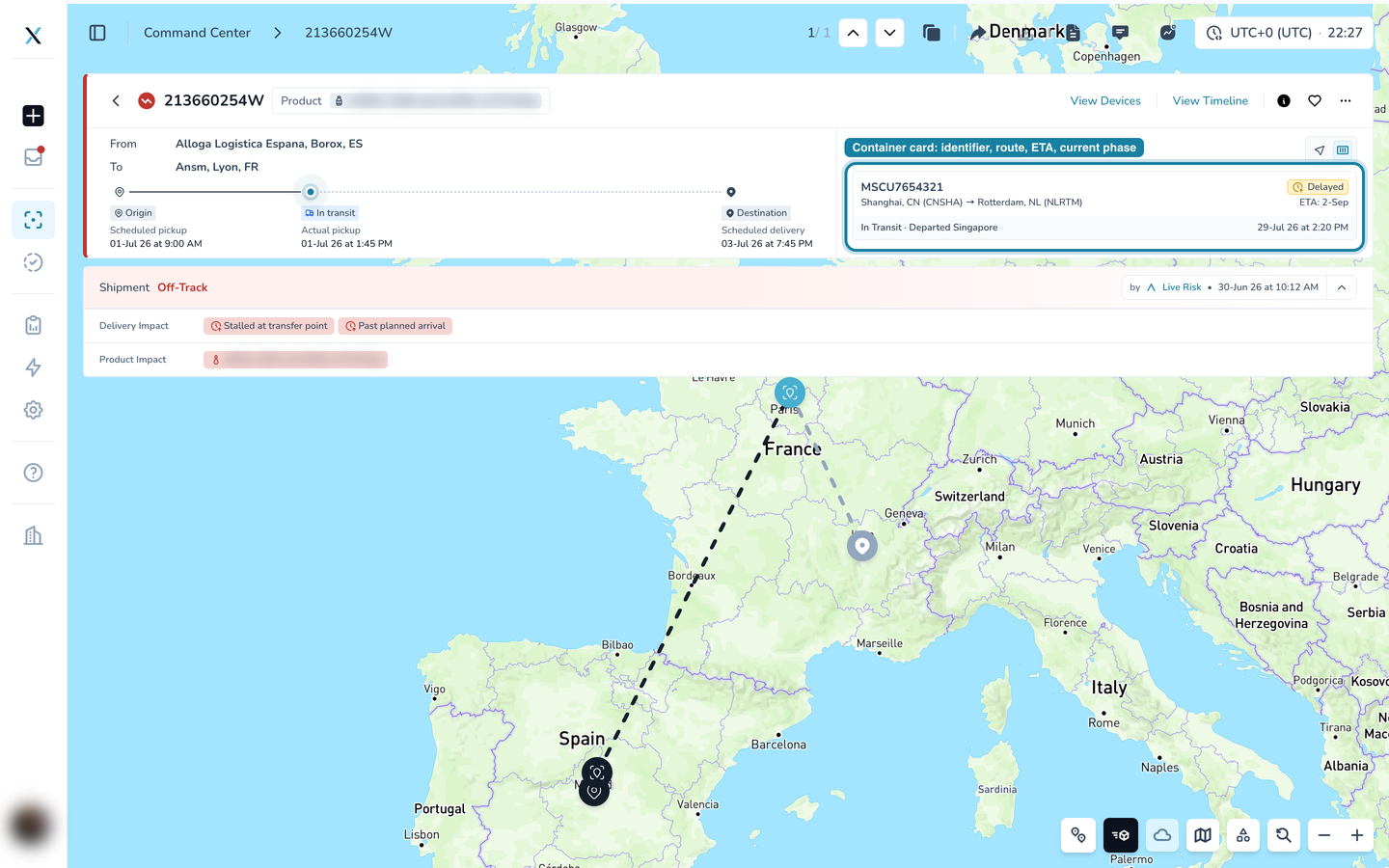
The container card shows the container number, the loading and discharge ports, the ETA, and the latest milestone (for example In Transit · Departed Singapore). Here the chip reads Delayed because the estimated arrival has moved past the planned one.
Hover for:
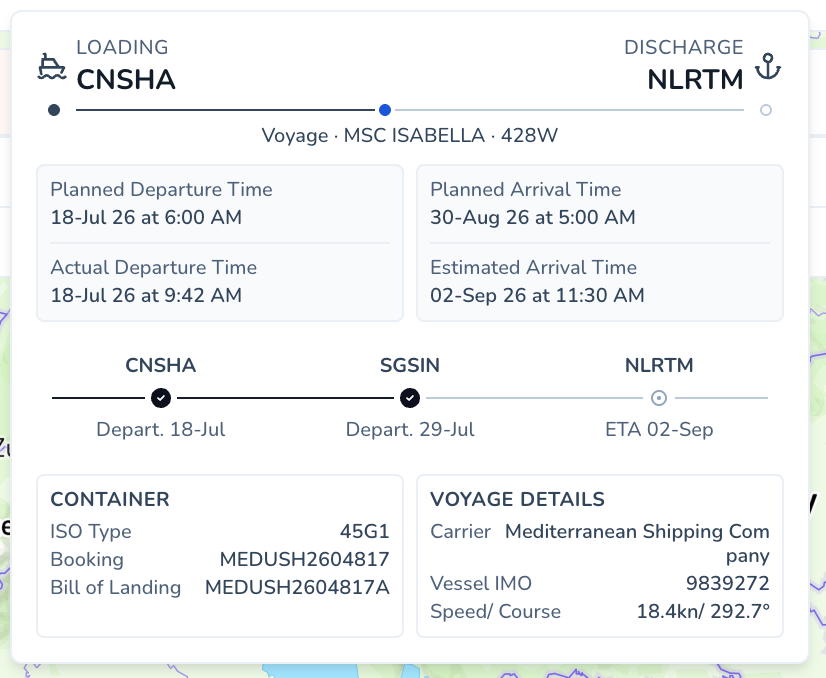
Loading and discharge ports and the voyage: vessel name and voyage number.
Planned and actual departure, planned and estimated arrival.
Every port call on the way, with departure dates and the ETA at the destination, so a transshipment stop is visible.
Container details: ISO type, booking number and bill of lading.
Voyage details: carrier, vessel IMO, speed and course.
Good to know
The tracking card appears when the shipment has a flight number, vessel identifier or container number and the carrier's data is available. Until then, the card shows the device position only.
The times on the card follow the timezone at the top right of the page.
Flight, vessel and container data come from the carrier feeds. The device position comes from the device on board. When the two disagree, the Live Risk Agent points it out under Watch For.
Part of the CONTXT v3.0 release