Add a Device to a Created Shipment
Last updated: August 21, 2026
You can add a monitoring or tracking device to a shipment after the shipment has already been created.
Add a device to a shipment
Open the shipment you want to update.
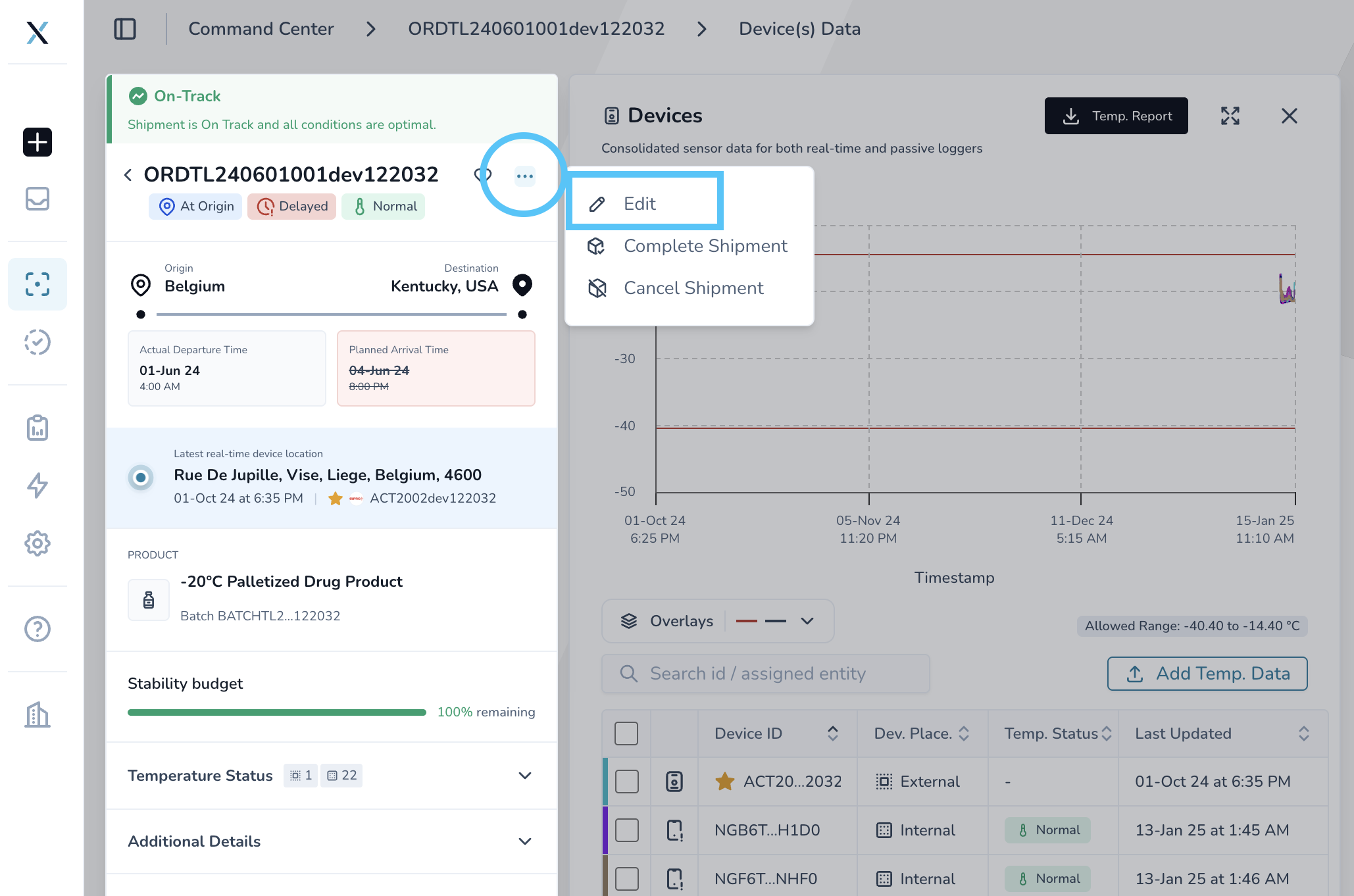
Click the three-dot menu in the shipment and select Edit.
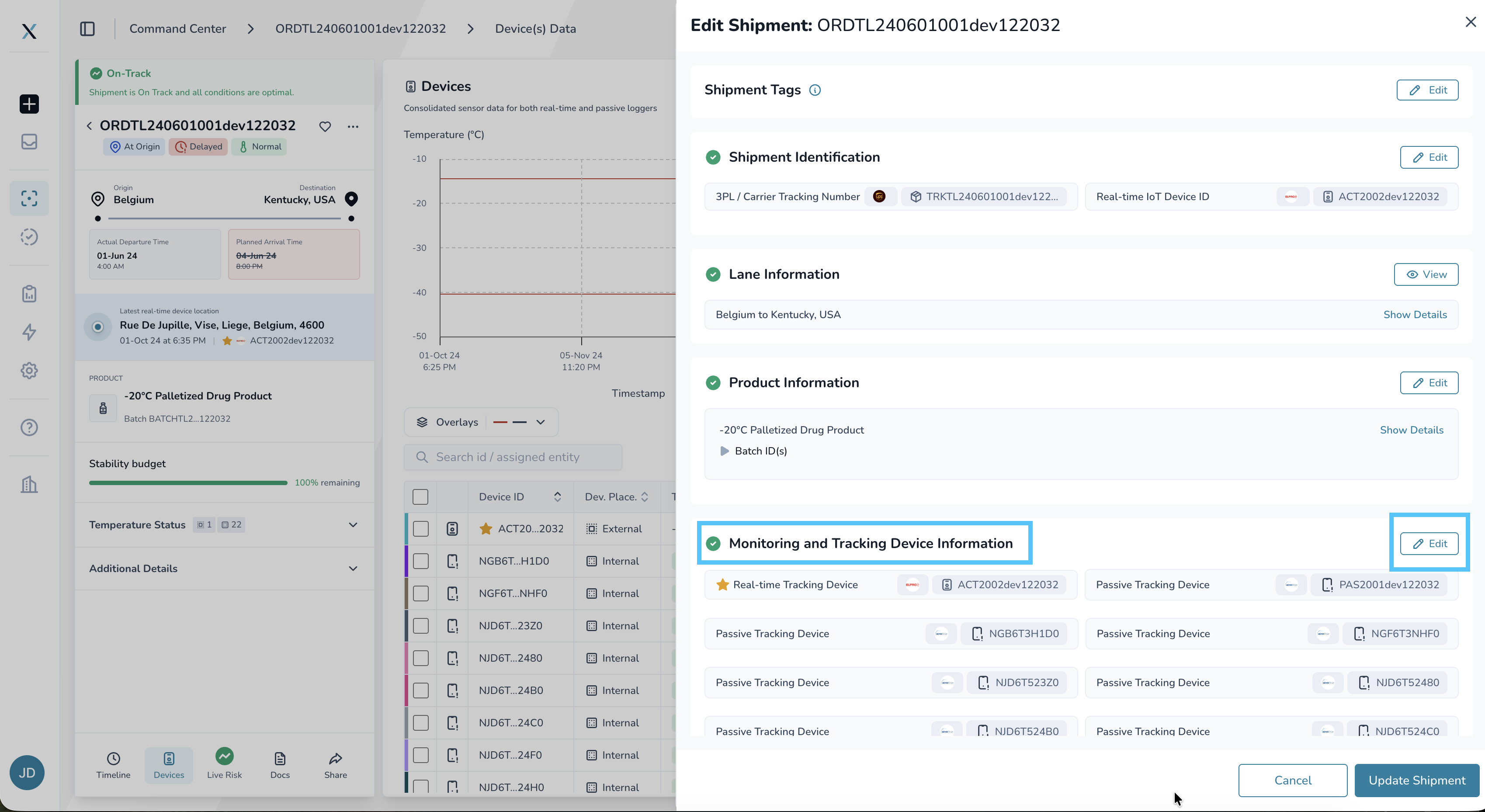
Scroll down to Monitoring and Tracking Device Information and click Edit.
In the device section, click the + Add button to Real-time Tracking Device or Passive Tracking Device depending on what you need to add.
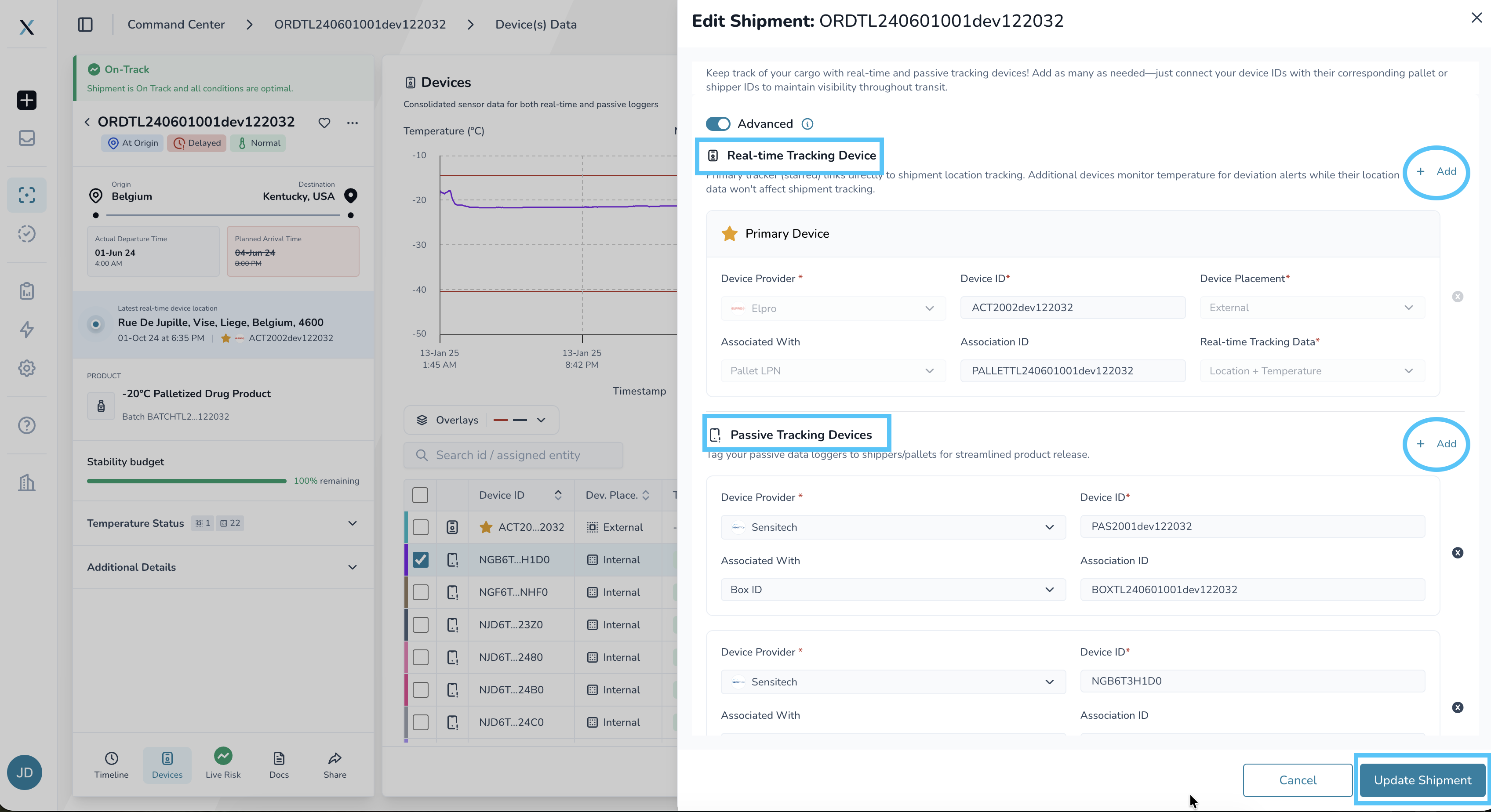
Enter the device information. Depending on your shipment and device setup, you can configure:
Device Provider – Select the provider for the device.
Device ID – Enter the unique ID for the device.
Internal or External – Indicate whether the device is internal or external to the shipment.
Device Placement – Specify where the device is positioned.
Pallet or Box Association – Indicate whether the device is associated with a specific pallet or box.
Association ID – Enter the applicable pallet or box association ID.
Real-Time Tracking Data – Select the type of data the device collects:
Location
Temperature
Location and temperature
Review the device information to make sure everything is correct.
Click Update Shipment to save the device to the shipment.
The device will now be associated with the existing shipment using the information you provided.