Create a Shipment in Command Center
Last updated: August 21, 2026
Automated Shipment Creation
Where active API integrations with Carrier and/or TMS/WMS systems are in place, shipments will be automatically created in the Command Center Platform.
Manual Shipment Creation
The step-by-step process is below.
Create a new shipment
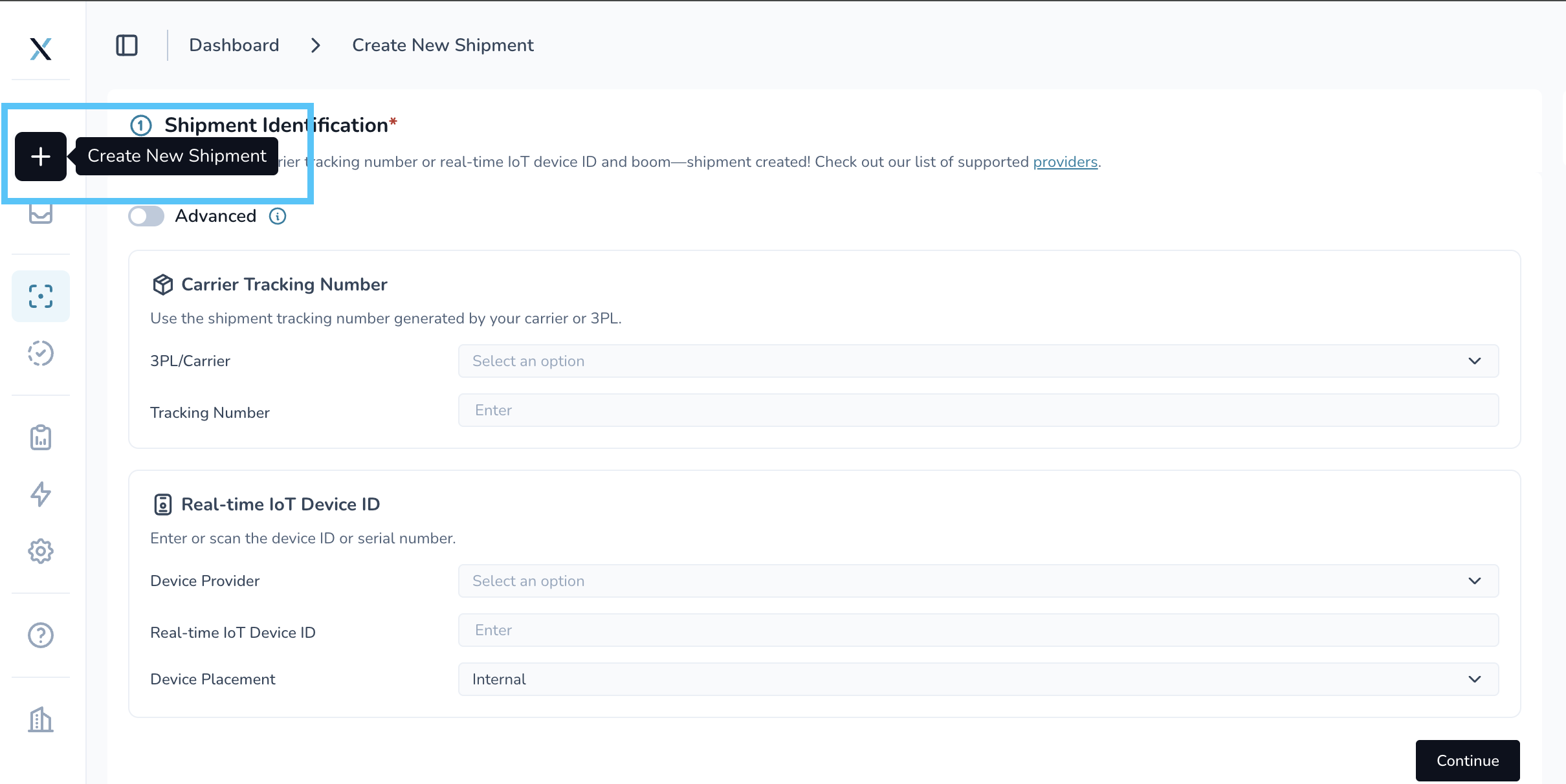
Click the + icon at the top of the main menu on the left side of the screen.
Click on Advanced to add additional information
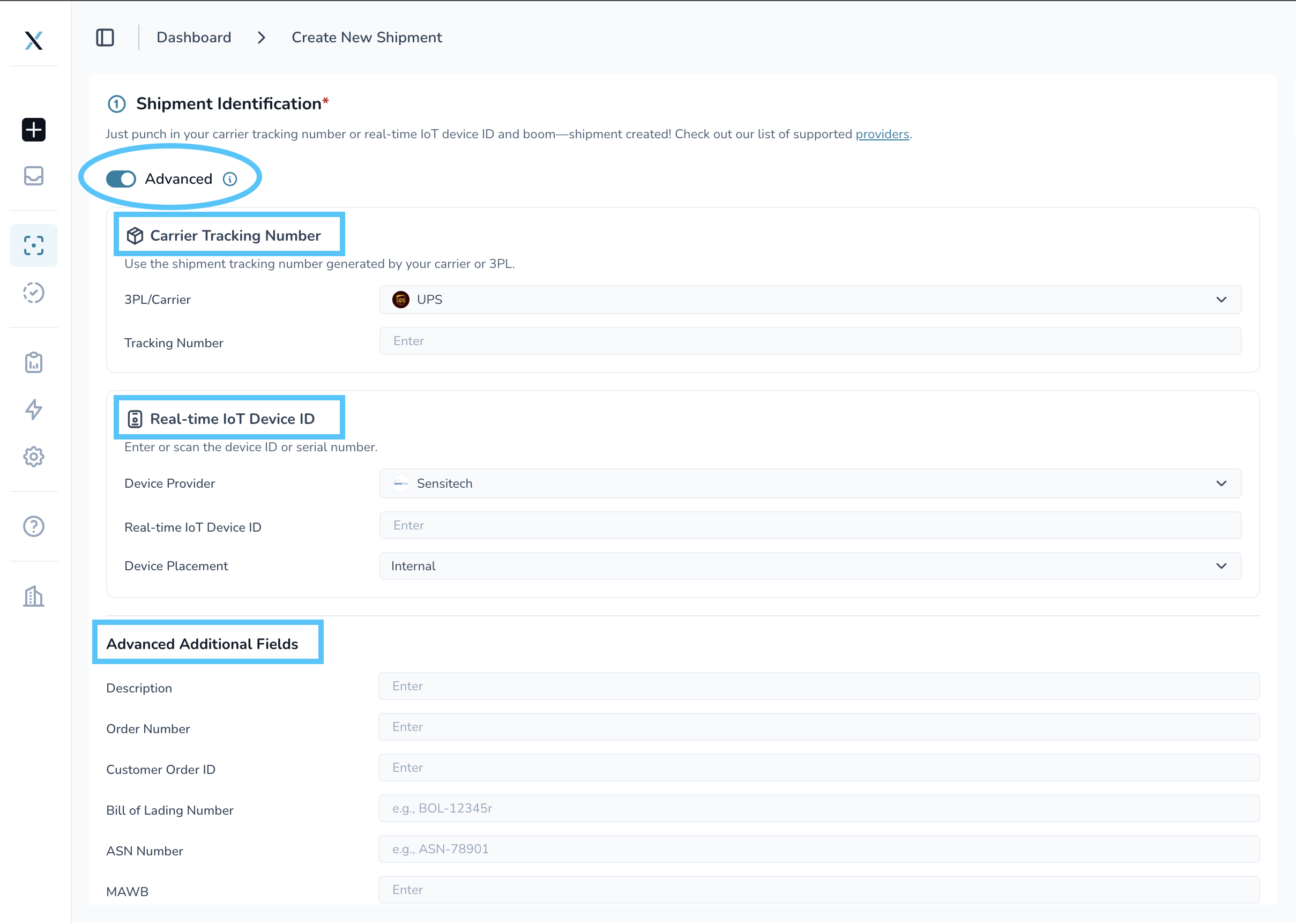
Add the Carrier Tracking Information.
Select the carrier from the dropdown menu.
Enter the tracking number provided by the carrier.
Carrier Tracking Information, Device Details, or both are required to create the shipment.
Add the Device Details.
Select the Device Provider from the dropdown menu.
Enter the Real-Time Device ID.
Select the device placement:
Internal – The device is located inside the pallet or packaging.
External – The device is attached to the outside of the pallet or packaging.
Click Continue.
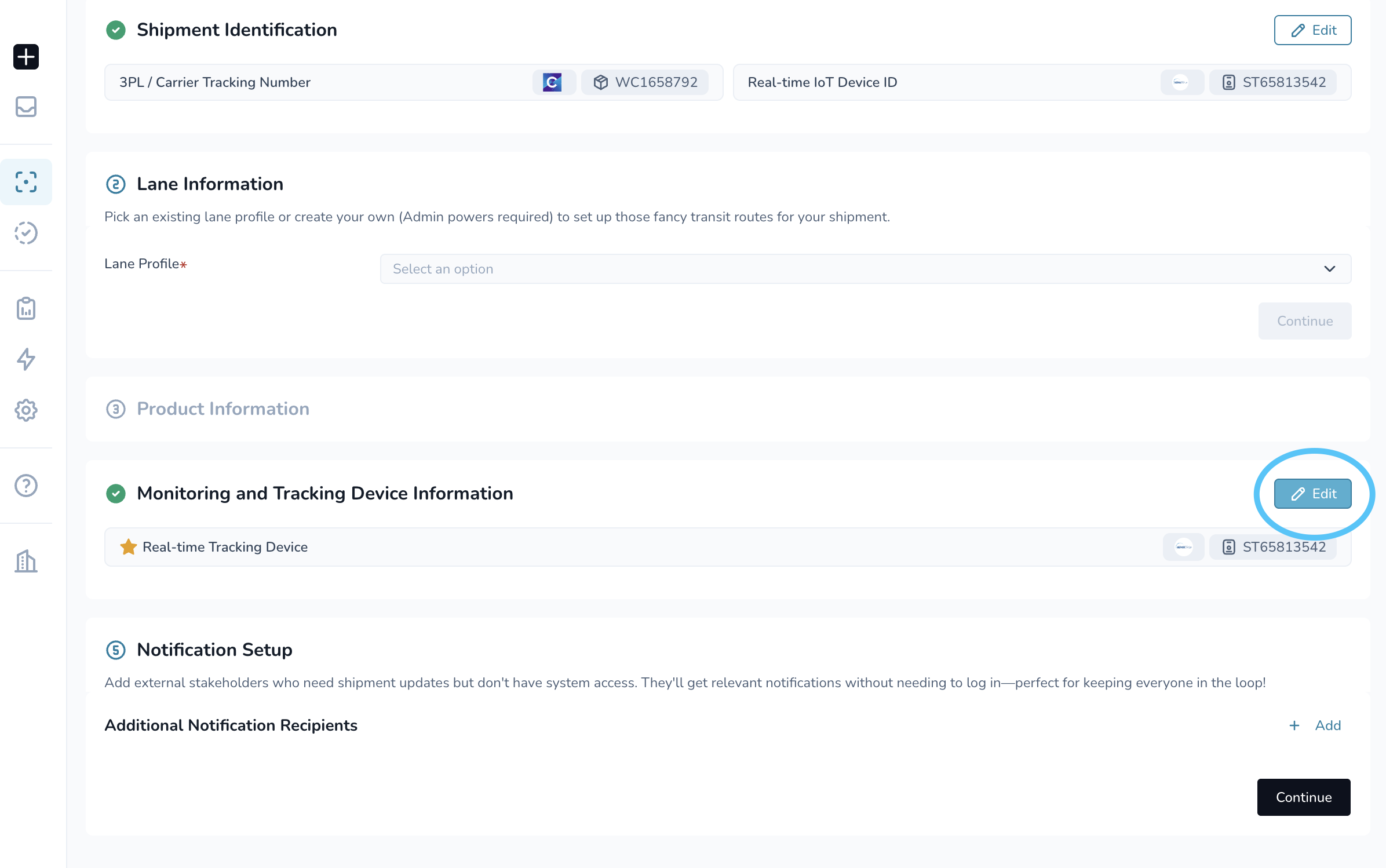
To add a passive logger. Click edit in Monitoring and Tracking Device Information after you have input the real-time tracking device. This will open up the ability to add a passive logger.
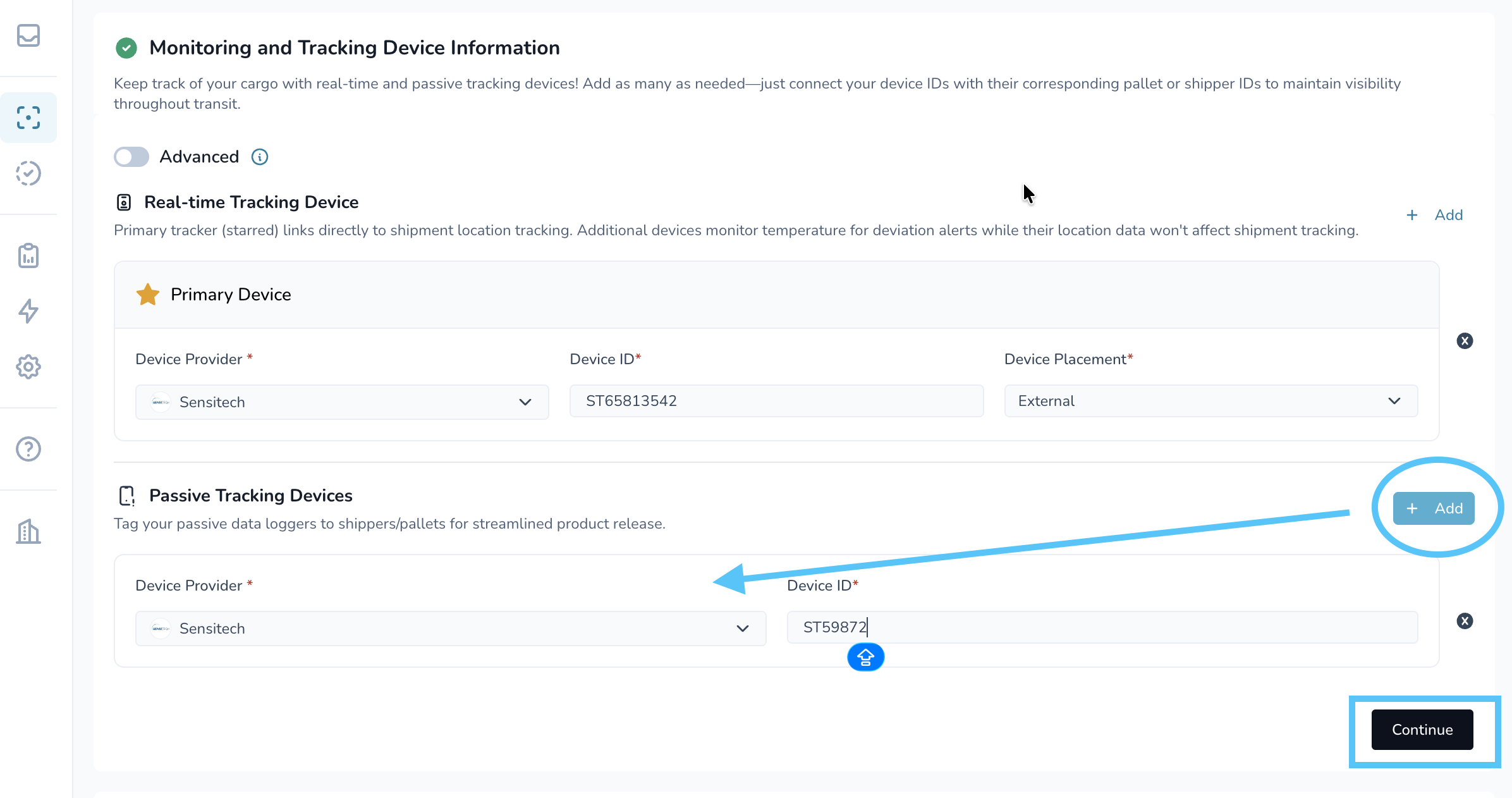
Clidd +Add for each logger you would like to add. Select the device provider and add the Device ID for each.
Enter the Lane Information.
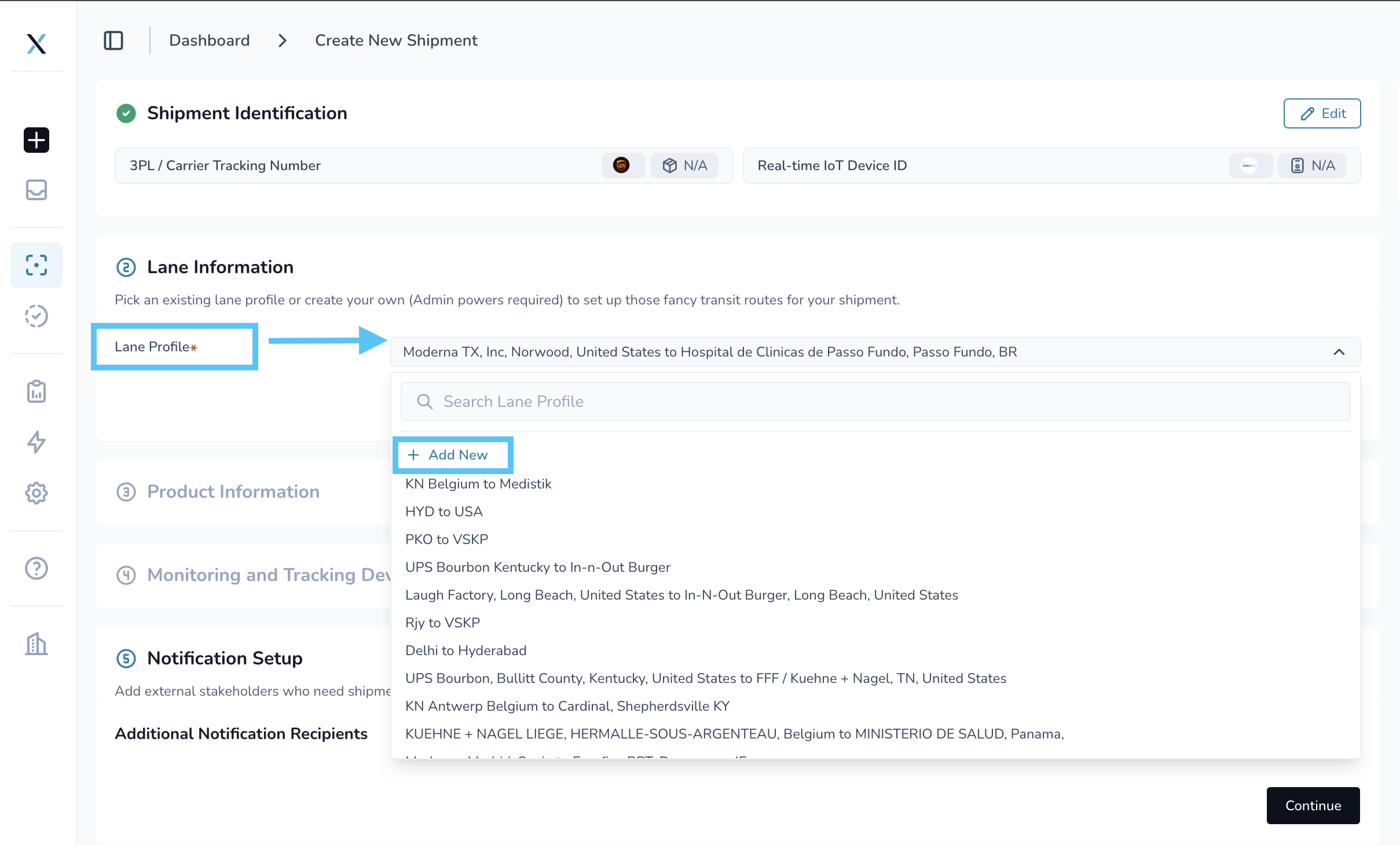
Select an existing Lane Profile from the dropdown menu.
Review the lane information to make sure it is correct.
To create a new Lane Profile, select + Add New from the dropdown menu.
Enter the new Lane Profile details and click Continue.
For more information about creating a Lane Profile, see the Lane Profile Configuration article.
Verify the Lane Information and click Continue.
Enter the Product Information.
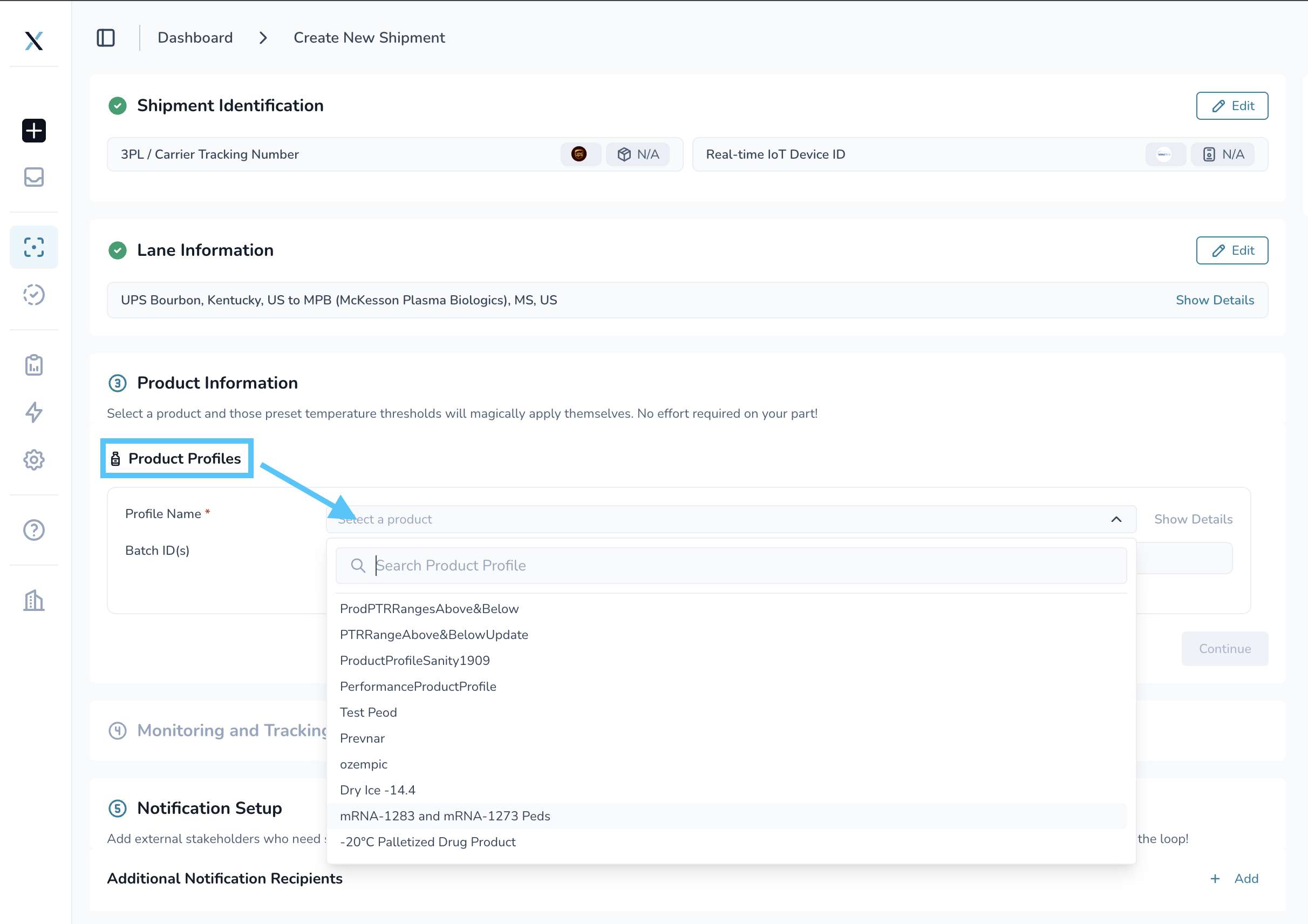
Select one or more Product Profile Names associated with the products included in the shipment.
Product Profiles should be created before creating the shipment.
Enter the applicable Batch ID(s).
Separate multiple Batch IDs with a comma and no space. For example:
Batch001,Batch002,Batch003.Click Continue.
Configure the Notification Setup.
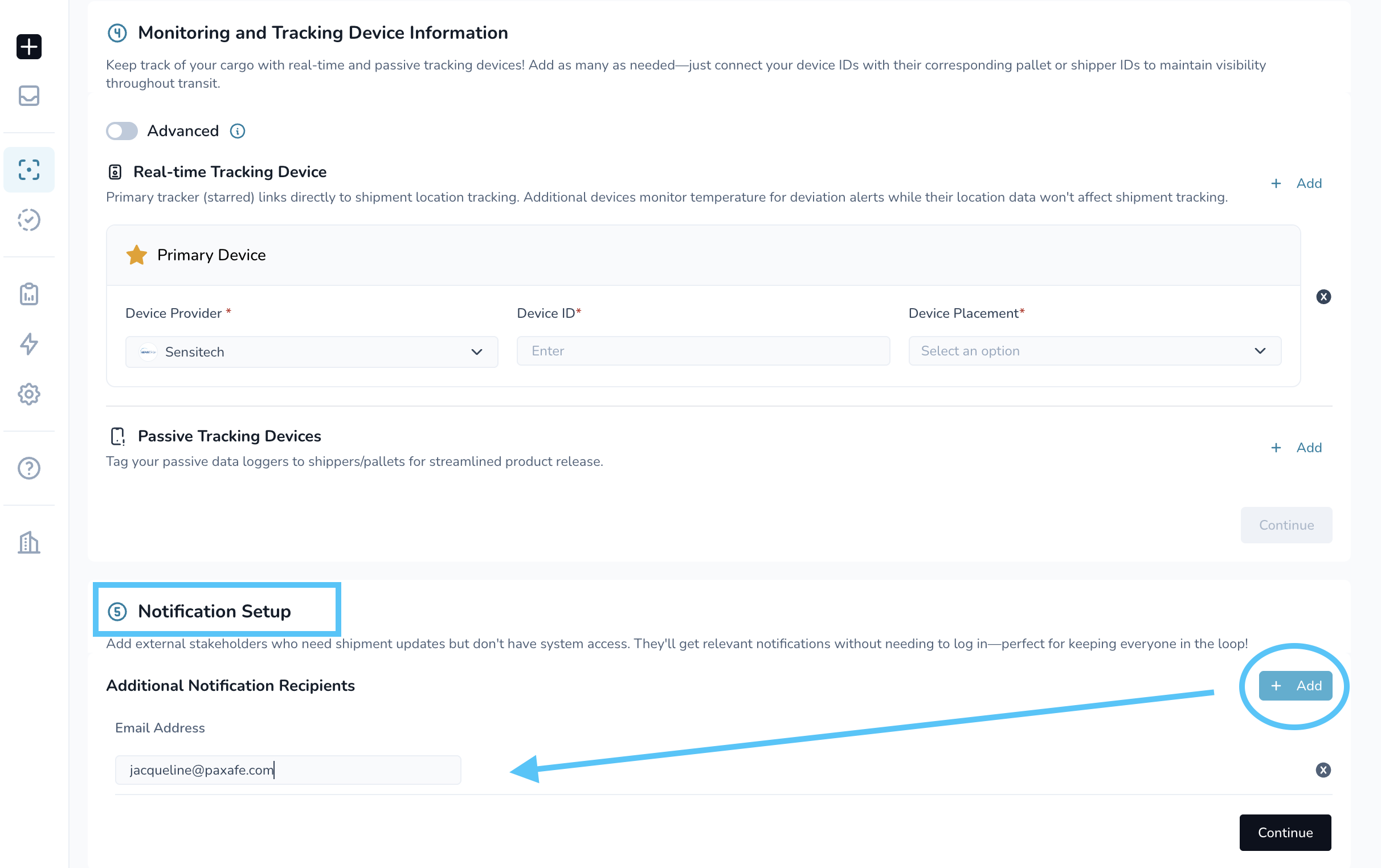
Click + Add in the upper-right corner of the Notification Setup section to add an external user who needs read-only access to shipment notifications.
Enter the user's email address.
Click + Add again for each additional email address.
Click Continue.
Review the shipment information.
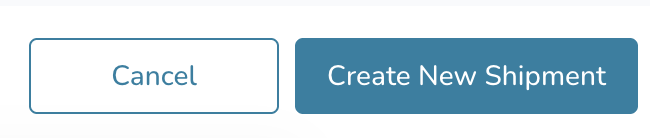
Once all required sections are complete, the Create New Shipment button will change from gray to turquoise.
Click Create New Shipment to complete the shipment creation process.
The shipment is now created and ready to be monitored in CONTXT.