Add Additional Notification Recipients
Last updated: May 8, 2026
You can add external recipients to a shipment so they receive email notifications without needing platform access.
When to Use This
Use this when you want to:
Share shipment updates with someone outside the platform
Notify receivers, partners, or stakeholders
Ensure key contacts get alerts without logging in
Steps to Add a Recipient
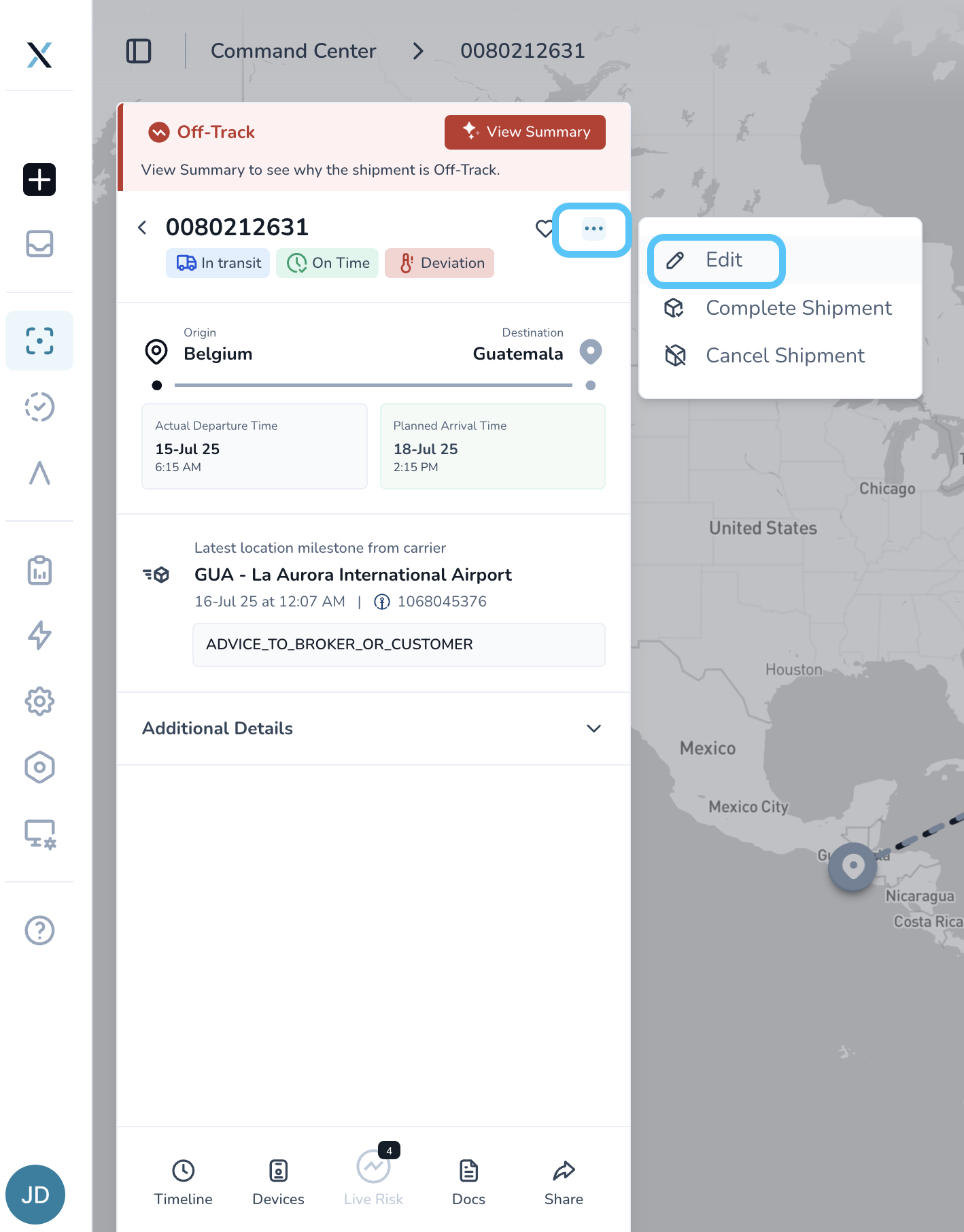
Open the shipment
Click Edit
In the shipment summary (top section), click the three-dot menu
Select the pencil icon (Edit)
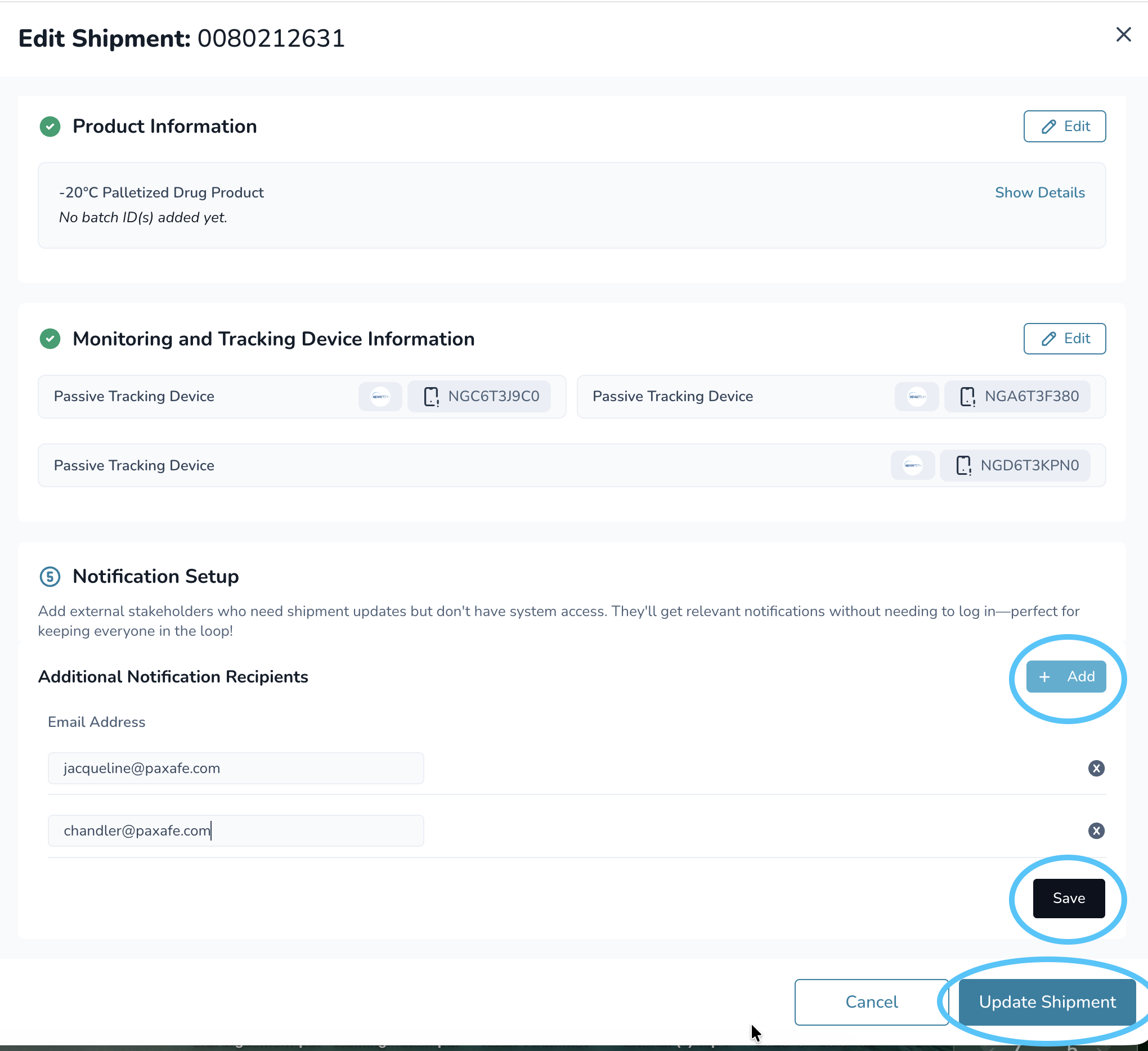
Go to Notification Setup
Scroll down to Notification Setup
Click the pencil icon to edit
Add recipients
Click the + Add button
Enter the email address
Add more recipients (if needed)
Click + Add again for each additional person
Save your changes
Click Save in the Notification Setup section
Then click Update Shipment
What to Expect
Added recipients will receive shipment-related email notifications
They do not need platform access
You can update or remove recipients at any time
Common Questions
“Do they need a login?”
→ No, recipients receive emails only and do not need access to the platform
“Can I add multiple people?”
→ Yes, add as many recipients as needed using the + Add button
“Why didn’t they get an email?”
→ Confirm:
The email was entered correctly
You clicked both Save and Update Shipment
Quick Tip
If someone isn’t receiving updates but should be:
Add them as an additional notification recipient instead of creating a user account