Temperature Release: External User Notification Workflow Setup
Last updated: May 8, 2026
Overview
Workflow Builder allows you to automate actions based on shipment and Temperature Release events.
External User Notifications enable you to send email updates to recipients outside of your platform organization. These recipients do not need a platform login and can still receive important shipment or Temperature Release updates through branded email communication.
This is commonly used to keep partners, receivers, and stakeholders informed without granting them system access.
What Is an External User Notification?
An External User Notification is an email-based notification triggered by a workflow when a shipment or Temperature Release reaches a defined status.
No platform login is required
Emails are sent to recipients outside your organization
Messages are delivered using branded templates
These notifications allow you to share key updates while maintaining control over access to your platform.
When to Use External User Notifications
Use this action when you need to notify individuals who do not have platform access, such as:
Shipment receivers awaiting delivery confirmation
Third-party logistics providers
Regulatory or quality stakeholders
External partners who need status updates
For internal users with platform access, continue using standard in-platform notifications.
User Roles & Permissions
Action | Admin | Member | External User |
|---|---|---|---|
Create / edit workflows | ✓ | Scoped | — |
Trigger workflows (via events) | Automatic | Automatic | — |
Receive external notifications | — | — | ✓ (no login required) |
Setting Up an External User Notification Workflow
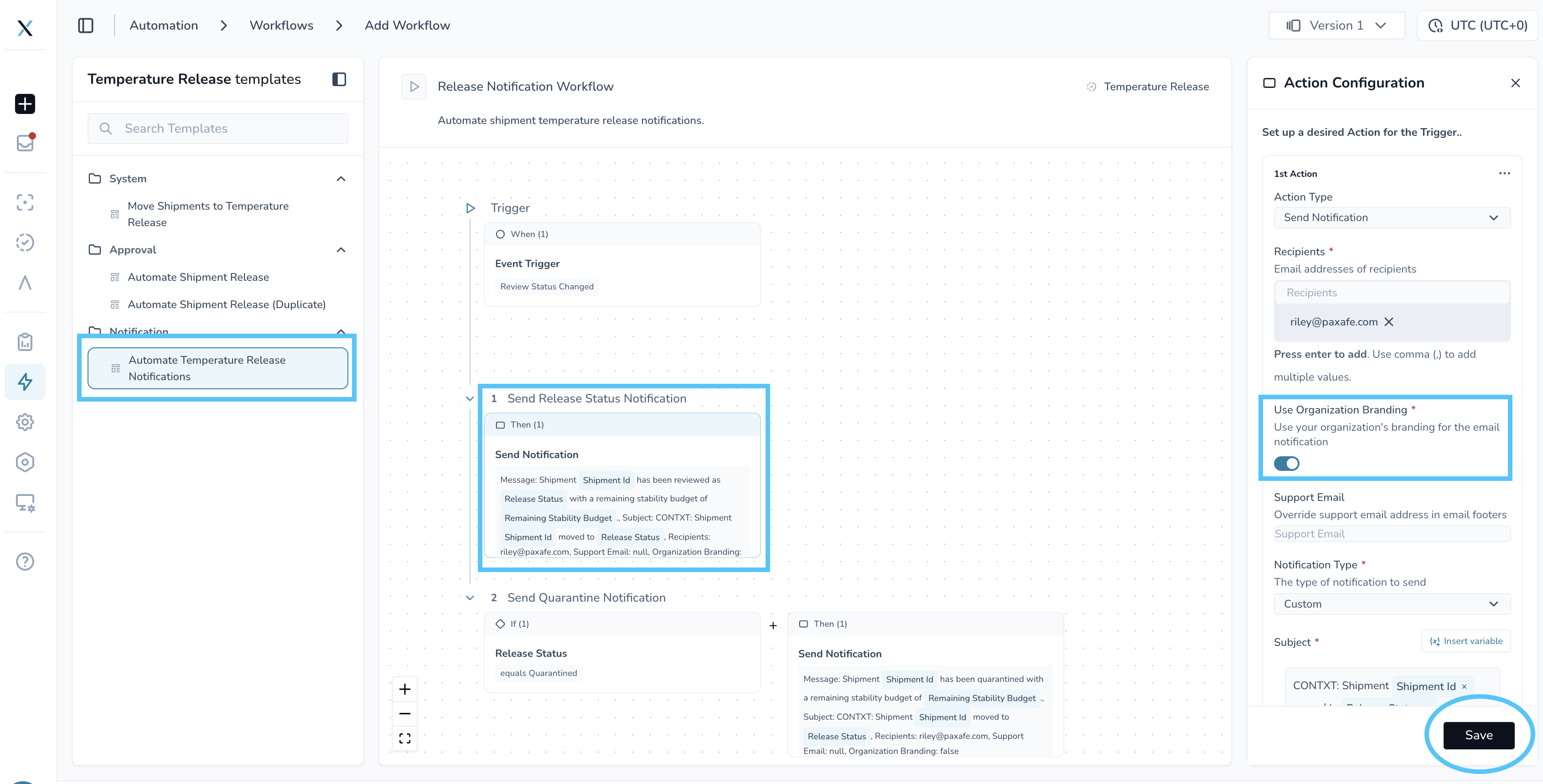
Step 1 — Click on Automation
Navigate to Workflow
Create a new workflow by clicking at the top right plus sign (+)
Step 2 — Click Automate Temperature Release Notifications Template
Select a trigger event (e.g., Send Release Status Notification)
Choose the specific status that should send the notification
Example: Approved
Step 3 — Add External User Notification Action
Add the External User Notification action
Configure recipients:
Based on shipment-level fields
Or defined through workflow logic
Select or upload the email template
Step 4 — Test and Save
Run a test using a sample shipment
Confirm the email is delivered as expected
Save the workflow
The workflow will now run automatically when conditions are met.
Branding and Email Templates
External notifications use customizable email templates, allowing you to align communication with your organization or customer branding.
Enable this feature by toggling the switch marked in the image above.
Templates support:
Custom logos
Custom layout and messaging
Dynamic fields (e.g., shipment ID, status, ETA)
To customize templates, contact your Customer Success Manager.
Best Practices
Recipient Management
Keep recipient lists accurate and up to date
Use shipment-level recipients when contacts vary
Use consistent workflow logic when recipients remain the same across shipments
Template Design
Keep messages focused and easy to understand
Communicate one key update per email
Use clear, direct language
Security Considerations
Avoid including sensitive data (e.g., full PII, internal identifiers)
Only use External User Notifications for recipients without platform access
Need Help?
For help setting up your first workflow or customizing templates, contact your Customer Success Manager or reach out to:
support@paxafe.com