Temperature Release: Managing Documents (View, Upload, Download )
Last updated: May 8, 2026
Overview
Temperature Release is the workflow used to upload, review, and finalize product data for a shipment. It ensures that excursion data is validated against the assigned product profile and stored as a complete, auditable record.
Uploads are organized by device, allowing you to review all data associated with each device in one place, even when multiple files contribute to it.
Key Concepts
Device
A temperature monitoring device (logger) associated with a shipment. A device can include:
Logger metadata (required)
Alarm data
Temperature data
Data Categories
Each device may contain:
Logger Metadata (required)
Alarm Data
Temperature Data
If required data is missing, the platform flags it for review.
Source of Record
When multiple files provide the same data category, you select which file should be used as the source of record for that category.
Parsed Status
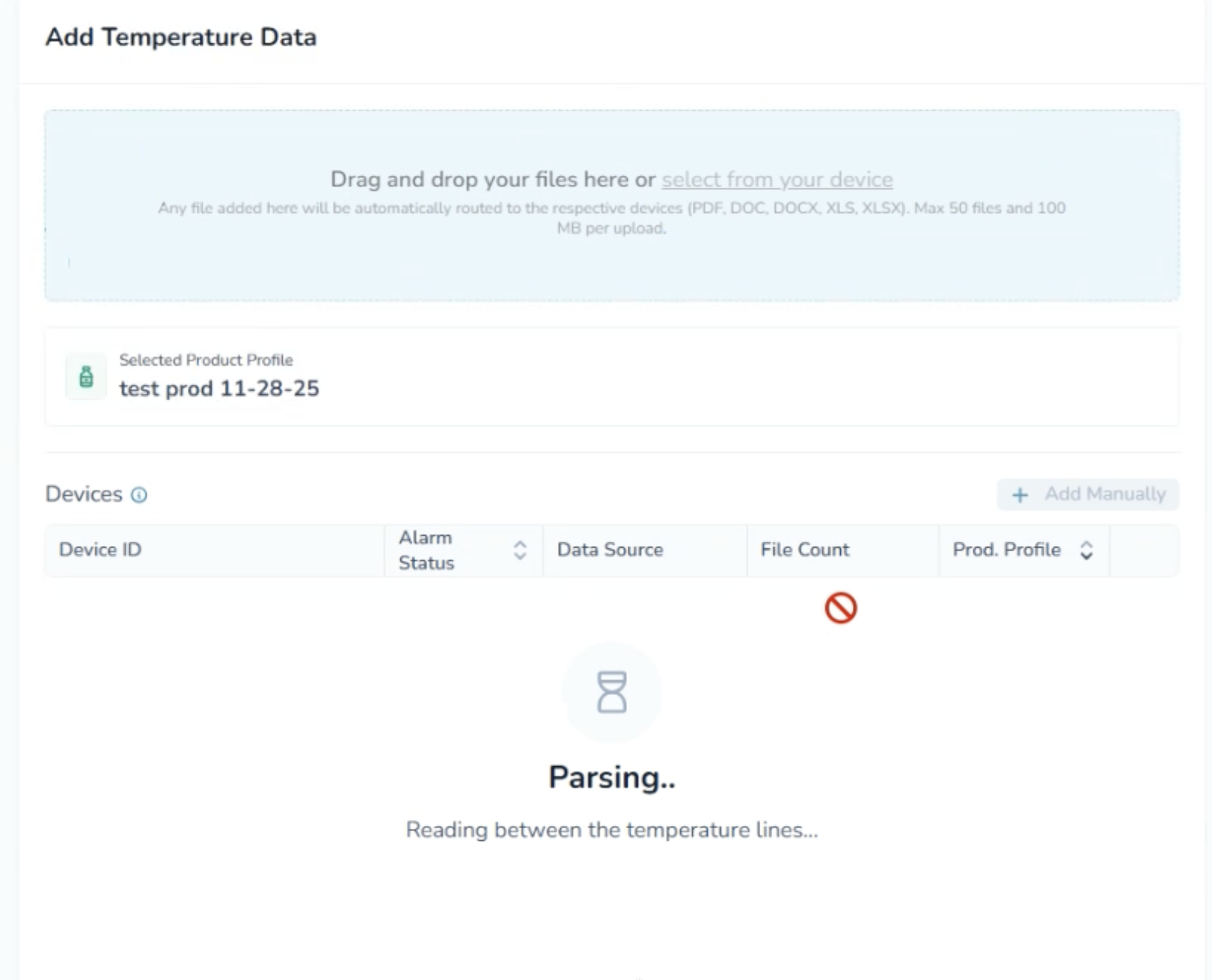
Files are processed in the background after upload. Once processed, devices appear in the device table.
Validation Errors
Flags indicating issues such as:
Missing data
Product profile mismatch
Invalid timestamps
Limited Processing
A device state indicating the data does not align with the shipment’s product profile. The device can still be added but should be reviewed.
Unprocessed Files
Files that could not be linked to a device. These remain visible for traceability.
User Roles & Permissions
Action | Admin (Reviewer) | Admin | Member (Reviewer) | Member |
|---|---|---|---|---|
Upload temperature files | ✓ | ✓ | ✓ | ✓ |
Manually add a device | ✓ | ✓ | ✓ | ✓ |
Toggle source of record | ✓ | ✓ | ||
Override product profile | ✓ | ✓ | ||
Delete a device | ✓ | ✓ | ||
Submit (Add Temperature Data) | ✓ | ✓ | ||
Approve Temperature Release | ✓ | |||
View devices and statuses | ✓ | ✓ | ✓ | ✓ |
Upload a New Document
You can add documents at any time during the shipment or after it’s completed.
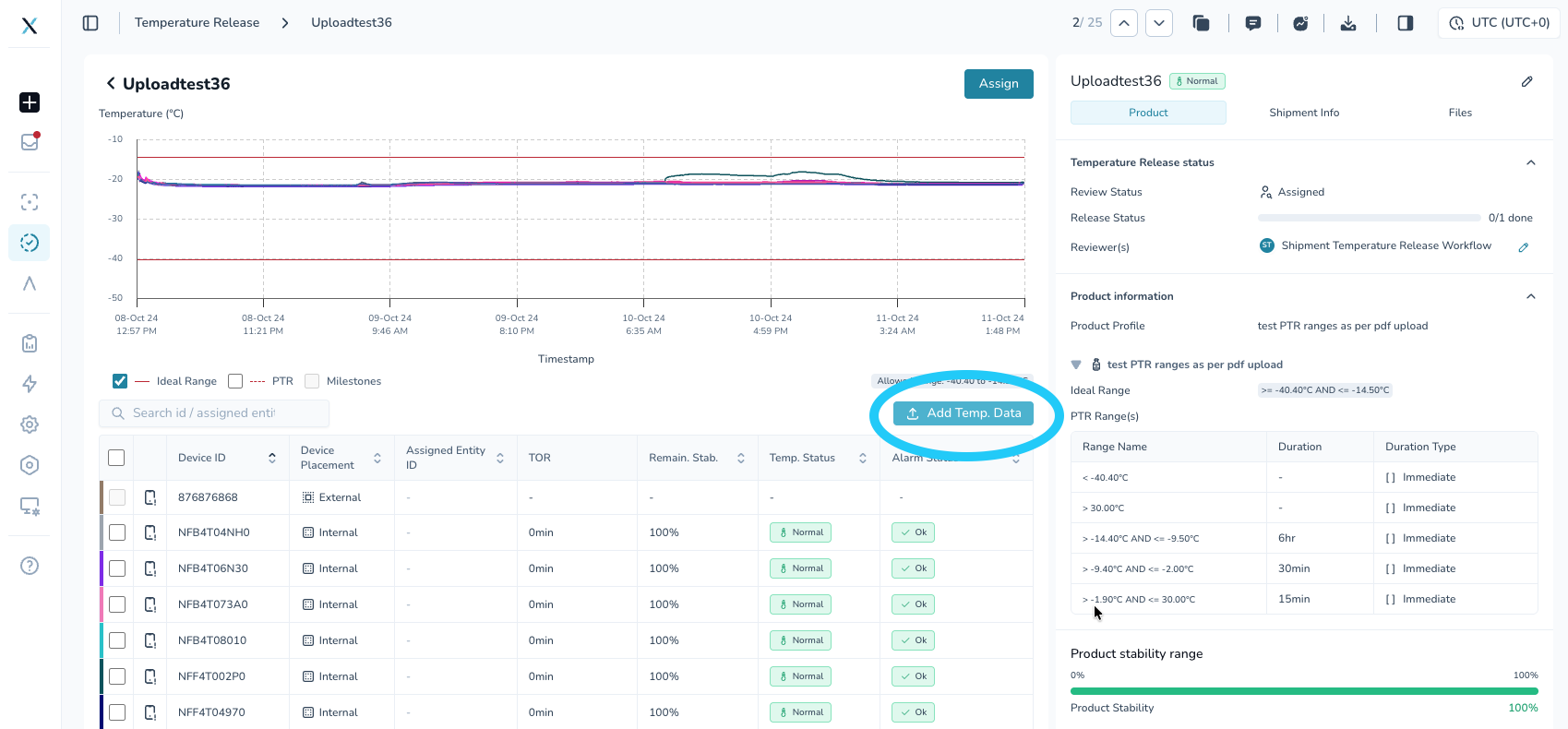
Click Add Temp Data
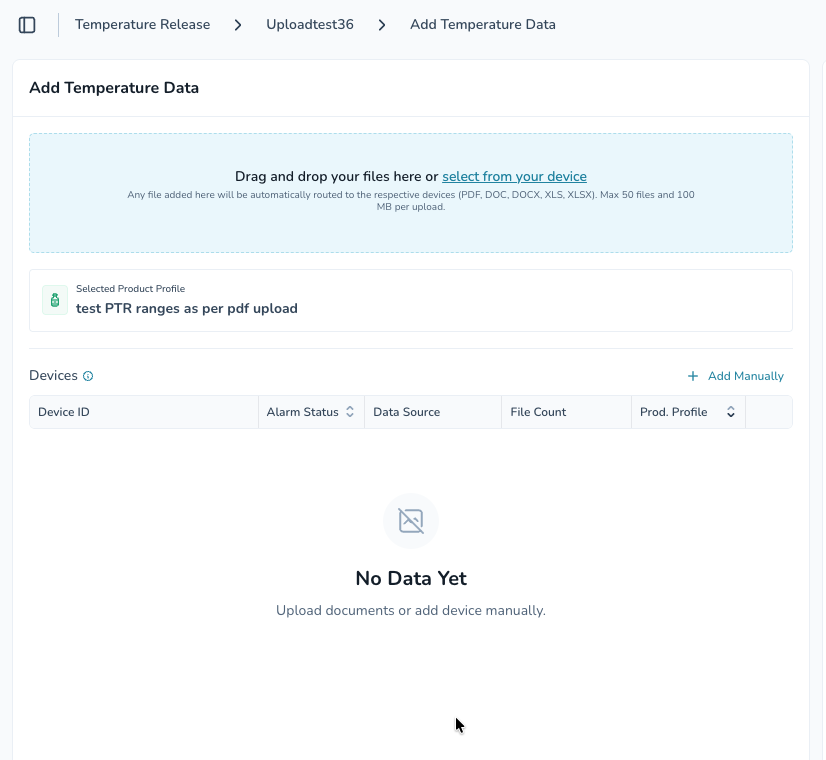
Either:
Click to select a file from your device, or
Drag and drop one or more files into the upload area.
Wait for the upload to complete.
The new document(s) will appear in the list and stay attached to the shipment.
Common uploads:
Temperature release approvals
Carrier paperwork
Quality/compliance reports
Internal investigation or CAPA documentation
Review the Device Table
Once files are processed, the device table displays:
Device ID
Alarm status (alarm or normal)
Data sources (file types contributing data)
File count
Validation errors, if present
Files that do not map to a device appear separately.
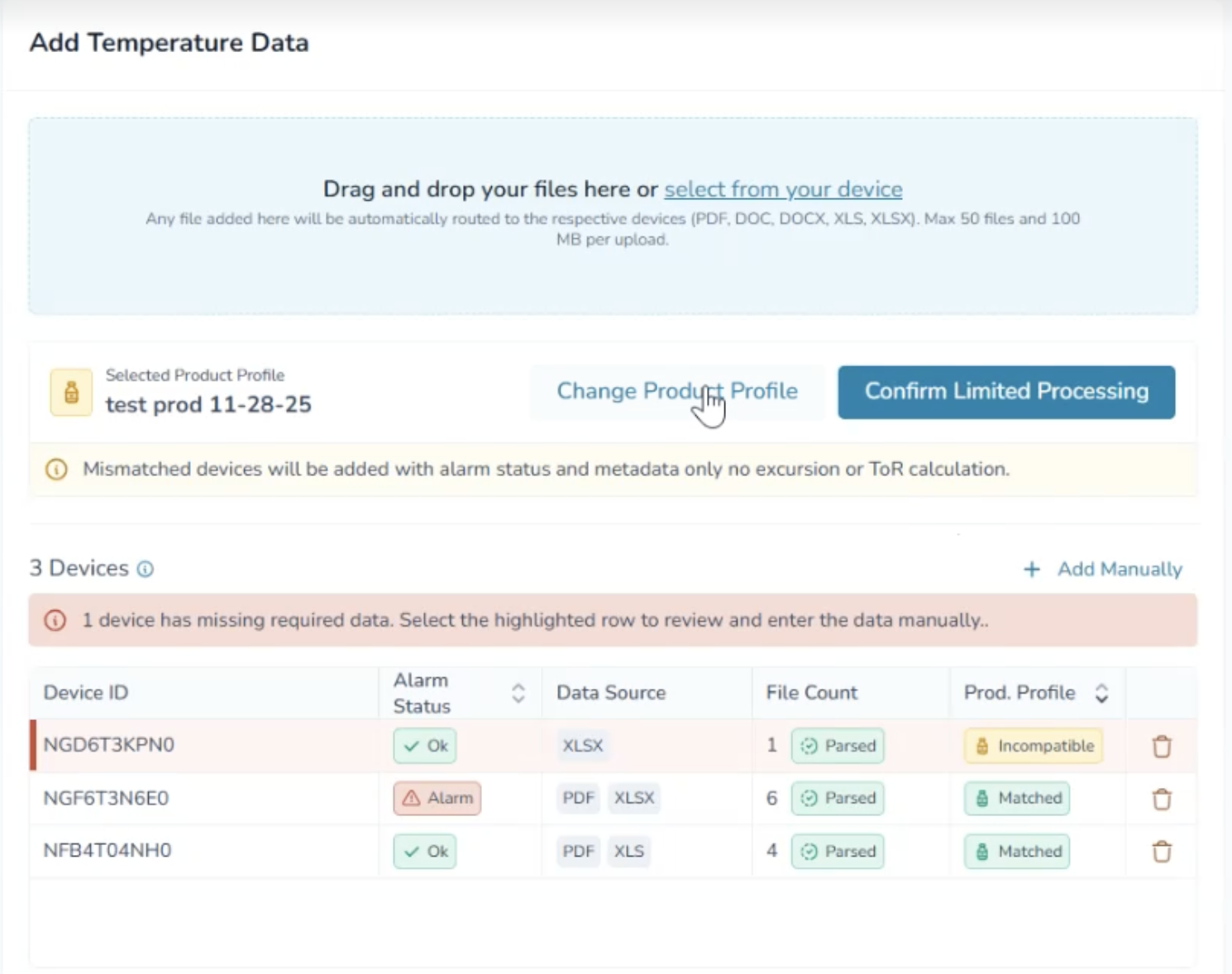
If a device is incompatible, you will not be able to add the temperature until it is resolved. Read more in this article:
Handling Incompatible Devices
During upload, a device may be flagged as incompatible. This means the device’s data does not align with the shipment’s current product profile.
When this happens:
The device is marked for review
The Add Temperature Data button is temporarily disabled
Submission is blocked until the issue is resolved
How to Resolve an Incompatible Device
Open the Device
Click on the device row with the incompatible flag
Review the validation message in the device panel
Update the Product Profile
Select a compatible product profile from the suggested options
Or manually choose the correct profile for the device
Confirm Limited Processing
Re-validates the device
Confirm the Issue Is Cleared
The incompatible flag is removed
The device is now eligible for processing
Continue Your Upload
Once all blocking issues are resolved, the Add Temperature Data button becomes enabled
You can proceed with submission
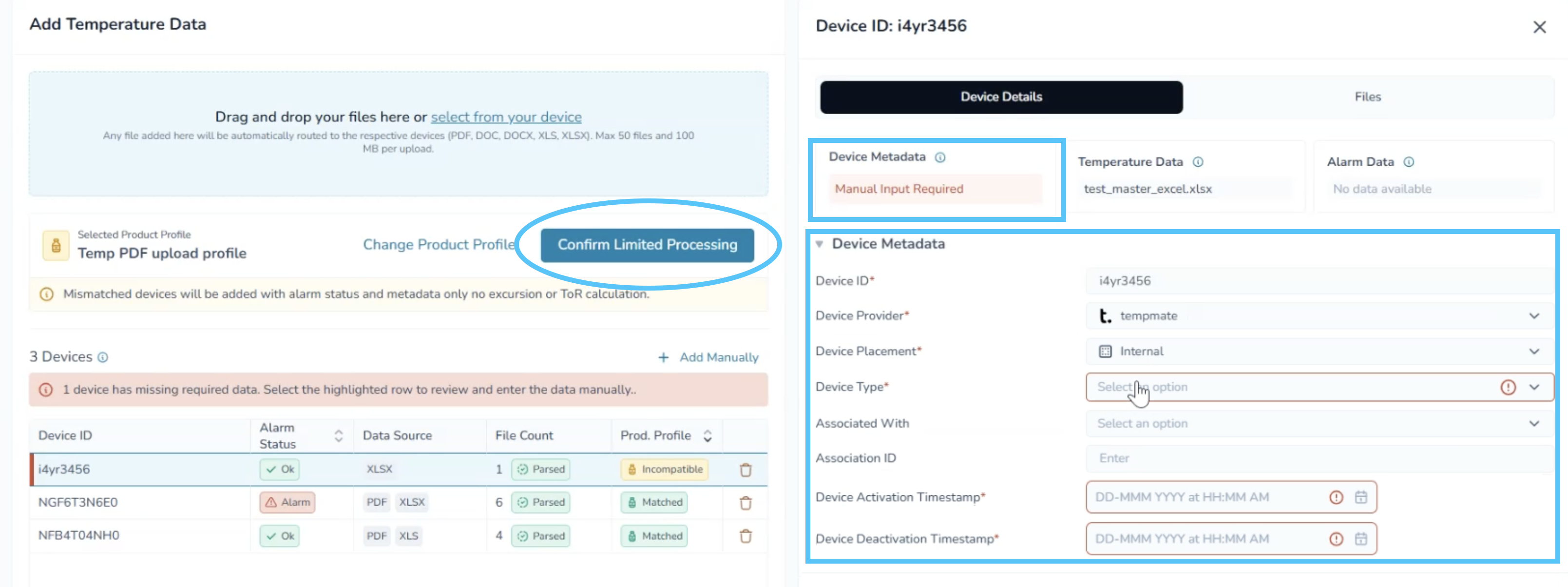
What to Expect
Devices that match the updated profile will process normally
Devices that still have partial mismatches may enter a limited processing state and should be reviewed before submission
Product profile updates made during this step are applied to the shipment when data is submitted
Why This Matters
This validation ensures that temperature data is evaluated against the correct product requirements, helping maintain accuracy and compliance in your Temperature Release records.
Review Device Details
Click a device to open its details panel.
Overview Tab
Device metadata (provider, placement, type, timestamps)
Temperature summary (min, max, readings)
Alarm summary
Files Tab
All files contributing to the device
Parsing status
Data categories included in each file
Source-of-record toggle for each category
Select the Source of Record
If multiple files provide the same data:
Only one file can be selected per data category
Selection is made independently per category
Example:
File A provides metadata and temperature data
File B provides metadata only
You can:
Use File B for metadata
Use File A for temperature data
Add a Manual Device (Optional)
For excursions without a source file:
Click Add Manually
Enter device metadata and alarm data
Save the device
Submit Temperature Data
Click Add Temperature Data to:
Commit all devices
Save selected sources of record
Store unprocessed files for traceability
Adding More Data to a Shipment
You can upload additional files to the same shipment at any time:
New devices are added automatically
Existing devices retain prior selections
New files are associated and available for review
Validation runs again on the updated data
Unsupported Files
Unsupported file types will:
Appear in a separate section
Need to be removed or re-uploaded in a supported format
View or Download Existing Documents
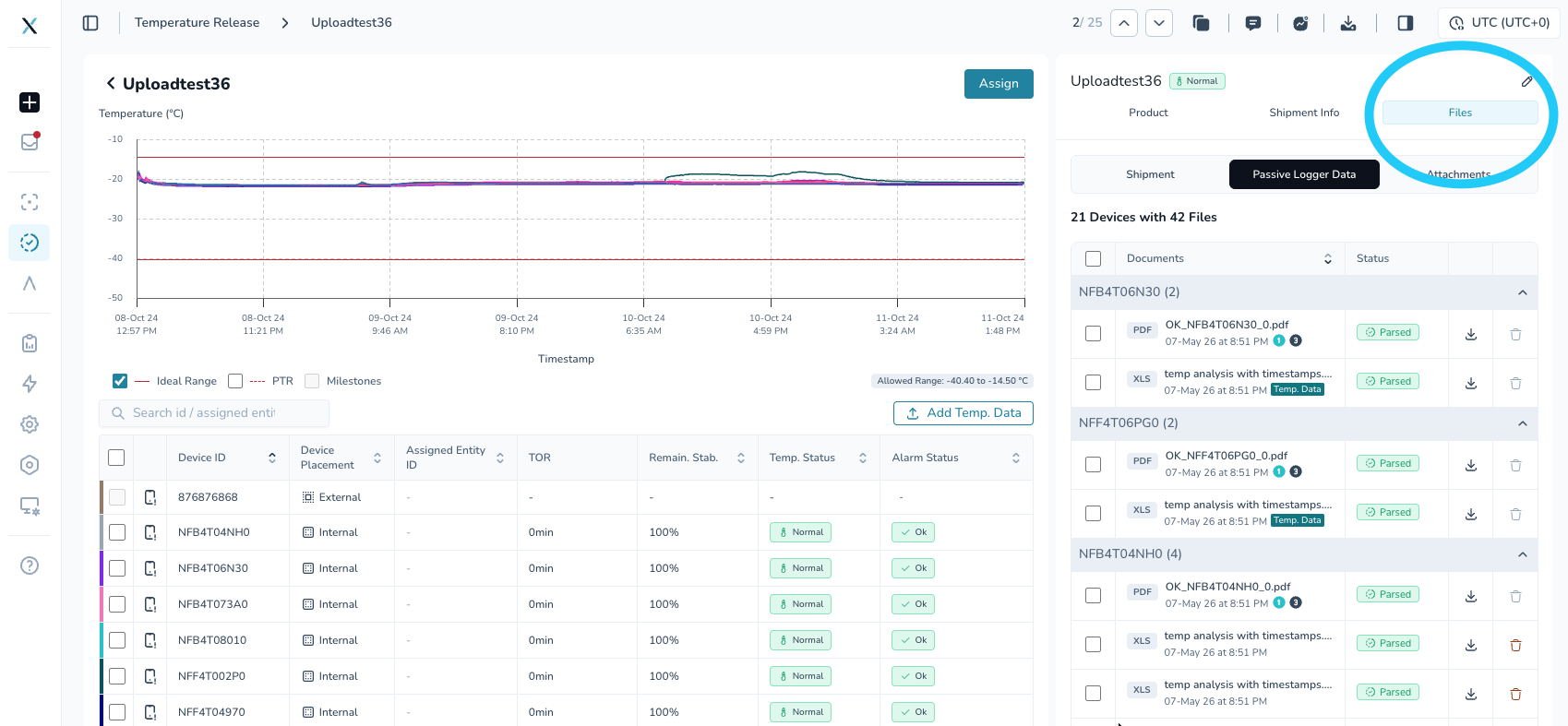
In the Files list, find the file you want to open.
Click the checkbox next to the document.
Scroll to the bottom and choose Download to save a copy to your device.
Delete a Document
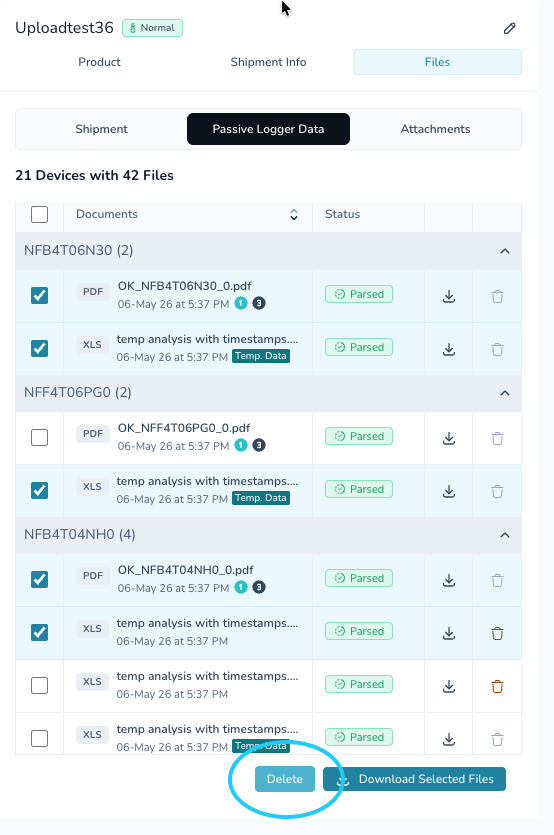
Use this only if you’re sure the document is no longer needed for audit or quality purposes.
In the Documents list, check the box next to the document you want to remove.
Click Delete.
Confirm the deletion if prompted.
Best Practices
Multi-File Devices
Upload all files for a device together
Review duplicate data carefully
Confirm the correct source of record before submitting
ZIP Uploads
ZIP files are automatically extracted
Each supported file is processed individually
Product Profiles
Ensure a product profile is assigned before uploading
Resolve mismatches before submission
Need Help?
Contact your platform administrator or reach out to:
support@paxafe.com