Notification Setup & Management
Last updated: April 30, 2026
Viewing Notifications
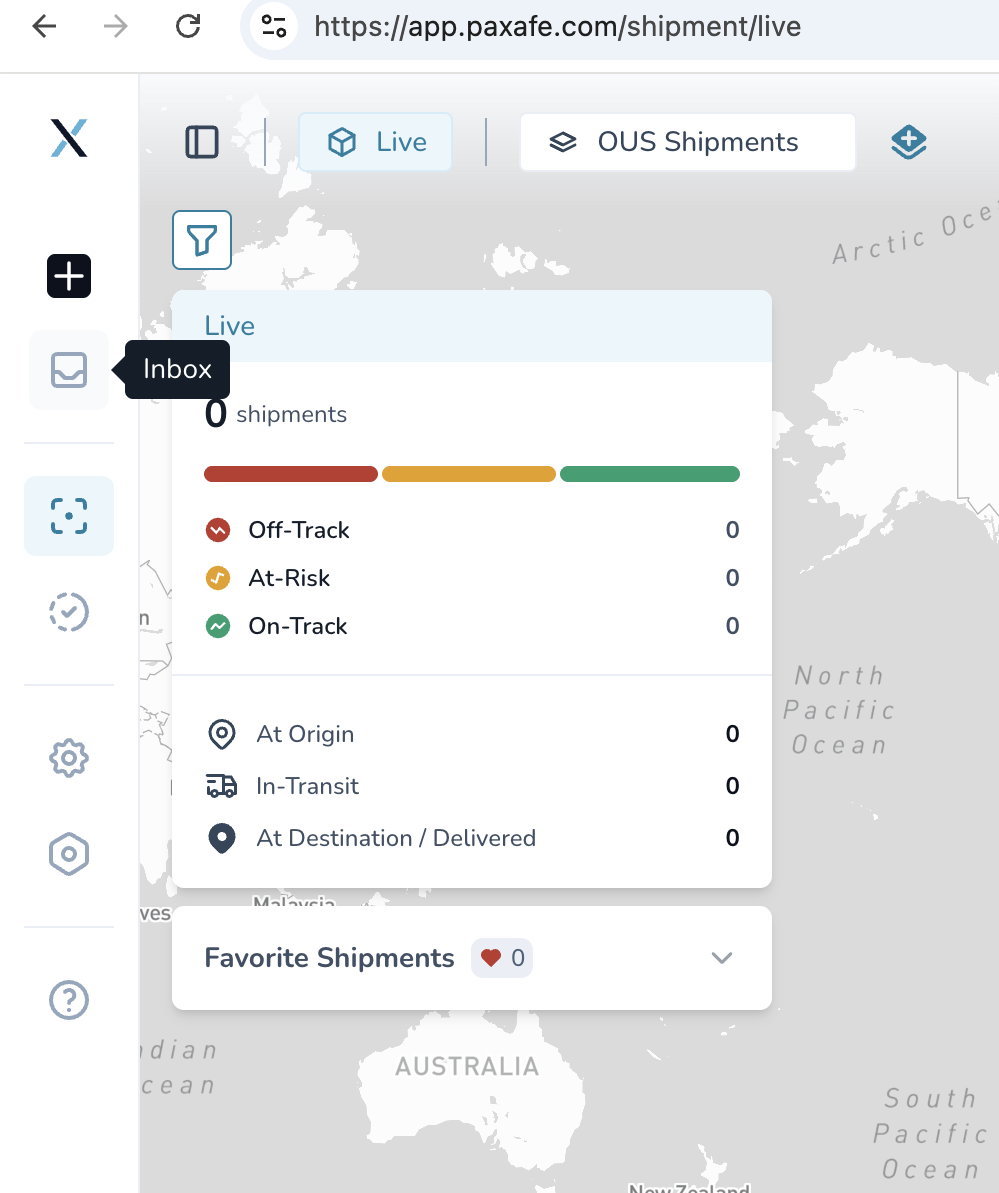
Open the Inbox
From the left-hand menu panel, click the Inbox icon.
This will open your notifications view.
View All Notifications
By default, you’ll see all notifications across CONTXT in one combined list.
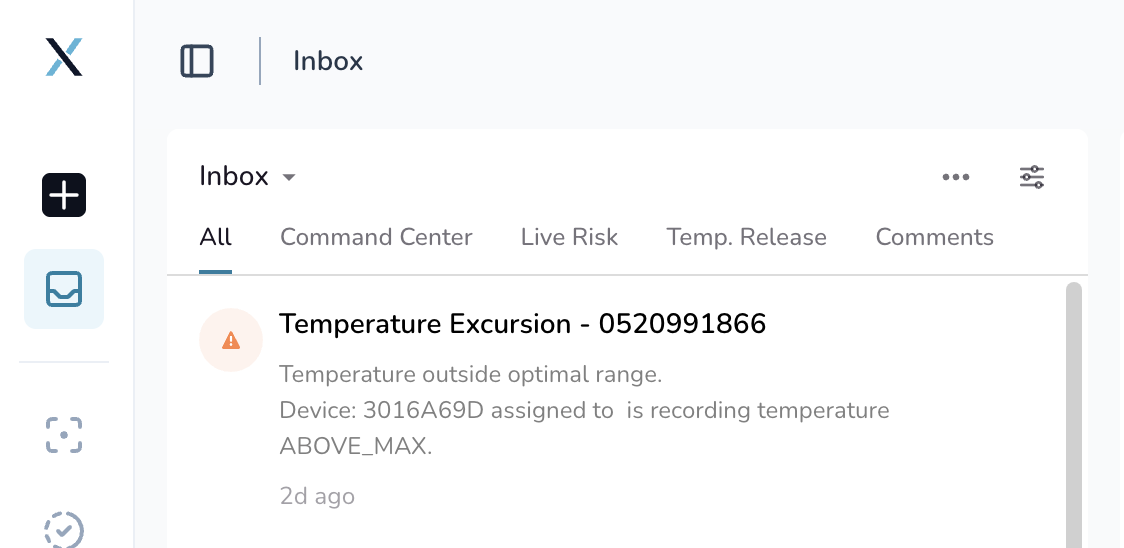
Filter Notifications by Module
Below of "Inbox", you can filter your notifications by module:
Command Center
Live Risk
TEMP Release
Comments
Once selected, only notifications related to that module will be shown.
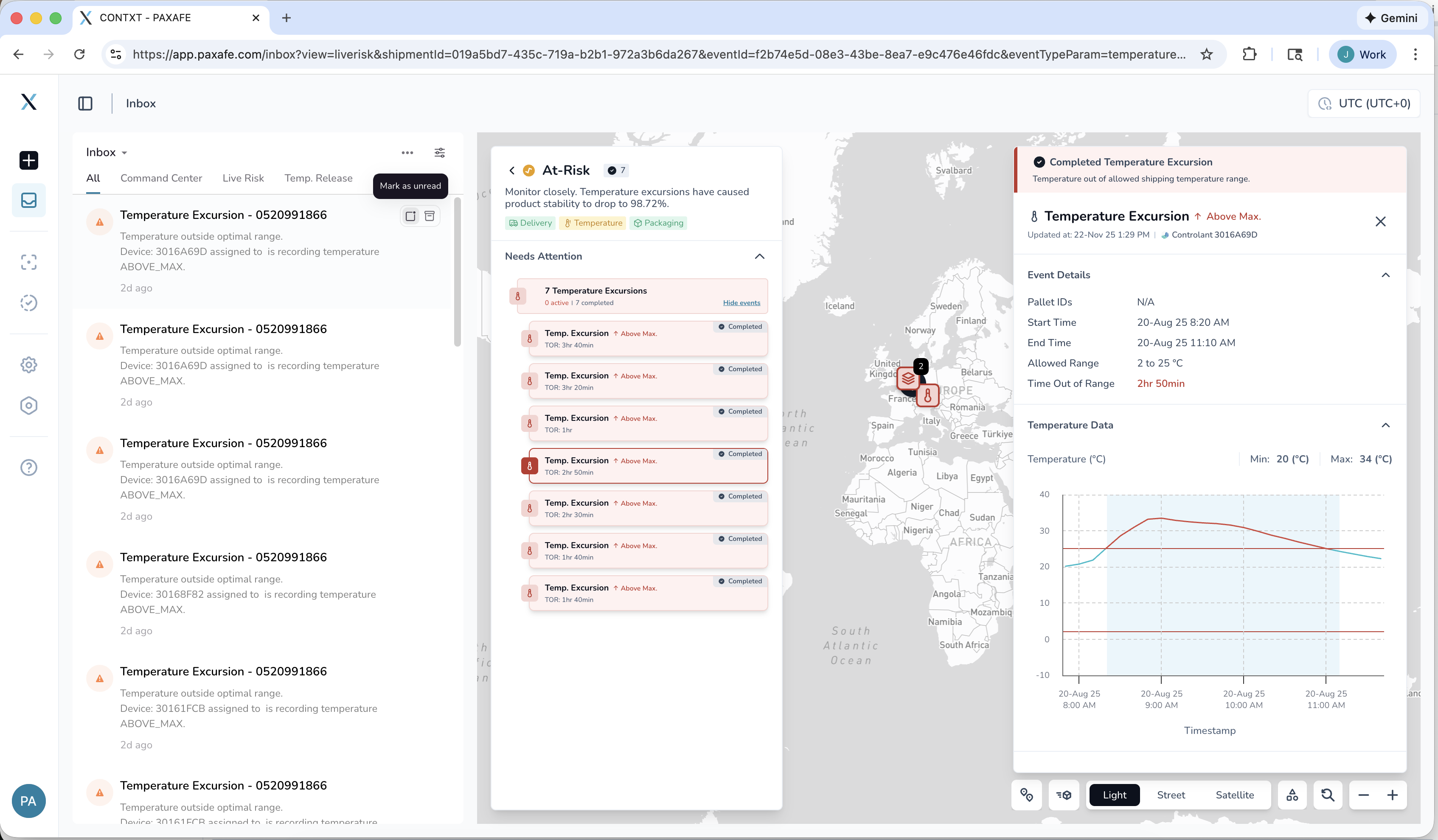
Click on a notification to see the shipment
Setting Up Notifications in CONTXT
Adjust Notification Settings
Click on the Inbox icon on the left.
Click the Settings icon on the right side of the notification bar.
In the panel that opens, turn on (or off) any notification types you’d like by using the toggles.
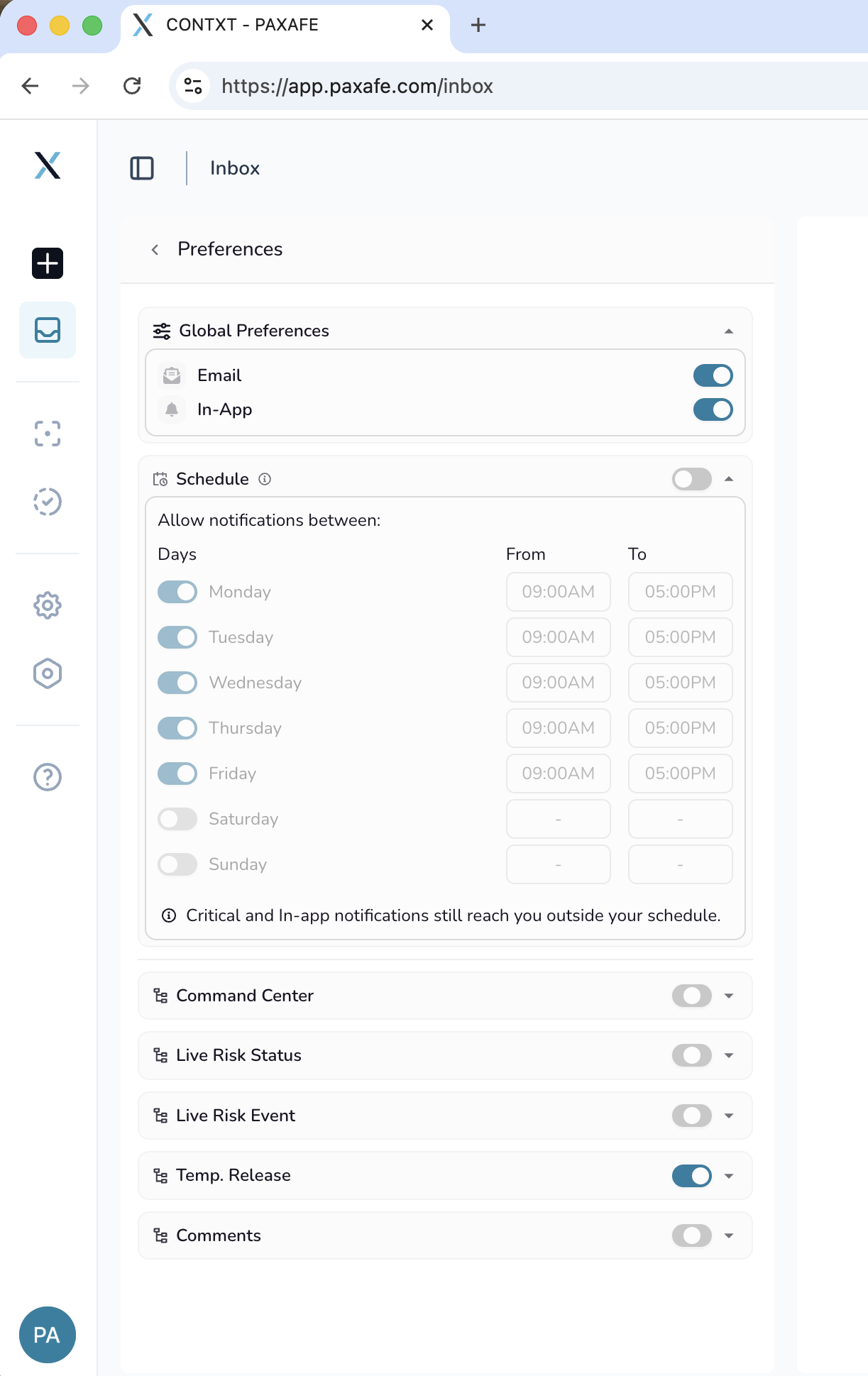
Your changes will automatically update which notifications you receive for that module.