Searchable Fields (Search vs Sorting vs Filters)
Last updated: May 14, 2026
Overview
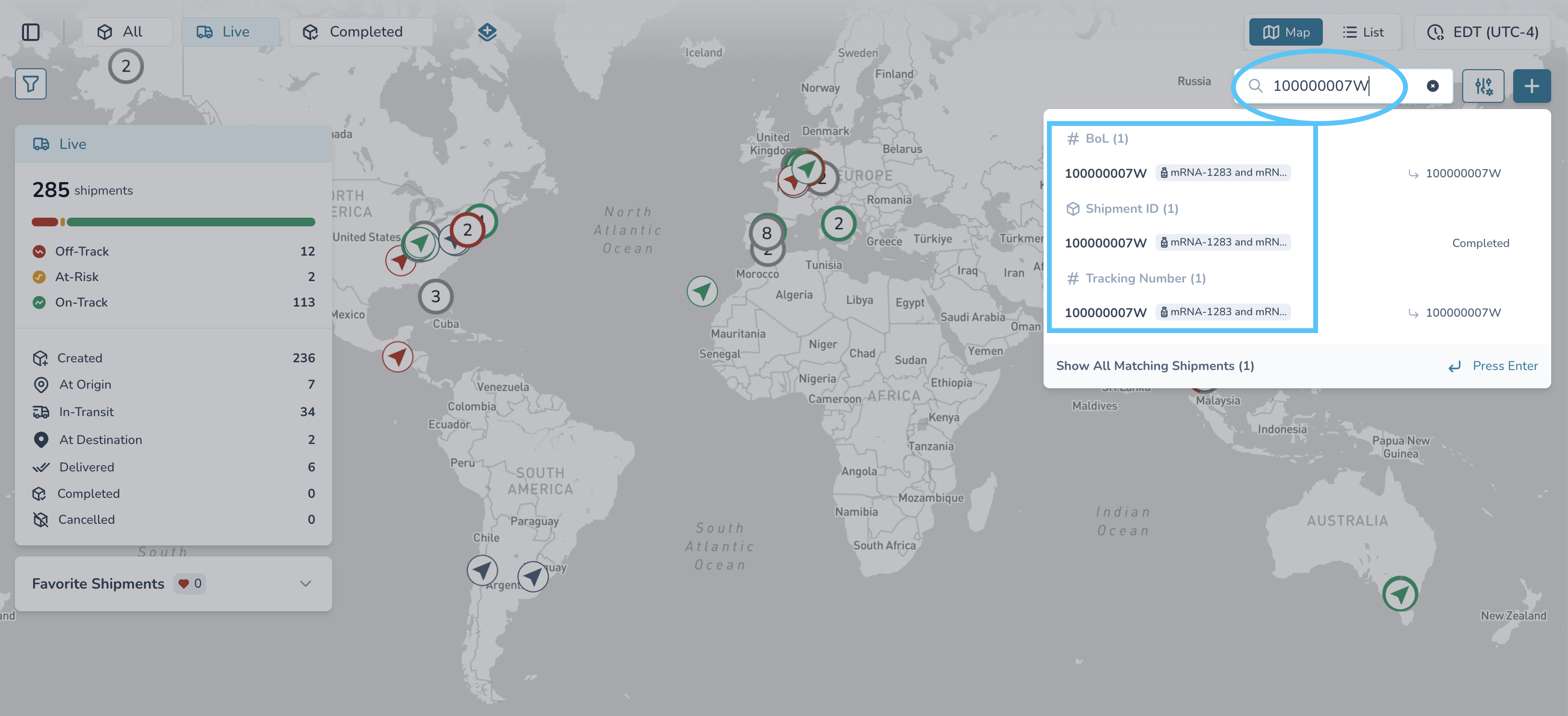
Use the shipment search bar to quickly locate shipments in either:
Active (live) workspaces
Completed workspaces
Search supports:
Partial text matching
Consecutive character matching
Case-insensitive search
You do not need to enter the full identifier for most searches to return results.
Search Scope by Module
Search is intentionally scoped to the module you are currently using.
Command Center Search
Searching from Command Center returns:
Command Center shipments only
It does not search:
Temperature Release workflows
Temperature Release Search
Searching from Temperature Release returns:
Temperature Release shipments only
It does not search:
Command Center shipments
Important
If you cannot find a shipment:
Confirm you are in the correct module
Confirm you are searching in the correct lifecycle view (active vs completed)
Fields You Can Search
The global shipment search bar searches across several shipment identifiers and reference types.
Search Category | Description |
|---|---|
Shipment ID | The shipment identifier displayed in the platform. This may reflect an order number, carrier reference, bill of lading, or internal identifier depending on your integration setup. |
Order Number | Customer or partner order reference number. |
Bill of Lading (BoL) | Shipment bill of lading reference. |
ASN | Advance Shipment Notification number. |
Tracking Number | Carrier or logistics tracking identifier. |
Device ID | Identifier associated with devices assigned to the shipment. |
Partial Search Matching
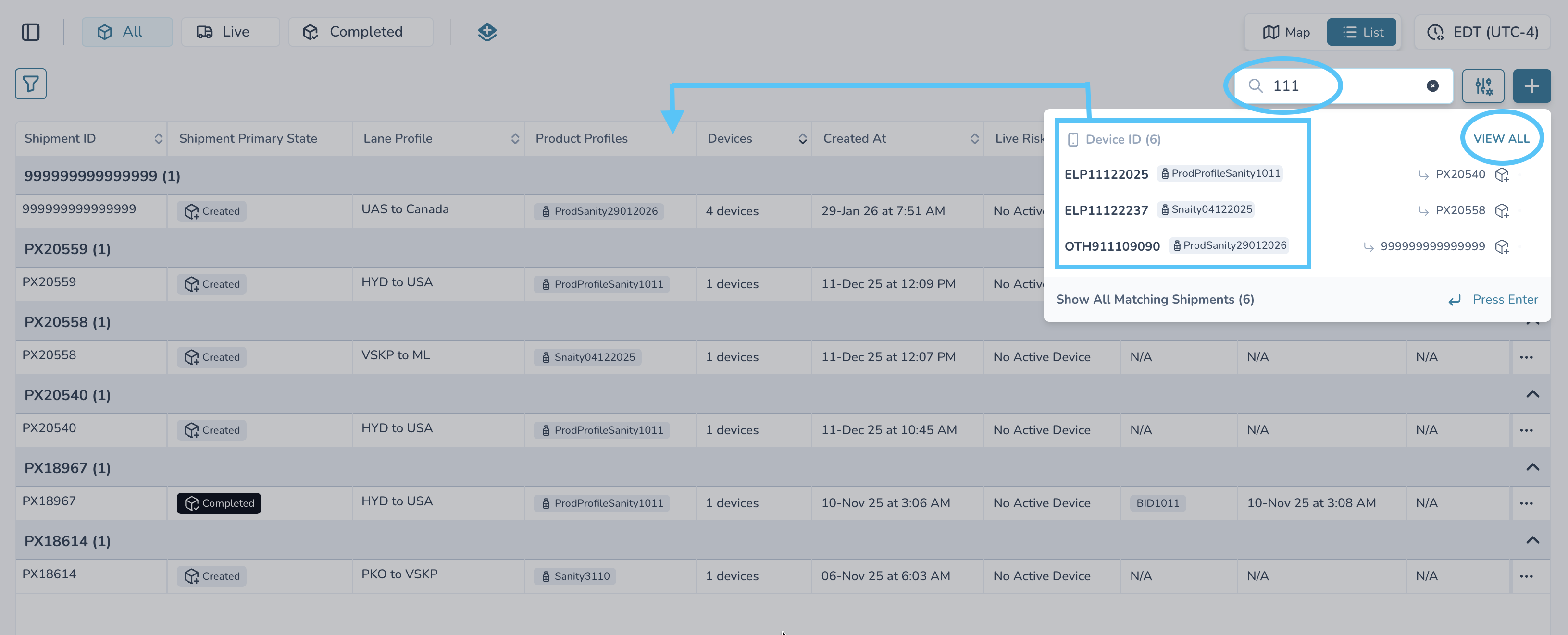
Search supports partial matching.
For example:
Typing a portion of a tracking number may return the shipment
Typing several consecutive characters from a device ID may return results
Capitalization does not matter
Example:
Tracking Number: 1Z999AA10123456784

Searching:
999AA
or
12345

may still return the shipment.
Search vs Sorting vs Filters
These platform features work differently and are often confused.
Search Bar
The search bar:
Searches shipment identifiers and references
Narrows results using the searchable fields listed above
Use search when you already know:
A tracking number
Order number
Device ID
Shipment reference
Sorting (Column Headers)
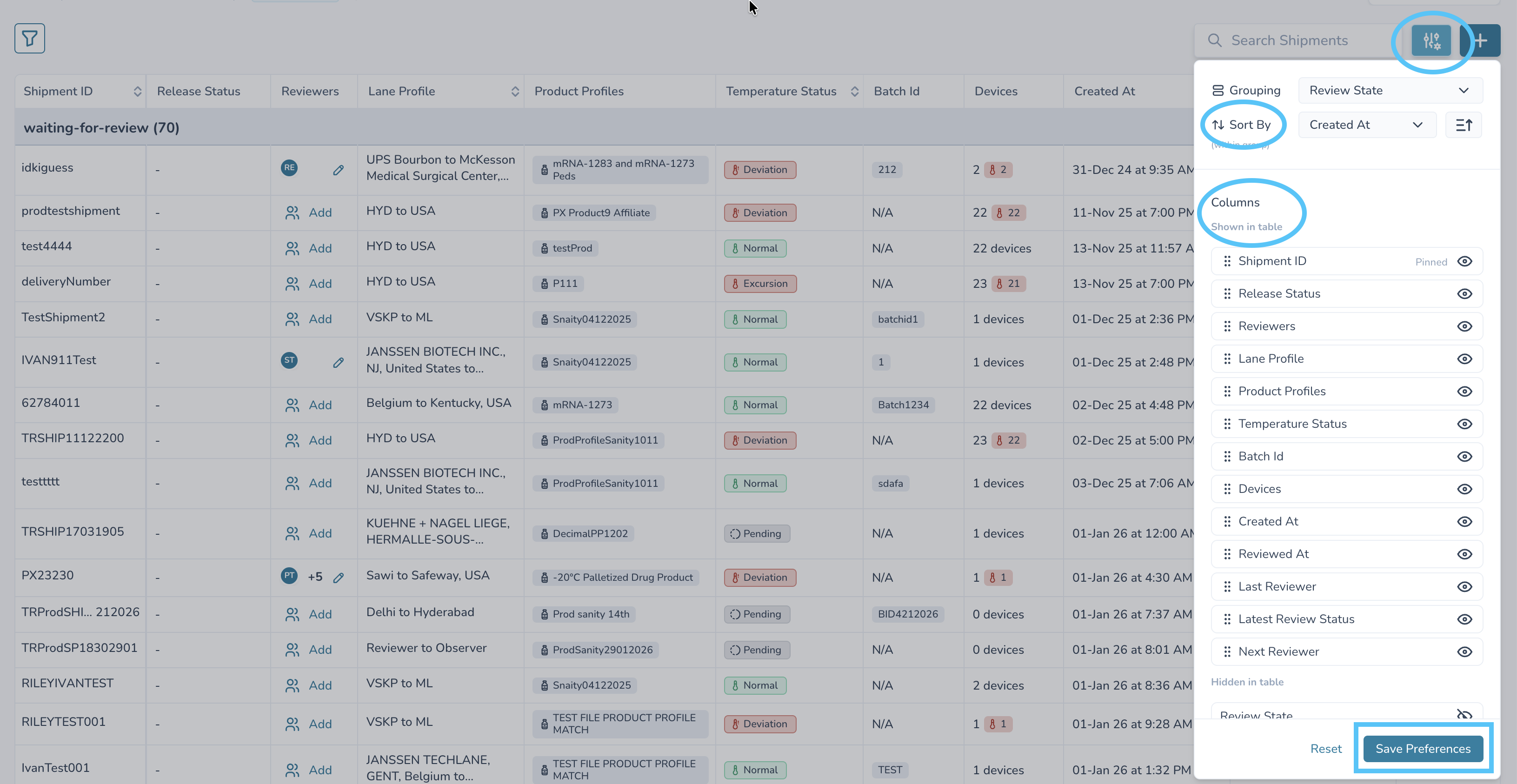
Sorting:
Reorders rows already displayed in the table
Does not perform a global shipment search
Not every visible column supports sorting.
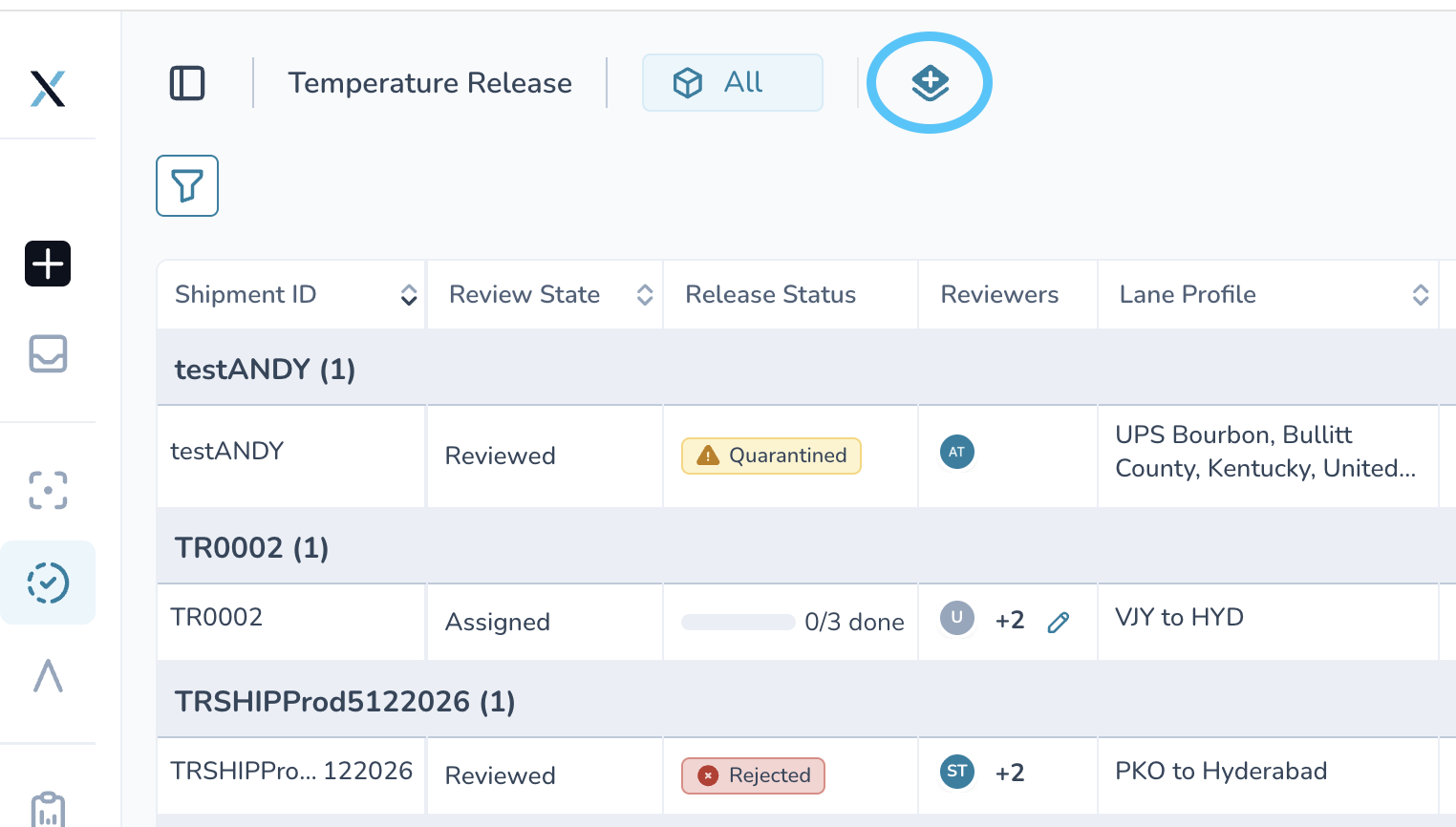
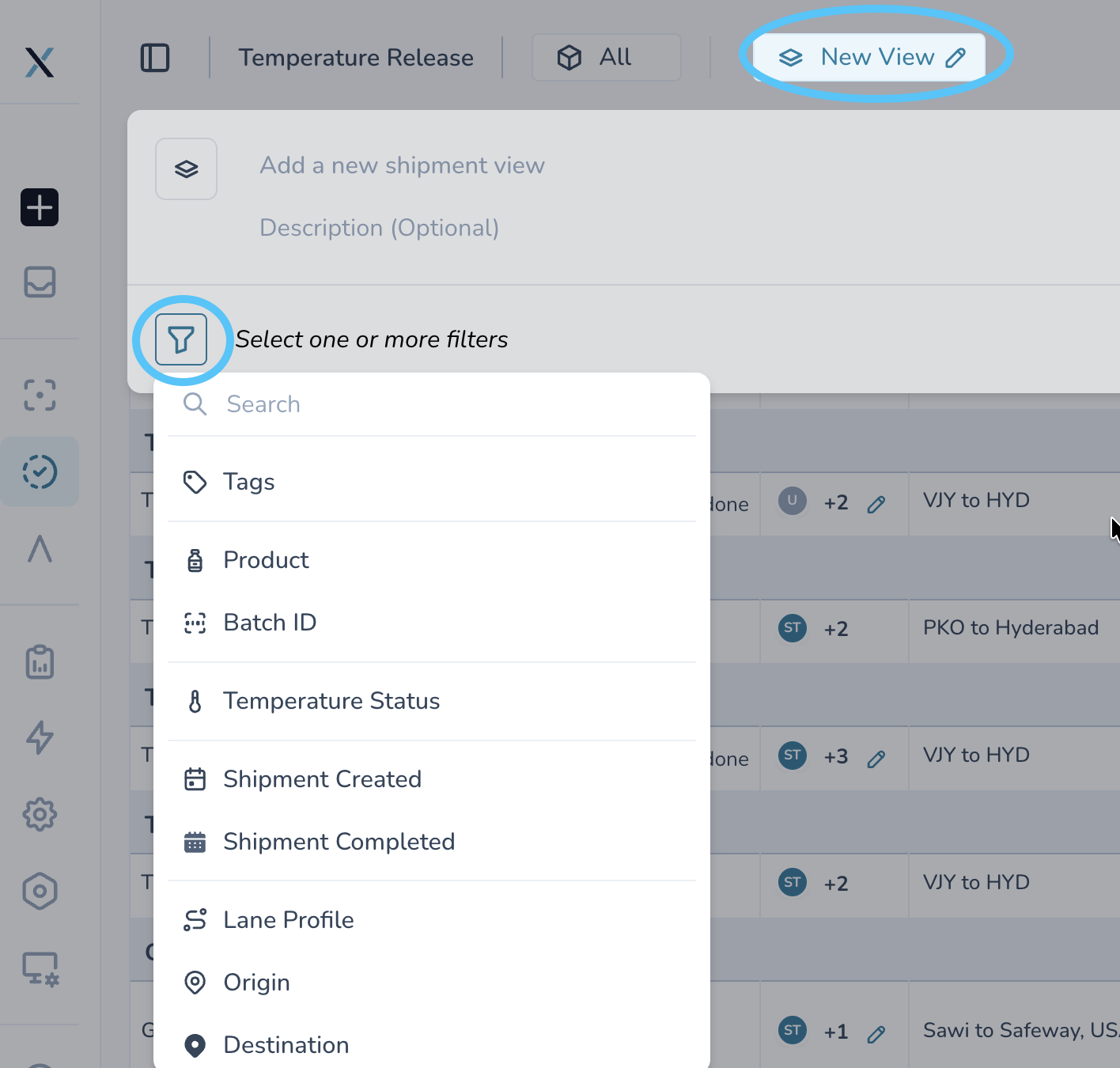
Filters and Saved Views
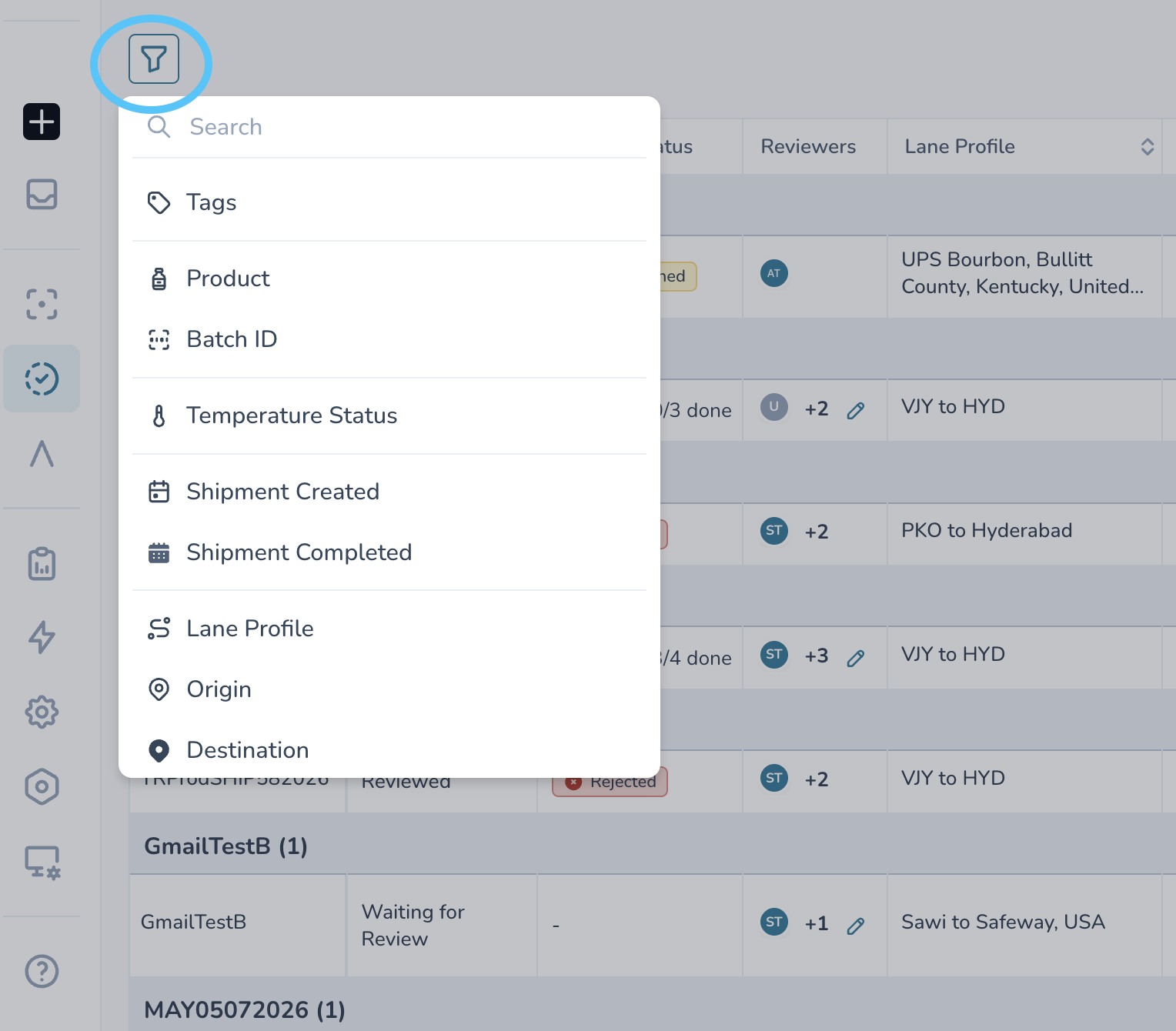
Filters allow you to narrow shipments by:
Risk status
Shipment lifecycle
Tags
Carriers
Review status
Dates
Organization-specific fields
Saved views preserve combinations of:
Filters
Columns
Sorting preferences
Use filters when searching by category or operational state rather than a known identifier.
Important Note About Displayed Columns
Some information may appear in the shipment grid but still not be searchable through the global search bar.
For example:
Product displays
Certain tag fields
Custom representations
Visibility in a column does not automatically mean the value participates in global search.
Advanced Logistics Identifiers
Depending on your integrations and onboarding setup, shipments may contain additional logistics identifiers such as:
MAWB
HAWB
Flight numbers
Container IDs
Vessel identifiers
Batch IDs
These advanced identifiers may not always function as standalone searchable values.
Why Some Advanced Identifiers May Not Search
Advanced identifiers only return results if they are mapped into one of the supported searchable categories such as:
Shipment ID
Tracking Number
Order Number
BoL
ASN
If an advanced field exists separately and is not mirrored into a searchable identifier field, searching that raw value may not return a shipment.
Best Practice Recommendations
For the most reliable search results, use:
Carrier tracking numbers
Order numbers
Bill of lading references
ASN references
If you are unsure which identifier is driving the displayed Shipment ID:
Open the shipment details
Review the displayed identifiers
Confirm which value your integration maps into the searchable fields
Search Results and Match Ranking
When multiple shipments match your search:
Results may be grouped logically by identifier type
Higher-priority or more operationally relevant shipments may appear first
Timestamps and shipment lifecycle context may influence ordering
Search result grouping and wording may evolve across platform releases.
Viewing More Results
If many shipments match your search:
View All Within a Group
Selecting View All for a grouping displays:
Only shipments matching that category
Example:
Only Device ID matches
Only Tracking Number matches
Show All Matching Shipments
Options such as:
Show All Matching Shipments
Enter
Expand Results
may display:
Every shipment that matched across all search categories
If Search Returns No Results
1. Confirm the Correct Module
Verify whether the shipment exists in:
Command Center
Temperature Release
2. Check Active vs Completed Views
Some organizations separate:
Active shipments
Completed shipments
Make sure you are searching the correct lifecycle workspace.
3. Try a Shorter Identifier
Formatting differences from upstream systems may affect search results.
Examples:
Extra spaces
Leading zeros
Carrier punctuation
Hyphens
Try:
A shorter substring
Another identifier type
The original value from your ERP or TMS
4. Verify Access Permissions
User permissions and shipment visibility rules may restrict access to certain shipments or shipment groups.
A valid identifier may still return no results if the shipment is outside your permitted visibility scope.
Still Need Help?
If search results continue to fail unexpectedly, contact support with:
Approximate shipment time
Partial identifier (redact sensitive portions if needed)
Workspace searched
Command Center
Temperature Release
Active vs completed
Screenshot if available
Contact:
support@paxafe.com