Changelog: CONTXT v1.2.4
Last updated: December 31, 2025
Released December 31, 2025
We're excited to share important improvements to CONTXT's Temperature Release workflow, enhanced sorting consistency across all your views, and improved visibility for managing devices and shipments.
🆕 What's New
Automatic Review Reset When Shipment Data Changes ⭐
Protecting the integrity of your temperature release reviews
When you add or remove devices from a Temperature Release shipment that's waiting for review or currently assigned to reviewers, the system now automatically resets the review process. This ensures that reviewer signatures always reflect the complete and current state of your shipment.
How it works:
If you upload new device data to a shipment during the review process, all existing reviews are cleared
The shipment moves back to the "Assigned" state so reviewers can evaluate the complete dataset
Your reviewer assignments are preserved - they'll be notified to re-review the shipment
Once a shipment reaches "Reviewed" status, it's locked from further data changes (except tags)
Why this matters:
Your reviewers' decisions and signatures need to represent the actual shipment data being released. If new temperature data appears after someone has reviewed the shipment, that review may no longer be valid. This automatic reset prevents situations where approved shipments contain data that wasn't part of the original review, helping you maintain GxP compliance and data integrity.
Consistent Sorting Across All List Views
Your shipments now sort the same way, no matter how you group them
We've standardized how shipments are sorted within groups across both Command Center and Temperature Release. Now, when you group your shipments by any dimension - whether it's by Lane, Product, Review State, or any of the 11 available grouping options - the shipments within each group always sort by creation date with the newest shipments appearing first.
What changed:
Previously, different grouping options used different secondary sorting rules
This created inconsistent experiences where the same shipments would appear in different orders depending on your grouping choice
Now all grouping options use "Created At" (newest first) as the secondary sort
Examples of consistency:
Grouping by Lane: Shipments within each lane sorted newest first
Grouping by Product: Shipments for each product sorted newest first
Grouping by Review State: Shipments in "Waiting for Review" sorted newest first
Grouping by Tags: Shipments with the same tag sorted newest first
This makes your workflow more predictable and easier to understand, especially when switching between different views of your data.
See All Devices in Edit Shipment Screen
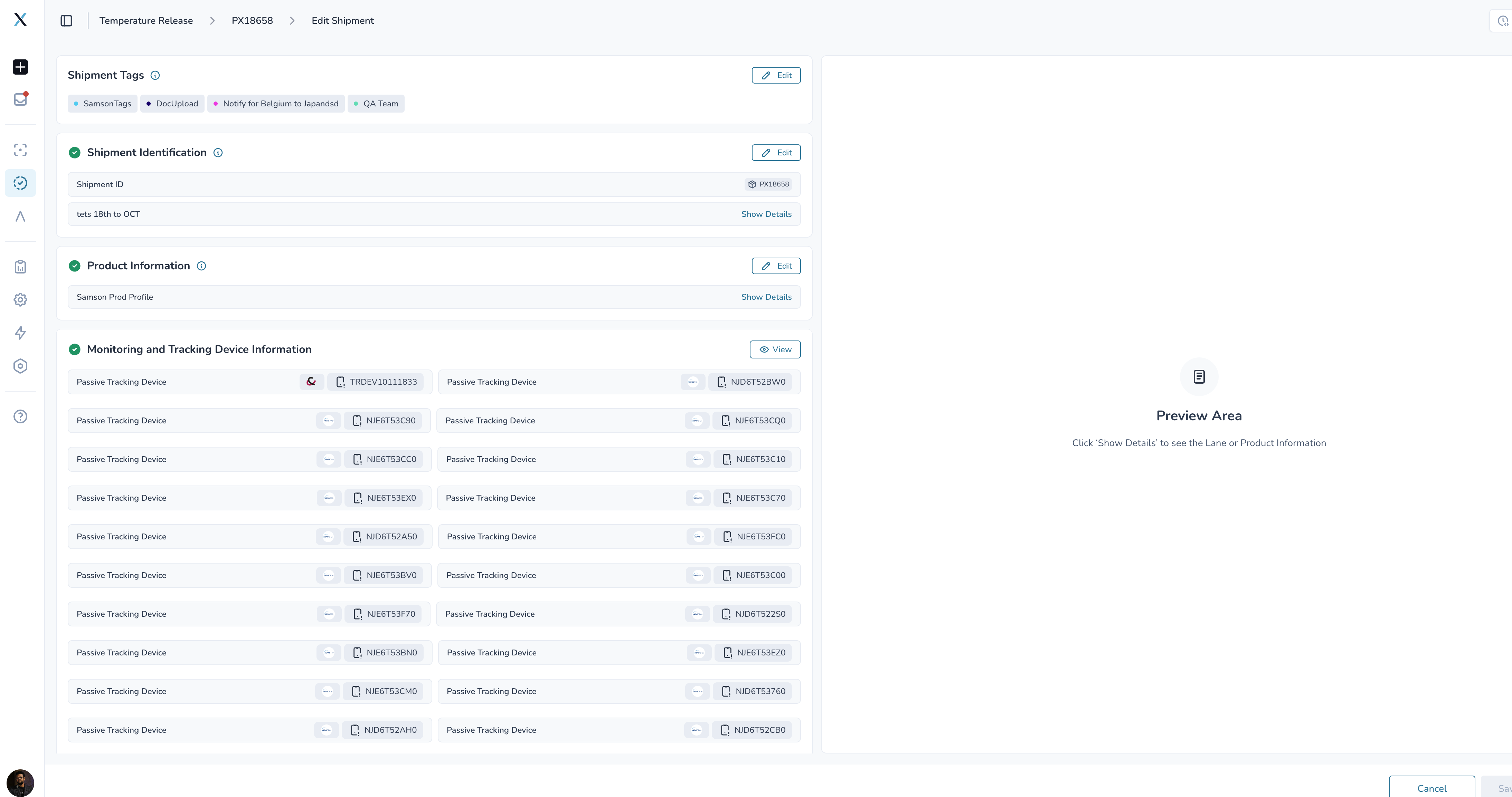
Complete visibility into your shipment's device inventory
When you edit a Temperature Release shipment, you now see all devices associated with that shipment - regardless of whether they were added manually during shipment creation, uploaded as passive data files, or added through active device tracking.
What you can now do:
View the complete device list in one place during shipment editing
Identify all temperature monitoring devices on your shipment
See devices added through any method (manual, passive upload, active tracking)
Prepare for future capability to remove devices from shipments
Why this helps:
Previously, devices added through passive data upload weren't visible in the edit screen, creating a blind spot in your device management. Now you have full visibility into every device tracking your shipment's temperature data, making it easier to verify your monitoring setup and manage device assignments.
Shipment IDs Can Now Include Spaces
Support for flexible identifier formats
You can now create shipments with IDs that contain space characters, such as "ABC 123" or "SHIPMENT ID 001". This supports industry-standard naming conventions and customer-specific identifier formats without requiring workarounds.
What works:
Create new shipments with spaces in the ID field
Search and filter using shipment IDs with spaces
Export and email reports with spaced IDs
All existing functionality works normally with spaced IDs
Examples that now work:
"SHIPMENT 12345"
"ABC 123 DEF"
"ORDER ID 001"
Why this helps:
Many logistics teams use identifier formats that include spaces as separators. This update eliminates the need to use hyphens, underscores, or other workarounds, making data entry more natural and aligned with your existing processes.
Enhanced Review Workflow Visibility
New table columns show review progress at a glance
The Temperature Release shipments table now includes three new columns that provide immediate context about review status:
Last Reviewer: Shows who completed the most recent review
Next Reviewer: Displays who is assigned for the next review step (if applicable)
Latest Review Status: Highlights the most recent review decision (Accept, Quarantine, or Reject)
How to use them:
These columns appear automatically when you group shipments by "Review State."
You can enable or hide them for other grouping options through your display preferences
Sort by any of these columns to organize your review queue
Use Shipment ID or Order ID grouping to consolidate multi-product shipments for efficient review
Why this matters:
Reviewers can now see the status and history of a shipment without opening it, making the review process faster and reducing the number of clicks needed to understand where each shipment stands in the workflow.
🎨 Improved Experience
Email Reports Match Your Dashboard View
When you email a CSV report of your shipment list, the exported data now matches exactly how you're viewing it on your dashboard - including your current sorting preferences. Previously, emailed reports might have appeared in a different order than what you saw on screen, causing confusion when reviewing the data.
What's better:
CSV reports in your email now sort the same way as your dashboard
No more manually re-sorting Excel files after export
Consistent data presentation between screen and email
💡 Tips & Best Practices
🎯 Making the most of automatic review resets:
Train your review team that adding new data will restart the review process
Plan your data uploads to minimize review workflow disruptions
Use tags freely even after review - they won't trigger a reset
Consider completing all data collection before initiating the review workflow
📊 Understanding the new sorting:
The newest shipments now always appear first within each group
If you prefer oldest-first sorting, you can adjust this in your display preferences
The consistent sorting makes it easier to spot your latest shipments regardless of how you're grouping your data
🔧 Device management visibility:
Use the edit screen to verify all devices are properly assigned to your shipments
Check device inventory before submitting shipments for review
All devices are now visible regardless of how they were added to the shipment
🆔 Using shipment IDs with spaces:
You can now use your standard identifier formats that include spaces
Spaces work everywhere: creation, search, filters, exports, and reports
Existing shipment IDs without spaces continue to work normally
Mix and match - use spaces where it makes sense for your workflow
🚀 What's Next
We're already working on the next set of improvements:
Device removal capability: Delete devices from Temperature Release shipments directly from the edit screen (foundation now in place with complete device visibility)
Your feedback helps shape our development priorities. Share your thoughts through the in-app feedback tool or with your Customer Success Manager.
🆘 Need Help?
Questions about the review reset workflow? Contact your Customer Success Manager for training and best practices
Technical issues? Submit a support ticket through the help desk
Feature requests? Use the in-app feedback tool to share your ideas
Thank you for using CONTXT Command Center. We're committed to delivering powerful, compliant, and user-friendly tools that make your supply chain more visible and your operations more efficient.