Changelog: CONTXT v1.0.7
Last updated: January 12, 2026
Released September 11, 2025
Updated January 12, 2026
We're excited to share the latest improvements to Command Center, focused on enhanced visibility for multi-device shipments and better time zone clarity for external stakeholders.
🆕 What's New
Multi-Device Tracking Visibility ⭐
See detailed information for all tracking devices on your shipment
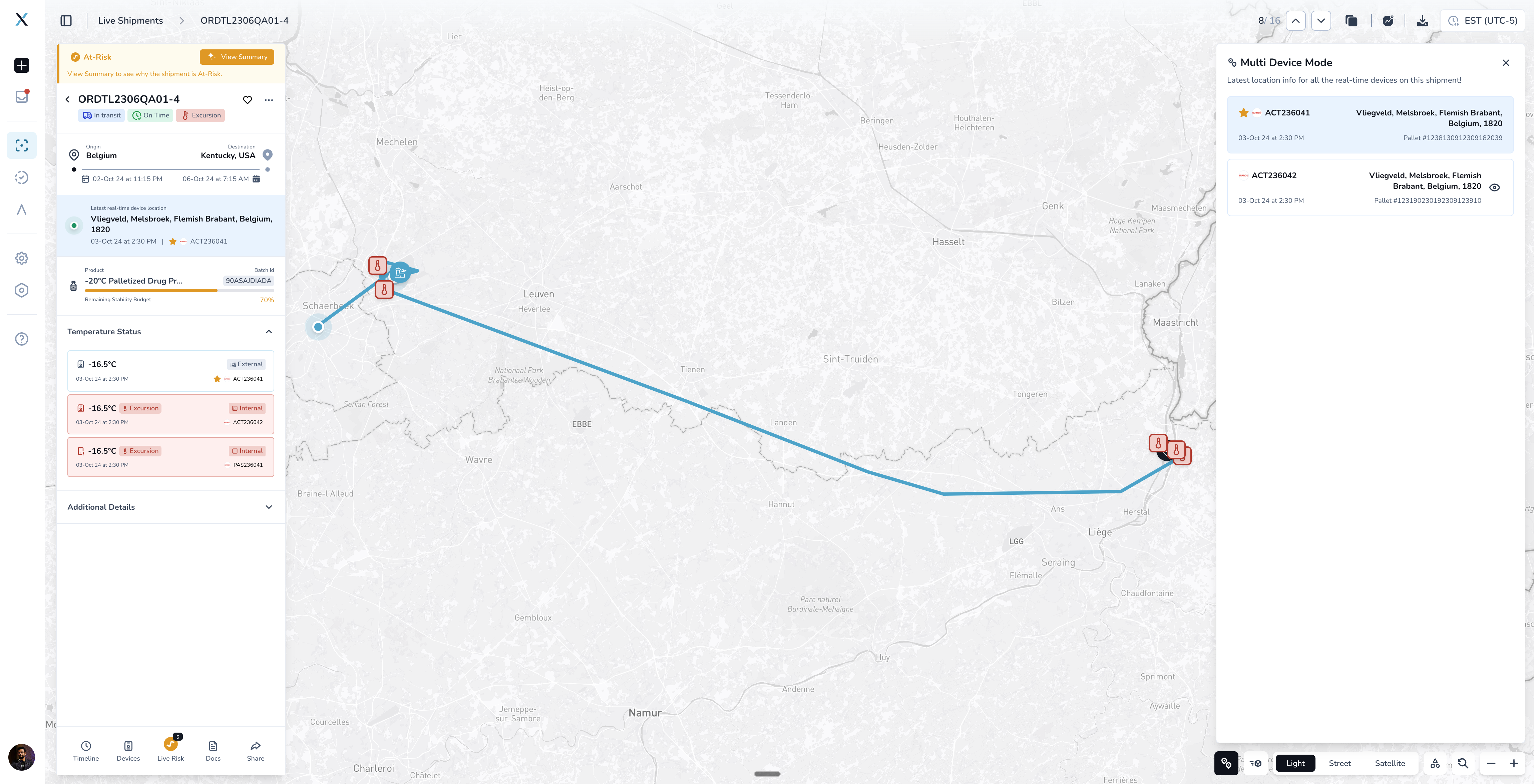
See All Your Device Locations at a Glance
When you click Show All Device Locations on the map, you’ll now get a clear, easy-to-read view of every tracking device tied to your shipment.
For each device, you can quickly see:
Device type and ID – Know exactly which sensor is reporting
Last check-in time – Confirm the device is actively communicating
Current location – View the most recent reported position
What it’s assigned to – See which shipment leg or entity the device is monitoring
You’re also in control of the map view. Use the eye icon next to each device to show or hide its location on the map. Your primary device will always remain visible, and all other devices are shown by default.
Why this is helpful
If your shipment uses multiple devices, such as a primary sensor plus backup trackers or probes, this view gives you the full picture in one place. You can quickly confirm that all devices are reporting as expected, compare locations between sensors, and spot any device that may have stopped communicating, without digging through multiple screens.
Time Zone Labels on Shared Tracking Links
External stakeholders now see time zone information on shared shipment pages
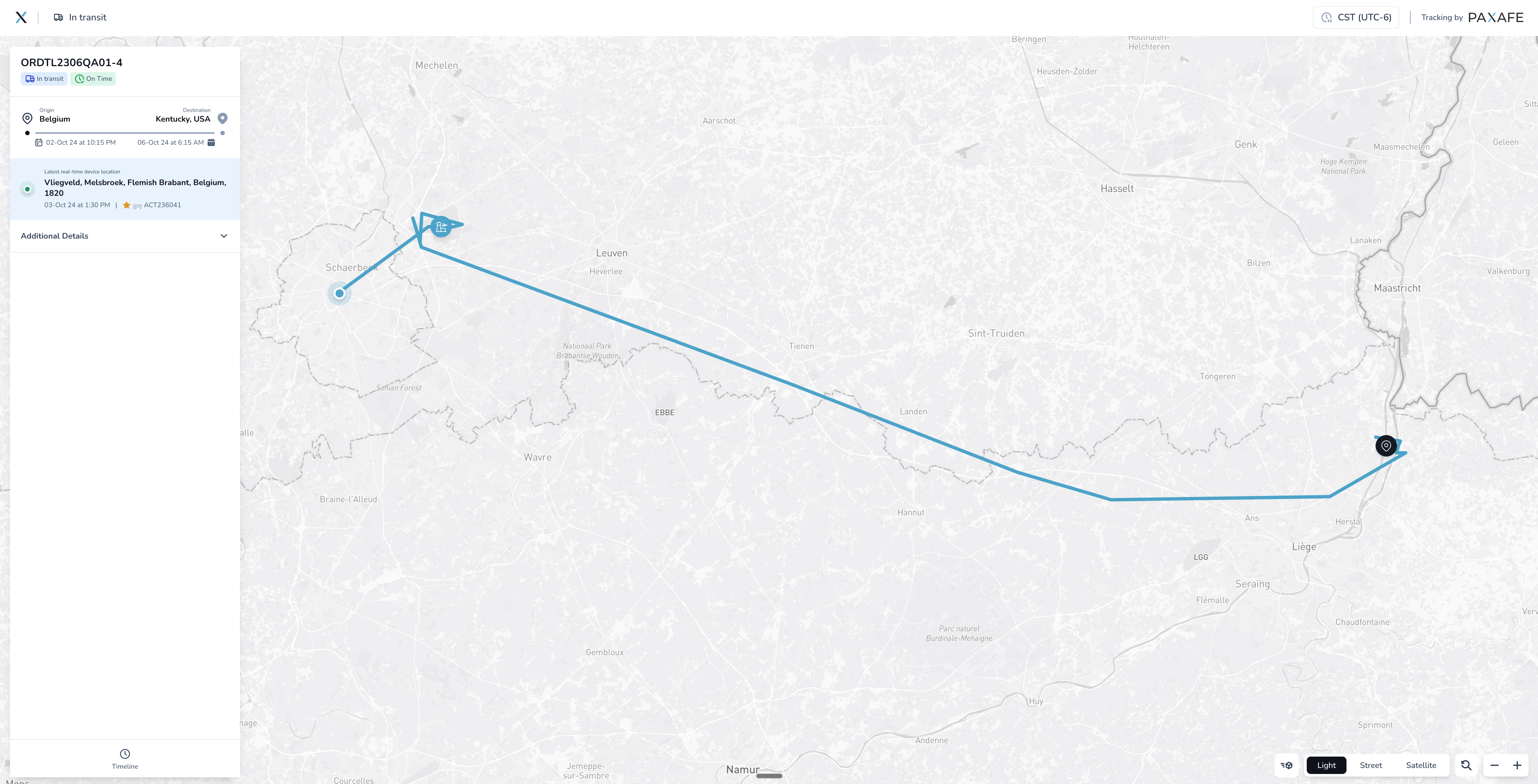
All external shipment tracking links now display the time zone in the top right corner (e.g., "UTC-4 (EDT)"). Hovering over the label shows the full time zone name like "Eastern Time (New York), UTC-4 (EDT)".
Why this matters: When you share shipment tracking links with customers, carriers, or partners in different time zones, they can now immediately understand what time zone is being used for all timestamps. No more confusion about whether a temperature excursion happened at 2 PM their time or your time.
🎨 Improved Experience
Better Filter Editing
Smooth filter updates - Editing an already-applied Transportation Mode filter no longer throws an error. The system now handles filter updates correctly, whether you're adding or changing selections.
Consistent Device Branding
Logo display fixed - Berlinger device logos now show correctly on all shipment device screens, matching what you see during shipment creation and editing.
🔧 Behind the Scenes
System Improvements
We’ve made under-the-hood enhancements that improve platform stability and consistency. These updates help ensure files load reliably, integrations behave as expected, and your day-to-day workflows run smoothly without any extra effort from your team.
🚀 Getting Started
These improvements are automatically available in your Command Center dashboard. No action is required on your part.
Using Multi-Device Visibility:
Open any shipment with multiple tracking devices
Navigate to the Map view
Click the "Show All Device Locations" icon
View the device information card that appears
Use the eye icon next to any non-primary device to hide/show its location marker
Viewing Time Zones on Shared Links:
External stakeholders will automatically see time zone labels when you share shipment tracking links. The label appears in the top right corner of all external tracking pages.
💡 Tips & Best Practices
🎯 Make the most of multi-device tracking:
Toggle device visibility to focus on one sensor at a time when investigating location differences
Compare last communication times between devices to quickly spot connectivity issues
When sharing links externally, let recipients know the time zone is clearly labeled so everyone is aligned on timing
🆘 Need Help?
Questions about multi-device tracking? Contact your Customer Success Manager for guidance on best practices
Technical issues? Submit a support ticket through the help desk
Feature requests? Share your feedback through the in-app feedback tool
What's next? We're working on enhanced notification systems, improved mapping capabilities, and continued refinements to the temperature release workflow. Your feedback helps shape our roadmap.
Thank you for using Command Center. We're committed to continuously improving your logistics management experience with powerful, reliable tools that support your GxP compliance requirements.