Org Settings: Managing Your Organization
Last updated: August 31, 2026
Org Settings is the central place for managing your organization in CONTXT. From here, you can update organization details, review subscribed features, manage users, and control access across your team.
Only members of the Owner group can access Org Settings.
To open it, select the user menu and choose Organization Settings.
Org Settings includes four tabs:
General
Feature Subscriptions
Users
User Access Groups
This guide covers General, Feature Subscriptions, and Users. For more information about permissions, tags, and access groups, see Understanding and Managing User Access Groups in the Related Articles section.
The General Tab
The General tab is where you manage your organization's basic information and organization-wide settings.
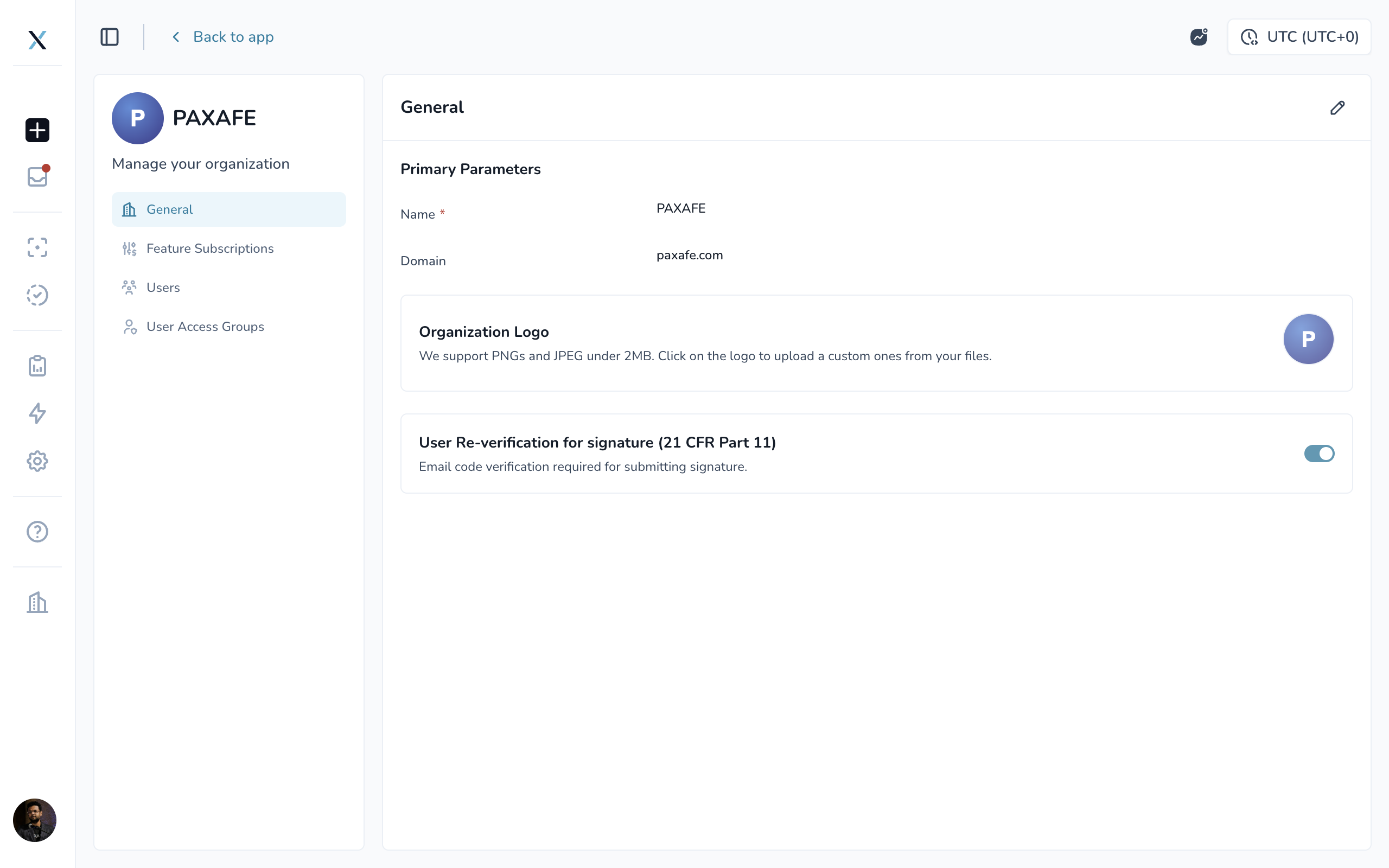
From here, you can update:
Organization Name
Domain
Organization Logo
Organization-wide preferences
Your Organization Name is required, while the Domain is optional.
You can also upload a PNG or JPEG logo under 2 MB. Until a logo is added, CONTXT displays your organization's initials. You can replace or remove the logo at any time.
Depending on the features available to your organization, this tab may also include additional organization-wide settings. For example, you may see an option requiring users to re-verify their identity when signing records for 21 CFR Part 11 compliance.
Editing organization settings
Information on the General tab is read-only by default.
To make changes:
Select the pencil icon.
Update the information you need.
Select Save.
Select Cancel if you do not want to keep your changes.
If you try to leave the page before saving, CONTXT will warn you so your changes are not accidentally lost.
Only members of the Owner group can make these updates.
Feature Subscriptions
The Feature Subscriptions tab shows the CONTXT modules and features available to your organization.
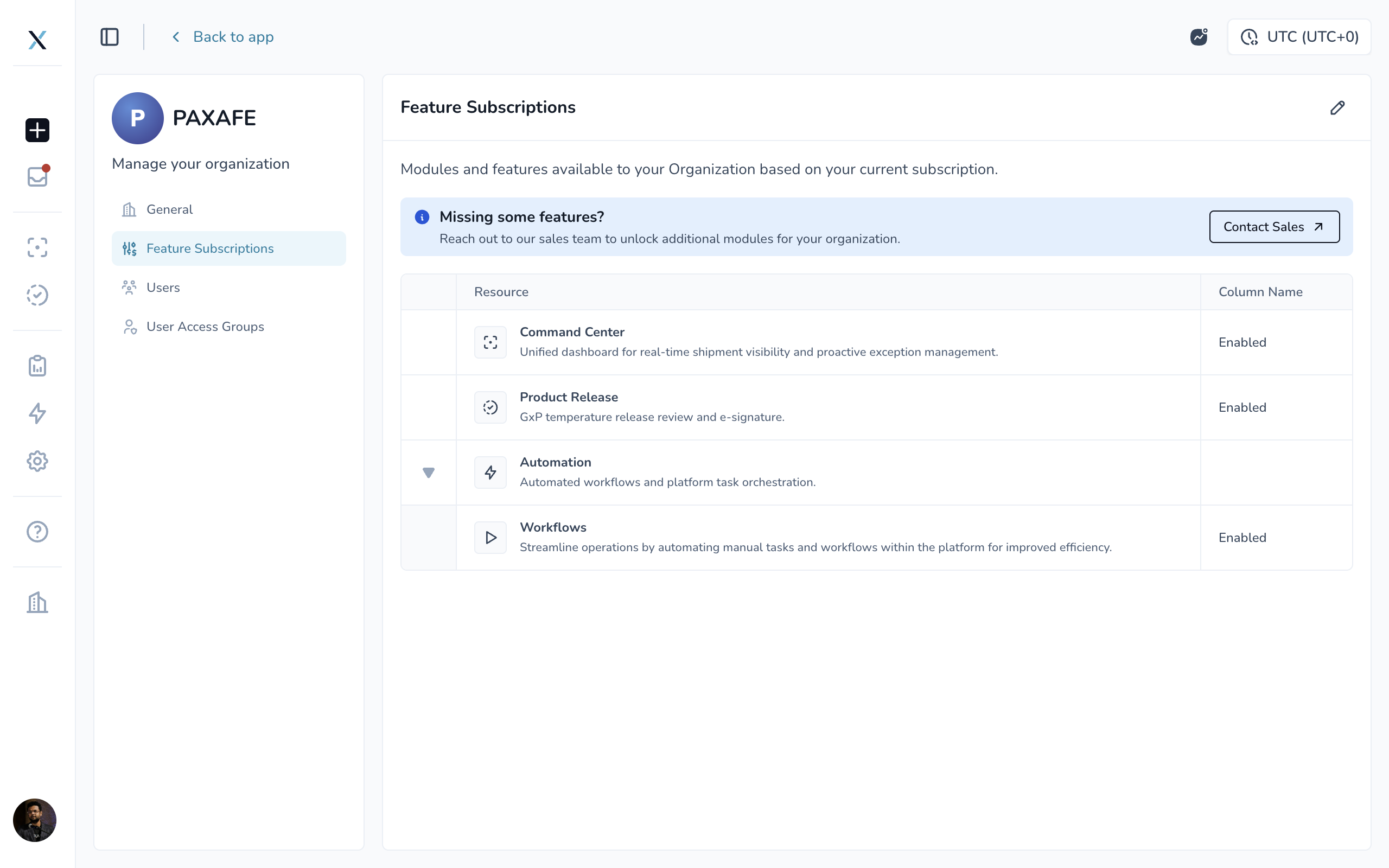
Features are organized into expandable sections, with each showing:
The feature name
A short description
Whether it is Enabled or Disabled
This makes it easy to confirm which capabilities are currently available to your team.
Some capabilities are included automatically with their related module. For example:
Lane Performance Insights are associated with Command Center.
Product Release Insights are associated with Product Release.
These capabilities follow the status of their parent module and do not require separate setup.
If there is a capability your organization does not currently have access to, select Contact Sales to connect with the PAXAFE team.
Managing Users
The Users tab is where you invite people, move them between groups, and manage who is active. It has three sub-tabs, each showing a count:
Active — users who currently have access
Invited — users who have been invited but have not yet joined
Suspended — users whose access to this organization has been temporarily removed
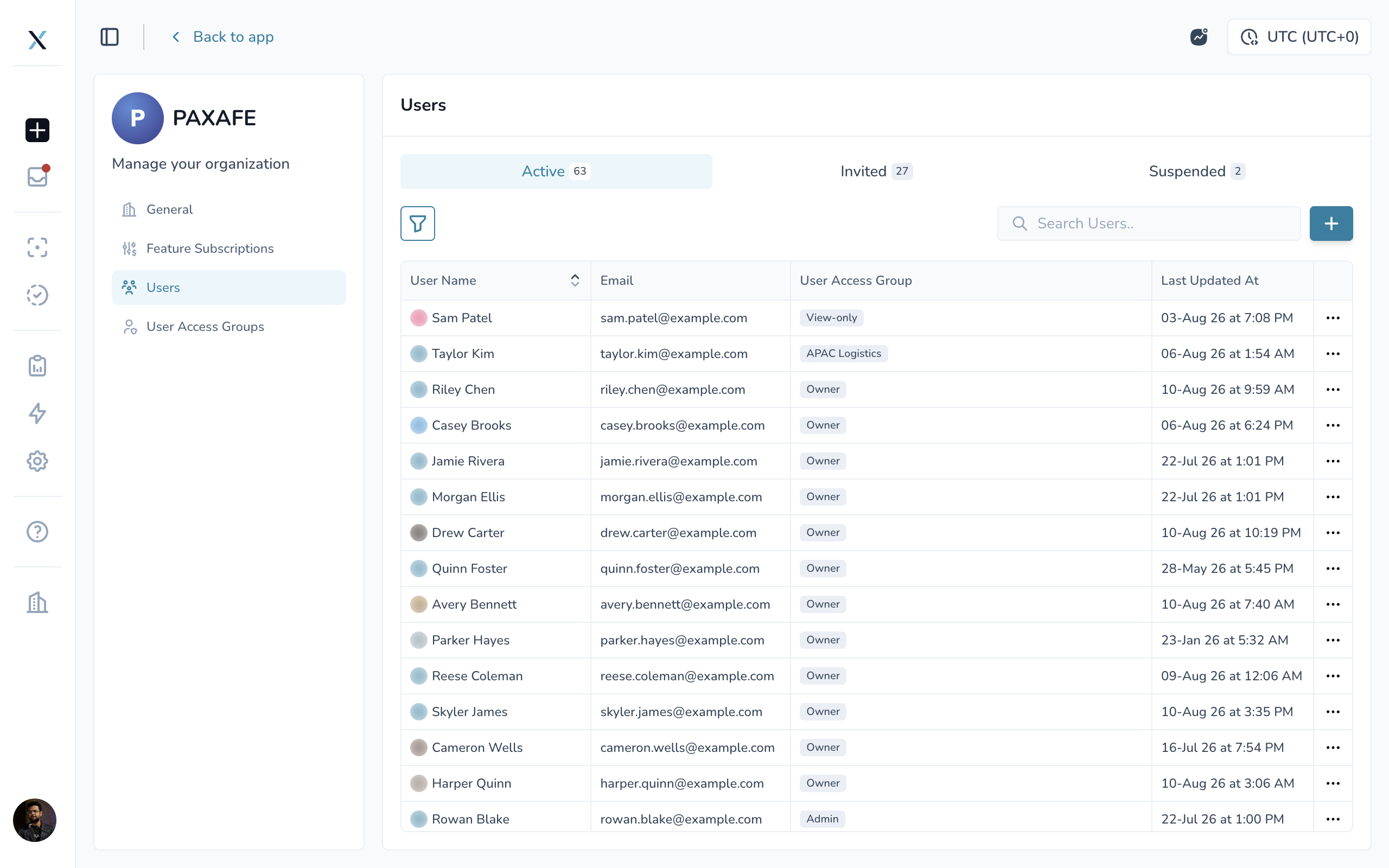
You can search the list by name or email, filter it by User Access Group, and sort it by name. Who invited or suspended a user, and when, is recorded on the list.
Inviting Users
When you invite someone to CONTXT, you also choose the User Access Group they will belong to.
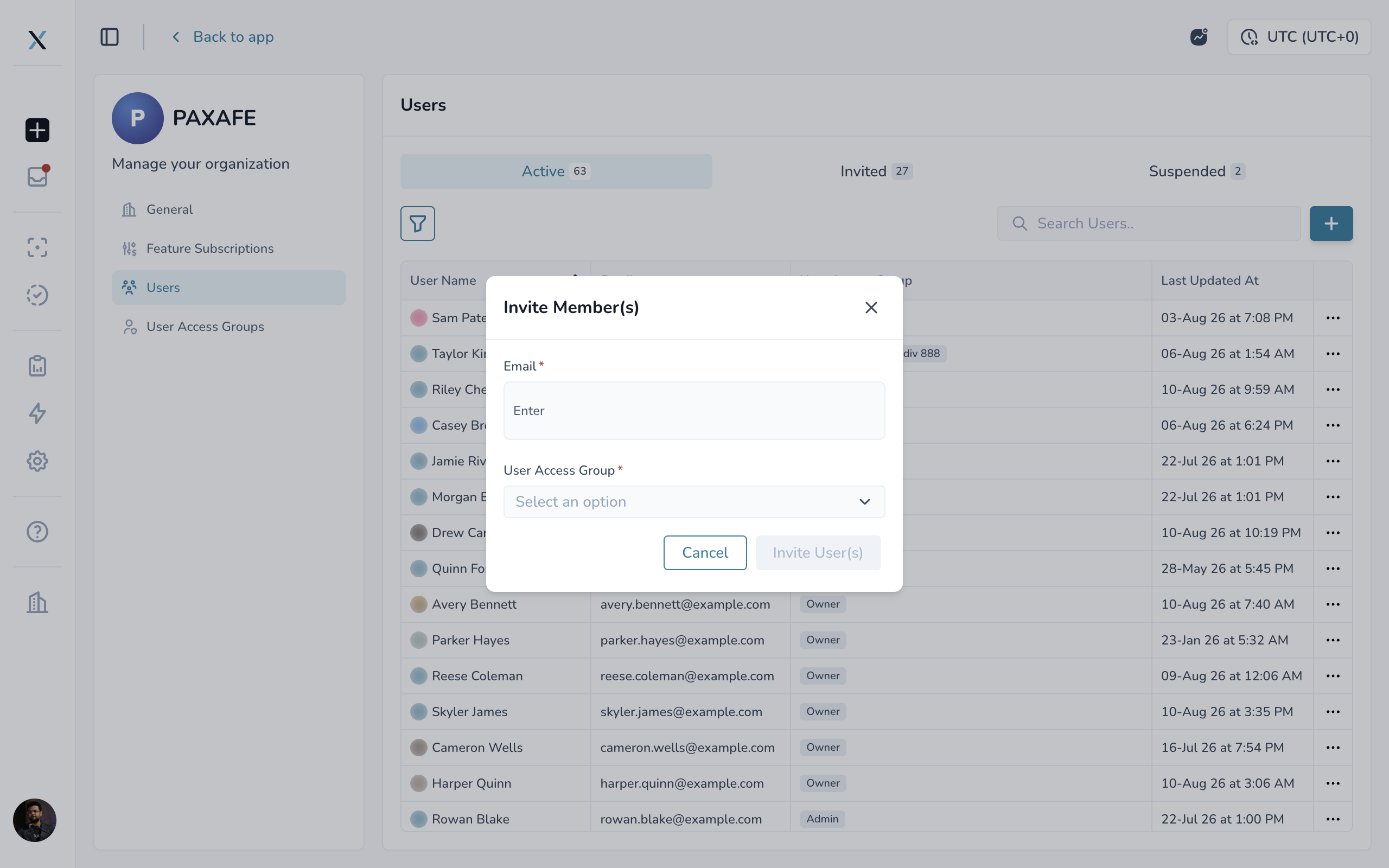
That group determines what the person can see and do after they join.
To invite a user:
Open the Users tab.
Select the option to invite users.
Enter one or more email addresses.
Choose the User Access Group the users should join.
Send the invitations.
New invitations appear under the Invited tab until they are accepted.
From there, you can:
Resend Invitation if someone did not receive or missed the original invitation.
Revoke Invitation if the invitation should no longer be active.
The Invited tab also shows who sent the invitation and when it expires.
Suspending Users
Suspending a user removes their access to the organization without deleting their account information or history.
To suspend someone:
Open the Active tab.
Find the user.
Open the three-dot menu.
Select Suspend.
Before the suspension is completed, CONTXT checks for outstanding Product Release reviews or active workflow responsibilities that may need to be reassigned.
Suspension applies only to the current organization
If a person belongs to multiple organizations in CONTXT, suspending them from one organization does not affect their access to the others.
Their data and historical activity also remain intact.
Owner safeguard
Every organization must have at least one Owner.
Because of this, the final remaining Owner cannot be suspended or moved to another group.
We recommend keeping more than one Owner whenever possible so organization management is not dependent on a single person.
Restoring a Suspended User
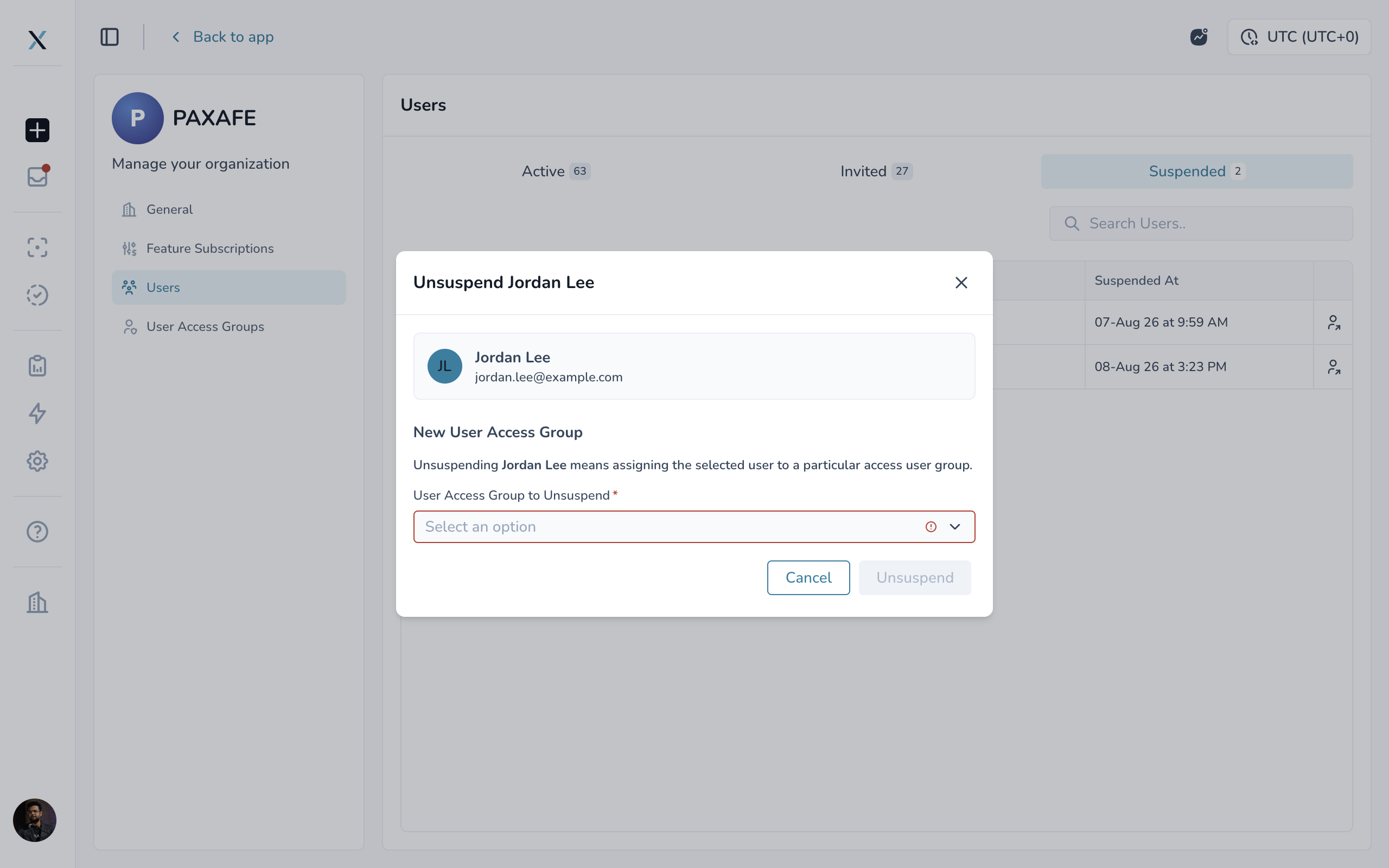
You can restore access at any time from the Suspended tab
.
To bring someone back:
Open the Suspended tab.
Select the user you want to restore.
Choose the User Access Group they should join.
Confirm the change.
If the user's previous group still exists, CONTXT will select it by default. You can keep that group or choose a different one before restoring access.
Once confirmed, the user can access the organization again according to the permissions and data scope of their selected group.
Activity History
Activity History gives Owners a record of organization-level changes made in CONTXT.
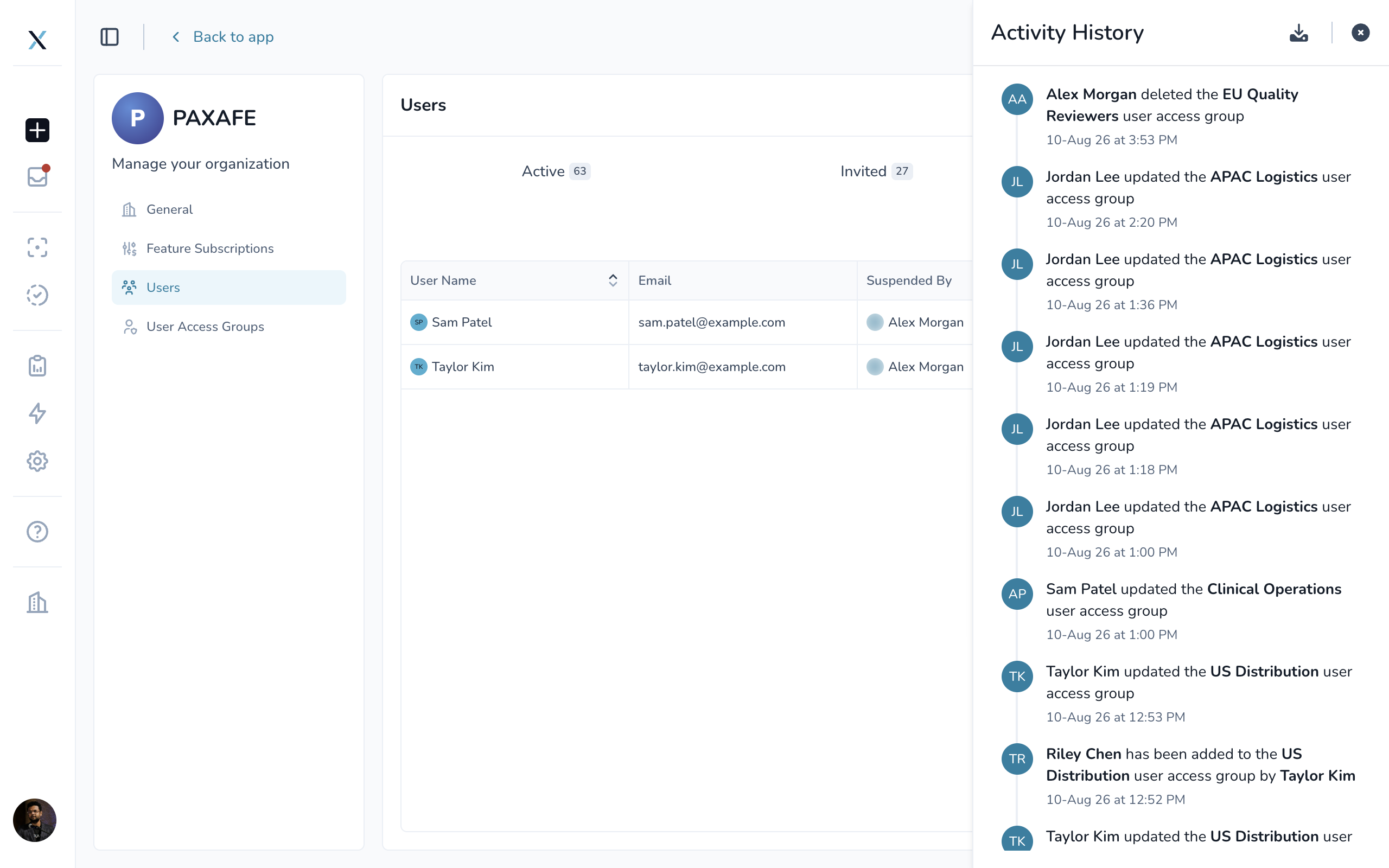
Open Activity History from the icon in the Org Settings header.
The history shows events in reverse-chronological order, including changes such as:
User invitations
User suspensions
Access group changes
Group membership updates
Organization setting changes
Each entry shows what changed, who made the change, and when it happened.
You can also export Activity History to a CSV file, which can be useful for audits, internal access reviews, or other recordkeeping needs.
Common Questions
I can't access Org Settings.
Only members of the Owner group can open Org Settings.
If you are an Admin, View-only user, or part of a custom group without Owner access, ask an Owner in your organization to make the change for you or update your access if appropriate.
I invited someone, but they aren't showing under Active.
Users remain under the Invited tab until they accept their invitation.
From the Invited tab, you can check the invitation status, resend it, or see when it expires.
Why can't I move or suspend a user?
The user may have outstanding responsibilities that need to be reassigned first, such as a pending Product Release review or an active workflow assignment.
CONTXT will show you what needs attention before the change can continue.
If the user is the organization's only Owner, they also cannot be moved or suspended until another Owner is assigned.
Does suspending someone delete their data?
No.
Suspension removes the person's access to the organization but preserves their account information, historical activity, and associated records.
Where can I see who changed an organization setting?
Open Activity History from the Org Settings header.
You can review changes directly in CONTXT or export the history to CSV for your records.
Related Articles
Understanding and Managing User Access Groups. The companion article to this one, covering how groups, permissions, and tag scope work.