Changelog: CONTXT v2.13
Last updated: September 18, 2026
Released August 20, 2026.
CONTXT v2.13 introduces Org Settings and User Access Groups, giving you one place to manage your organization and more precise control over who can see and do what across the platform.
Org Settings brings your organization profile, feature subscriptions, users, and access rules together in one place.
With User Access Groups, you can move beyond broad roles and configure access based on both permissions and tag-based data scope. That means each person can see the shipments, lanes, dashboards, and workflows relevant to their role while keeping sensitive or unrelated information appropriately restricted.
🆕 What's New
⭐ User Access Groups
What's new
User Access Groups are the new way to manage access in CONTXT.
Each group combines:
The permissions its members have across CONTXT
The tags that determine which data they can access
The users assigned to the group
Every user belongs to one group within an organization, creating a clear and consistent set of access rules for each person.
System Default Groups
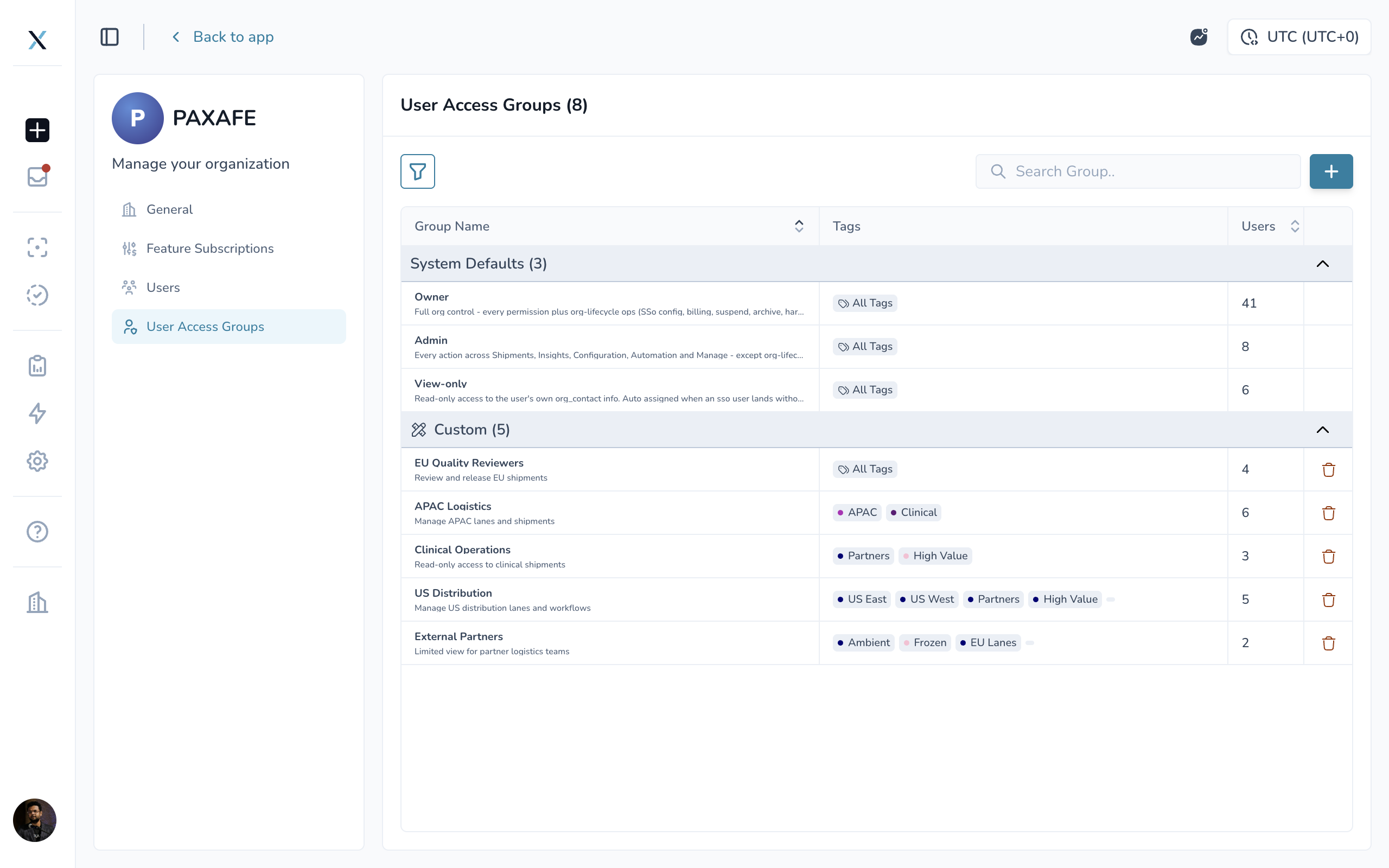
Every organization starts with three system default groups, pinned at the top of the User Access Groups list:
Owner — Full access to all available features and the only group that can access Org Settings, including the organization profile, Feature Subscriptions, Users, and User Access Groups.
Admin — Can view, edit, and review work across all available features, but cannot access Org Settings.
View-only — Can view available features and data but cannot make changes or access Org Settings.
All three default groups include All Tags, giving their members access to all organizational data available in Command Center and Product Release.
System default groups cannot be renamed, edited, or deleted. You can, however, change which users belong to them.
The three defaults are created for you and cannot be renamed, edited, or deleted. The only thing you change is who belongs to them.
Create Custom Access Groups
Create as many custom groups as your organization needs based on teams, regions, partners, responsibilities, or workflows.
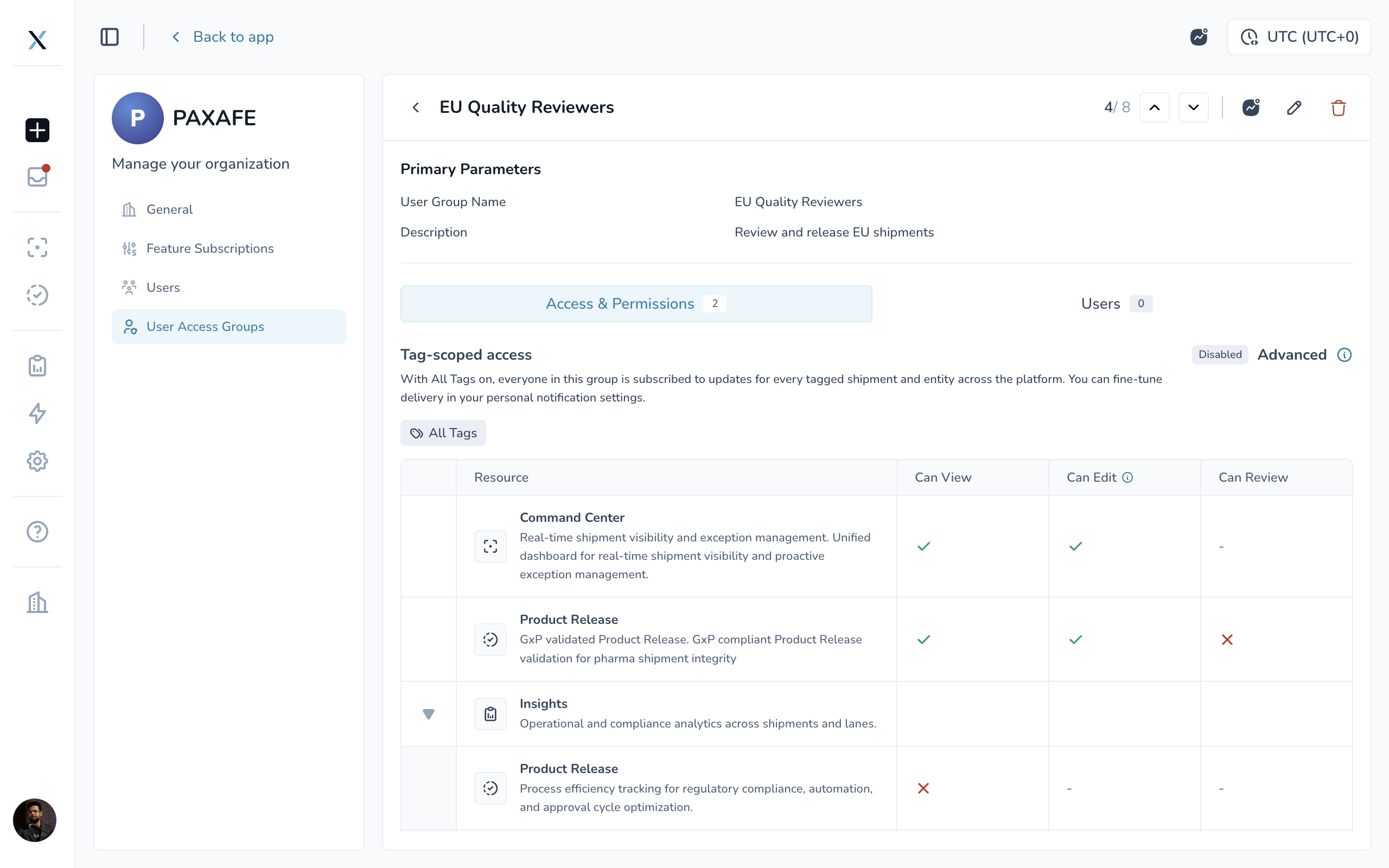
For each group, you can set permissions across:
Command Center
Product Release
Lane Performance
Automation Workflows
Configuration
Available permission levels include:
Can View
Can Edit
Can Review — available for Product Release
Permissions build on one another automatically. For example, selecting Can Edit also enables Can View, while Can Review enables both View and Edit access.
Insight dashboards remain view-only and follow the access settings of the module they belong to.
Control Data Access with Tags
Permissions determine what someone can do. Tags determine which data they can do it with.
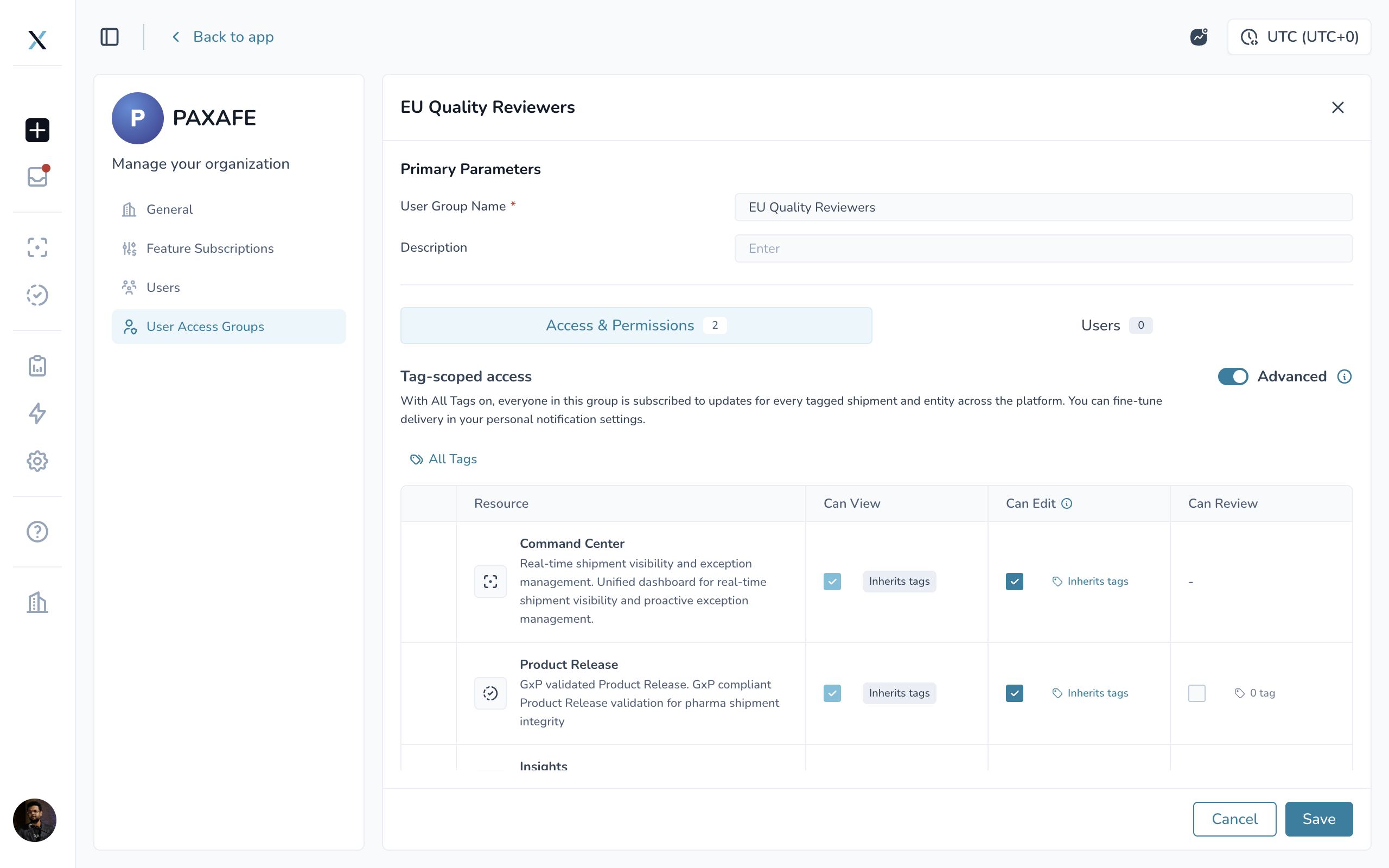
Choose specific tags for a group or enable All Tags for organization-wide visibility.
Those tags also determine which entities members are automatically subscribed to for notifications. Each user can still choose how they receive those notifications through their personal notification settings.
Need more precision? An Advanced option allows you to limit Edit and Review permissions to specific tags within Command Center and Product Release.
For example, a regional team could edit shipments for its own region while maintaining read-only visibility across the broader network.
Manage Users by Group
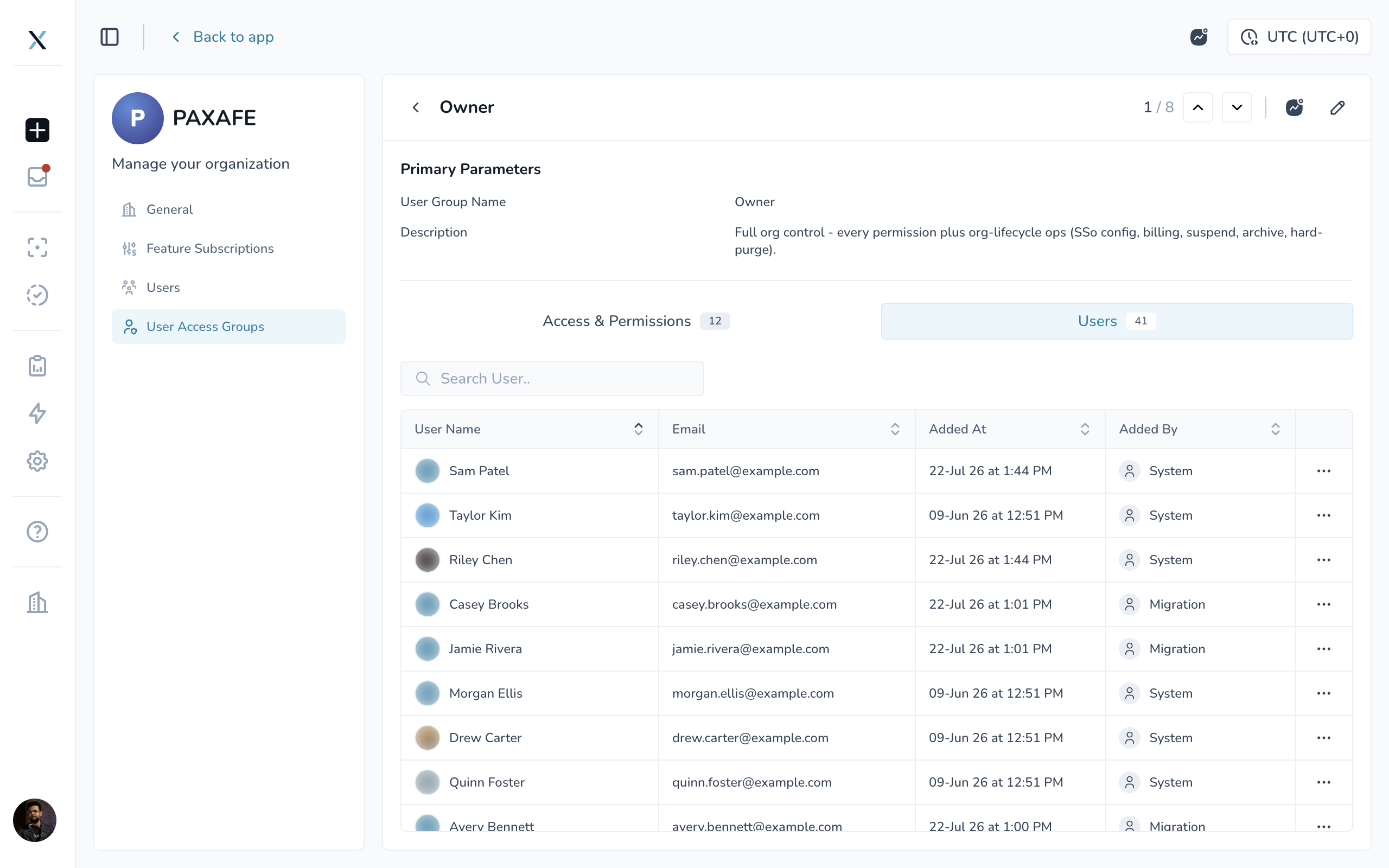
Each access group includes a Users tab showing:
Who belongs to the group
When they were added
Who added them
You can search for a user or select Add User to move someone into the group. Because each user belongs to only one group, moving them automatically removes them from their previous group.
From the main User Access Groups page, you can also search groups, filter by tags or users, and sort custom groups while System Defaults remain pinned at the top.
Built-in Safeguards
CONTXT includes safeguards to help prevent access changes from interrupting your operations.
Your organization must always have at least one Owner, so the final Owner cannot be moved out of the group or suspended.
If you delete a custom group that still contains users, CONTXT asks whether those users should be moved to another group or suspended.
If someone has outstanding Product Release reviews or responsibilities within an active workflow, CONTXT identifies those items before the access change is completed so they can be reassigned.
Why it matters
Access control shouldn't force you to choose between giving someone too much access and limiting their ability to get work done.
User Access Groups let you configure access around the way your organization actually operates.
A contract manufacturer can see only its tagged shipments. A regional quality lead can review Product Releases for their region. A global team can maintain visibility across the entire network.
Set the rules once, then apply them consistently to everyone who joins the group.
Why you'll love it
You set up a group the way your team works, and every person you add to it is correctly configured from their very first sign-in.
Getting started
To create a custom User Access Group:
Open the user menu and select Organization Settings.
Select the User Access Groups tab.
Click + to create a new group.
Add a group name and description.
Set the group's permissions.
Select the appropriate tags or enable All Tags.
Open the group's Users tab and add the people who belong in it.
Want a deeper walkthrough?
See Understanding and Managing User Access Groups for more on permissions, tag-based access, advanced scoping, managing users, and deleting groups safely.
Org Settings Home and the General Tab
What's new
Org Settings opens on the General tab, where Owners can manage organization-level information and preferences.
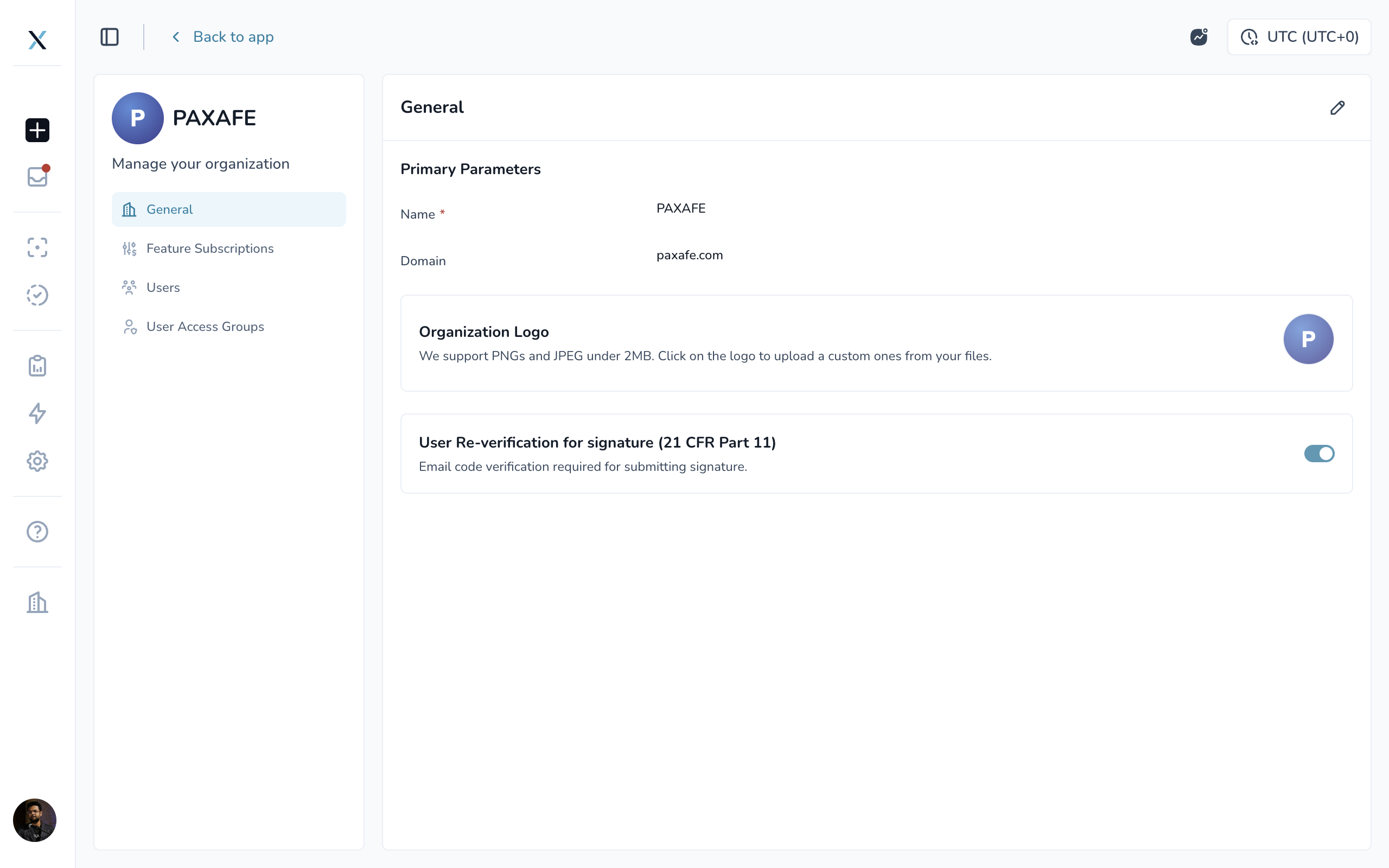
From here, you can:
Update your organization name and domain
Upload your organization's logo
Manage organization-wide preferences
Review Activity History
Supported logos include PNG and JPEG files under 2 MB. Until a logo is uploaded, CONTXT displays your organization's initials.
The General tab also includes organization-wide compliance preferences, such as requiring users to re-verify their identity when signing a record for 21 CFR Part 11.
Settings remain read-only until you enter edit mode, helping prevent accidental changes.
Only members of the Owner group can access Org Settings or make organization-level changes.
Activity History
The Activity History records organization-level changes, including:
Access group changes
User invitations
Suspensions
Organization setting updates
Activity History can also be exported to CSV for audits, access reviews, or internal recordkeeping.
Why it matters
Your organization's identity, access configuration, and key compliance preferences now live in one predictable place, with a record of the changes made over time.
Feature Subscriptions
What's new
The Feature Subscriptions tab gives Owners a clear view of the modules and features included in your organization's CONTXT subscription.
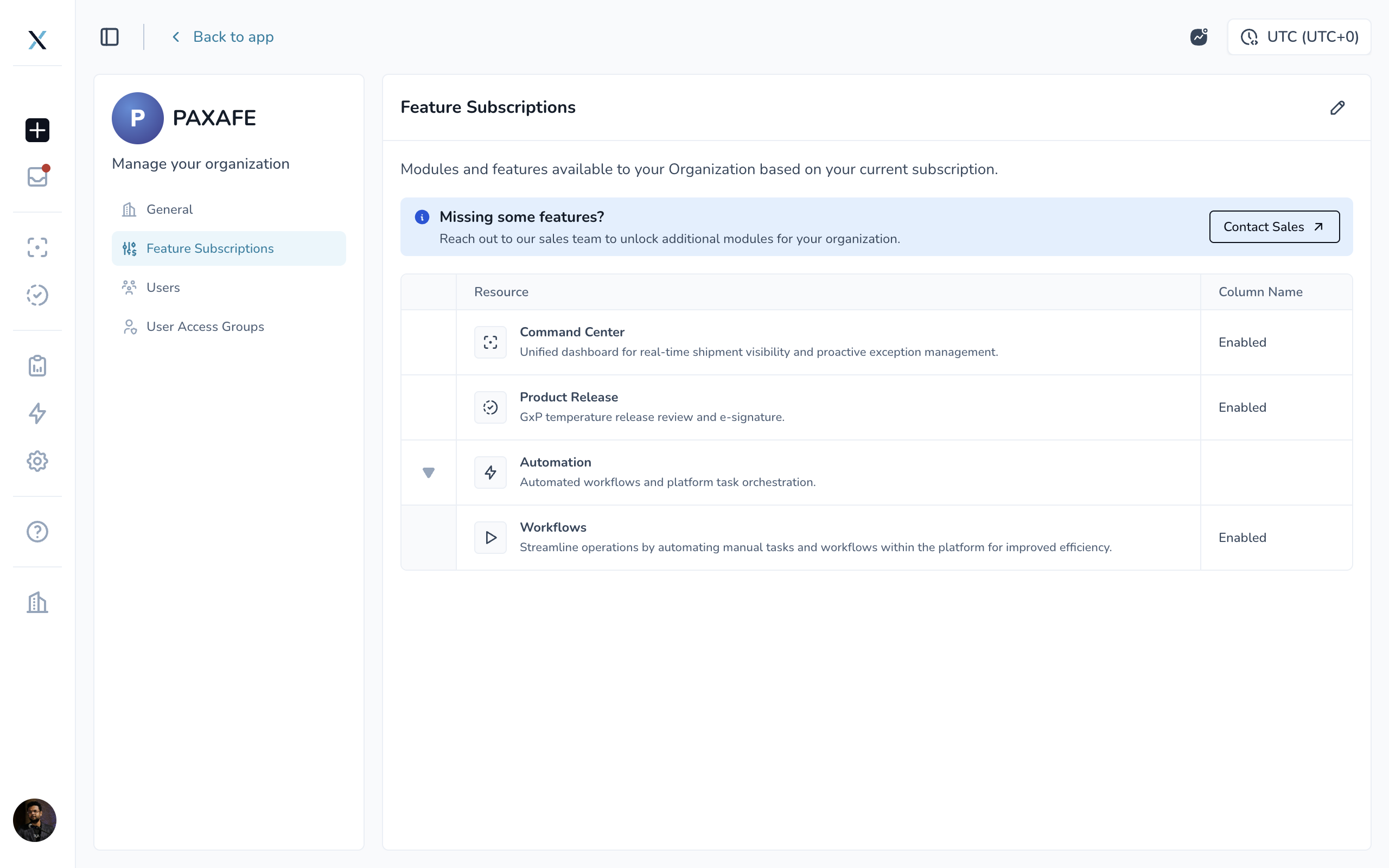
Features are organized into expandable sections and display a clear Enabled or Disabled status.
Insight dashboards follow their associated modules automatically. For example:
Lane Performance Insights are included with Command Center
Product Release Insights are included with Product Release
No additional configuration is required for these associated insights.
If a feature is not currently included in your subscription, you can use the Contact Sales link to learn more.
Why it matters
You can quickly see what's available to your organization without needing to track down subscription details or start an email thread.
Users
What's new
Members are now called Users in CONTXT and have a dedicated tab within Org Settings.
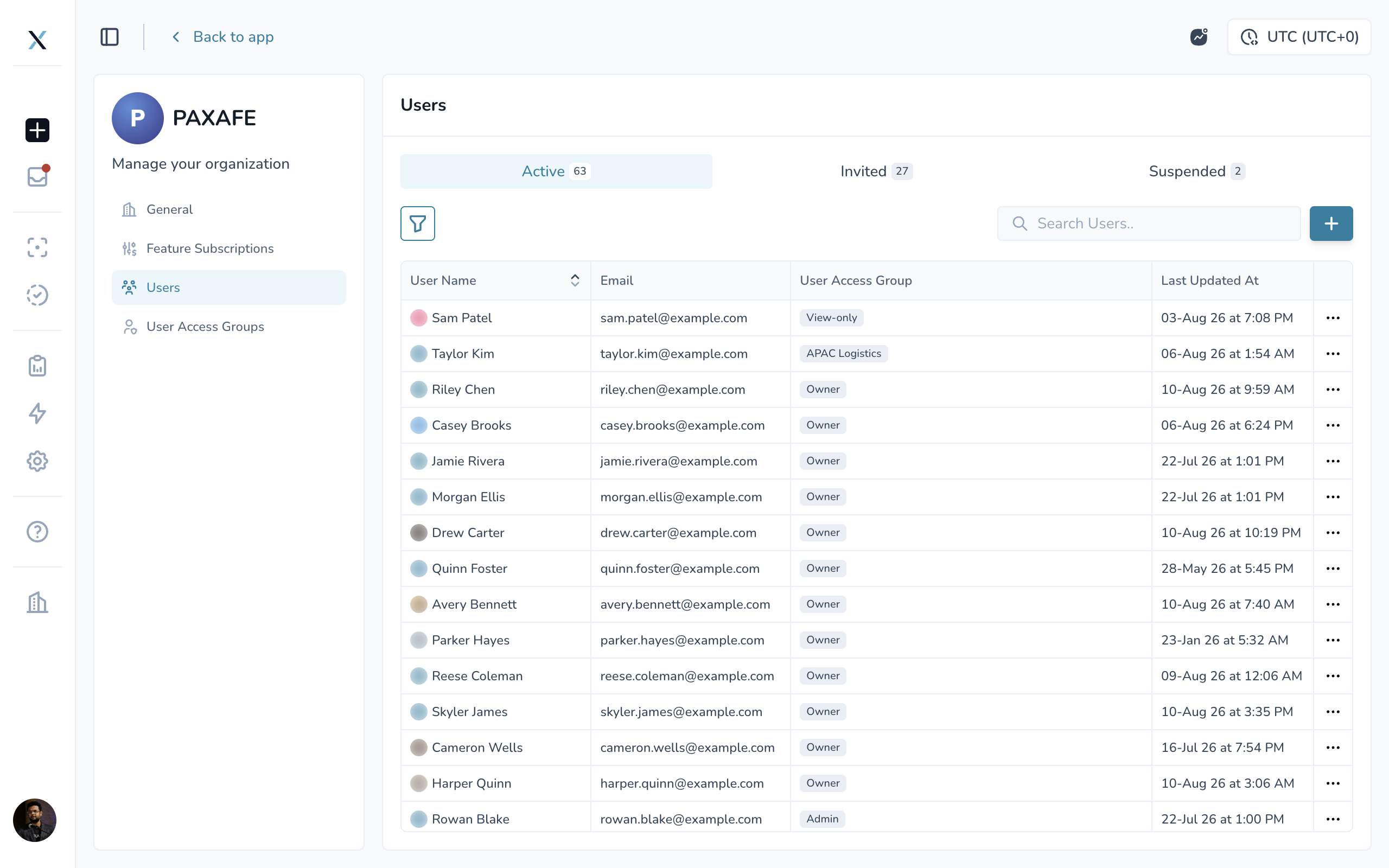
The Users page includes three views:
Active
Invited
Suspended
Each view displays a count so you can quickly understand the current status of your organization.
Invite new users
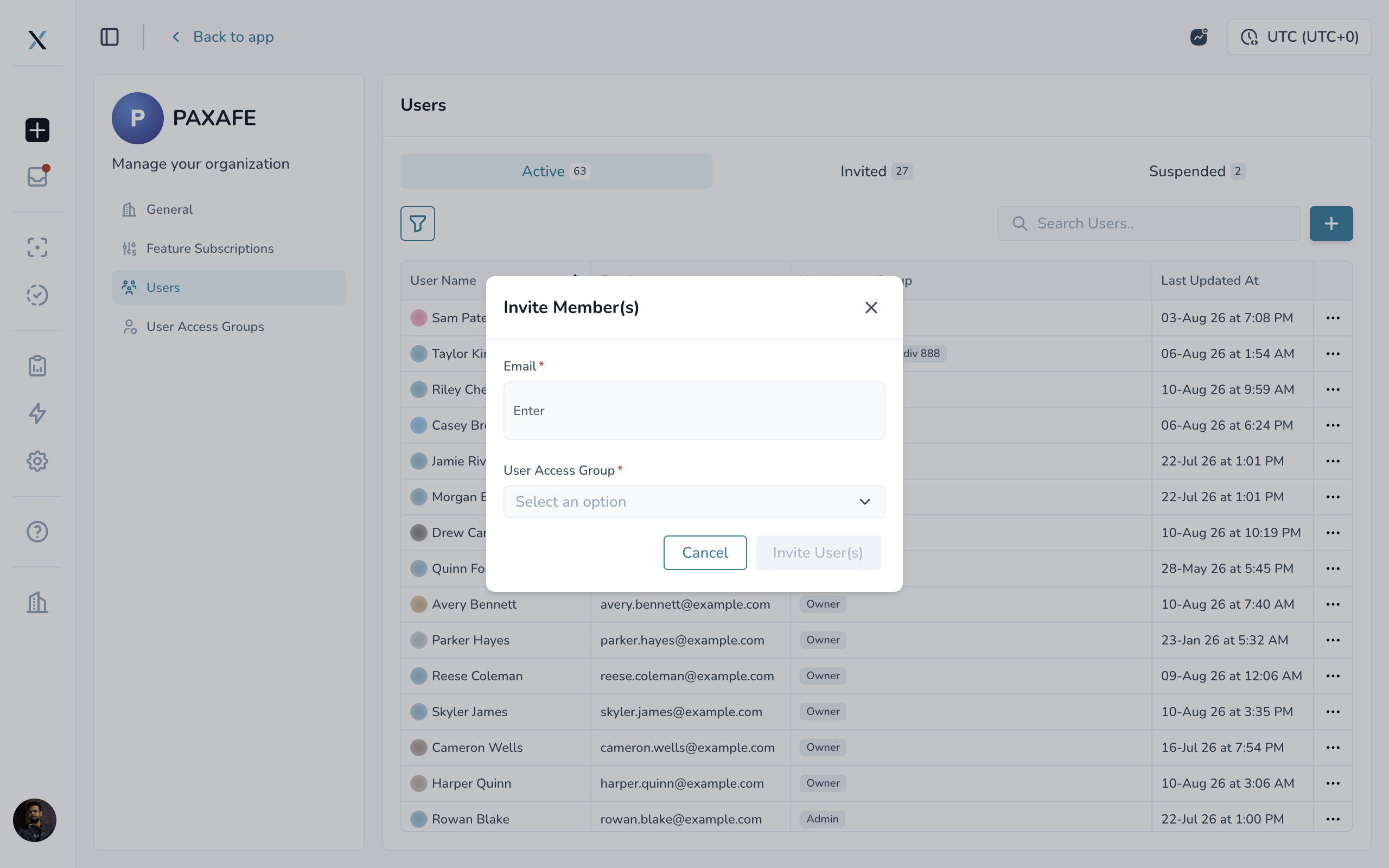
To add someone to CONTXT, enter one or more email addresses and select the User Access Group they should join.
Because groups now determine access, permissions are established as soon as the invitation is created.
Manage existing users
From the Active list, Owners can:
Move a user to another group
Suspend a user
Search by name or email
Filter users by group
From the Invited list, you can resend or revoke an invitation.
Before moving or suspending someone, CONTXT checks for outstanding Product Release reviews or active workflow responsibilities and identifies anything that must be reassigned.
Suspending a user does not delete their data or activity history. Suspension also applies only to the organization you're currently managing, so the same person can remain active in other organizations they belong to.
When a suspended user is reactivated, you choose which User Access Group they should return to.
Why it matters
Onboarding, offboarding, and access reviews become easier to manage.
You can quickly see who's active, who's still waiting to accept an invitation, and who's been suspended, while CONTXT helps ensure important reviews and workflow responsibilities aren't left without an owner.
Learn more about Org Settings
See Managing Your Organization in CONTXT for a complete guide to the General, Feature Subscriptions, Users, and Activity History areas.
🚀 Availability
Org Settings and User Access Groups are automatically available to all organizations with CONTXT v2.13. No setup is required.
Your existing users will be migrated into system default groups based on their current access:
Organization creators will become Owners
Existing admins will become Admins
Other users will be placed into Admin or View-only based on their previous access
Existing users will retain appropriate access, and no action is required when v2.13 is released.
After release, organization Owners can access Org Settings from the user menu and create custom User Access Groups whenever additional access control is needed.
💡 Tips & Best Practices
Getting the most from User Access Groups
Keep at least two Owners. This helps ensure organization-level changes aren't blocked when one Owner is unavailable.
Build groups around how your teams work. Consider separate groups for regions, functions, partners, or operational responsibilities.
Use tags to control data scope. This helps users see the shipments and information most relevant to their work without unnecessary visibility.
Use Advanced tag scoping when needed. A team can maintain visibility across the wider network while only editing or reviewing records within its own area of responsibility.
Have users sign out and back in after access changes. Permission updates take effect the next time they sign in.
Getting the most from Org Settings
Review Feature Subscriptions before designing a new workflow so you know which capabilities are already enabled for your team.
Export Activity History before audits or periodic access reviews for a record of organization-level changes.