Configuring Tags
Last updated: May 14, 2026
Summary
Tags are reusable labels your organization defines to categorize shipments and related records. Tags help teams organize, filter, monitor, and triage shipments consistently across workflows.
Tags can be:
Grouped for easier browsing
Reused across many shipments
Applied automatically or manually
Used with filters and saved views
What Tags Are
A tag is a named label attached to shipments and, depending on your configuration, related setup profiles. Tags belong to your organization and are intended to provide a shared operational vocabulary across teams.
Examples might include:
Clinical
Commercial
High Priority
LATAM
EU Distribution
Tags may be organized into groups such as:
Program
Geography
Priority
Customer
Tags that are not assigned to a group appear as ungrouped.
Tags can also include colors to improve visibility in shipment lists, filters, and dashboards.
Why Use Tags
Tags help teams quickly organize and monitor shipments without changing integrations or core shipment identifiers.
Filtering and Saved Views
Use tags to narrow shipment lists without relying only on:
Order numbers
Tracking numbers
Free-text search
Teams can build saved operational views around commonly used tags.
Shared Operational Language
Tags create a consistent vocabulary across:
Operations
Logistics
Quality
Management
For example:
Clinical vs Commercial
Region-specific programs
Priority classifications
Standardized Shipment Setup
Tags can automatically flow from:
Product profiles
Lane profiles
This helps maintain consistent categorization across shipments while still allowing shipment-level adjustments where needed.
Reporting and Triage
Many organizations use tags as a lightweight way to:
Monitor live traffic
Segment completed shipments
Prioritize operational review
Support escalations
Best Practices for Tag Governance
Define Group Structures First
Before creating many tags, align on group categories such as:
Program
Geography
Product type
Clinical vs Commercial
This helps avoid large numbers of ungrouped or duplicate tags.
Use Simple, Stable Labels
Prefer:
Short labels
Common operational terminology
Names teams recognize during escalations and live operations
Use Profile-Level Tags for Standardization
When tags consistently apply to a:
Lane
Product
Program
prefer configuring them at the profile level rather than manually assigning them shipment-by-shipment.
Treat Delete as Destructive
Deleting a tag removes it organization-wide.
Before deleting:
Confirm the tag is truly deprecated
Communicate changes internally if needed
Who Can Configure and Use Tags
Administrators
Administrators typically manage organization-wide tagging configuration, including:
Creating tags
Editing tags
Deleting tags
Organizing groups
Reorganizing tags between groups
Members
Members typically:
Browse available tags
Apply tags to shipments
Remove tags where permitted
Access depends on your organization’s permission model.
Access Visibility
Your organization controls whether users can access:
Tag management
Tag configuration
Tag assignment interfaces
If you do not see tagging features, contact your CONTXT administrator to confirm:
Your role permissions
Your access group capabilities
How to Create and Organize Tags
Create a Tag
Administrators can create tags from the organization’s tag management area.
When creating a tag:
Enter a tag name
Optionally assign it to a group
Select a color if supported
When a new tag is created and assigned to an existing lane, the tag will only apply to shipments created moving forward. Previously created shipments are not retroactively updated with the new tag.
Validation Rules
The platform prevents:
Blank tag names
Duplicate tag names
Duplicate group names within the same organization
This helps reduce accidental naming collisions.
Search Existing Tags Before Creating New Ones
Organizations with large tag libraries can use search to:
Find existing tags
Avoid duplicates
Reuse established naming conventions
Grouping and Organization
Administrators can:
Move tags between groups
Ungroup tags
Reorganize categories over time
This helps maintain a cleaner and more manageable tagging structure.
Updating and Deleting Tags
Updating an Existing Tag
If a tag is on an existing shipment, the name will update on those past/current shipments.
Deleting Tags
Deleting a tag is organization-wide and impacts all associated records.
Deleting a tag removes it from:
Shipments
Profiles
Related records
It does not remove the tag from only a single shipment.
Best Practice
If you only want to remove a tag from one shipment:
Remove the tag from that shipment directly
Do not delete the organization-wide tag
How Tags Get Applied to Shipments
Automatic Carry-Down
In many configurations, tags automatically apply from:
Lane profiles
Product profiles
This helps maintain consistent shipment categorization across standardized workflows.
Manual Assignment
Users may also manually add or remove tags during:
Shipment creation
Shipment editing
Shipment details review
Typical workflow:
Open the tags selector
Search the tag catalog
Select one or more tags
Remove tags using the clear/remove option
Multiple tags are typically supported unless restricted by your organization’s process.
Tags in Temperature Release
Temperature Release workflows may allow users to:
Add tags
Remove tags
Modify tags
depending on:
Organization rules
Workflow permissions
Quality process configuration
Tag Automations
Some organizations configure workflows that automatically assign tags based on:
Regions
Shipment attributes
Lane attributes
Standardized naming rules
Availability depends on your organization’s rollout and automation configuration.
Frequently Asked Questions
I Get an Error That a Tag or Group Already Exists
Someone in your organization has already created that name.
Try:
Searching the existing tag library
Reusing the current tag
Renaming after internal alignment
I Do Not See Any Tag Management Screens
Your access group may not include tagging capabilities.
Contact your CONTXT administrator to verify:
Role permissions
Feature access
A Shipment Is Missing Expected Tags
Verify:
The selected lane
The selected product
Integration behavior
Workflow automation rules
If tags still appear missing, contact support with:
Approximate shipment time
Shipment reference
Relevant screenshots if available
How to Create a New Tag
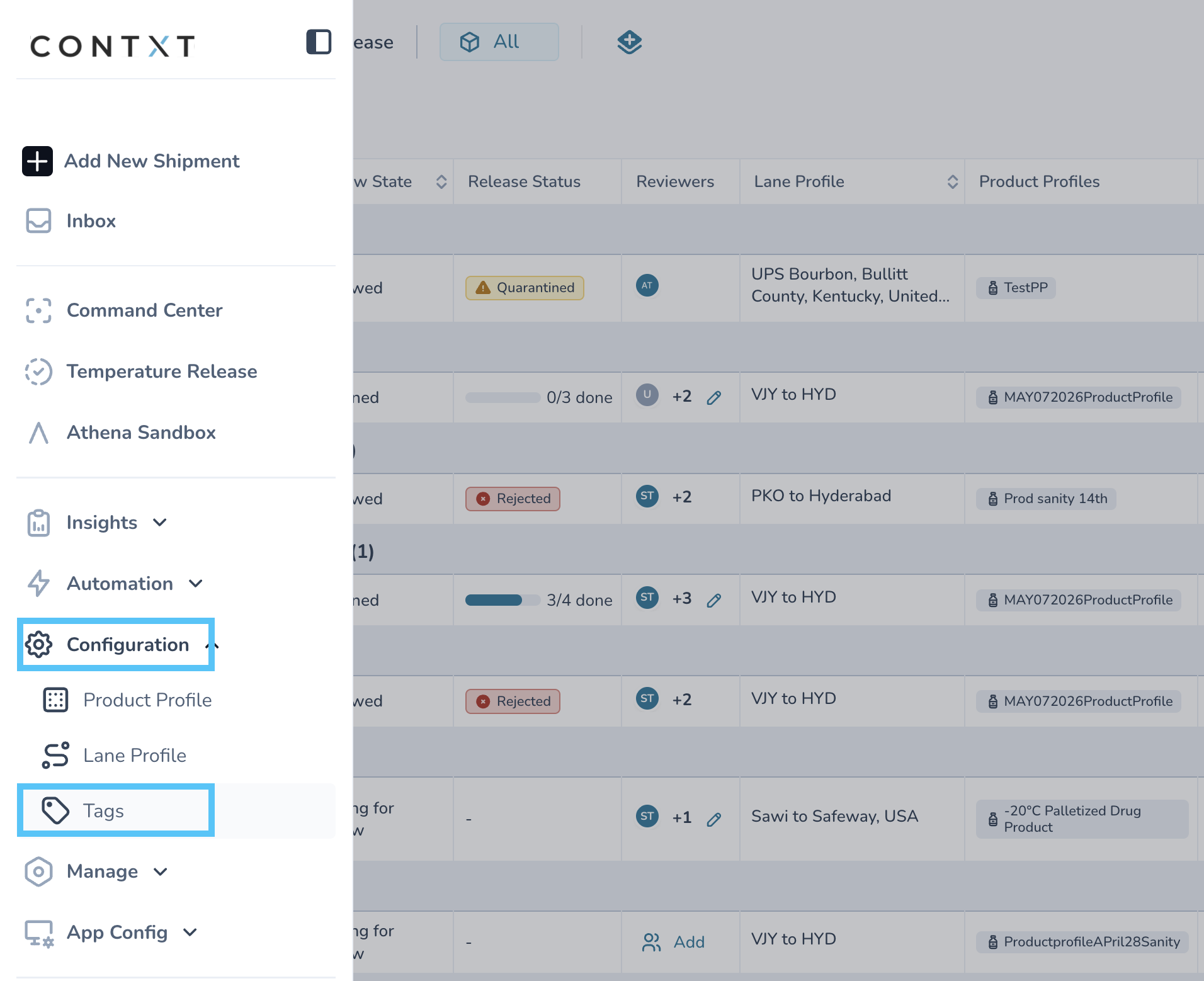
To Manage Tags, first Navigate to Configuration in the main menu, then select Tags.
Create Tag Groups
Select the New Group button on the top of the screen.
Enter the name of the group, select a color to represent for tags in that group, and then click the check mark button to create the group.

Create Tags
Select the + New Tag Button on the top right of the screen.

Enter the name of the Tag and Select the Color to display with the tag. Then click on the check mark icon on the right of the screen.

Edit Tags
To edit a tag or a group click on the icon with three dots on to the right of the appropriate row item.

Click edit tag, or edit group (depending on which you select) to update the Tag
To Move a tag to a Group, select Move to Group, and then select the appropriate group.
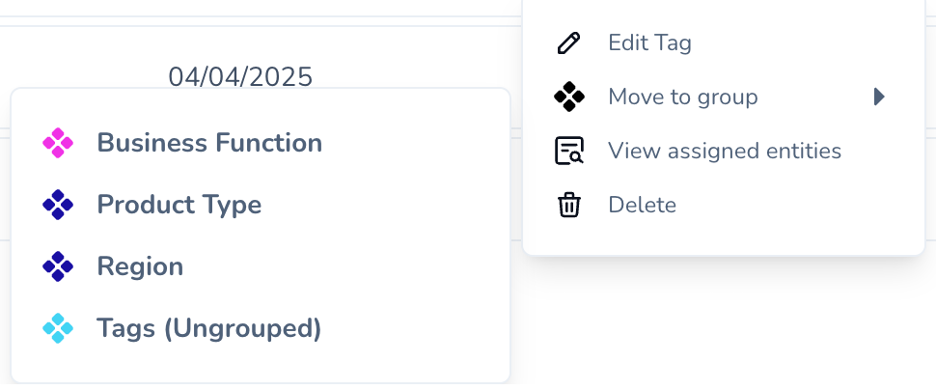
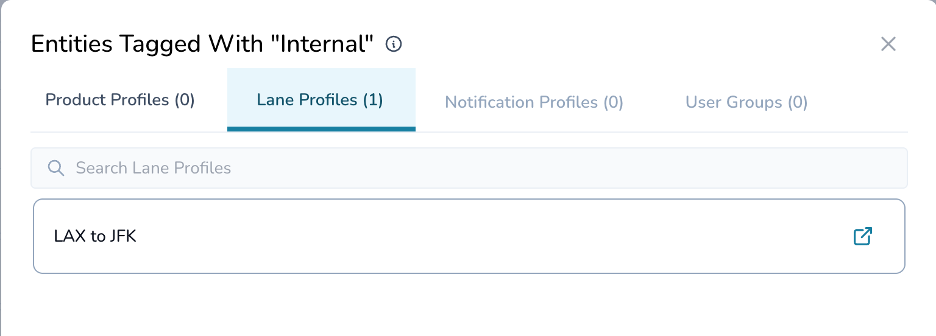
By clicking on View Assigned entitites, you can see the Product Profiles, Lane Profiles, Notification Profiles, and User Groups that include this tag.
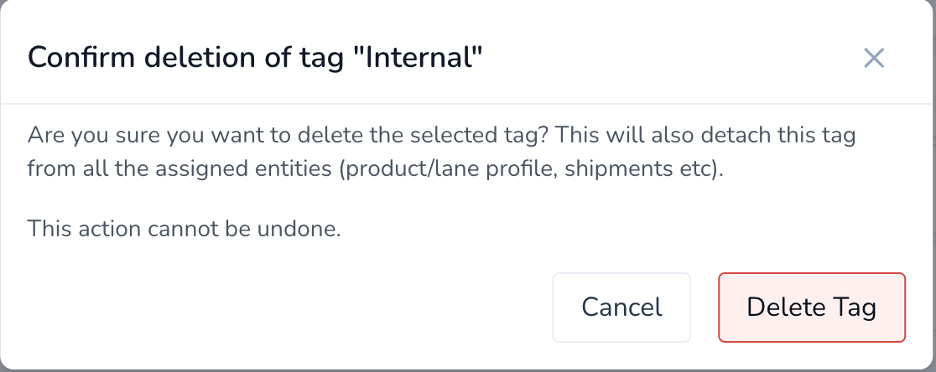
Click Delete to remove the Tag or the Group you selected. You will be ask to confirm. Please note, this will detach the tag from all the assigned entities.
Support
For assistance with:
Tag configuration
Tag governance
Organization-wide tagging strategy
contact:
support@paxafe.com
This is the place to start with creating, editing, and managing tags.