Understanding and Managing User Access Groups
Last updated: August 31, 2026
What Are User Access Groups?
A User Access Group determines a user's access within your CONTXT organization.
The group controls:
Which areas of CONTXT the user can access
Whether they can view, edit, or review information
Which shipments, lanes, and other data they can see based on tags
Every user belongs to one User Access Group within an organization.
This makes access easier to manage. Instead of updating individual permissions one person at a time, you can update the group and apply the change to everyone in it.
If a group does not have access to a feature, that feature will not appear in navigation for its members. If a group has view-only access, users can see the information but cannot make changes.
Access is specific to each organization
If a user belongs to more than one organization in CONTXT, their access is managed separately in each one.
For example, someone could be an Admin in one organization and belong to a custom View-only group in another.
The Three System Default Groups
Every organization starts with three system default groups:
Owner
Admin
View-only
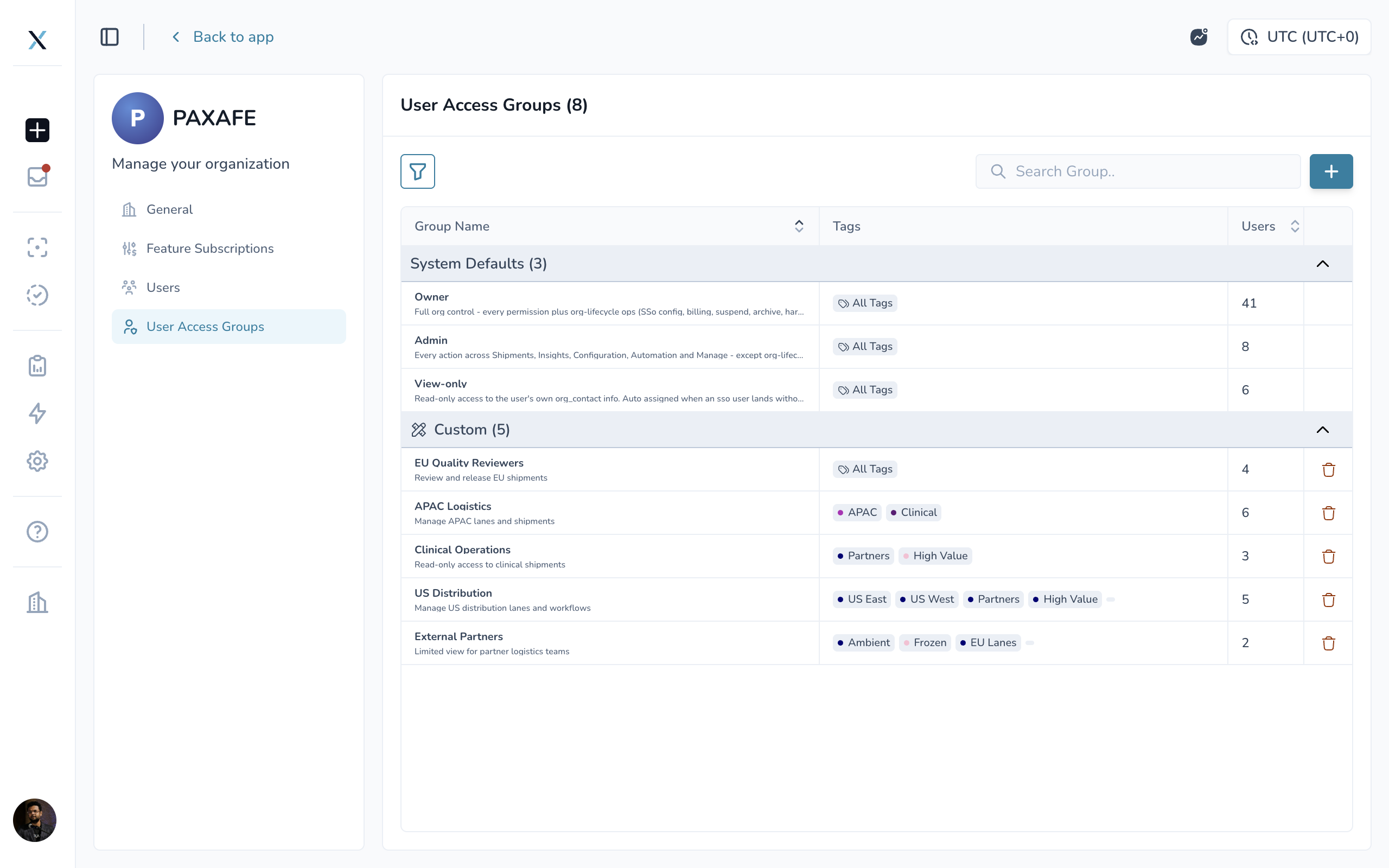
These groups appear under System Defaults at the top of the User Access Groups page.
Owner
Owners have full access to every feature available to the organization.
They are also the only users who can access Org Settings, including:
Organization profile
Feature Subscriptions
Users
User Access Groups
Owners have access to All Tags.
Group | Access to Features | Access to Org Settings | Tag Scope |
|---|---|---|---|
Owner | Full access to every feature available to your organization | Yes. The only group that can open Org Settings: organization profile, Feature Subscriptions, Users, and User Access Groups | All Tags |
Admin | View, edit, and review on every feature available to your organization | No access | All Tags |
View-only | View-only on every feature available to your organization | No access | All Tags |
Admin
Admins can view, edit, and review information across every feature available to the organization including reviewing Product Release records.
They cannot access Org Settings.
Admins also have access to All Tags.
View-only
View-only users can see the same available features and data as Admins but cannot make changes.
They cannot access Org Settings.
View-only users also have access to All Tags.
Managing default groups
System default groups cannot be:
Renamed
Edited
Deleted
Reconfigured
You can only change which users belong to them.
Creating a Custom Group
Custom groups are useful when the default groups provide more access than a team needs.
For example, you might create separate groups for:
Regional teams
Quality teams
External partners
Contract manufacturers
Operations teams
Teams that need different review or edit permissions
To create a custom group:
Open the user menu and select Organization Settings.
Select User Access Groups.
Click + to create a new group.
Enter a unique name and description.
Configure permissions under Access & Permissions.
Select the tags the group should have access to, or enable All Tags.
Open the group's Users tab and add the appropriate users.
Each user can belong to only one User Access Group within an organization.
If you add someone who already belongs to another group, CONTXT moves them into the new group automatically.
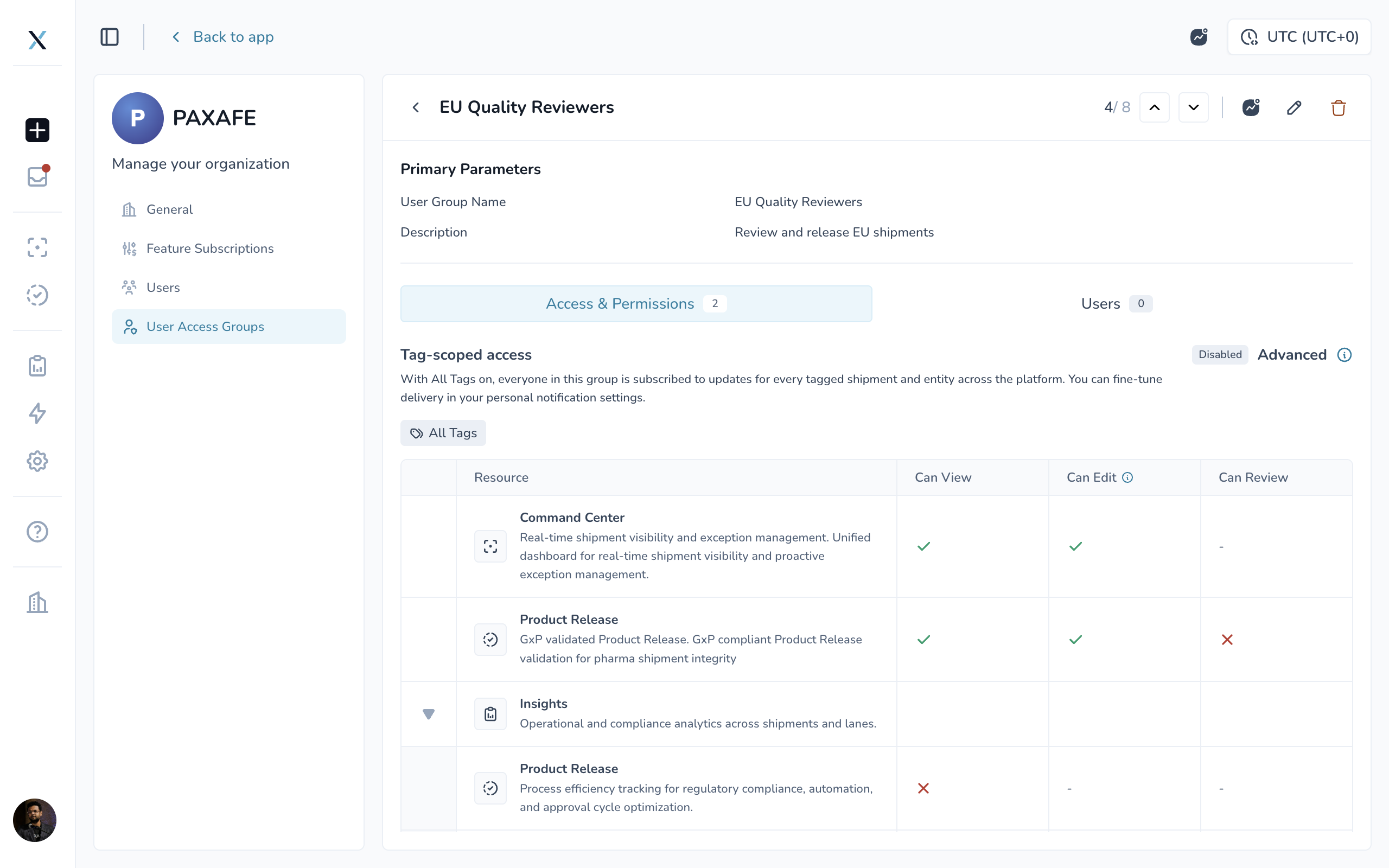
Understanding Permissions
Custom groups can be given different levels of access across CONTXT.
Permission | What it grants |
|---|---|
Can View | The member can see the feature and its data. Without this, the feature is hidden from navigation. |
Can Edit | The member can make changes in the feature. |
Can Review | The member can approve Product Release records. |
Permissions can be configured for:
Command Center
Product Release
Lane Performance
Automation Workflows
Configuration
Available permission levels include:
Can View
Users can open the feature and see the data available to their group.
If Can View is not enabled, the feature is hidden from navigation.
Can Edit
Users can make changes within the feature.
Enabling Can Edit automatically enables Can View.
Can Review
Available for Product Release, Can Review allows users to approve Product Release records.
Enabling Can Review also enables Can View and Can Edit.
Insight dashboards
Insight dashboards are always view-only and follow the access settings of their associated module. They do not require separate permission settings.
You can also use a category-level toggle to enable or disable an entire area of access at once.
Using Tags to Control Data Access
Permissions determine what someone can do.
Tags determine which data they can do it with.
You can give a group access to:
All Tags, providing organization-wide visibility
Specific tags, limiting users to relevant data
For example, a regional team could be limited to shipments and lanes tagged for its region.
When specific tags are selected, they appear in the group's settings so you can add or remove them as your needs change.
Tags and notifications
The group's tag scope also helps determine which tagged entities its members are subscribed to for notifications.
Each user can still manage how those notifications are delivered through their personal notification settings.
For more information about creating and using tags, see Configuring Tags in the Related Articles section.
Advanced Tag Scoping
Some teams need to see a wider set of data than they are allowed to change.
For those situations, enable Advanced tag scoping.
Advanced scoping lets you set narrower tag access for Can Edit and Can Review permissions within Command Center and Product Release.
For example, a regional quality team could:
View the broader network
Edit shipments for its own region
Review Product Release records only for its own region
This provides broader visibility without giving users unnecessary edit or review access.
Where you do not define a narrower Advanced scope, the group's standard tag settings apply.
Managing Who Is in a Group
Each User Access Group includes a Users tab.
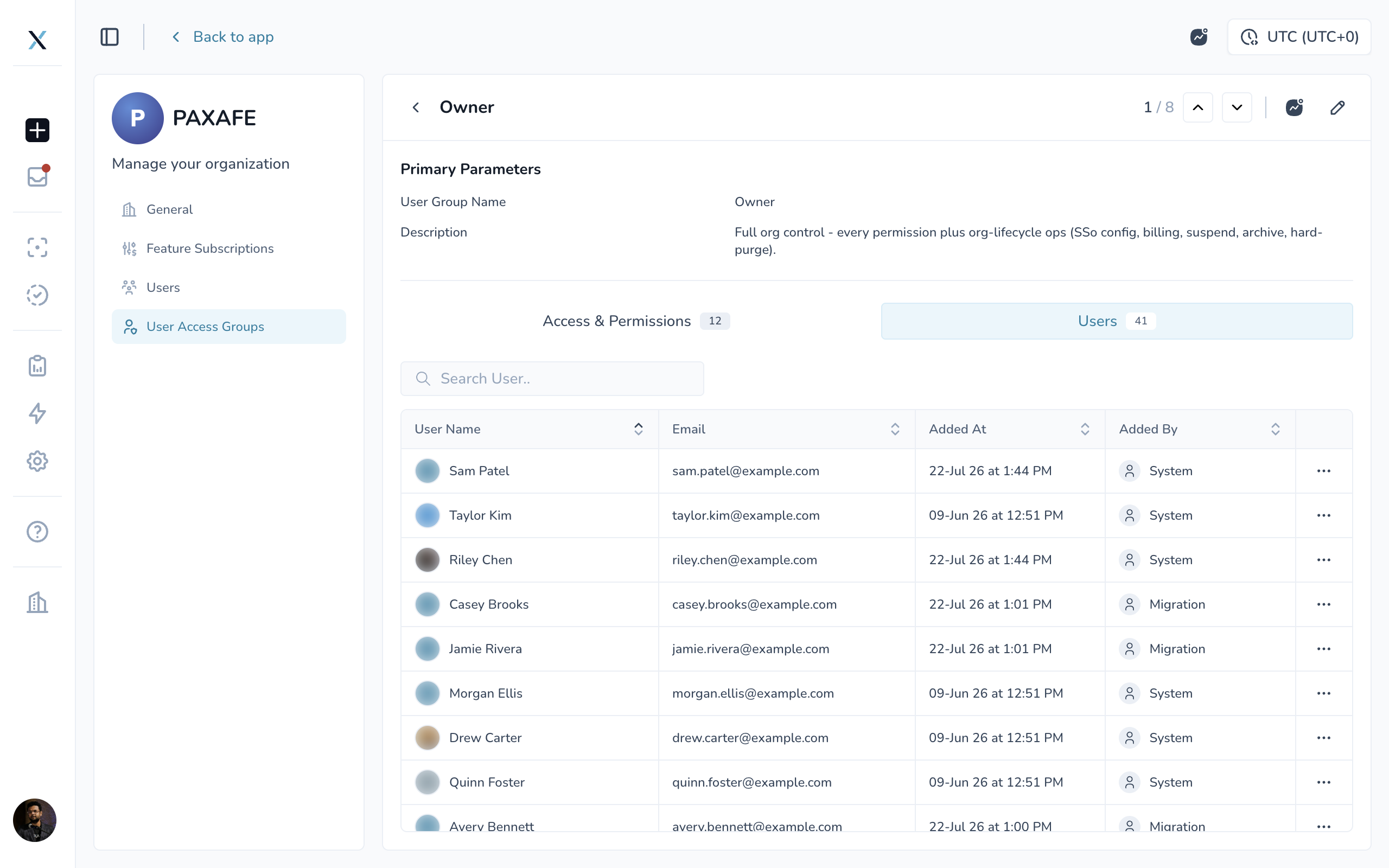
From here, you can see:
Who belongs to the group
Their email address
When they were added
Who added them
Use Search to find a user or select Add User to move someone into the group.
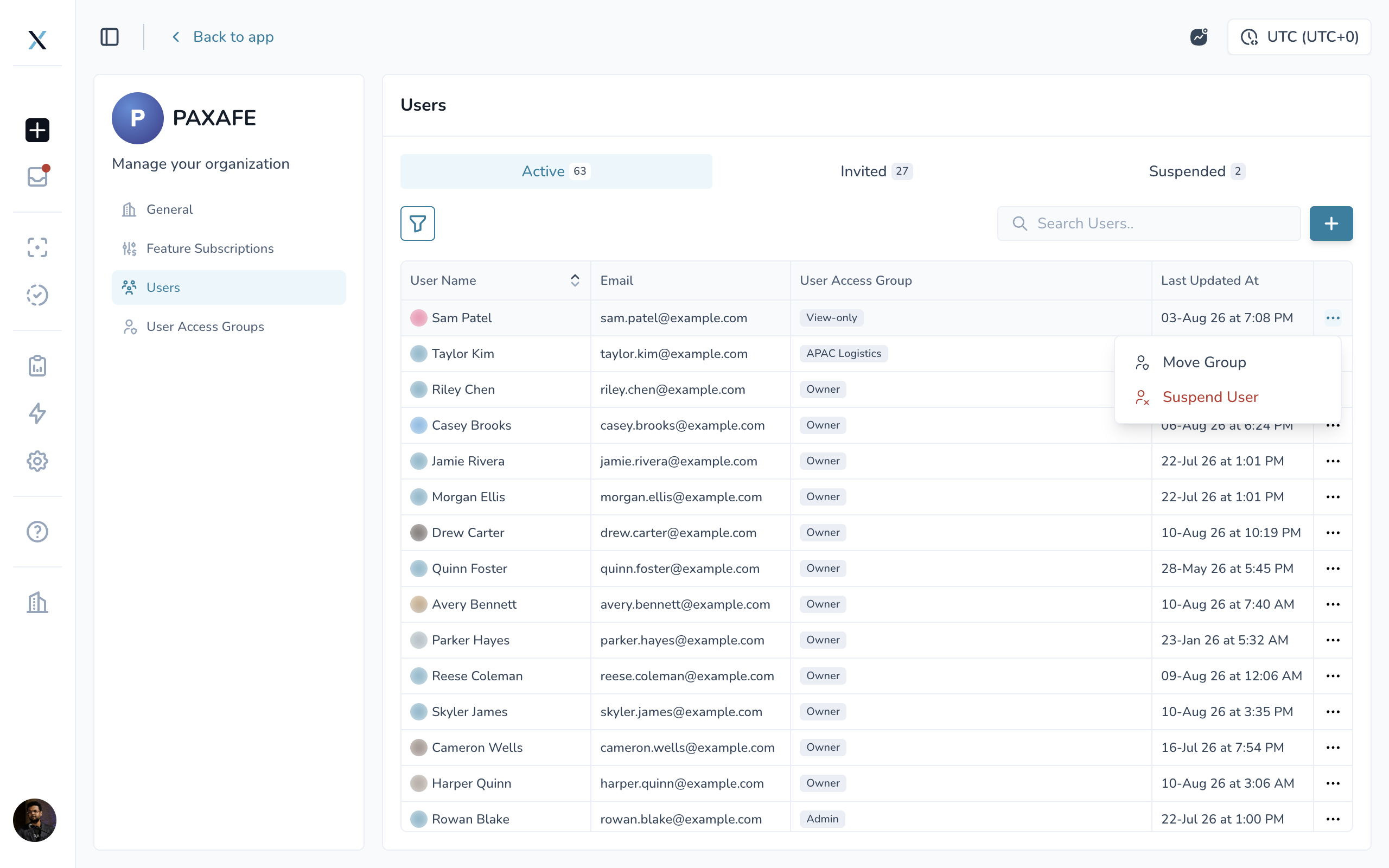
Because users can belong to only one group at a time, adding someone to a new group automatically removes them from their previous group.
You can also change a user's group from the main Users tab in Org Settings.
Deleting a Custom Group
Only custom User Access Groups can be deleted. System default groups cannot be removed.
If the group you are deleting still contains users, CONTXT asks what should happen to them before the group is deleted.
You can either:
Move the users to another User Access Group
Suspend the users
Moving users lets them continue working under the permissions of the new group.
Suspending users removes their access to the organization while keeping their account information and activity history intact.
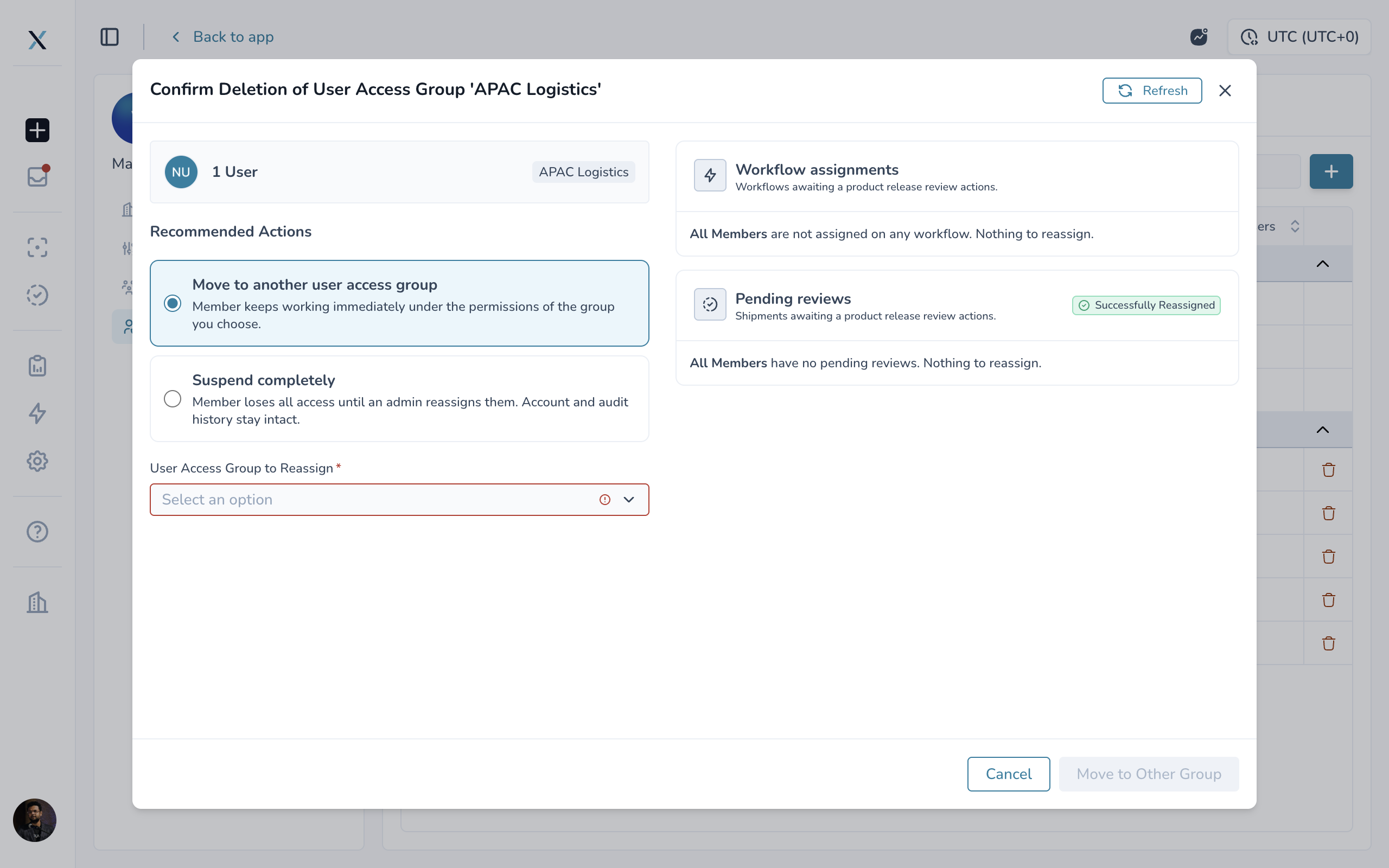
Outstanding responsibilities
Before the group is deleted, CONTXT checks whether its users still have responsibilities that need to be reassigned.
This may include:
Pending Product Release reviews
Product Release review responsibilities within active workflows
If anything needs attention, CONTXT identifies it so you can reassign the work before completing the change.
Owner safeguard
Your organization must always have at least one Owner.
The final member of the Owner group cannot be moved or suspended.
Best Practices
Keep at least two Owners
Only Owners can access Org Settings.
Keeping at least two Owners helps ensure someone can always manage organization-level settings and access, even when another Owner is unavailable.
Build groups around how your teams work
Create groups based on meaningful access needs rather than individual users.
For example, you might organize groups by:
Region
Function
Partner
Customer
Operational responsibility
This makes access easier to manage as users join, leave, or change responsibilities.
Use tags to limit unnecessary visibility
Use tag-based access when users only need to see a portion of your organization's data.
This can be especially useful for regional teams and external partners.
Use Advanced scoping when visibility and responsibility are different
If a team should see a larger portion of the network but only act on its own shipments or region, use Advanced tag scoping to limit Edit and Review permissions.
Ask users to sign in again after permission changes
Permission updates take effect the next time the user signs in.
If someone needs updated access immediately, ask them to sign out and sign back in.
Common Questions
A user can't see a shipment.
Check the user's User Access Group.
Confirm that:
The group has Can View access to the appropriate feature.
The shipment's tags are included in the group's tag scope.
If the group does not have Can View, the feature will not appear for the user.
If the shipment's tags are outside the group's scope, the shipment will not be visible.
I can't remove or suspend the last Owner.
This is expected.
Every organization must have at least one Owner at all times.
Add another user to the Owner group before moving or suspending the current final Owner.
A permission change hasn't taken effect.
Permission changes apply the next time the user signs in.
Ask the user to sign out and sign back in to pick up the updated permissions.
I don't see Org Settings.
Only members of the Owner group can access Org Settings.
If you are an Admin, View-only user, or member of a custom group, contact an Owner in your organization for help making the change or updating your access.
Can a user belong to more than one User Access Group?
Not within the same organization.
Each user belongs to one User Access Group per organization.
If they belong to multiple CONTXT organizations, their group can be different in each organization.
Related Articles
Org Settings: Managing Your Organization. The companion article to this one, covering the General, Feature Subscriptions, and Users tabs.