Changelog: CONTXT v1.2
Last updated: December 9, 2025
Released November 28, 2025
We're thrilled to introduce a completely redesigned shipment list experience that puts you in control. Command Center v1.2 gives you powerful customization tools, smarter organization, and faster access to the shipments that matter most.
🎯 What's New
Complete List View Redesign ⭐
We've unified your shipment experience into one seamless list view that combines Live and Completed shipments, eliminating the need to switch between pages.
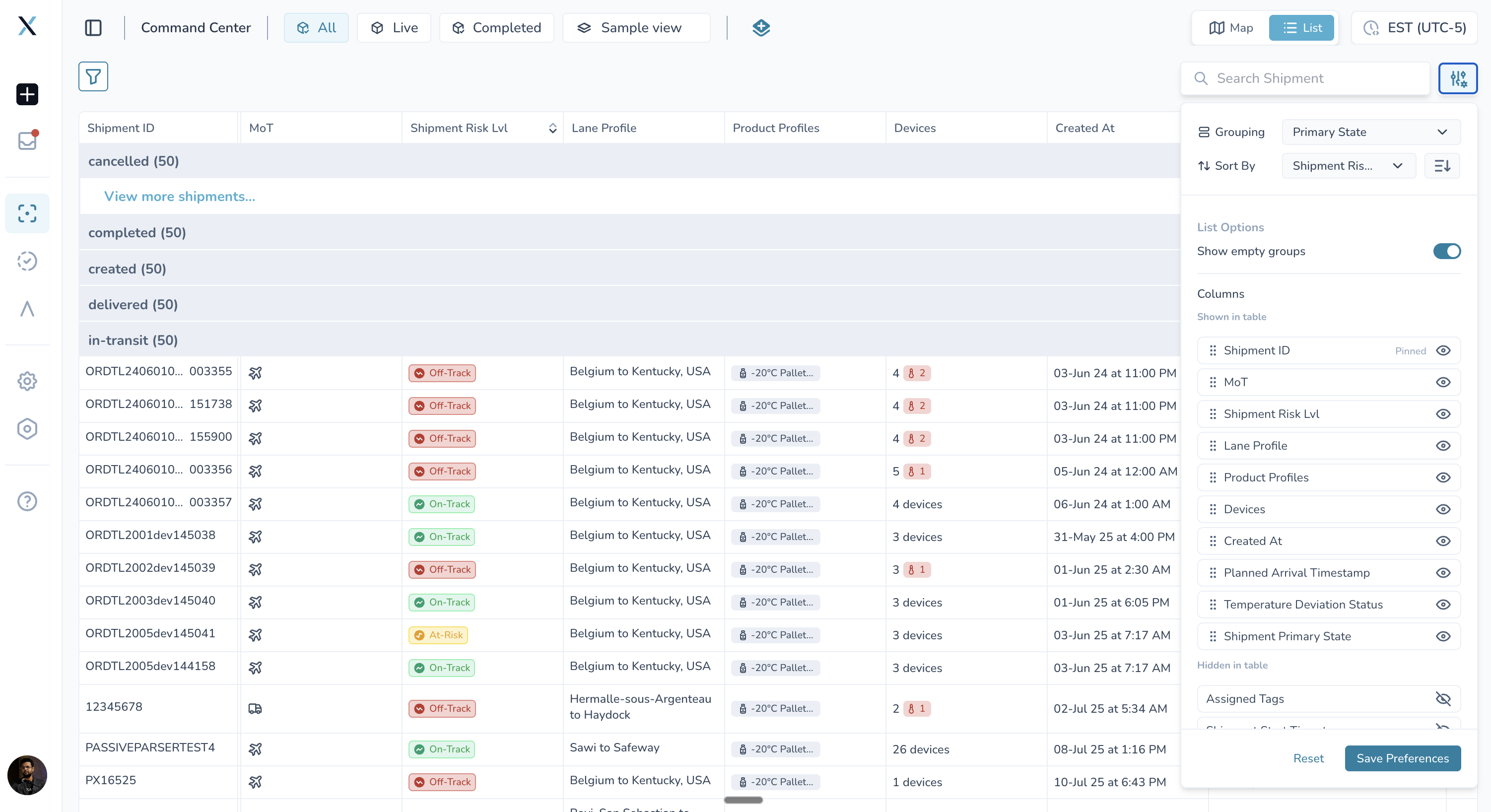
Customizable Display with Column Configuration
You now have complete control over how your shipment data appears:
Enable or disable any column - Show only the information you need. Hide columns like "Start Time" or "Actual Transit Time" if they're not relevant to your workflow
Reorder columns - Drag and drop columns to arrange them in your preferred sequence. Need Shipment ID first? Done. Want Lane before MoT? Easy.
Adjust column width - Resize columns to view full data without truncation. See complete lane names, product descriptions, and tag information
Always-visible Shipment ID - The Shipment ID column stays pinned to the left as you scroll, so you always know which shipment you're viewing
Why this matters: Stop wasting time scrolling or adjusting views. Build the exact list layout that matches your workflow, whether you're monitoring high-risk shipments, tracking by lane, or managing by product type.
Smart Grouping to Organize Your Shipments
Group shipments by any dimension that makes sense for your operations:
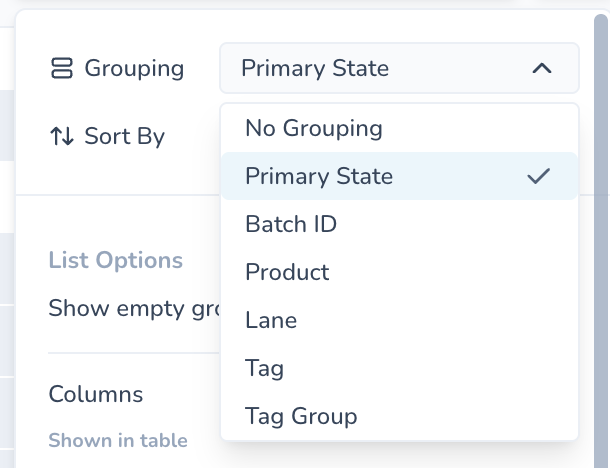
By Status - See shipments organized by In-Transit, At-Destination, Created, Delivered, or Completed states
By Lane - View all shipments for specific routes in one section
By Product - Group by product type to manage pharmaceutical categories separately
By Batch ID - Monitor all shipments from the same batch together
By Tag or Tag Group - Organize by custom tags like "High Risk," "Premium Customer," or "Regulatory Classification"
Each group displays a count of shipments and expands/collapses with one click. When you group by a dimension, that field is automatically hidden from the main column view to reduce clutter.
Why this matters: Work the way your operations team naturally thinks about shipments. No more manual filtering or hunting through endless lists. Your data organizes itself.
Three Built-In System Views
Start with pre-configured views designed for common workflows:
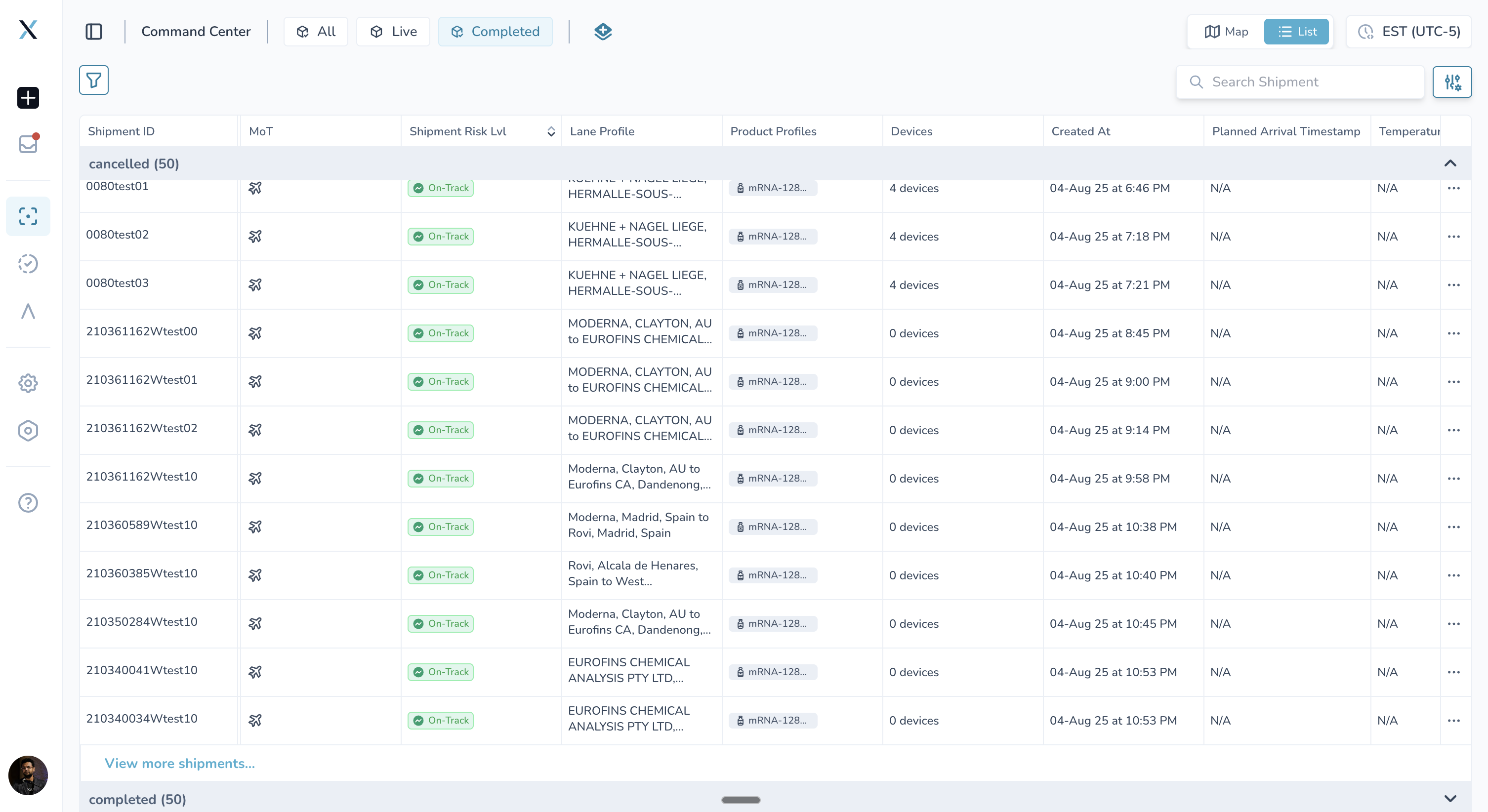
All - Every shipment in your system, including cancelled and completed shipments. Full visibility for compliance and archival purposes
Live - Active shipments only (Created, At-Origin, In-Transit, At-Destination, Delivered). Perfect for daily operations and real-time monitoring
Completed - Completed shipments only. Ideal for audits, reviews, and historical analysis
Set any view as your default, and it becomes your starting point each time you log in.
Unified Search Across All Shipments
Search now works across both Live and Completed shipments simultaneously.
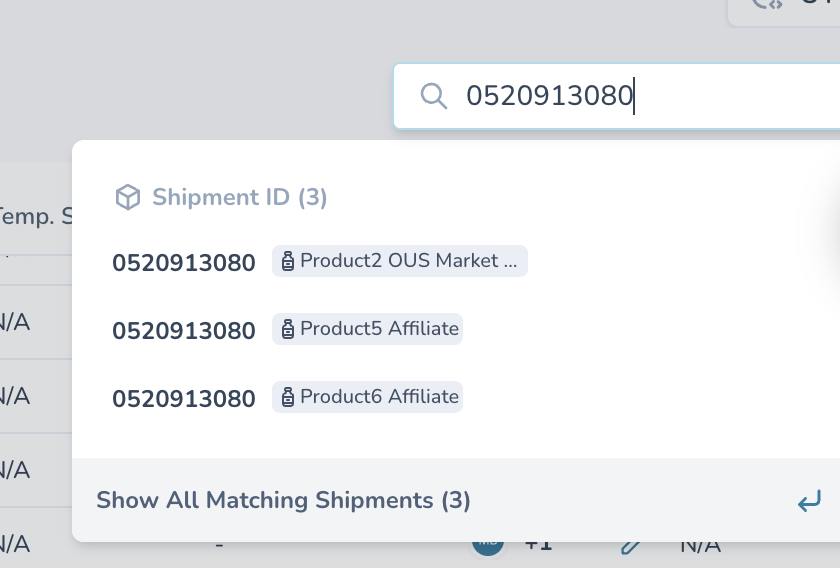
No more switching between pages to find a specific shipment.
One search bar, complete results - Type a Shipment ID, lane name, or product and find it instantly, regardless of shipment status
Faster lookups - Reduce clicks and page loads by getting all results in one place
Smarter Sorting Within Groups
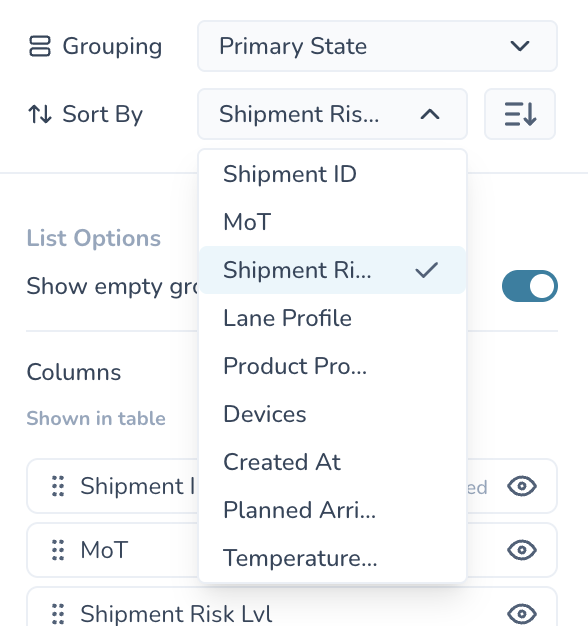
When you group shipments, we automatically sort them by what matters most:
Live Risk Status prioritization - Off-Track shipments appear first (most urgent), followed by At-Risk, then On-Track
Time-based sorting - Soonest planned arrivals, oldest pending reviews, or newest shipments—depending on your view
Custom sort options - Override defaults by selecting your own sort column and direction
Intelligent Pagination for Large Datasets
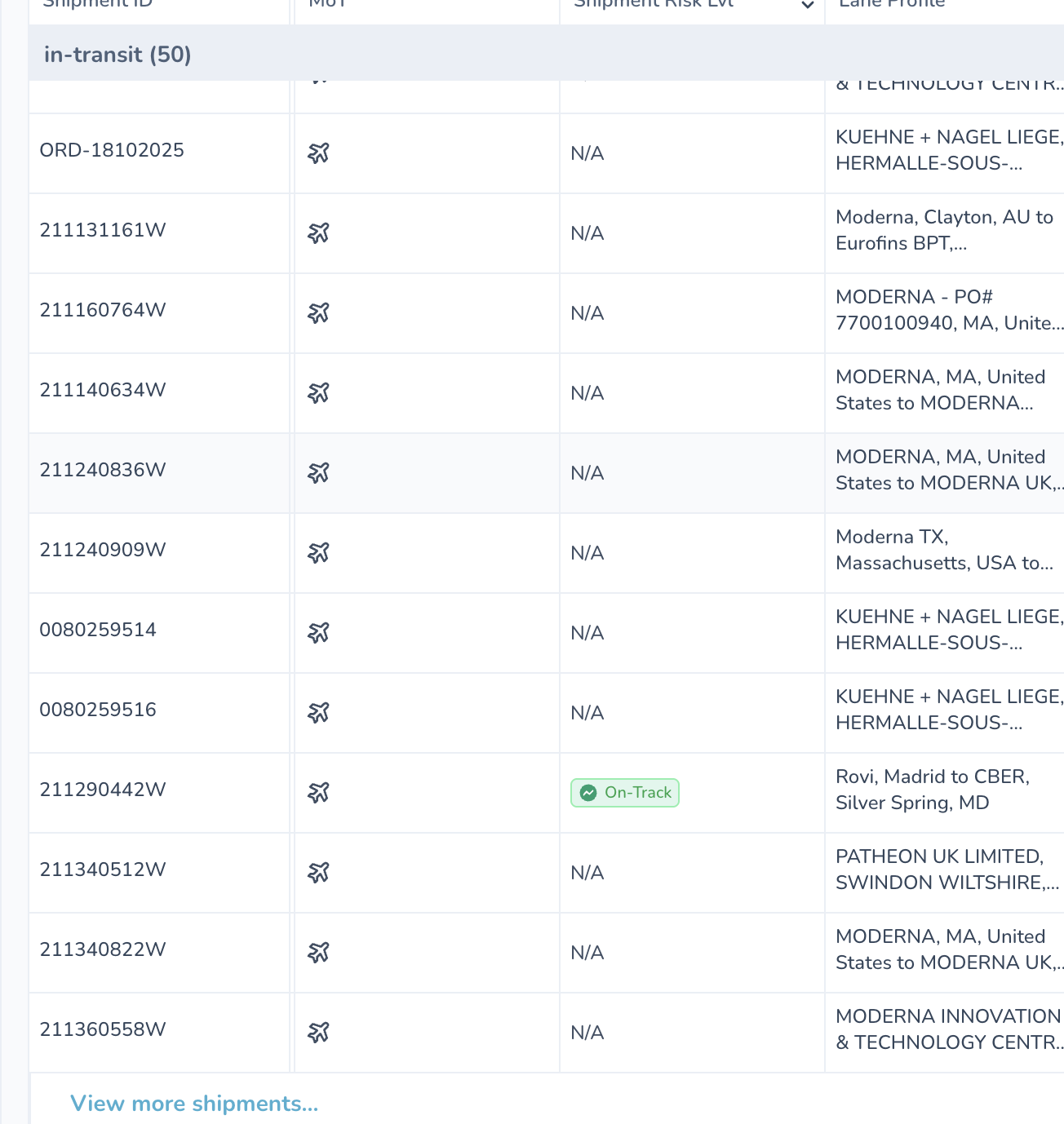
The list loads fast, even with thousands of shipments:
Initial load shows 50 shipments per group - See results immediately without waiting for massive downloads
"View more shipments" at the bottom loads additional shipments - Expand any group to see more results as needed
Group counts show total availability - The count badge tells you exactly how many shipments are in each group, even if only 50 are displayed initially
Why this matters: Stop waiting for pages to load. Your list stays responsive and snappy, whether you're tracking 100 or 10,000 shipments.
Save Your Preferences
Build your perfect list once, and it sticks:
Saved column configuration - Your column visibility, order, and widths persist across sessions
Saved grouping preference - Default grouping dimension is remembered
Independent preferences for each table - Command Center and Temperature Release tables maintain separate settings
Reset anytime - One click returns to system defaults if you want to start over
🔄 How Your Existing Views Are Affected
Good news: All views you've created in Live or Completed shipment lists are preserved. They're now available in the unified Command Center Shipments list. If you notice any duplicate views from merging Live and Completed, feel free to remove or consolidate them.
What changed:
The "Live Shipments" and "Completed Shipments" menu items are replaced with a single "Command Center Shipments" option
Both your custom and system views are now available in one place
Your selected view applies to both Map and List views consistently
🗺 Enhanced Map and Dashboard Experience
The map view now loads faster when displaying high volumes of data and is optimized to reflect your selected view (All, Live, or Completed).
Shipment hover information is richer - When you hover over a shipment on the dashboard, you now see lane names and lane tags for additional context. Understand which shipment you're viewing without clicking into details.
💡 Getting Started
Step 1: Customize Your List
Open Command Center > Shipments
Click the Display button (next to the search bar)
Toggle columns on/off to show only what you need
Drag columns to reorder them
Click Save Preferences to lock in your layout
Step 2: Choose a Grouping
In the Display menu:
Select Grouping dropdown
Choose a dimension (Status, Lane, Product, etc.)
If grouping by Tag Group, select which tag group to use (e.g., "Product Type")
Your shipments instantly reorganize
Step 3: Apply a View
Select from All, Live, or Completed views
Or choose a custom view you've created
Set as your default if you want it to load automatically next time
Best Practices
For daily operations: Start with the "Live" view and group by "Primary Status" to see what needs attention first
For compliance reviews: Use the "All" view and group by "Batch ID" to track complete shipment lifecycles
For lane management: Group by "Lane" and sort by "Live Risk Status" to prioritize high-risk routes
For dense product portfolios: Show columns for Product, Batch ID, and Tags; hide timing columns to focus on what shipped and where
🚀 Performance Improvements
Faster initial load - Pagination ensures your list appears instantly
Optimized search - Unified search across all shipments eliminates redundant queries
Responsive UI - Grouping, sorting, and column adjustments apply immediately without page refresh
🐞 Known Issues & Limitations
Column width adjustments reset when browser cache is cleared
Extremely large groups (10,000+ shipments) may take a few seconds to expand
🆘 Need Help?
Can I share my column configuration with my team? Views are currently user-specific. We're exploring team-level configurations in future releases
My search isn't finding a shipment I know exists - Verify the shipment's status. Searches across All, Live, and Completed, but filters apply only within your selected view
Questions or feedback? Submit a support ticket or share ideas through the in-app feedback tool
Thank you for using Command Center. We're committed to giving you the tools to manage your pharmaceutical logistics with precision and ease.